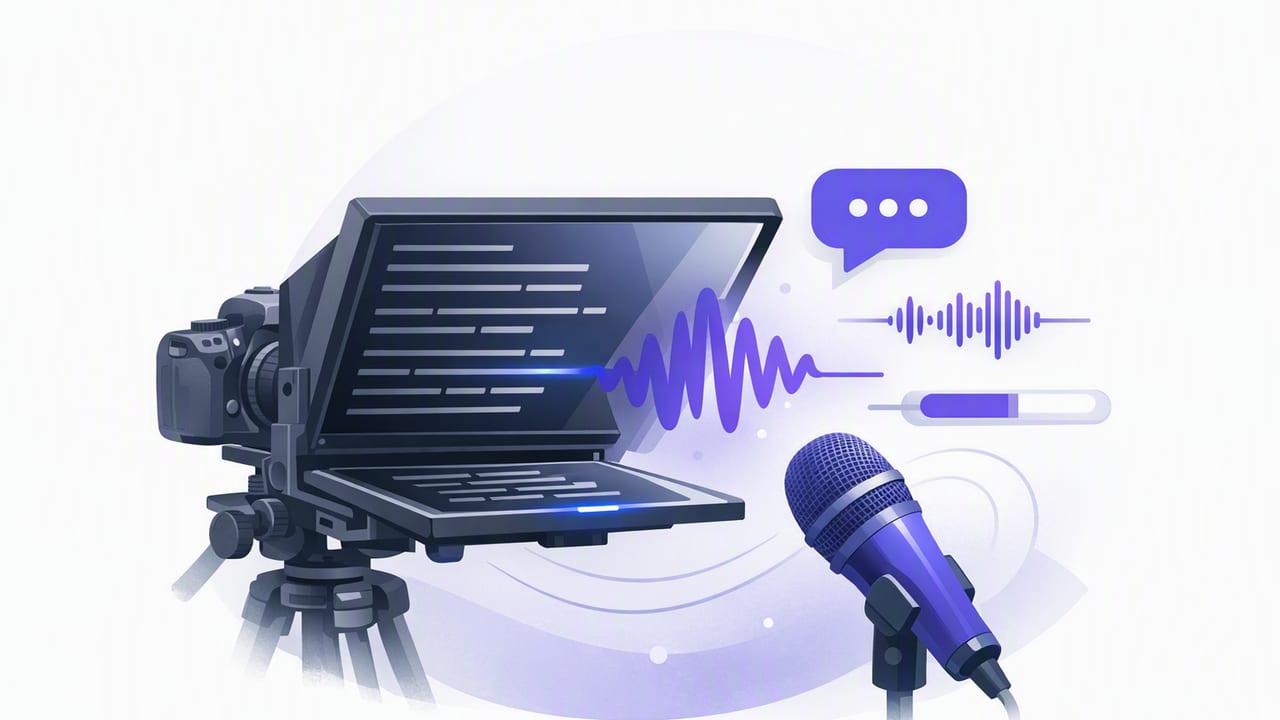
Reading from a script shouldn’t look like reading. The goal is simple: keep eye contact, hit your key points, and sound like yourself. That’s exactly why a voice tracking teleprompter has become a go-to tool for modern creators—especially when filming on iPhone.
In this guide, you’ll learn how voice-following scrolling works, when to use other scrolling modes, how to format scripts for natural delivery, and how to build a repeatable script-to-video workflow that ends with clean exports and accurate subtitles. Along the way, you’ll also see practical troubleshooting tips (because real shoots are rarely perfect).
What a voice tracking teleprompter actually does (and why it feels more natural)
A traditional teleprompter scrolls at a fixed pace. That can work, but creators don’t speak at a fixed pace—especially when adding emphasis, pausing for effect, or correcting a word. A voice tracking teleprompter listens to your speech and advances the script as you talk. In practice, that means:
- Natural pacing: pause without “losing your place.”
- Fewer retakes: recover smoothly after small stumbles.
- Better delivery: you can focus on expression, not chasing lines.
When your eyes stay near the lens and your pacing stays human, viewers interpret you as confident and credible—even if you’re reading.
Choose the right scrolling mode: voice-following vs fixed-speed vs timed
Voice tracking is powerful, but it’s not the only mode you should use. Different content formats benefit from different types of prompting.
| Mode | Best for | Pros | Watch-outs |
|---|---|---|---|
| Voice-following (voice tracking) | Talking head, tutorials, explainers, UGC-style ads | Most natural pacing, easy recovery after mistakes | Needs clear audio; can mis-follow in noisy rooms |
| Fixed-speed | Short announcements, rehearsed scripts, consistent cadence | Predictable, no mic sensitivity issues | Forces you to match the scroll; harder to pause |
| Timed scrolling | Exact-duration videos, voiceovers, matching music beats | Great for hitting a target length (e.g., 30s) | Less flexible; requires practice to nail timing |
Rule of thumb: If you’re aiming for conversational delivery, start with a voice tracking teleprompter. If you’re matching a precise runtime (like an ad slot), timed scrolling is often the safest.
Set up an iPhone teleprompter workflow that looks like eye contact
1) Place the script close to the lens
Even small eye movements are noticeable. The closer the text appears to the camera lens, the more your “reading” looks like direct eye contact. If your prompting app offers adjustable text position, size, and margins, use them to keep your gaze centered.
2) Use a stable framing and lock focus/exposure
For pro-looking iPhone video:
- Use a tripod (or a stable surface) and avoid handheld shake unless it’s a stylistic choice.
- Lock focus and exposure to prevent brightness “pumping” mid-sentence.
- If you’re recording in 4K, ensure you have enough storage and power (long takes can fill space quickly).
3) Prioritize clean audio (it improves prompting too)
Voice-following depends on hearing you clearly. Good audio isn’t just for viewers—it also helps the voice tracking teleprompter follow accurately. Consider:
- An external lav mic for talking head videos
- A directional mic if you’re filming farther from the phone
- Recording in a quieter room to reduce false triggers
Script formatting that makes voice tracking feel effortless
The biggest “teleprompter tell” is not the scrolling—it’s the writing. Scripts that are too dense, too formal, or too perfectly structured sound read-out-loud. Fixing this is mostly formatting and phrasing.
Write for the ear, not the page
- Short sentences. Aim for 8–14 words where possible.
- One idea per line. Helps your eyes return to the lens more often.
- Use contractions. “You’re” usually sounds more natural than “you are.”
- Repeat key phrases. Spoken language repeats; essays avoid it.
Add “breath marks” and emphasis
Use punctuation and spacing to create natural pauses. Many creators also add visual cues for emphasis.
[HOOK]
If your videos look like you're reading…
(you probably are)

Here’s the fix:
Use a voice tracking teleprompter.

Pause.
Look at the lens.
Then deliver the next line like you're texting a friend.
Tip: Parentheses can act like performance notes. ALL CAPS can work for emphasis, but use it sparingly so it doesn’t distract.
Dial in voice tracking: settings and habits that reduce mistakes
Voice-following can feel magical when it’s tuned correctly. Use these adjustments and habits to make it reliable.
Make the text easy to “scan”
- Increase font size until you can read comfortably without squinting.
- Increase line spacing to reduce accidental line-skips.
- Use high contrast (bright text on dark background is common).
Speak like you’re filming, not like you’re rehearsing
Voice tracking works best when your speech is clear and consistent. You don’t need to sound robotic—you just want clean articulation:
- Start each sentence with a confident first word (this helps you “lock in”).
- Pause at punctuation instead of mid-phrase.
- If you miss a word, don’t apologize—restart the sentence cleanly.
Use “chunking” to avoid long, risky takes
Instead of recording a 2–3 minute monologue, record in chunks (e.g., 15–30 seconds). Benefits:
- More energy per segment
- Easier edits
- Less pressure (and fewer spirals after mistakes)
Troubleshooting: why your voice tracking teleprompter might drift
If the script scrolls too fast, too slow, or jumps unexpectedly, it’s usually one of these causes:
1) Background noise or echo
Fans, traffic, or a reflective room can confuse voice-following. Try moving closer to the mic, changing rooms, or adding soft furnishings (curtains, rug, couch) to reduce echo.
2) Mic selection and input levels
If your iPhone is using a distant mic while you’re far from the camera, the app may pick up room noise more than your voice. If possible, use an external mic and verify it’s the active input.
3) Overly dense paragraphs
Large blocks of text make it hard to re-find your place. Break paragraphs into lines, and keep on-screen text to a manageable amount.
4) You’re paraphrasing too much
Voice tracking follows what you say, but if you constantly improvise, you can outrun the script structure. Either tighten the script to match how you naturally speak, or switch to a mode like fixed-speed for heavily rehearsed reads.
From script to subtitles: a creator workflow that saves hours
Subtitles can be the difference between a scroll-past and a watch. But cloud transcription isn’t always ideal—especially for sensitive scripts, client work, or personal content. A privacy-conscious workflow often looks like this:
- Record clean video (stable framing + clear audio).
- Trim mistakes and remove dead air.
- Generate subtitles on-device if your tool supports it (no uploading required).
- Style captions for readability: high contrast, safe margins, and consistent placement.
- Export per platform (vertical for TikTok/Reels, horizontal for YouTube, etc.).
Caption readability checklist:
- Keep lines short (ideally under ~32 characters per line)
- Avoid covering key visuals (hands, product, face)
- Use punctuation to reflect pauses—captions should “breathe”
Platform exports: simple settings that prevent quality loss
Creators often record great footage and then accidentally ruin it during export. While each platform changes over time, these principles stay consistent:
- Match aspect ratio to the platform: 9:16 for short-form vertical, 16:9 for standard YouTube.
- Keep resolution high: if you recorded in 4K, export high-quality and let the platform downscale.
- Avoid multiple re-exports: each export can introduce compression artifacts.
- Check safe zones: keep subtitles and key text away from UI overlays.
A practical checklist: your next shoot with a voice tracking teleprompter
- Script: short lines, spoken phrasing, clear pauses
- Prompting: lens-adjacent text, large font, comfortable spacing
- Audio: quiet room + external mic if possible
- Video: stable shot, locked exposure/focus, 4K if your workflow supports it
- Workflow: record in chunks, trim fast, generate subtitles, export once
Closing thought: the best teleprompter is the one that disappears
A voice tracking teleprompter is at its best when viewers don’t notice it. Your job isn’t to “perform reading.” Your job is to communicate—clearly, confidently, and with eye contact that builds trust.
If you’re looking for an iPhone teleprompter that combines voice-following with on-device subtitles, 4K recording, and a privacy-first approach, apps like CueCam are designed around that kind of creator workflow.
