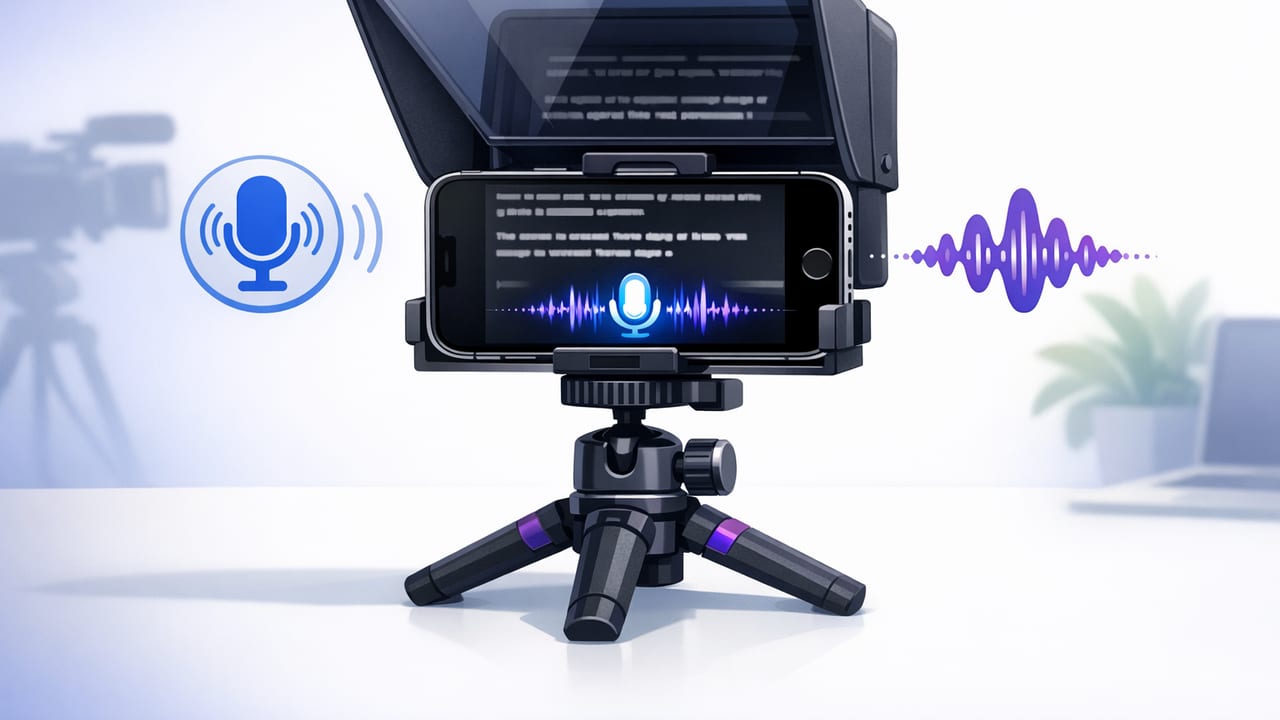
Reading a script on camera usually comes with a tradeoff: either you maintain eye contact and risk forgetting lines, or you read confidently and your eyes drift away from the lens. A teleprompter with voice tracking on iPhone changes that balance by letting the script scroll at your pace—speeding up when you speak faster, pausing when you pause, and reducing the “I’m reading” look.
This guide explains how voice tracking works, how to set up your iPhone for natural delivery, how to format scripts so they’re easy to read, and how to troubleshoot common issues (from fast scrolling to missed words). The goal: more usable takes in less time—without sacrificing authenticity.
What “voice tracking” actually means (and why it feels more natural)
Traditional teleprompters scroll at a fixed speed. That forces you to match the app, not the other way around. Voice tracking (sometimes called voice-follow or speech-follow) uses on-device speech recognition to keep the highlighted word or scroll position aligned to what you’re saying.
In practice, voice tracking helps you:
- Pause naturally without losing your place.
- Ad-lib a short phrase without the scroll racing ahead.
- Recover faster after a stumble (your eyes don’t dart around hunting the line).
- Sound more conversational, because you’re not “reading to the metronome.”
Pro tip: Voice tracking doesn’t make delivery effortless—it makes it forgiving. You still need a readable script and a solid setup.
When to use voice tracking vs fixed-speed vs timed scrolling
Different formats call for different prompting modes. Here’s a quick comparison you can use to decide:
| Mode | Best for | Pros | Watch-outs |
|---|---|---|---|
| Voice tracking | Talking-head, tutorials, opinion, scripted-but-natural | Follows your pace; easier pauses; fewer retakes | Needs clean audio; can mis-track uncommon names |
| Fixed-speed | Highly rehearsed reads, consistent cadence, announcements | Predictable; simple; low CPU use | One stumble can throw off the whole paragraph |
| Timed/auto | Exact duration scripts (ads, broadcast timing, VO matching) | Fits a target length; good for strict deliverables | Requires accurate words-per-minute planning |
iPhone setup for a voice-tracking teleprompter (no fancy rig required)
You can get great results with just an iPhone and good positioning. The main goal is to keep the text close to the lens so your eyes don’t visibly “read.”
1) Camera height and distance
- Set the iPhone at eye level (or slightly above) to avoid looking down.
- Place the phone far enough away that you can read comfortably without squinting, but not so far that the text must be huge (which increases eye travel).
2) Use the right lens
- For most talking-head videos, start with the 1x lens. Ultra-wide can distort; tele can be unforgiving with focus and light.
- If you need a more “cinematic” look, increase distance and use a longer focal length—but keep text size readable.
3) Lighting that supports reading
- Even lighting reduces eye strain and keeps your gaze steady.
- Aim for a soft key light in front of you; avoid harsh overheads that cause squinting.
4) Audio matters more than you think
A teleprompter with voice tracking on iPhone is only as reliable as the audio it “hears.” To improve tracking accuracy:
- Record in a quiet room and reduce echo (curtains, rugs, soft furniture).
- Use an external mic if possible, but keep levels clean (no clipping).
- Position the mic so plosives (“p” and “b”) don’t overwhelm the track.
Script formatting that makes voice tracking (and your eyes) happier
Most teleprompter problems start in the script. The best “read” scripts are designed to be spoken, not written.
Use short lines and generous spacing
- Break long sentences into breath-length lines.
- Add an empty line between paragraphs to reduce “wall of text” fatigue.
Write for the ear
- Prefer contractions (“you’re” over “you are”) unless you need emphasis.
- Swap complex clauses for simpler, spoken phrasing.
- Read it out loud once before recording—if you stumble, rewrite.
Mark emphasis and pauses
You can add subtle cues that help you perform without feeling robotic:
- Bold 1–3 words per paragraph for emphasis (don’t overdo it).
- Use (beat) or “—” for intentional pauses.
- Spell out tricky names phonetically in brackets.
Example: “optimized for spoken delivery” snippet
Today I’m going to show you a simple setup
that keeps your eyes on the lens.

If you pause to think—no problem.
The script should wait for you. (beat)

And by the end,
you’ll record faster with fewer retakes.
Dialing in voice tracking: a practical calibration checklist
Use this checklist the first time you set up a voice-following teleprompter. It takes about 2–3 minutes and saves a lot of frustration.
- Set text size so you can read without moving your head—only your eyes.
- Adjust line length (or margins) so your gaze stays near the center of the screen.
- Choose highlight style (word/line). Word highlight is great for accuracy; line highlight can feel calmer.
- Do a 20-second test with your normal speaking volume.
- Watch the playback: are your eyes darting? If yes, bring text closer to lens or reduce line width.
- Fix problem words: brand names, acronyms, and unusual terms often cause mis-tracking—add phonetic cues.
Common problems (and fixes) with voice-follow teleprompting on iPhone
Problem: The script scrolls too fast or “jumps”
- Cause: Background noise or echo confuses recognition.
- Fix: Move to a quieter space, reduce room echo, or use a closer mic.
- Fix: Speak slightly more clearly on the first run-through to “settle in” your cadence.
Problem: It doesn’t move when you speak
- Cause: Mic permissions, very low input, or the phone is too far away.
- Fix: Confirm mic access, raise input levels, or bring the phone closer.
Problem: Mis-tracks on acronyms and product names
- Cause: Speech recognition guesses the nearest common phrase.
- Fix: Replace “API” with “A-P-I,” or add phonetic hints like [cue-cam] style notes.
Problem: Your eyes still look like they’re reading
- Cause: Text is too wide, too low, or too far from the lens.
- Fix: Narrow margins, raise the phone, and keep key lines near the center.
- Fix: Use shorter lines and increase spacing so your eyes don’t “scan.”
A simple creator workflow: script → record → subtitles → export
Voice tracking shines when it’s part of a repeatable workflow. Here’s a streamlined approach many creators use on iPhone:
- Draft for speech (short lines, clear beats, one idea per paragraph).
- Record in sections: intro, three points, close. Don’t force a perfect 2-minute single take.
- Pick the best take based on energy first, not perfection.
- Add subtitles (on-device when available) to boost retention and accessibility.
- Export per platform: vertical for Shorts/Reels/TikTok, horizontal for YouTube long-form.
What to aim for in one session
- 2–3 takes per section (more takes usually means the script needs rewriting).
- One clean “anchor take” with good energy.
- Subtitles generated and checked for proper nouns.
Privacy note: on-device voice tracking and captions
Because scripts can include client details, pricing, or unreleased product info, it’s worth thinking about where your text and audio go. If your teleprompter and subtitle tools process data on-device, you reduce exposure and can often work without an account or internet connection. Regardless of app choice, check whether scripts, audio, or video are uploaded by default and whether you can disable cloud sync.
Quick checklist before you hit record
- Lens cleaned (fingerprints soften 4K more than you’d expect).
- Phone at eye level, text near lens, line width narrowed.
- Room quiet, mic levels healthy, no clipping.
- Script spoken out loud once, tricky words clarified.
- Voice tracking test for 10–20 seconds.
Choosing an iPhone teleprompter app: what to look for
If you’re comparing options, prioritize features that directly improve performance and speed:
- Reliable voice tracking with easy calibration.
- Readable formatting controls (margins, line spacing, highlight style).
- Pro recording support (4K, frame rate control, stabilization, external mic support).
- Fast turnaround tools (trim, resize, captions, clean audio) so you’re not bouncing between apps.
- On-device privacy for scripts and footage.
If you want an example of an iPhone tool that combines voice-follow prompting with pro recording and on-device subtitles, CueCam is one option to evaluate—especially if you prefer a privacy-first workflow.
