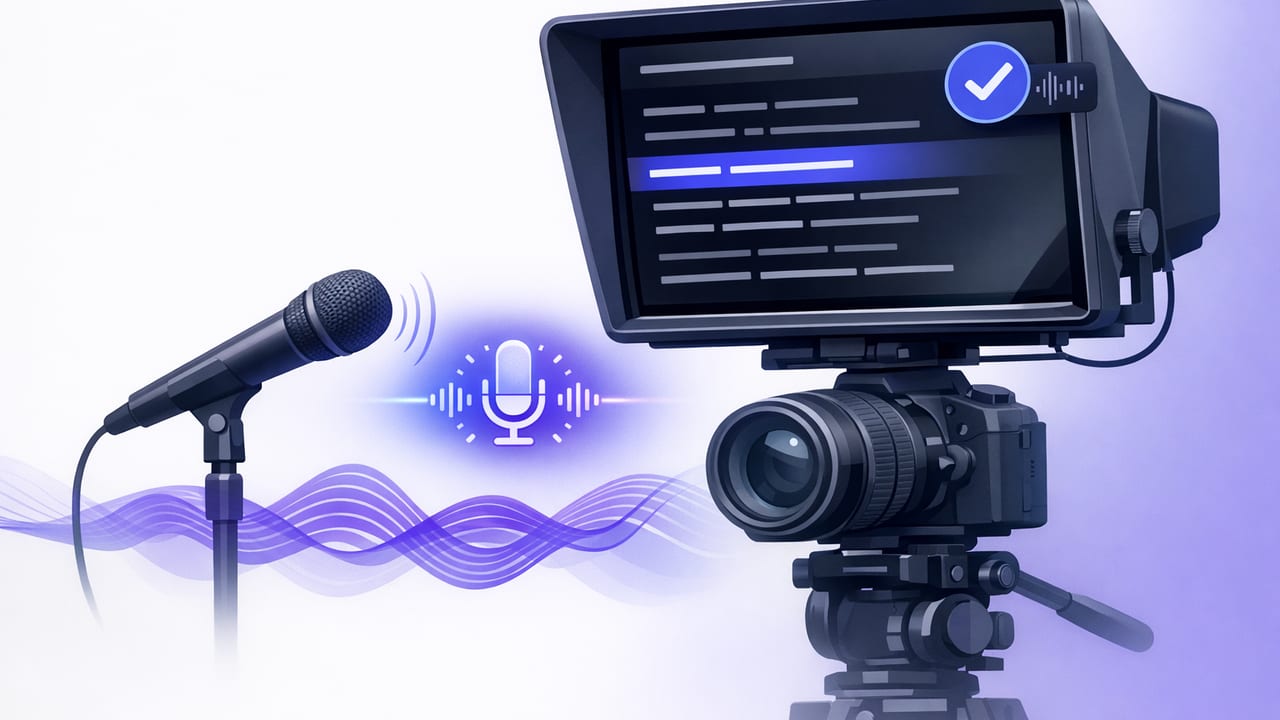
If you’ve ever tried reading a script on your phone while recording, you know the trade-off: you can sound confident or you can keep eye contact—but doing both is hard. That’s why a voice tracking teleprompter has become one of the most practical tools for creators who want polished delivery without hours of retakes.
This guide breaks down what voice tracking is, how it compares to fixed-speed and timed scrolling, and how to build a repeatable iPhone workflow from script to video—complete with 4K recording considerations, on-device subtitles, and privacy-first practices.
What is a voice tracking teleprompter?
A voice tracking teleprompter (sometimes called voice-following or speech-following) advances the script based on how you speak. Instead of you matching the teleprompter’s speed, the teleprompter matches yours. In practice, it’s the difference between:
- Rushing to keep up with scrolling text, then sounding unnatural,
- Pausing to think, then losing your place,
- or simply speaking at a normal pace while the words stay aligned.
Most creators notice two immediate improvements:
- More natural delivery (your cadence becomes conversational instead of “reading”).
- Fewer takes because you don’t get derailed when you add emphasis, pause, or repeat a phrase.
Voice tracking vs fixed-speed vs timed scrolling
Not every script needs voice tracking. For example, a tightly rehearsed ad read might be faster with fixed speed. Here’s a practical comparison to help you choose per project:
| Mode | Best for | Pros | Common pitfalls |
|---|---|---|---|
| Voice tracking | Talking-head, educational, UGC, long takes | Adapts to pauses, emphasis, re-takes mid-sentence | Needs clear audio; very noisy rooms can reduce accuracy |
| Fixed-speed | Short, rehearsed scripts; announcements | Predictable pacing; minimal processing | Forces your delivery; easy to drift off pace |
| Timed scrolling | Exact run-time deliverables (e.g., 30s, 60s) | Helps hit a strict duration | Timing changes if you add pauses or ad-libs |
If your goal is to sound like you’re speaking—not reading—voice tracking is usually the most forgiving option.
The iPhone setup that makes voice tracking work
Voice tracking performs best when your iPhone captures clean speech. You don’t need a studio, but you do need consistency. Use this checklist before you record:
1) Audio capture: prioritize clarity
- Use an external mic when possible (wired lav, wireless, or a compact shotgun). Clearer speech improves tracking and makes your final audio better.
- Reduce room noise: turn off fans/AC when possible; soft furnishings reduce echo.
- Set phone distance: too far increases room reverb; too close can cause plosives. A mic solves most of this.
2) Camera framing: keep eye line natural
A teleprompter works when your eyes stay close to the lens. The trick is to keep the text near the camera position so viewers perceive direct eye contact.
- Use a larger font so you can place the script closer to the lens without squinting.
- Keep lines short to minimize side-to-side eye movement.
3) Stabilization and 4K choices
If you record in 4K (especially 4K/60), you’ll get more detail and flexibility to crop for different platforms—but you’ll also generate larger files. A stable shot matters more than resolution, so consider:
- Tripod or stable mount for talking-head videos.
- Stabilization for handheld or walking shots (test it; heavy stabilization can crop your frame).
- Storage headroom: keep free space available before a long take.
How to format scripts for voice tracking (so it feels conversational)
Voice tracking is powerful, but your script still determines how natural you sound. The best scripts are written to be spoken, not read. Use these formatting rules:
- One idea per sentence. Break long sentences into two.
- Use line breaks for breaths. If you need to inhale, add a new line.
- Write emphasis into the text. Use italics or bold for your own cues.
- Spell out numbers when speaking (e.g., “twenty” instead of “20”) if you tend to stumble.
- Mark intentional pauses with a dash or bracket note like [pause].
Here’s a simple example you can paste into your teleprompter:
Today I’m going to show you a faster way to record scripted videos.

First—keep your eyes near the lens.
[pause]
Second—let your teleprompter follow your voice, not the other way around.

And finally, add subtitles after you record.
That’s it.
A practical workflow: script → record → subtitles → export
Creators often lose time in the handoffs: writing in one app, recording in another, captioning somewhere else, and then reformatting for each platform. A smoother creator workflow looks like this:
Step 1: Draft a “spoken” script
Write the first draft quickly, then do one pass purely for speech. Read it aloud and cut anything you wouldn’t say in conversation.
Step 2: Do a 10-second tracking test
Before a full take, record 10 seconds and watch it back for two things:
- Eye movement: are you scanning too far from the lens?
- Tracking stability: does the text stay aligned when you pause or emphasize words?
Step 3: Record in one take (with safe retake points)
Voice tracking shines when you build in “reset ramps”—places where you can restart a sentence without starting over entirely. Add a short phrase you can repeat cleanly (e.g., “Here’s the key point: …”).
Creator tip: If you mess up, pause, breathe, and restart the sentence. A voice tracking teleprompter will usually keep your place, and you can cut the mistake in editing.
Step 4: Generate subtitles (ideally on-device)
Subtitles increase watch time because they reduce friction: viewers can follow along in noisy environments, and your message lands even with sound off. If you can generate subtitles on-device, you also avoid uploading sensitive scripts or footage to third-party servers.
When reviewing captions:
- Fix names and brand terms first (these are most likely to be misheard).
- Keep lines short for mobile readability.
- Match punctuation to breathing so the captions “feel” like your voice.
Step 5: Resize and export for each platform
One recording can become multiple deliverables. Common exports include:
- 9:16 for TikTok, Reels, Shorts
- 1:1 for feed posts
- 16:9 for YouTube or courses
If you recorded in 4K, you can often crop without losing much quality. Just make sure the framing still keeps your eyes close to the lens for that “direct-to-viewer” feel.
Troubleshooting: why voice tracking sometimes feels “off”
If a voice tracking teleprompter isn’t following you smoothly, it’s usually one of these issues:
Problem: It jumps ahead or loses my place
- Cause: background noise or echo confusing speech detection.
- Fix: move closer to the mic, reduce reverb (soft furnishings), or use an external mic.
Problem: My eyes still look like I’m reading
- Cause: lines are too long, font is too small, or the script is too dense.
- Fix: increase font size, shorten line length, add line breaks, and rewrite complex sentences.
Problem: My pacing is flat
- Cause: script lacks emphasis cues; you’re reading continuously without “beats.”
- Fix: add emphasis markers, intentional pauses, and sentence variety (short + long).
Problem: Subtitles look cluttered
- Cause: long caption lines or too many words per frame.
- Fix: enforce two-line maximum, break captions at natural phrases, and remove filler words when possible.
Privacy considerations for script-to-video workflows
Scripts often include sensitive information: product plans, client details, pricing, or personal stories. A privacy-focused workflow reduces exposure by default:
- Prefer on-device processing for subtitles and editing when possible.
- Avoid unnecessary accounts or uploads just to record a teleprompted take.
- Keep files local until you’re ready to publish, then export only the final cut.
This approach is especially helpful for agencies, educators, healthcare creators, and anyone producing client work.
Putting it all together
A voice tracking teleprompter is less about “reading a script” and more about protecting your natural speaking rhythm while keeping your eyes on the camera. Combine it with a clean-audio setup, spoken-style script formatting, and on-device subtitles, and you’ll reduce retakes while increasing clarity and retention.
If you’re building this workflow on iPhone, look for a teleprompter that supports voice tracking, multiple scrolling modes, pro recording options (including 4K), and private on-device features—apps like CueCam are designed around that kind of creator-first, phone-native process.
