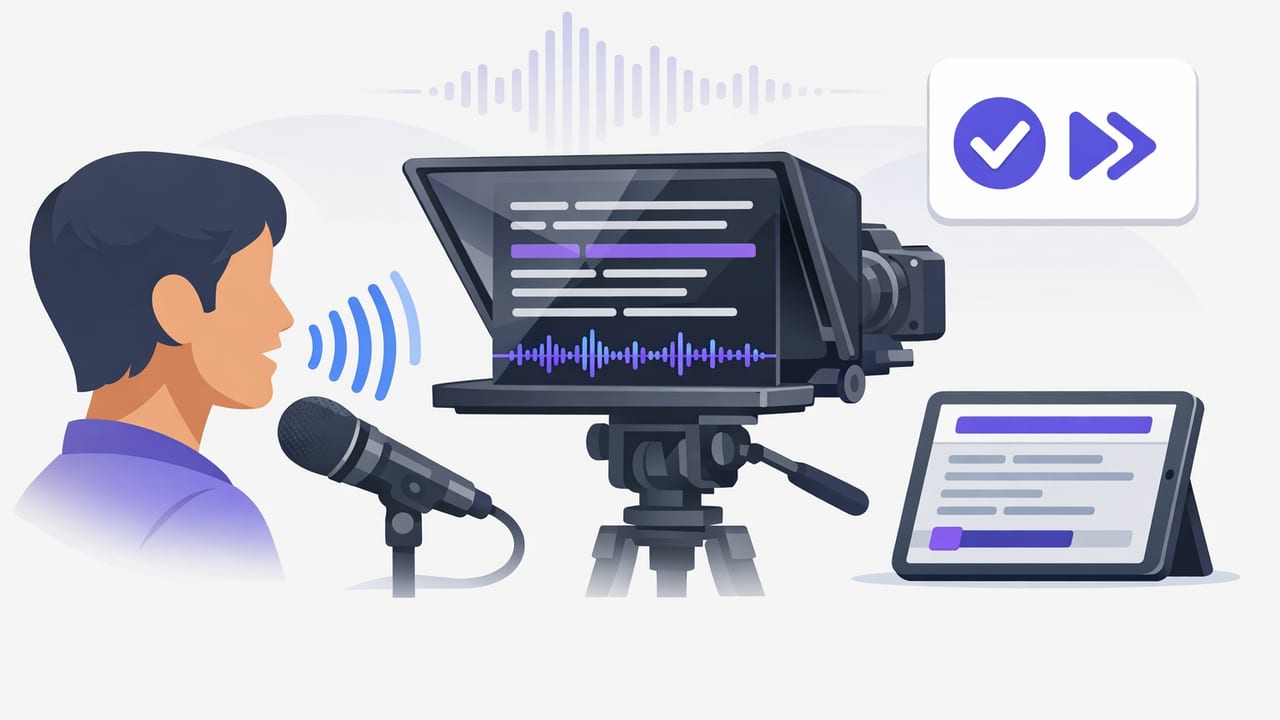
A voice tracking teleprompter solves a common on-camera problem: you want the clarity of a script, but you don’t want to sound like you’re reading. Traditional scrolling can push you to chase the text (and lose eye contact), while memorizing everything can make recording slow and stressful. Voice tracking bridges that gap by letting the teleprompter follow your speech, so the pace stays natural—even when you pause, emphasize a point, or re-take a sentence.
This guide breaks down a practical workflow for creators recording on iPhone: how voice tracking works, how to set it up, how to format scripts for natural delivery, and how to pair it with 4K recording, clean audio, and subtitles—without turning your process into a complicated production.
What a voice tracking teleprompter actually does
In a fixed-speed teleprompter, the text scrolls at a constant rate. That’s fine for experienced presenters, but it doesn’t match how humans speak. A voice tracking teleprompter listens to your delivery and advances the script based on what you say. The best result is a calmer read: you can slow down for emphasis, pause for breath, or speed up through a simple line without constantly adjusting the scroll speed.
Key benefits for creators
- More natural pacing: you talk like you normally do, and the script follows.
- Fewer resets: if you pause or rephrase slightly, you’re less likely to lose your place.
- Better eye contact: because you aren’t “chasing” the scrolling text.
- Faster takes: less manual control = less cognitive load.
When to use voice tracking vs fixed-speed vs timed modes
Voice tracking isn’t always the best choice. Use it when your delivery is conversational, but consider other modes for specific formats.
| Mode | Best for | Watch-outs |
|---|---|---|
| Voice tracking | Talking head, tutorials, explainers, UGC-style ads, thought-leadership | Needs reasonably clear audio; heavy ad-libbing can desync if you diverge far |
| Fixed-speed | Short scripts you can rehearse; predictable pacing | Easy to outrun or lag behind the text; more “reading voice” risk |
| Timed scrolling | When you must hit a duration (e.g., 30s spot, timed slides) | Less flexible; requires rehearsal to match the clock |
Setup: the quickest way to get reliable voice tracking
Voice tracking is only as good as the input it hears. Your goal is to make your voice clear and consistent, while keeping the camera framing stable.
1) Prioritize audio clarity
- Use an external mic (wired lav, wireless lav, or compact shotgun) when possible.
- Reduce room noise: close windows, turn off fans/AC temporarily, and avoid echoey spaces.
- Keep mic placement consistent: changing distance mid-take can affect tracking.
2) Get your phone placement right
- Lens height at eye level for the most natural look.
- Use a tripod and stabilization if you’re handheld or moving.
- Choose your lens once (main vs front camera) and stick with it for the whole script.
3) Match the script to your speaking style
Voice tracking performs best when the script reads like speech. If your copy is dense, overly formal, or packed with clauses, you’ll naturally pause or rephrase—and the teleprompter may need more time to keep up.
Script formatting that makes voice tracking feel “invisible”
The secret to a natural read is not perfect delivery—it’s a script designed for the human voice. Use these formatting rules to reduce stumbles and make voice tracking smoother.
Write for breath, not for the page
- Short sentences beat long sentences.
- One idea per line helps your eyes stay anchored.
- Use contractions (you’re, we’ll, it’s) if that matches your brand voice.
- Read numbers the way you say them (“about twenty-five” vs “approximately 25”).
Add performance cues (lightly)
Voice tracking doesn’t replace direction. Add subtle cues that guide pacing without cluttering the screen.
[Smile] Here’s the simple trick.

Pause.

If you’re using a voice tracking teleprompter,
you don’t need to race the text.

Emphasize: “eye contact.”
Keep cues short and consistent (e.g., Pause., Smile, Slow). Too many annotations can distract your eyes and undo the benefit of the prompter.
On-camera technique: how to stop sounding like you’re reading
Even with perfect voice tracking, your delivery can still feel “scripted” if your body language and emphasis stay flat. Use these techniques to sound human while staying accurate.
Use the “thought, then sentence” approach
Before each sentence, take a micro-beat to think the idea. The pause is tiny, but it changes your tone from reciting to explaining.
Tip: If you feel rushed, you’re probably reading. If you feel like you’re explaining, you’re probably nailing it.
Land the last word
Many creators trail off at the end of a line because they’re already looking for the next one. Practice finishing the sentence strongly—then move your eyes. Voice tracking helps because the text won’t run away while you land the line.
Control emphasis with structure
- Underline (or bold) only the 1–2 key words per paragraph.
- Break “important” lines onto their own line so you can slow down.
- Say headlines like headlines: shorter, punchier, slightly more energy.
A practical iPhone workflow: script → record → subtitles → export
A strong creator workflow isn’t just recording. It’s the full path from script to a platform-ready file.
- Draft the script using the formatting rules above (short lines, spoken language, minimal cues).
- Rehearse once out loud. Mark any line you naturally rephrase and rewrite it to match how you speak.
- Record in 4K when it matters (product demos, evergreen YouTube). For fast daily posts, 1080p can be plenty.
- Do a “safety take” after your best take—often the second-best take is easier to edit because it’s steadier.
- Trim and resize for the platform (9:16 for TikTok/Reels/Shorts, 16:9 for YouTube, 1:1 for some feeds).
- Generate subtitles and style them for readability (high contrast, safe margins, 2 lines max).
- Export with platform settings to avoid unnecessary recompression.
Subtitle tips that improve retention
- Prefer sentence-case over ALL CAPS for long videos; use caps for emphasis only.
- Keep lines short (roughly 32–42 characters per line is a useful guideline).
- Match captions to speech instead of perfect grammar—viewers track meaning, not punctuation.
- Use on-device subtitles when privacy matters or when you’re working offline.
Troubleshooting: common voice tracking issues (and fixes)
Problem: the teleprompter lags behind my words
- Fix the audio first: move closer to the mic, reduce noise, or switch to an external mic.
- Simplify the script: long sentences and dense phrasing increase mismatch.
- Speak with cleaner starts: avoid mumbling the first 1–2 words of each line.
Problem: it jumps ahead too quickly
- Slow your delivery slightly and add intentional pauses after key points.
- Remove filler words you don’t want (“um,” “like”) if they cause unpredictable pacing.
- Use clearer line breaks so you can see the next thought without racing.
Problem: I keep ad-libbing and losing the script
- Write the ad-lib: if you always improvise a phrase, make it the official line.
- Add “optional” lines in parentheses so you can choose them without derailing the read.
- Record in sections (hook, body, CTA) to reduce the cost of mistakes.
A quick checklist before you hit record
- Lens cleaned and framing locked
- Mic test (10 seconds) with the same distance you’ll use
- Script formatted into short, spoken lines
- Voice tracking enabled (or chosen mode confirmed)
- Lighting consistent (avoid flickering LEDs and shifting daylight)
- Background quiet (notifications off, fans off)
Privacy note: where your scripts and takes should live
Many creators work with sensitive material: client drafts, product details, internal updates, or personal stories. If privacy is part of your workflow, prefer tools that can run on-device—especially for scripts, subtitles, and rough cuts—so you’re not forced to upload raw footage to a server just to get basic features.
Putting it all together
A voice tracking teleprompter isn’t just a convenience feature—it’s a workflow upgrade. When the text follows your voice, you can focus on the audience: eye contact, clarity, and confidence. Pair that with clean audio, stable framing, and readable subtitles, and you’ll ship more videos with fewer takes and less friction.
If you’re looking for an iPhone teleprompter app that combines voice tracking with on-device subtitles, 4K recording, and privacy-first design, CueCam is one option to explore.
