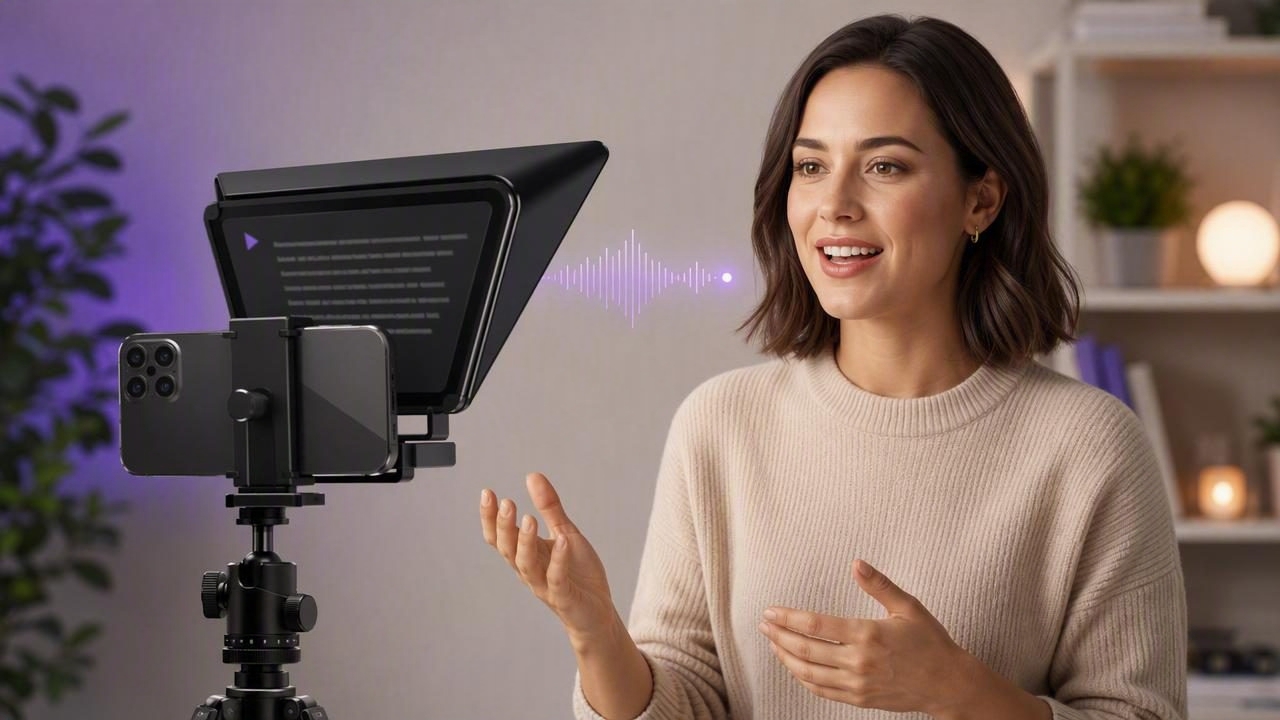
Creating an online course requires more than subject expertise. Learners also need clear explanations, a confident delivery, and videos that feel organized without sounding overly rehearsed. That can be difficult when you are trying to remember lesson points, watch your framing, manage your recording setup, and speak naturally at the same time.
A voice tracking teleprompter can simplify that process. Instead of making you match your delivery to a scrolling script, it listens as you speak and advances the words accordingly. For course creators, this means fewer lost lines, less pressure to memorize material, and more consistent video lessons without the robotic pacing that traditional teleprompters can create.
This guide explains how voice-following teleprompters work, when to use them in your course creation workflow, and how to record engaging educational videos with an iPhone.
What Is a Voice Tracking Teleprompter?
A voice tracking teleprompter is a script display tool that follows your spoken delivery. As you read aloud, the app detects your voice and moves the script forward. If you pause, repeat a sentence, or slow down to explain a complicated idea, the script can stay aligned with where you are.
This differs from fixed-speed scrolling, where text moves at a preset pace regardless of how quickly you speak. It also differs from timed scrolling, which moves the script according to the total planned duration of a lesson.
| Teleprompter Mode | How It Works | Best Use for Course Creators |
|---|---|---|
| Voice tracking | Script follows spoken words | Detailed lessons, tutorials, and first takes |
| Fixed speed | Text scrolls continuously at one selected speed | Short, well-practiced introductions and summaries |
| Timed scrolling | Text advances to fit a target recording length | Lessons that must fit a strict module duration |
For many educators, voice tracking is the most forgiving option. Teaching often includes natural pauses for emphasis, examples, demonstrations, and transitions. A voice-following script accommodates those moments instead of forcing you to rush.
Why Course Creators Benefit From Voice-Following Scripts
Course videos need to be reliable and repeatable. A student may watch a lesson weeks after it was published, so clarity matters more than improvising every point. At the same time, reading directly from notes can weaken eye contact and make an instructor appear disengaged.
A voice tracking teleprompter helps address both issues. Your complete script stays close to the camera lens, allowing you to maintain a more direct connection with learners while preserving the structure of your lesson.
- Reduce retakes: Keep definitions, steps, and examples visible so you do not lose your place.
- Teach consistently: Use the same approved wording for lessons that include policies, formulas, technical steps, or safety guidance.
- Improve learner trust: Better eye contact makes instruction feel more personal and focused.
- Speed up updates: Revise a script, re-record one section, and keep the new lesson aligned with the original curriculum.
- Make complex subjects easier: Deliver precise terminology without trying to memorize every phrase.
The goal is not to sound as though you are reading. The goal is to remove avoidable memory pressure so you can focus on explaining the subject well.
How to Prepare a Course Script for Voice Tracking
Even the best teleprompter cannot rescue a script that is too dense, vague, or written like a textbook chapter. Course scripts should be designed for listening. Students need short explanations, clear signposts, and enough breathing room to process what they hear.
Write for the spoken lesson, not the lesson outline
Start with your learning objective. Ask what a learner should be able to understand, decide, or do by the end of the video. Then write the lesson as a conversation with one student.
Use contractions, short sentences, and direct language. Instead of writing, “The subsequent methodology shall be implemented following completion of the initial assessment,” say, “Once you finish the first assessment, use this method next.”
Use a simple lesson structure
- Open with context: Explain what the lesson covers and why it matters.
- State the outcome: Tell learners what they will know or complete.
- Teach one main idea at a time: Avoid stacking multiple concepts into one long paragraph.
- Add an example or demonstration: Show how the concept works in practice.
- Recap and transition: Reinforce the key point before the next lesson.
Place each idea in its own paragraph. Voice tracking is more accurate and easier to follow when your text is cleanly formatted, with natural pauses between sections.
Add delivery cues sparingly
You can include brief reminders in brackets, such as [pause], [show slide], or [demonstrate on screen]. Keep these cues short so they do not interrupt your reading flow. If a cue requires you to stop recording, place it on a separate line.
Today, you will learn how to validate your course idea.

[pause]

First, define the learner's problem in one sentence.

[show worksheet]

Next, test that problem with five real conversations.
Set Up Your iPhone for a Smooth Recording Session
A polished course does not require a large studio, but it does require a repeatable setup. Use your iPhone on a stable tripod or mount at eye level. Position the camera slightly above or directly in line with your eyes, not below your face. This creates a more flattering angle and makes the teleprompter text easier to read naturally.
For high-quality course modules, consider recording in 4K if your storage space and editing workflow allow it. The extra resolution can be useful when cropping horizontal footage into vertical promotional clips or when adding screen recordings and graphics in post-production. If file size is a concern, 1080p remains a practical option for many learning platforms.
- Use a quiet room with soft, even front lighting.
- Connect an external microphone when possible; clear audio often matters more than ultra-high video resolution.
- Turn off unnecessary notifications and enable a recording-friendly Focus mode.
- Keep your iPhone connected to power for longer modules.
- Record a 20-second test to check framing, sound, teleprompter text size, and voice detection.
When using voice tracking, minimize competing audio. Loud fans, nearby conversations, music, and speakers can interfere with speech recognition. Headphones may help you monitor audio, but avoid playing lesson audio aloud while recording unless your app is designed for that setup.
Best Voice Tracking Settings for Natural Delivery
There is no universal setting that works for every instructor. Your ideal setup depends on your voice, subject matter, script length, and teaching style. Begin with a comfortable text size. If you have to squint, your eyes will visibly move across the screen. Larger text near the camera generally creates better eye contact.
Choose a readable font and avoid displaying too many lines at once. A narrow text area can reduce side-to-side eye movement, especially when recording with the front-facing iPhone camera.
Before recording a full module, test these variables:
- Text size: Increase it until you can read comfortably without scanning.
- Line spacing: Add enough space for each sentence to be visually distinct.
- Tracking sensitivity: Test whether the app stays with you during brief pauses and small wording changes.
- Starting position: Put the first line near the camera rather than at the bottom of the display.
- Script segmentation: Divide longer modules into manageable scenes or chapters.
Voice tracking works best when it supports your teaching rhythm rather than becoming the rhythm you have to follow.
Record Course Lessons in Short, Editable Sections
One common mistake is recording an entire 20-minute lesson in a single take. While possible, it increases the risk of fatigue, missed lines, and difficult editing. A more efficient script-to-video workflow is to record in short sections, usually one idea or one slide sequence at a time.
For example, a 12-minute lesson might include an introduction, three teaching points, a demonstration, and a recap. Record each part separately. If you make an error, repeat only that section. This approach also makes it easier to insert screen recordings, diagrams, B-roll, or slide visuals later.
Leave a few seconds of silence before and after each take. Those clean handles give you room to trim clips without cutting off words or creating abrupt edits.
Make Teleprompter Delivery Sound Human
Reading naturally is a learnable skill. Do not aim for flawless perfection on the first take. Instead, aim for a delivery that feels clear, warm, and attentive.
- Speak slightly slower than normal: Learners need time to absorb new concepts.
- Look at the lens, not every word: Let the script support you, then reconnect with the camera at the end of key sentences.
- Pause after important ideas: Silence adds emphasis and gives students time to think.
- Use vocal variety: Change your pace and emphasis when introducing examples, warnings, or takeaways.
- Keep intentional imperfections: A brief natural pause can feel more credible than an overly polished, rushed delivery.
If you regularly rewrite sentences while speaking, update the script after your recording. The phrases you naturally choose may be clearer than the original draft. Over time, this creates a stronger, more authentic teaching voice.
Add Subtitles for More Accessible Course Videos
Subtitles are valuable for accessibility, but they also improve comprehension for learners watching in noisy environments, reviewing technical terms, or studying in a second language. Captions can help students follow names, numbers, acronyms, and step-by-step instructions that may be difficult to catch by audio alone.
Review automatically generated subtitles before publishing. Check specialized vocabulary, product names, formulas, and punctuation. For instructional videos, captions should match the lesson closely enough that students can rely on them as a study aid.
If privacy matters in your course workflow, consider tools that generate subtitles on-device. Processing captions locally can help keep unreleased lesson scripts, student-facing materials, and recorded footage under your control.
Common Voice Tracking Teleprompter Problems and Fixes
The script advances too quickly or loses your place
Slow your delivery during the first test, reduce background noise, and make sure you are speaking close enough to the microphone. It also helps to simplify overly long sentences.
Your eyes look like they are moving across the screen
Increase the font size, narrow the text column, and position text closer to the camera lens. Break dense paragraphs into shorter lines.
You sound flat or overly scripted
Add conversational phrasing, mark emphasis points, and record in smaller sections. Teach the idea rather than reciting every word with identical cadence.
You keep stopping for minor mistakes
Continue speaking when the mistake does not affect meaning. A clean pause and a repeated sentence are usually easier to edit than restarting the entire lesson.
Build a Repeatable Course Video Workflow
The biggest benefit of a voice tracking teleprompter is consistency. Once you have a dependable system, you can move from outline to script, script to recording, and recording to captioned lesson without reinventing your process for every module.
A practical workflow looks like this: write one learning objective, draft a spoken script, practice aloud once, record in sections, trim obvious errors, add subtitles, review for accuracy, and export in the format required by your course platform. Keep a copy of each final script alongside the finished video so future updates are faster.
For iPhone-based course production, a tool such as CueCam can bring voice-following teleprompter reading, high-resolution recording, and on-device subtitle creation into one privacy-focused workflow. Whatever tools you choose, prioritize a setup that lets you teach with clarity, maintain eye contact, and spend more time helping learners than fighting retakes.
