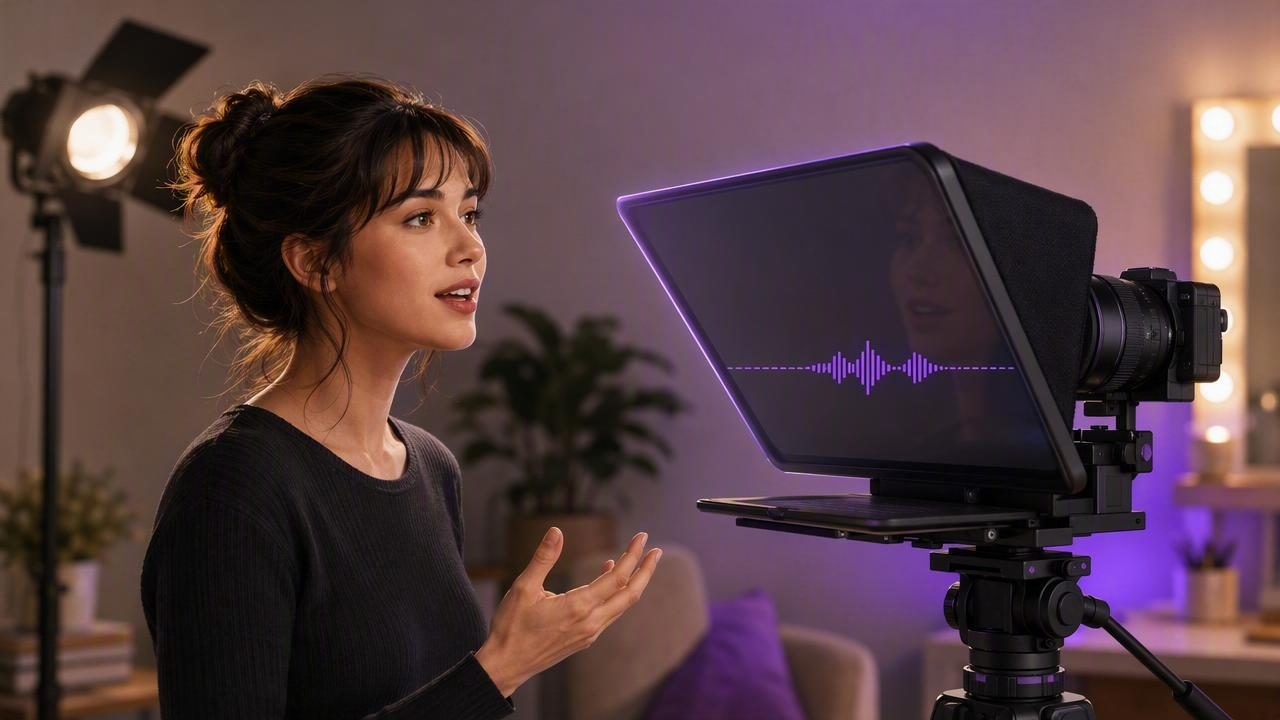
Actors often need to deliver polished lines under tight deadlines. Whether you are recording a self-tape, preparing a scene for rehearsal, filming an audition update, or creating character content for social media, memorizing every word is not always the most practical option.
A voice tracking teleprompter for actors can provide a useful middle ground. Instead of forcing you to follow text that scrolls at one fixed pace, voice tracking is designed to move the script as you speak. When it works well, this gives you more flexibility to pause, repeat a phrase, take a breath, or adjust your delivery without losing your place.
That does not mean a teleprompter replaces preparation, scene work, or memorization. It is a reading aid, not an acting coach. The best results come from using it strategically: preparing a readable script, setting up the camera at eye level, testing your sound, and allowing enough time to make your performance feel lived-in rather than read.
What Is a Voice Tracking Teleprompter?
A voice tracking teleprompter listens for the words you say and advances the script in response to your speech. This differs from a traditional scrolling teleprompter, where text moves at a manually selected speed or according to a timer.
For actors, the difference matters. Scene pacing is rarely perfectly consistent. You may slow down for a dramatic moment, pause after a reaction, restart a line, or emphasize a word differently on each take. With fixed scrolling, the text can continue moving while you pause. With voice-following behavior, the script can be easier to rejoin after a natural beat.
| Scrolling mode | How it works | Useful acting situations |
|---|---|---|
| Fixed speed | Text moves continuously at a chosen rate. | Announcements, narration, short direct-to-camera clips. |
| Timed scrolling | Text follows a planned duration. | Content with a fixed run time or pre-timed delivery. |
| Voice tracking | Text responds to recognized spoken words. | Self-tapes, scene practice, monologues, and flexible reads. |
Voice tracking is especially helpful when the words must remain accurate but the emotional tempo needs room to change. However, its performance can depend on your device, the selected language, audio clarity, script formatting, and how closely your spoken lines match the written text.
When Actors Should Use Voice Tracking
Not every acting task calls for a teleprompter. A short, well-rehearsed audition scene may feel strongest when you can work without visible reference text. But voice tracking can be an appropriate tool when the priority is accuracy, speed, or reducing avoidable pressure.
Good use cases
- Last-minute self-tapes: You receive revised sides and need time to make grounded choices instead of spending the entire window memorizing.
- Corporate or presenter-style casting: The role requires precise wording, product language, legal copy, or a formal introduction.
- Long monologues: You are practicing emotional shifts and physical choices before committing every line to memory.
- Language practice: You are working with dialogue in a language you are learning and need a temporary line reference.
- Creator work: You are filming behind-the-scenes updates, acting advice, character sketches, or portfolio introductions.
Situations where it may not be the right choice
- A casting brief explicitly asks for fully memorized material.
- Your framing makes the text too far from the lens, causing noticeable eye movement.
- The scene relies on extended interaction with an off-camera reader.
- You are unfamiliar with the words and have not made basic acting choices yet.
- The script includes heavy overlap, interrupted dialogue, whispering, crying, shouting, or improvised sections that may make voice recognition less reliable.
In other words, use a teleprompter to support preparation, not to skip it. If you are reading every sentence for the first time during recording, the performance may still sound uncertain even if your eyes stay near the camera.
Prepare the Script for Spoken Delivery
A screenplay page is not always ready to paste directly into a teleprompter. Dense formatting, action notes, multiple speakers, and long blocks of text can make it harder to find the line you need. Create a reading version that preserves the dialogue while making the visual layout easy to scan.
For example, imagine you are recording a 45-second self-tape for a character named Maya who confronts a friend:
MAYA
Do not tell me you did this for me.
Beat. Look toward reader.
You did it because you wanted to be the hero.
And now I am the one who has to clean it up.
This format gives you useful performance reminders without burying the dialogue. Keep directions short, place them on their own lines, and use spacing to mark transitions. Avoid writing full paragraphs when the scene has emotional turns.
Script formatting tips for voice tracking
- Use the exact words you plan to say. Recognition may struggle to follow if you frequently paraphrase or replace key phrases.
- Break long sentences into thought units. A new line after a beat makes the script easier to scan while performing.
- Mark pauses sparingly. Use a simple note such as beat instead of filling the script with detailed direction.
- Remove text you will not speak. Delete scene headings, unused character lines, and production notes unless they help your timing.
- Highlight only essential words. Too much bold text or too many capital letters can become visually distracting.
Set Up the Camera So Your Eyes Stay Natural
The core visual challenge with any teleprompter is eyeline. If you read from text positioned far below or beside the camera, viewers can often see your gaze shifting. For a self-tape, that can look less connected than a prepared performance.
Place the iPhone at roughly eye level and keep the script as close to the front camera lens as your setup allows. Sit or stand at a comfortable distance rather than leaning toward the screen. Before recording, look directly at the lens and say a few lines. Then watch the playback specifically for eye movement, not acting quality.
If your eyes appear to dart from side to side, reduce the amount of text visible at once, increase the font size, and simplify your script layout. A larger font can help you read with less scanning, but it may also require more frequent scrolling. Test the balance rather than assuming one setting will fit every scene.
Do a Short Audio Test Before the Full Take
Voice tracking relies on audible speech, so sound quality affects more than the final video. Background noise, a distant microphone position, overlapping voices, or a noisy fan can make it harder for the app to recognize your words consistently.
Record a 10- to 15-second test using the actual room, camera placement, and speaking volume you plan to use. Include one quiet line, one normal line, and one line delivered with stronger emotion. Listen for room echo, clothing noise, traffic, and inconsistent volume.
If the script does not follow your speech smoothly, do not assume the technology is the only issue. Check whether you are speaking the same version of the line that appears on screen. Also confirm that the selected language matches the script and that your device supports the relevant voice-tracking option. Device and language availability can vary, and recognition may be less dependable with unusual names, accents, invented words, fast overlapping dialogue, or major improvisation.
A Simple Self-Tape Workflow With Voice Tracking
Here is a practical approach for an actor filming a short dramatic scene. The goal is not to make every take perfectly identical; it is to create enough structure that you can focus on the performance.
- Read the scene away from the screen first. Identify your objective, relationship, turning point, and emotional stakes.
- Create a clean prompt version. Include only your lines, brief beats, and minimal reminders.
- Rehearse the first and last lines from memory. Strong openings and endings help a take feel intentional.
- Set the phone at eye level. Frame yourself according to the casting instructions and keep lighting consistent.
- Choose a readable font size. Make the text large enough to avoid visible scanning.
- Run a short sound and eyeline test. Watch it back before committing to full takes.
- Record multiple versions. Try one closer to the text, one with more pauses, and one where you use the prompt only as a safety net.
Afterward, review each take with a practical checklist: Are the eyes connected? Are the words clear? Does the timing feel motivated? Did you leave room for reactions? A technically smooth read is not automatically the strongest performance.
How to Make Teleprompter Reading Look Less Like Reading
The most natural teleprompter performances are usually built on active listening and clear intention. Even when another character is not visible, give yourself a specific person to speak to. Focus on what you want from them, not on reaching the next line.
- Memorize the emotional destination of each beat, even if the exact wording remains on screen.
- Keep your body still enough that your face and eyes remain readable in frame.
- Let yourself pause. A meaningful pause is often more believable than rushing to stay with scrolling text.
- Use off-camera focus only when it serves the scene and follows the casting requirements.
- Practice looking at the lens between phrases instead of staring continuously at the text.
Be careful with dramatic choices that reduce intelligibility. A whispered line, turned head, or emotionally broken delivery may be artistically appropriate, but it can make voice tracking lose its place. In those moments, a manual scrolling mode or a short memorized section may be more dependable.
Privacy and Script Handling Considerations
Audition sides and unreleased project dialogue can be sensitive. Before putting a script into any video tool, understand where the text is stored, whether an account is required, and whether captions or recordings are processed on a device or sent elsewhere. This is particularly important for confidential materials, client work, and scenes covered by non-disclosure agreements.
Also remember that generated captions can contain errors, especially with character names, regional pronunciation, fast delivery, or technical language. Review captions manually before publishing a creator video, and do not assume that automatic transcription will capture every spoken choice correctly.
Choose the Tool Around the Scene, Not the Other Way Around
A voice tracking teleprompter for actors is most useful when it disappears into your workflow. The script should support your choices, the phone should stay at a natural eyeline, and the technology should give you room to perform rather than dictate the rhythm.
For iPhone creators who need to record while reading a script, CueCam’s guide to recording video while reading a script offers a practical overview of the setup considerations. Whatever tool you use, test it before an important take and treat it as a rehearsal aid, line-safety net, and production support—not a substitute for preparation.
