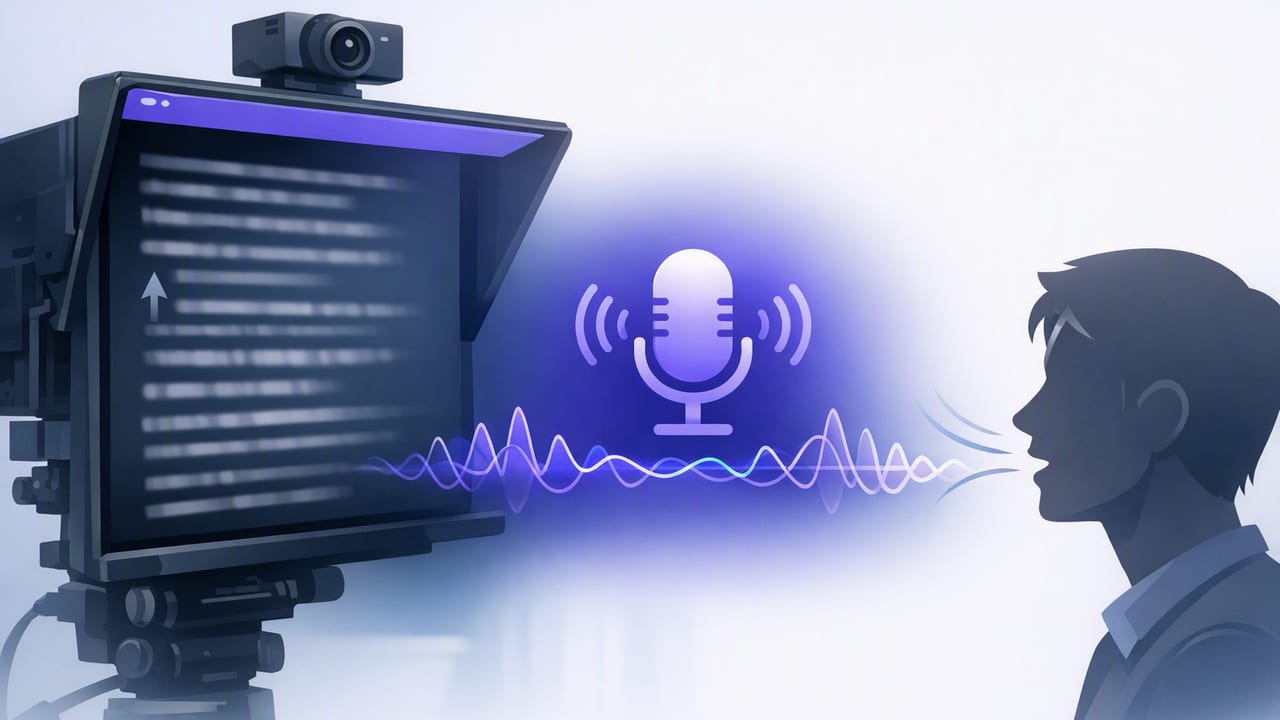
Reading a script on camera is one of the fastest ways to publish consistently—until it makes you sound robotic, rush through key lines, or lose eye contact while you hunt for your place. A voice follow teleprompter solves the most common pacing problem: instead of scrolling at a fixed speed, it tracks your speech and keeps the next words where you need them.
This guide breaks down a practical iPhone workflow for using voice-follow scrolling to record natural-sounding takes, capture clean audio, generate subtitles, and export for TikTok, Instagram, and YouTube—without turning your process into a complicated studio setup.
What a voice follow teleprompter does (and why it feels more natural)
A voice-follow teleprompter uses on-device speech recognition (or similar voice tracking) to follow your spoken words and advance the script as you talk. You lead; the prompter adapts. That typically means:
- Fewer retakes when you pause to think or emphasize a phrase.
- More conversational pacing because you’re not “chasing the scroll.”
- Better eye contact because your eyes can stay near the lens instead of bouncing around to find your spot.
In creator terms, a voice follow teleprompter reduces the gap between “speaking naturally” and “staying on-script,” which is exactly what you want for script-to-video workflows.
Voice-follow vs fixed-speed vs timed scrolling
Not every video needs voice-follow. The best scrolling mode depends on the format and how tightly you need to hit a runtime.
| Mode | Best for | Pros | Watch-outs |
|---|---|---|---|
| Voice-follow | Talking-head, tutorials, explainers | Adapts to pauses, feels natural | Needs decent audio; may struggle with heavy background noise |
| Fixed-speed | Short promos, memorized scripts | Predictable, simple | Forces your pace; easy to sound rushed |
| Timed | Ads, compliance scripts, exact runtime | Hit a target length reliably | Less forgiving if you improvise or pause |
If your main goal is to sound like yourself while still reading, voice-follow is usually the best starting point.
Setup: get voice-follow working reliably on iPhone
Voice tracking works best when the phone can “hear” you clearly and your script is formatted for scanning.
1) Prioritize clean input audio
- Use an external mic (wired lav, wireless, or shotgun) when possible.
- Reduce noise: fans, AC vents, busy streets, and echoey rooms are common issues.
- Position matters: keep the mic close enough to capture a stable voice level.
2) Keep the lens and the text close
Whether you’re using a prompter-style overlay or a teleprompter UI, the goal is the same: minimize the distance between where your eyes read and where the camera lens is. This is what preserves eye contact.
3) Choose readable text settings
- Font size: large enough that you don’t squint.
- Line length: shorter lines are easier to read without lateral eye movement.
- Highlighting: if your app supports word/line highlighting, it helps you stay locked in.
4) Give voice-follow a “steady script” to follow
Voice-follow works best when your script is close to what you’ll actually say. If you plan to improvise heavily, consider using voice-follow for the core structure and leaving “ad-lib pockets” where you can speak freely without needing the exact wording.
Script formatting that sounds conversational (not read)
The biggest teleprompter giveaway is long, dense sentences. Fix that at the script level. Aim for spoken language: shorter lines, clear beats, and intentional pauses.
Formatting principles
- One idea per line (or per two short lines).
- Write for breath: if you wouldn’t say it in one breath, split it.
- Add stage directions as reminders: pause, smile, show product, cutaway.
- Use emphasis markers sparingly to avoid a monotone delivery.
Here’s a simple template you can paste into your notes app and adjust:
[HOOK]
Stop doing this one thing on camera.
(pause)

[CONTEXT]
If you read a script at fixed speed,
you’ll rush… or you’ll lose your place.

[SOLUTION]
Use a voice follow teleprompter.
It scrolls when you speak.
It stops when you pause.

[PROOF]
You get cleaner takes,
better eye contact,
and fewer retakes.

[CTA]
Try it on your next talking-head video.
Save this template.
Tip: If you keep stumbling, don’t “try harder.” Rewrite the line the way you’d actually say it.
Recording workflow: script-to-video in a single focused session
A smooth iPhone creator workflow isn’t about having the most gear—it’s about reducing friction. Here’s a repeatable sequence that works well with a voice follow teleprompter.
- Lock your framing: choose your lens (front camera for ease, rear camera for quality), set exposure, and confirm headroom.
- Stabilize: use a tripod or a stable surface; enable stabilization if your setup supports it.
- Set resolution and frame rate: for crisp talking-head, many creators like 4K to preserve detail when cropping for vertical formats.
- Do a 10-second audio test: listen for clipping, hiss, or room echo.
- Run a “cold read” once: let voice-follow learn your cadence; fix any awkward lines.
- Record in sections: instead of pushing through mistakes, stop after a section and re-take that segment.
How to keep eye contact while reading
- Slow your eyes, not your voice: read slightly ahead, then speak naturally.
- Use punctuation as performance cues: commas = micro-pause, periods = reset.
- Move the script, not your head: adjust text size/position rather than leaning in.
Subtitles: faster watch time without sending footage to the cloud
Subtitles are part of modern creator workflow, especially for mobile-first viewers. The key is speed and privacy: ideally, your captions generate on-device, so your scripts and videos don’t need to leave your phone.
Best practices for clean captions
- Prefer short caption lines (1–2 lines) to avoid covering your face or key visuals.
- Correct proper nouns (brand names, product terms) once—then reuse that spelling in your next scripts.
- Pick the right format:
- Burned-in captions for TikTok/Instagram (simple, consistent).
- SRT/VTT sidecar files when platforms support them (more editable, accessible).
If you work in multiple languages or target global audiences, on-device subtitle generation can also be a big win for turnaround time.
Export settings: TikTok, Instagram, and YouTube without quality loss
Most “my video looks worse after upload” problems come from mismatched aspect ratios and aggressive re-compression. Use exports tailored to each platform.
- TikTok / Reels: 9:16 vertical, 1080×1920 (or 4K vertical if supported), 30 or 60 fps.
- YouTube Shorts: 9:16 vertical, 1080×1920, keep text inside safe margins.
- YouTube standard: 16:9 horizontal, 4K if you recorded in 4K; otherwise 1080p.
When you record in 4K, you can reframe for vertical (or punch in for emphasis) while keeping sharpness—useful for turning one take into multiple deliverables.
Troubleshooting: common voice-follow teleprompter issues
If voice-follow feels “off,” it’s almost always one of these:
Problem: the script scrolls late or jumps
- Fix: reduce background noise; move the mic closer; speak a touch more clearly on key words.
- Fix: shorten lines—dense paragraphs can cause bigger scroll jumps.
Problem: it loses your place when you paraphrase
- Fix: rewrite the script closer to your natural phrasing.
- Fix: add “anchor words” (unique keywords) at the start of each section so tracking can re-lock.
Problem: accents or fast speech reduce accuracy
- Fix: slow down 5–10% and add more punctuation (commas and short lines).
- Fix: do a quick warm-up read to settle your cadence before recording.
Problem: you still sound like you’re reading
- Fix: add intentional pauses and “smile lines.” Your face changes your voice.
- Fix: keep the script as bullet points for sections where you tend to improvise.
One-page checklist (save this)
- Script formatted with short lines, punctuation, and stage directions
- Mic tested (no clipping, minimal echo)
- Lens + text aligned for eye contact
- Voice follow teleprompter enabled and tested with a cold read
- Record in sections; re-take only what you need
- Generate subtitles on-device; correct proper nouns
- Export in the platform’s aspect ratio and resolution
FAQ
Is voice-follow better than memorizing?
For many creators, yes—because it preserves natural delivery while keeping you accurate. Memorizing can be great for short scripts, but it increases prep time and often leads to stiffness.
Do I need 4K recording for teleprompter videos?
Not always. 1080p is fine for most platforms. 4K helps when you want to crop, reframe for vertical, or keep small on-screen text crisp.
How do I keep subtitles from covering my face?
Leave bottom safe space in your framing and use shorter caption lines. When possible, position captions slightly higher and avoid placing key visuals in the lower third.
Wrap-up
A voice follow teleprompter is one of the simplest upgrades you can make to an iPhone content workflow: it removes the “fight” between your speaking pace and the script, improves eye contact, and speeds up script-to-video production—especially when paired with on-device subtitles and clean 4K capture.
If you’re looking for an iPhone teleprompter app that combines voice-follow scrolling with on-device subtitles and a privacy-first workflow, CueCam is one option to explore.
