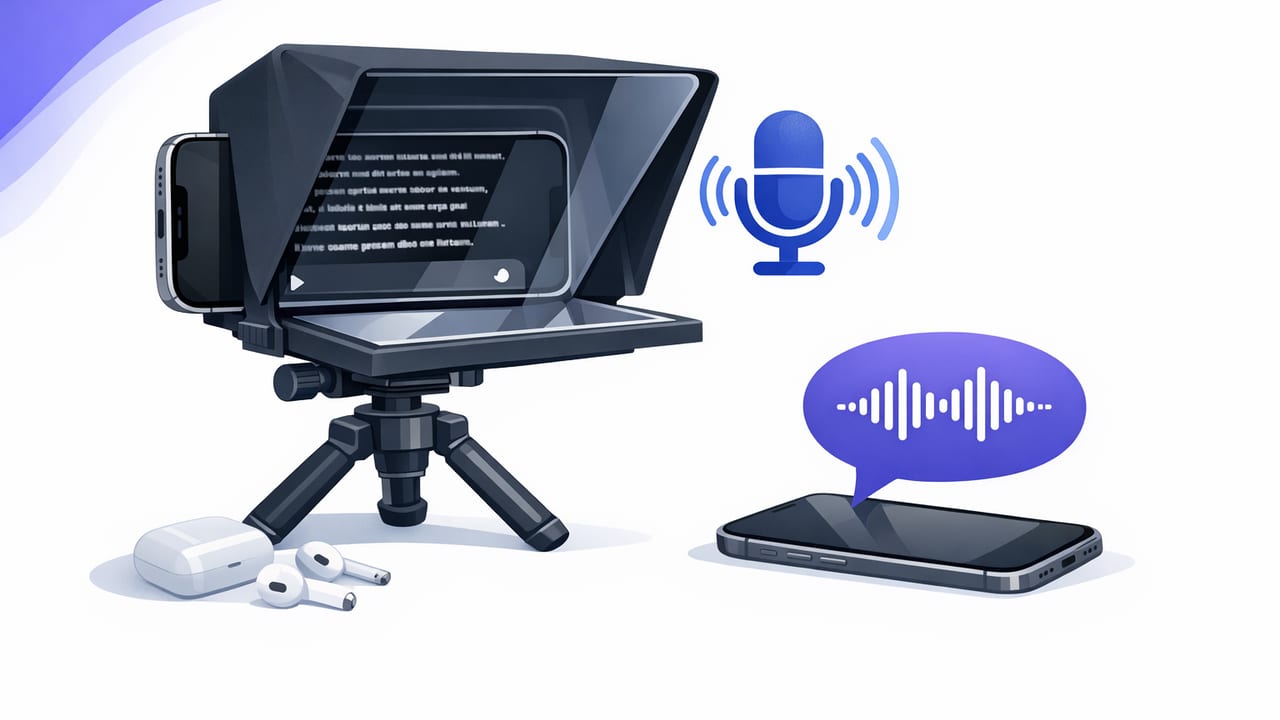
A voice controlled teleprompter for iPhone (often called voice-following or voice tracking) lets your script scroll based on how you speak—not how fast you think you’ll speak. That one change can dramatically improve delivery: fewer rushed lines, fewer awkward pauses, and far less “reading voice.” It’s also one of the simplest ways to maintain eye contact with the camera while staying accurate to your message.
This guide explains how voice-controlled teleprompting works, when to use it, how to set it up on iPhone for reliable results, and how to troubleshoot the common issues creators hit (missed words, drifting scroll, or jumpy tracking). You’ll also get practical script formatting tips and a repeatable recording workflow that fits talking-head videos, tutorials, ads, and course modules.
What “voice controlled” teleprompting actually means
Traditional teleprompters scroll at a fixed speed. You set words-per-minute and hope your delivery matches. Voice-controlled teleprompting flips that: the app listens to your speech and advances the text as you read. If you pause for emphasis, the script pauses. If you speed up, it keeps up (within reason).
Most iPhone apps implement voice control in one of two ways:
- Voice-following word tracking: The app highlights or tracks the word you’re currently speaking and scrolls as needed.
- Voice-triggered scrolling: The app advances line-by-line when it detects speech, often with a sensitivity threshold.
Creator rule of thumb: If you want a natural pace and you tend to improvise slightly, voice-following is usually the most forgiving option.
When a voice controlled teleprompter for iPhone helps most
Voice control shines when your delivery isn’t perfectly “metronomic.” It’s especially useful for:
- Talking-head videos (YouTube, Instagram Reels, TikTok) where eye contact and authenticity matter.
- Product demos where accuracy is important but you still want conversational phrasing.
- Explainers and tutorials where you naturally pause to think, gesture, or point at something.
- Long-form scripts (courses, webinars) where fixed-speed scrolling becomes fatiguing.
- Creators who re-record often: voice-following reduces the “restart tax” because you can resume more naturally.
Voice-following vs fixed-speed vs timed: which should you choose?
Many iPhone teleprompter apps offer multiple scrolling modes. Here’s a practical comparison so you can pick the best option for your recording scenario.
| Mode | Best for | Pros | Watch-outs |
|---|---|---|---|
| Voice controlled (voice-following) | Conversational delivery, pauses, light improv | Natural pacing, fewer retakes, easy to emphasize | Needs clean audio input; can drift with noisy rooms |
| Fixed-speed | Short scripts, practiced reads, predictable pacing | Simple, consistent, works even with loud backgrounds | Feels rushed or slow if you deviate; harder to pause |
| Timed scrolling | Exact runtimes (ads, broadcast, compliance) | Precise duration control; good for timeboxed deliverables | Requires rehearsal; pauses can break the timing |
iPhone setup: get voice control working reliably
1) Choose the right microphone (this matters more than most settings)
Voice-following teleprompters are only as good as the audio they “hear.” If the mic input is noisy or distant, tracking becomes jumpy.
- Best: A wired lav mic or a quality USB-C audio interface + mic (depending on your iPhone model and setup).
- Very good: A reliable wireless lav system.
- Okay: Built-in iPhone mic in a quiet room, with the phone close to you.
Tip: If you’re using an external mic, do a 10-second test and play it back before a long take. Tracking issues often come from input level problems you can catch early.
2) Control your room sound
Voice tracking struggles when it can’t separate your speech from the environment. Make these quick improvements:
- Turn off fans/AC if possible.
- Close windows; reduce street noise.
- Add soft materials (curtains, rug) to reduce reverb.
- Keep the iPhone at a consistent distance from your mouth if using the built-in mic.
3) Position the script for eye contact
Even on an iPhone, you can create the “looking into the lens” effect by placing the text close to the camera preview. If the script sits too low, your eyes will dip. If it’s too far from the lens, you’ll look off-axis.
- Place the scrolling text as close to the lens as the app allows.
- Increase font size to reduce eye movement.
- Use generous line spacing to avoid “line hopping.”
4) Dial in sensitivity and follow behavior
Different apps expose different voice-follow settings, but the same principles apply:
- Start with moderate sensitivity (not the maximum). Too sensitive can over-scroll on filler sounds.
- Set a comfortable “lead” (how many words appear ahead of your current word). A small lead forces constant eye movement; a large lead makes you scan too much.
- Enable a gentle smoothing option if available so scroll motion feels continuous instead of jumpy.
Script formatting that makes voice-following look natural
Voice-controlled teleprompting performs best when the script is written like you speak. Your goal is predictable phrasing with clear breath points. Here are formatting rules that consistently reduce mistakes:
- Use short sentences (one idea per sentence).
- Add line breaks where you would naturally pause.
- Write numbers the way you say them (“twenty-five” instead of “25” if that’s how you speak).
- Bold emphasis words to prevent monotone delivery.
- Replace tongue-twisters and stacked clauses with simpler language.
Here’s a simple script format that reads smoothly on a phone screen:
[HOOK]
If your videos sound rehearsed,
it’s usually not your voice.
It’s your script pacing.

[VALUE]
Try voice-following teleprompting:
Pause when you want.
Speed up when you’re excited.
The text keeps up.

[CTA]
If you want the checklist,
comment “PROMPT” and I’ll share it.
A repeatable creator workflow (script → record → captions)
Voice-controlled teleprompting is most effective when it’s part of a consistent workflow. Here’s a practical sequence you can reuse for most creator videos.
Step 1: Build a “spoken” outline
Write the message as bullet points first, then expand into sentences. If you start by writing like an essay, you’ll often end up with sentences you’d never say out loud.
Step 2: Do a cold read and fix friction
Read the script once out loud before recording. Anywhere you stumble, rewrite. Those stumbles are what cause resets mid-take (and they can also confuse word tracking).
Step 3: Record with simple guardrails
- Lock exposure/focus if your camera app supports it.
- Use a consistent framing and keep your eyes near the lens.
- Leave a one-second pause before and after key lines for easier trimming.
Step 4: Add subtitles (and decide how “literal” they should be)
Subtitles increase watch time and accessibility, but you don’t always need word-for-word captions. If your delivery includes filler words (“like,” “you know”), consider removing them in the caption edit for clarity while keeping your spoken tone.
Step 5: Export for the platform, not just “highest quality”
For short-form vertical video, consistent framing and readable captions often matter more than max bitrate. If you do record in 4K, it can help with cropping and reframing—just be sure your final export matches the platform’s aspect ratio (9:16 for most vertical).
Troubleshooting: common voice-follow issues and fixes
The teleprompter scrolls too fast (or jumps ahead)
- Lower sensitivity so it doesn’t treat tiny noises as speech.
- Reduce room noise (fans are a frequent culprit).
- Speak closer to the mic or use an external mic for cleaner input.
The script lags behind your voice
- Increase sensitivity slightly or enable a faster follow setting if available.
- Slow down your delivery by 5–10%. Most “lag” is simply fast speech during excited moments.
- Simplify long sentences; complex phrasing increases mismatches.
It loses your place after you improvise
- Build “improv zones” into the script (e.g., “(add your example here)”) so you can ad-lib without desync.
- Use shorter paragraphs so re-finding your spot is easier.
- Practice a consistent restart phrase you can return to after improvising.
Your eyes still look like they’re reading
- Increase font size and line spacing to reduce micro eye movements.
- Keep sentences shorter so your gaze returns to the lens more often.
- Underline or bold key words and aim to “hit” those words with emphasis, not perfect reading.
Privacy and offline considerations
If you’re reading sensitive scripts—client work, internal comms, unreleased product details—pay attention to privacy. A privacy-forward iPhone teleprompter workflow generally means:
- Scripts and recordings stay on-device whenever possible.
- Subtitles can be generated on-device (helpful when you’re traveling or offline).
- No required sign-up for basic functionality.
This matters not only for confidentiality, but also for speed: offline tools reduce upload/download time and let you work anywhere.
Checklist: your first great voice-controlled take
- Quiet room + mic test completed
- Script formatted with short sentences and clear pauses
- Text positioned close to the lens; font size increased
- Voice-follow sensitivity set to medium, then adjusted after a 15-second trial
- Record 2–3 full takes without stopping (pick the best later)
- Add subtitles and export to the correct aspect ratio
Final tip: optimize for “sound like you,” not “read perfectly”
The biggest win from a voice controlled teleprompter for iPhone is not perfection—it’s consistency. You can keep your messaging tight while still sounding human. If you prioritize natural pacing, clear emphasis, and clean audio input, voice-following becomes a behind-the-scenes assistant rather than something viewers notice.
If you’re looking for an iPhone teleprompter app that combines voice-following with on-device subtitles and a privacy-focused workflow, CueCam is one option to explore.
