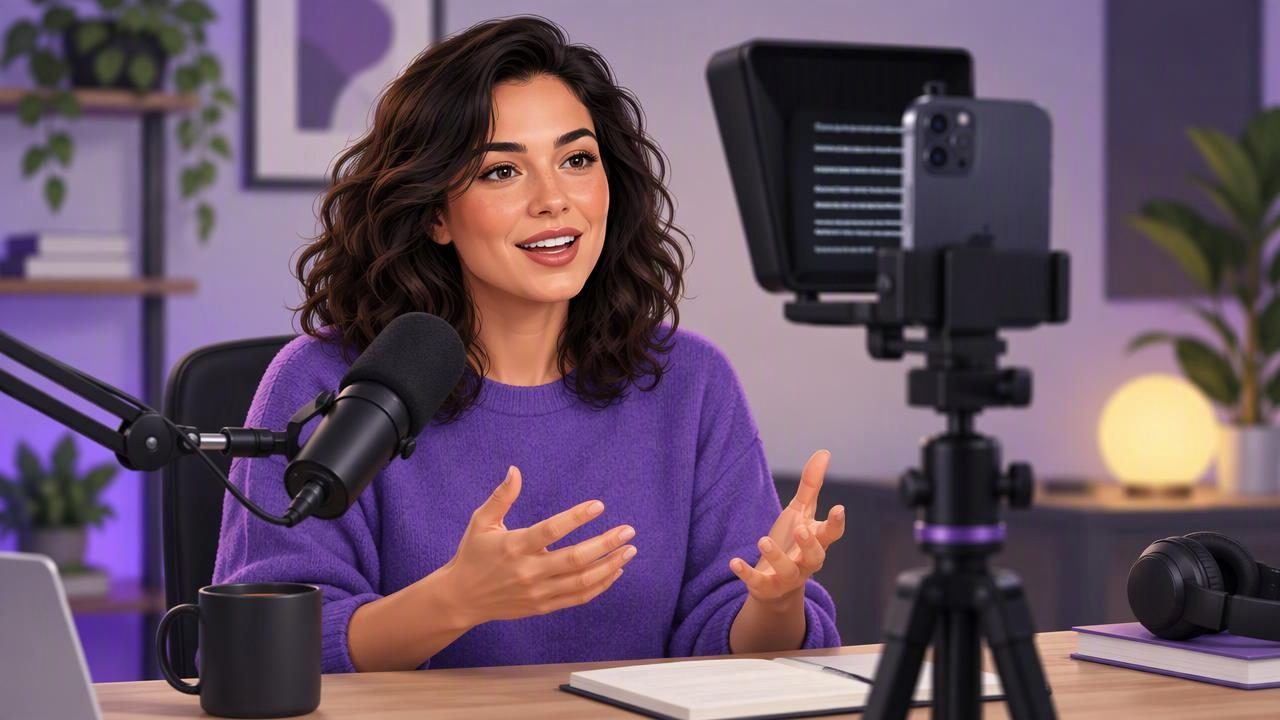
A video podcast often asks you to do two jobs at once: speak clearly and look engaged on camera. A teleprompter can help you deliver an introduction, sponsor message, explanation, or closing without memorizing every line. The goal is not to sound as if you are reading. It is to keep your key points close to the lens while speaking at a comfortable pace.
This video teleprompter guide for podcasters covers how to prepare a script, position an iPhone, choose a scrolling method, and check audio before recording. It also explains when a teleprompter is useful—and when a short outline or unscripted conversation may work better.
What a video teleprompter can do for a podcast
A teleprompter displays your script near the camera as you record. Because your eyes stay close to the lens, your delivery can feel more direct than reading from notes placed off to one side. It can be especially helpful for repeatable sections: a show welcome, episode summary, guest introduction, call to action, or a short video version of a podcast segment.
It is a support for delivery, not a substitute for preparation. You still need to understand the point you are making, decide how you want to say it, and check that the script sounds natural aloud. For a two-person interview, a script may guide the opening and transitions while the actual conversation remains responsive.
Write for speaking, not for the page
Podcast scripts often become difficult to read when they are written like essays. Long sentences, formal transitions, and dense paragraphs can make your voice sound stiff. Before recording, read the text aloud and revise any phrase that feels awkward on the first try. Use contractions and plain language where they fit your voice.
Break the script into short, meaningful chunks. A paragraph might cover one idea, while a line break can mark a pause or a change in emphasis. Add simple cues only where they help, such as [pause] or [show the product]. Avoid filling the script with directions you will not have time to process while speaking.
For example, a 30-second podcast introduction might read:
Welcome to The Small Studio Podcast. I’m Alex, and today we’re looking at three ways to make remote interviews sound clearer. First, we’ll cover microphone placement. Then we’ll talk about room noise and the quick checks you can do before a guest joins. Let’s get started.
That is easier to deliver than a single long sentence because it follows the spoken order of the episode. If a line still feels unnatural, rewrite it instead of trying to perform around it.
Choose the right amount of scripting
Not every podcast video needs a word-for-word script. Match the level of scripting to the task:
- Full script: Useful for a precise opening, a carefully worded explanation, or a short recorded announcement.
- Bullet outline: Better when you want structure but need room to respond naturally or add examples.
- Key phrases only: Helpful for a familiar topic where you mainly need reminders for names, figures, or the next transition.
A practical approach is to script the first and last few sentences, then use brief prompts for the middle. This gives you a confident start and finish without forcing a conversational interview into a rigid reading. For sensitive or technical material, verify names and facts before recording rather than relying on the teleprompter to catch mistakes.
Set a readable pace before recording
Scrolling too quickly can make you rush, while very slow scrolling may interrupt your rhythm. Read a sample paragraph aloud at the pace you want for the episode, then adjust the scroll until the next lines appear at a manageable rate. Leave enough visual space to read ahead without moving your eyes noticeably from side to side.
If your app offers voice-following word tracking, it can move the script in response to your speech instead of advancing at one fixed speed. Fixed-speed scrolling can be easier to predict for a rehearsed introduction; timed scrolling may suit a section with a planned duration. Options and behavior vary by app, device, and language. Test the mode you plan to use with your actual script and speaking voice rather than assuming it will follow every speaker equally well.
When you lose your place, pause, find the next sentence, and continue. A brief pause is often less distracting than speeding up to catch the text. You can also record a short section at a time if the script or delivery is complex.
Position the iPhone for natural eye contact
Place the phone so the camera lens is close to the text you are reading. The farther the words sit from the lens, the more your eyes may appear to look away. Keep the device at roughly eye level and frame yourself before recording. A low camera angle can make a seated host look down; a very high angle can feel unnatural. Check the composition on screen, including headroom and any microphone or stand that enters the frame.
Use a comfortable reading distance. Text that is too small encourages squinting, while oversized text may force frequent eye movement as each line wraps. Adjust the text size and line width, then read a few sentences while watching your eyes in a test clip. Avoid making last-minute changes to the phone position after you have set the frame and focus.
Do a short audio test first
Clear speech matters as much as a steady picture in a video podcast. Before a full take, record a short sample using the microphone and room setup you intend to keep. Listen back with headphones if available. Check that your voice is easy to understand, that the level is not unexpectedly low or distorted, and that there is no obvious background noise, echo, or handling sound.
Speak at your normal recording volume and distance. Make sure the microphone is not rubbing against clothing or blocked by a hand, stand, or phone case. If you change your position, microphone, or room, record another sample. An audio check cannot guarantee a perfect result, but it can reveal problems before you deliver a long episode.
A simple recording workflow for a podcast segment
- Choose the segment. Decide whether you need a full script, a short introduction, or a few prompts.
- Edit for speech. Read the text aloud, simplify awkward sentences, and mark only useful pauses or actions.
- Set the frame. Put the lens near your eyeline, check the crop, and make sure your script remains readable.
- Set the scroll. Try the available scrolling mode with a sample paragraph and adjust to your natural pace.
- Test sound and picture. Record a few seconds, then review both before moving into the full take.
- Record in sections if needed. Short takes can make a long, tightly scripted explanation easier to review and redo.
For instance, a podcaster recording a video introduction can script the show name, guest name, and episode premise, then use bullet prompts for the rest. After a sample, the host might notice that the guest’s name is easy to misread or that a sentence is too long to deliver in one breath. Fixing those details before the full take can save a retake.
Review captions and edits with care
Subtitles can make a podcast clip easier to follow when viewers are watching without sound, but generated captions should be reviewed. Names, specialist terms, accents, and overlapping speech may need correction. Caption generation can have device and language requirements, so check the app’s current support and try a short sample before building it into your workflow. On-device processing may be useful when you want to create captions without sending media to an online service, but availability depends on the tool you use.
After recording, trim long pauses or false starts if they distract from the point. Keep edits consistent with the style of the podcast: a conversational show may benefit from leaving natural pauses, while a short promotional clip may call for tighter pacing. Check the finished video with its captions visible and confirm that text does not cover a face, product, or other important detail.
Know the limits of reading from a screen
A teleprompter can reduce the need to memorize lines, but it cannot guarantee natural delivery. If you focus on the words instead of the meaning, your voice may become flat. Rehearse the key ideas, look up from the script between phrases when appropriate, and give yourself permission to pause. For a spontaneous discussion, keeping a few prompts near the camera may preserve more flexibility than placing the entire conversation on screen.
Voice-following features may behave differently depending on the device, supported language, and recording conditions. Background noise or changes in speaking pace can also affect how comfortable a scrolling mode feels. If tracking does not suit your setup, try fixed or timed scrolling, shorten the section, or use a compact outline. Check the specific app’s requirements rather than assuming every mode works on every iPhone or in every language.
Use a teleprompter as part of your podcast workflow
The most useful setup is the one that lets you speak clearly without losing connection with the camera. Prepare text for the ear, keep it close to the lens, find a pace that does not rush you, and listen to a short audio test before recording. Use a script for exact wording and prompts for conversations that need room to breathe.
For an iPhone-based workflow, CueCam is a teleprompter and video creation app; its guide to recording video while reading a script offers a related walkthrough. Whatever tool you choose, confirm its device and language support, then test the complete setup with a short podcast segment before recording the episode.
