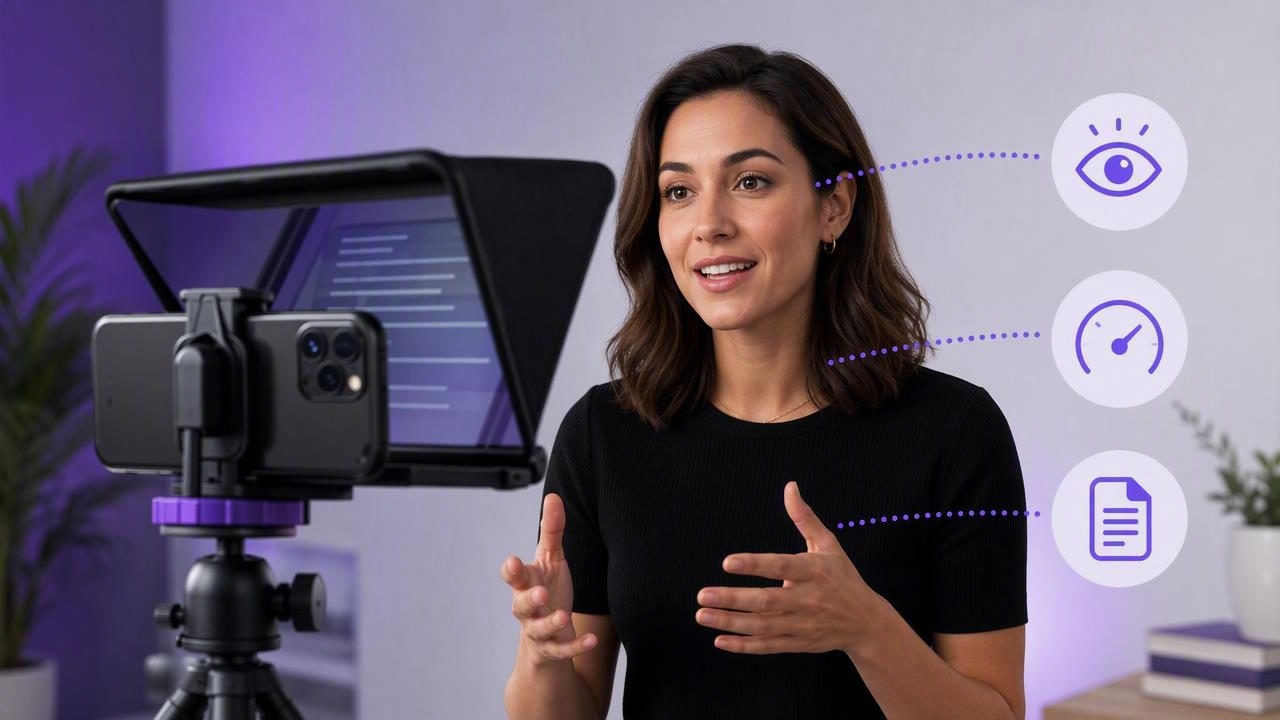
A video teleprompter for better paced presentations can help you deliver a clear message without rushing, drifting off topic, or losing eye contact with your audience. Whether you are recording a client update, a product walkthrough, a lesson, a social video, or a presentation for your team, the way you control your speaking pace affects how credible and easy to follow you appear.
Many people know their subject well but still struggle when the camera starts recording. They may speak too quickly to get through the script, pause too long while searching for the next point, or look away from the lens to read notes. A teleprompter gives you a visible structure while keeping the script close to the camera, making it easier to speak at a deliberate, natural rate.
This guide explains how to prepare a script, choose an appropriate scrolling method, set a comfortable reading pace, position your iPhone, and review your footage for pacing problems before you publish.
Why Presentation Pace Matters on Video
Presentation pacing is more than words per minute. It includes the speed of your sentences, the length of your pauses, changes in emphasis, and the space you give viewers to process an idea. When the pace is too fast, viewers can miss important details. When it is too slow, a concise message can feel uncertain or repetitive.
A well-paced presentation usually feels conversational. The speaker does not sound as though they are trying to finish a script before time runs out, but they also avoid extended gaps that interrupt momentum. This balance is especially important in video, where your audience cannot ask you to repeat a point in real time.
Common pacing problems include:
- Rushing through the opening because you are nervous.
- Reading long sentences without taking a breath.
- Adding too many side comments that move away from the main message.
- Pausing to find the next line in notes placed off camera.
- Speaking at one unchanging speed from beginning to end.
- Using complicated written language that is difficult to say naturally.
A video teleprompter does not automatically make every delivery engaging. It does, however, remove one major source of friction: remembering what comes next while trying to look at the camera. With that burden reduced, you can focus more attention on tone, clarity, pauses, and emphasis.
Start With a Script Written for Speaking
The best teleprompter script is not necessarily the same as a blog post, slide deck, or email. Writing for the ear requires shorter phrases and clearer transitions. If a line feels awkward when read aloud, it will likely feel even more awkward while you are watching yourself on screen.
Use a simple spoken structure
A practical structure for a short presentation is:
- Opening: State the topic and why it matters.
- Context: Give the viewer enough background to understand the problem or opportunity.
- Main points: Explain two to four ideas in a logical order.
- Action: Tell the viewer what to do, consider, or remember next.
Keep each paragraph focused on one idea. If you need to explain a technical term, introduce it before relying on it. If the presentation includes numbers, dates, names, or product specifications, add extra spacing around those lines so you can slow down without losing your place.
Format your script for smooth reading
Formatting is a pacing tool. Dense blocks of text make it harder to scan ahead and can encourage fast, flat delivery. Instead, use line breaks to create natural breathing room.
Before we begin,
there are three things to know.

First: who this is for.
Second: what changes.
Third: what happens next.
This layout is easier to read than one long paragraph. It also reminds you where a brief pause may help the audience absorb the message. Avoid writing instructions such as “pause dramatically” throughout every section, as too many cues can make the script distracting. Reserve them for moments where a pause is genuinely useful.
Estimate the Right Reading Speed
Your ideal teleprompter speed depends on your natural speaking style, the complexity of your topic, and the audience. A straightforward announcement can be delivered more quickly than an instructional presentation with unfamiliar concepts.
As a planning reference, many conversational presentations land around 120 to 150 words per minute. This is not a rule. A presenter explaining a detailed process may need a slower pace, while a short, familiar update may feel natural at a faster rate. The goal is intelligibility, not a specific number.
| Presentation type | Useful pacing approach | What to watch for |
|---|---|---|
| Quick social update | Short sentences and brisk transitions | Do not rush the key takeaway |
| Product demonstration | Moderate pace with space for each step | Pause after actions and labels |
| Training video | Slower pace with clear section breaks | Avoid cramming multiple instructions together |
| Executive or client message | Measured pace with intentional emphasis | Leave room for important decisions or dates |
To estimate your starting speed, read the script aloud with a timer before recording. If a 300-word script takes two minutes and 20 seconds to read comfortably, your natural pace is roughly 129 words per minute. Use that result as a starting point, then adjust during rehearsal.
Do not speed up simply to meet an arbitrary video length. It is usually better to remove a weak point, split the topic into separate videos, or simplify a sentence than to make essential information difficult to understand.
Choose the Teleprompter Scrolling Method
Different scripts and speaking styles call for different scrolling approaches. The most useful option is the one that lets you maintain a stable delivery without constantly thinking about the moving text.
Fixed-speed scrolling
Fixed-speed scrolling moves the script at a set rate. It works well when you have rehearsed the script and can maintain a consistent pace. Start slightly slower than you think you need. If the text moves too fast, you may begin chasing it, which often causes rushed speech and tense body language.
Fixed speed can be less suitable when you need to demonstrate something, answer a question in your own words, or pause often for emphasis. In those situations, the script may move ahead before you are ready.
Voice-following tracking
Voice-following word tracking is useful when your delivery includes natural variations in pace. Rather than forcing yourself to keep up with a preset scroll, the text can follow your spoken progress. This can make it easier to pause, repeat a phrase, or give emphasis without losing your place.
However, voice tracking can be affected by factors such as background noise, unclear pronunciation, speech that departs significantly from the script, device conditions, and supported language settings. Treat it as a helpful reading aid, not a guarantee that every word will be recognized perfectly. Review the available language and device options before relying on it for an important one-take recording.
Timed scrolling
Timed scrolling can be useful for presentations that must fit a planned duration. For example, if you need a 90-second introduction, you can rehearse the script against that length and identify sections that need trimming. Timed scrolling is most effective after you have already read the script aloud and confirmed that its length is realistic.
Set Up Your iPhone for Natural Eye Contact
A teleprompter only helps eye contact when the text is positioned close enough to the camera lens. If the script sits far below, above, or beside the lens, viewers may notice your eyes moving as you read.
Place the iPhone at approximately eye level. Looking slightly upward or downward for an extended time can appear less natural and may affect your posture. Use a stable support where possible, and frame the shot so there is comfortable space above your head without making the camera feel distant.
Before recording the full presentation, check these details:
- Text size is large enough to read without squinting.
- The script appears close to the camera lens.
- Screen brightness is comfortable and does not distract you.
- Your face is evenly lit enough for viewers to see your expressions.
- The background supports the message rather than competing with it.
- Notifications and interruptions are disabled.
Camera placement matters as much as script placement. If you keep moving your head to follow the text, make the font larger, shorten line lengths, or reposition the device. Small adjustments can make reading look substantially more natural.
Run a Short Audio and Pace Test
Record a 20- to 30-second test before your main take. Include a line with names, technical words, numbers, and one of your most important statements. Then watch it with sound on.
Listen for clipped words, inconsistent volume, excessive room echo, and breaths that interrupt sentences. Also watch without sound for a moment. Are your eyes frequently moving across the screen? Do pauses look intentional? Does your expression match the meaning of the words?
Useful rule: If you sound faster because you are reading, slow the scroll before changing your voice. A calmer script speed often improves clarity immediately.
If you use an external microphone, perform the test with that exact setup. Audio behavior can vary by equipment, connection method, recording settings, and environment, so a quick check is more reliable than assuming a setup will behave the same in every situation.
A Concrete Example: Turning a Rushed Update Into a Clear Video
Imagine you need to record a one-minute update about a new internal process. Your first draft is 210 words, includes three long sentences, and ends with a list of actions. During rehearsal, you finish in 70 seconds but sound rushed near the end.
Instead of increasing the teleprompter speed, revise the script. Remove the background detail that your audience already knows, turn the action list into three short lines, and add a pause after the main change. The new version is 155 words. Set the initial scroll to a comfortable pace, then record a test.
On review, you may find that the opening needs a little more energy, while the action items need a slower delivery. With voice-following tracking, you may be able to make those changes naturally. With fixed-speed scrolling, you can add line breaks before the action items or record the final section as a separate take. The goal is not a flawless single take; it is a presentation that viewers can understand.
Review and Improve Before Publishing
After recording, review the video for more than visual quality. Ask whether the pacing supports the message.
- Can a first-time viewer understand the main point?
- Are important instructions delivered slowly enough?
- Do pauses feel purposeful rather than uncertain?
- Does your eye contact remain consistent?
- Would subtitles improve comprehension for viewers watching without sound?
Subtitles can reinforce spoken information, especially for names, figures, and step-by-step instructions. Check captions carefully before publishing, because automatic transcription may misinterpret uncommon names, specialized vocabulary, overlapping speech, or audio recorded in a noisy setting. On-device caption tools and language availability may also vary by device and selected language.
Build a Repeatable Presentation Workflow
Consistent pacing becomes easier when you use the same sequence every time: write for speech, rehearse aloud, set the scroll, check framing, record a short audio test, then capture the full take. Over time, you will learn the script length, font size, and scrolling behavior that fit your delivery style.
For iPhone creators who want to combine script reading and recording in one workflow, CueCam’s guide to recording video while reading a script offers additional practical setup guidance. Whatever tool you use, remember that the teleprompter should support your communication, not control it. The best result is a presentation that sounds prepared, human, and easy to follow.
