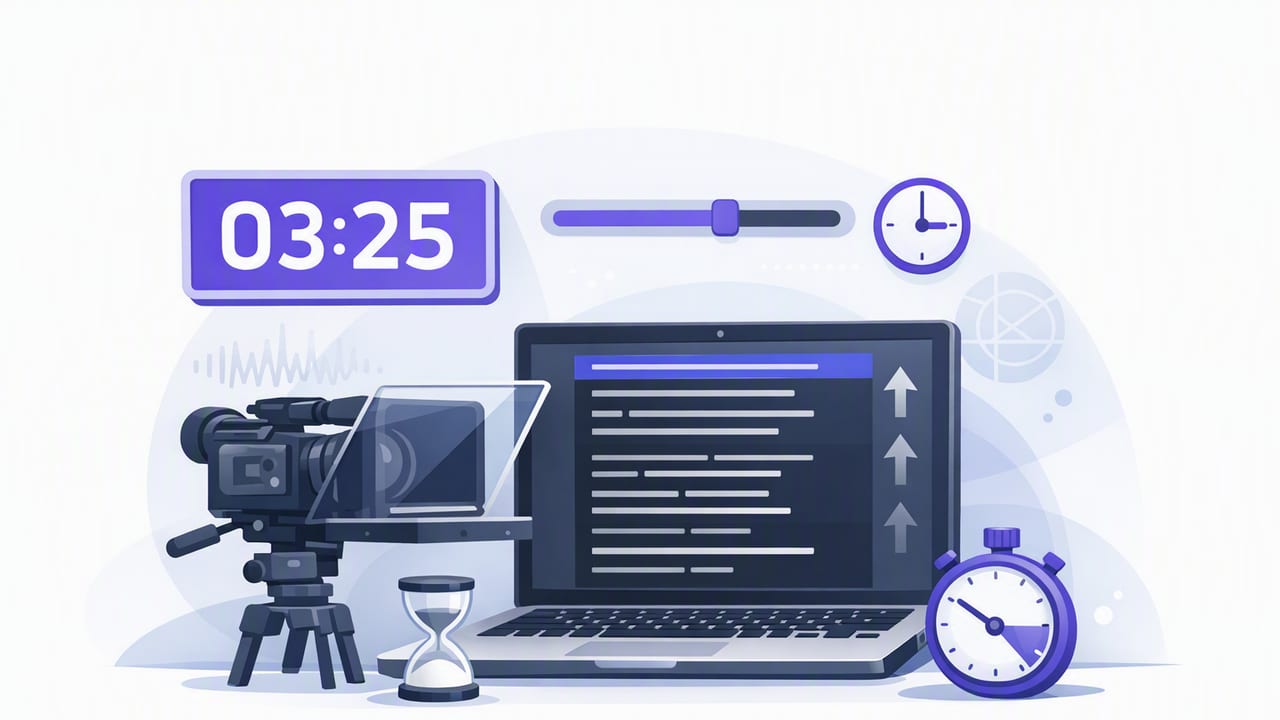
Timed teleprompter scrolling is the simplest way to record scripted video on an iPhone while keeping consistent pacing and confident eye contact. Instead of reacting to your voice, the script moves at a controlled speed you set in advance. That predictability can be a major advantage for creators who want repeatable takes, consistent timing for ads or lessons, and fewer on-camera surprises.
This guide breaks down how timed teleprompter scrolling works, how to calculate a good scroll speed, and how to record smoother takes (including 4K capture, audio, and subtitles) without turning your workflow into a complicated production.
What timed teleprompter scrolling actually does
In timed mode, your script scrolls from top to bottom at a fixed pace based on duration or speed settings. The teleprompter doesn’t wait for you, and it doesn’t speed up when you get excited—so your job is to match the pace you selected.
Why it matters: timed teleprompter scrolling helps you deliver lines evenly, hit target runtimes, and reduce re-takes caused by inconsistent pacing. It’s especially useful when you need multiple clips with the same cadence (series content) or when a brand/client needs an exact length.
When timed teleprompter scrolling is the best choice
There’s no single “best” teleprompter mode. Timed scrolling shines in certain situations, and it can be less ideal in others.
Timed scrolling is ideal when you need:
- A precise runtime (e.g., 30-second ad reads, course lessons, event announcements)
- Repeatable pacing across multiple takes or episodes
- Cleaner edits because your pauses and phrasing stay consistent
- Quiet recording environments where voice-follow features might misread breath, background noise, or mic changes
Timed scrolling may be tougher when:
- You frequently improvise or add unscripted asides
- You want the teleprompter to wait during pauses (timed mode will keep moving)
- You’re still learning your delivery and need flexibility
If you struggle with timed mode at first, it usually isn’t a performance problem—it’s a calibration problem. Get the speed right, and timed scrolling becomes surprisingly forgiving.
Step 1: Format your script for timed scrolling (so you can actually read it)
Timed teleprompter scrolling rewards scripts that are easy to scan. The more readable your script is, the less you’ll “chase” the words as they move.
- Short paragraphs: 1–2 sentences each. Big blocks are hard to track while scrolling.
- One idea per line: break long sentences into natural chunks.
- Mark pauses: add [beat] or an ellipsis where you want breathing room.
- Speakable punctuation: write how you talk; don’t write like an essay.
- Highlight emphasis: use ALL CAPS sparingly or italics if your prompter supports it.
Rule of thumb: If you can’t read a paragraph comfortably at arm’s length in two seconds, it’s too dense for timed scrolling.
Step 2: Choose a starting pace (WPM is your best friend)
Timed teleprompter scrolling boils down to matching words per minute (WPM) to your natural speaking speed. Most creators speak clearly on camera between 130–170 WPM, depending on tone, topic complexity, and how many pauses they use.
Use the table below to pick a sensible starting point, then refine it through rehearsal.
| Delivery style | Typical WPM | Best for | Notes |
|---|---|---|---|
| Calm, deliberate | 120–140 | Explainers, sensitive topics | Leaves room for pauses; sounds confident |
| Conversational | 140–160 | Most creator content | Natural energy without rushing |
| Energetic, punchy | 160–180 | Short-form hooks, promos | Watch clarity; add line breaks to avoid stumbling |
| Fast, dense | 180–200 | Highly rehearsed scripts | Risk of sounding like reading; requires practice |
Step 3: Calculate timed scrolling speed (quick math that prevents bad takes)
Most timed teleprompters let you set either:
- Total duration (the script finishes in X minutes), or
- Scroll speed (a fixed pace you tune up/down)
If your app uses duration, you can estimate it from WPM:
Duration (minutes) = Total words ÷ WPM
If you don’t know your total word count, many notes apps show it. If not, copy the script into a word counter first.
Example
Your script is 390 words. You want a conversational pace of 150 WPM.
- 390 ÷ 150 = 2.6 minutes
- That’s about 2 minutes 36 seconds
Set your timed teleprompter scrolling duration to ~2:36, then rehearse once and adjust.
A tiny helper snippet (optional)
If you like quick tools, this simple calculation gives you target duration. Paste into any JavaScript console (or adapt to your preferred language):
function durationSeconds(wordCount, wpm) {
  return Math.round((wordCount / wpm) * 60);
}

// Example: 390 words at 150 WPM
console.log(durationSeconds(390, 150)); // 156 seconds (2:36)
Step 4: Do a 3-pass rehearsal to lock in the pace
Timed teleprompter scrolling works best when you rehearse in a structured way. You’re not trying to memorize; you’re trying to synchronize your delivery to the scroll rhythm.
- Pass 1 (calibration): Read at your natural speed. If you feel rushed, slow the scroll. If you’re waiting for words, speed it up.
- Pass 2 (performance): Add emphasis, pauses, and intent. If you add more pauses than the script allows, either shorten the script or slightly slow the scroll.
- Pass 3 (record-ready): Record a full take. Note exactly where you stumble; fix the script formatting (line breaks) before touching speed again.
Best practice: adjust only one thing at a time. If you change both script formatting and speed, you’ll never know what fixed the issue.
Step 5: Make your iPhone setup teleprompter-friendly
You can have perfect timing and still look like you’re reading if the physical setup is off. Small changes in framing and text layout make a big difference.
On-screen readability settings
- Font size: big enough that you can keep your eyes near the lens, not scanning down the screen.
- Line spacing: slightly looser than normal; it reduces line-jumps while scrolling.
- Margins: keep text closer to the camera position to maintain eye contact.
- Scroll smoothness: avoid overly fast movement; smooth and steady reads as confident.
Camera and audio fundamentals
- Use the rear camera when possible: better quality and lenses (especially for 4K recording).
- Lock exposure/focus: prevents brightness pumping while you move slightly.
- Stabilize: tripod first; stabilization features help but can’t fix shaky framing.
- External mic: a lav or compact shotgun usually improves perceived quality more than upgrading resolution.
If your workflow includes pro capture, recording in 4K/60fps can be useful for cropping and stabilizing while keeping detail—just confirm you have enough storage and that your editing/export path supports it.
Common problems with timed teleprompter scrolling (and how to fix them)
You sound like you’re racing the script
- Slow the scroll by 5–10%.
- Insert [beat] markers and additional line breaks where you naturally pause.
- Cut filler sentences; timed mode punishes bloated intros.
You keep getting ahead and waiting
- Speed up slightly.
- Remove long pauses or rewrite them shorter.
- Add a little more energy; under-energized delivery often drops WPM.
Your eyes drift and look obviously “teleprompted”
- Increase font size and tighten margins so your gaze stays near the lens.
- Move the camera window closer to the text area (depending on your app layout).
- Use shorter lines; long lines force visible left-to-right scanning.
You stumble on certain lines every time
- Rewrite tongue-twisters into simpler spoken language.
- Break long sentences into two.
- Swap uncommon words for familiar ones (clarity beats cleverness on video).
Pair timed scrolling with a script-to-video workflow
Timed teleprompter scrolling becomes more powerful when it’s part of a repeatable creator workflow: script, record, edit, subtitle, export. A few choices here can save you hours over a month of posting.
Editing: trim first, then format
- Trim mistakes early: remove false starts and long silences before you do anything else.
- Resize with intent: crop for vertical (short-form) or horizontal (YouTube) rather than trying to make one frame fit everywhere.
- Keep backgrounds simple: if you use background replacement, strong contrast around hair and hands matters most.
Subtitles: prioritize accuracy and privacy
Subtitles are one of the highest-ROI steps for retention. If your workflow supports on-device subtitles, you can generate captions in multiple languages without uploading raw footage. That’s helpful for privacy-focused creators, client work, or anyone who records sensitive topics.
Exports: match platform expectations
- TikTok/Reels: vertical 9:16, readable captions, safe margins for UI overlays.
- YouTube Shorts: similar to Reels, but watch loudness consistency across uploads.
- YouTube long-form: 16:9 framing, cleaner audio, less aggressive pacing.
A practical timed scrolling checklist (use this before you hit record)
- Script formatted with short paragraphs and clear pauses
- Target WPM chosen (start at 150 WPM if unsure)
- Duration calculated from word count
- Font size large; margins keep text near the lens
- Tripod or stable support; exposure/focus locked
- Mic connected and tested (10-second test recording)
- One rehearsal pass after final speed adjustment
Bottom line
Timed teleprompter scrolling is less about reading fast and more about designing a pace you can deliver naturally. Once you calibrate WPM, clean up script formatting, and set your iPhone up for minimal eye movement, timed mode becomes an easy, repeatable system for scripted video—especially when you need consistent timing across takes.
If you’re looking for an iPhone teleprompter workflow that includes timed scrolling plus on-device subtitles and privacy-friendly processing, an app like CueCam can fit neatly into that script-to-video routine.
