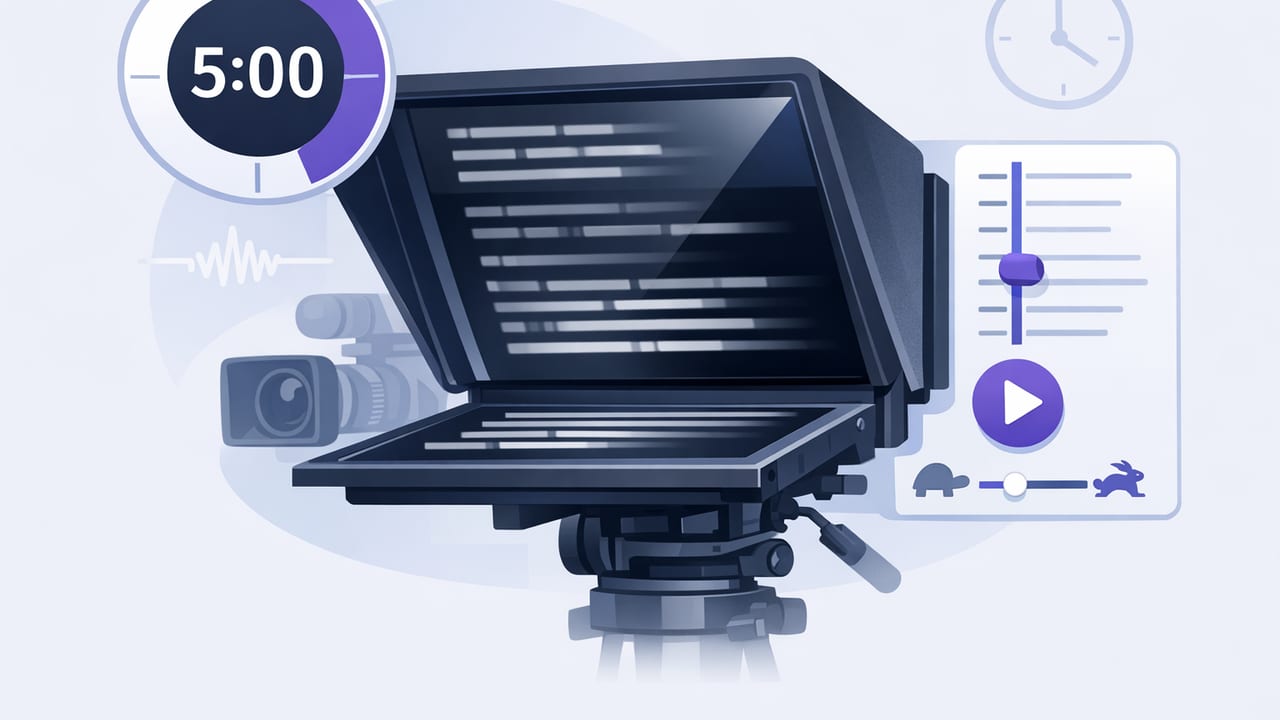
A timed scrolling teleprompter is the fastest way to make scripted videos feel consistent—especially when you need a precise runtime for ads, reels, lessons, or product demos. Instead of chasing the “right speed” by guesswork, you set a duration and let the script scroll in sync with your planned delivery. The result is fewer retakes, cleaner pacing, and predictable edits.
This guide breaks down how timed scrolling works, when to choose it over other modes, and a step-by-step method to plan timing, format scripts, rehearse, and record on iPhone while maintaining natural eye contact.
What “timed scrolling” actually means
In a timed scrolling teleprompter, you set a target duration (for example, 30 seconds or 2 minutes). The teleprompter then scrolls the script so the last line reaches the end exactly at that time. Your job is to speak along with the scroll.
This differs from fixed-speed scrolling (which scrolls at a constant rate you adjust manually) and voice-following (which adapts to your speech). Timed scrolling is best when your video must hit a precise length, or when you want repeatable pacing across multiple takes.
When timed scrolling is the best choice
- Short-form platforms with strict runtime: 15s/30s/60s content where timing matters.
- Paid ads and UGC-style scripts: you often need to land key lines before a cutoff.
- Multi-scene shoots: you want each segment to fit an edit window.
- Voiceover + talking head combos: consistent pacing makes matching B-roll easier.
- Team workflows: a repeatable timing plan helps collaborators and editors.
Timed scrolling vs. fixed-speed vs. voice-following (quick comparison)
| Mode | Best for | Pros | Trade-offs |
|---|---|---|---|
| Timed scrolling | Exact runtimes, ad slots, consistent pacing | Predictable length; easier editing; repeatable takes | Requires rehearsal; you must stay with the scroll |
| Fixed-speed | Casual scripts, “feel-based” delivery | Simple; set-and-go once speed feels right | Runtime can drift; harder to match to strict durations |
| Voice-following | Natural delivery, variable pacing, long reads | Adapts to you; fewer “racing the scroll” moments | Runtime less predictable; depends on mic/room noise |
The core timing math (without overthinking it)
Timed scrolling becomes easy when you plan around words per minute (WPM). Most creators land between 130–170 WPM for clear on-camera delivery, depending on style and pauses. A punchy ad read may be faster; a tutorial may be slower.
Rule of thumb
- 150 WPM ≈ 2.5 words/second
- 30 seconds at 150 WPM ≈ 75 words
- 60 seconds at 150 WPM ≈ 150 words
If your script is longer than the word budget for your target duration, timed scrolling will force you to rush (which looks unnatural). Instead, trim, tighten, or split into sections.
Quick estimator (copy/paste friendly)
# Estimate target word count for timed scrolling teleprompter
# Inputs: duration_seconds, target_wpm
words = duration_seconds * (target_wpm / 60)

# Example: 45s at 155 WPM
# words = 45 * (155/60) ≈ 116 words
Step-by-step: set up a timed scrolling plan that feels natural
1) Pick your delivery style first (then pick the duration)
Many creators do the reverse: they pick “30 seconds,” then try to cram lines in. If your delivery is calm and authoritative, a 30-second slot might be too tight for a complex message. Decide if the tone is:
- Fast + energetic (fewer pauses, shorter sentences)
- Neutral + clear (moderate pauses)
- Slow + explanatory (more pauses, examples)
Then choose a target WPM that matches that style.
2) Create a “beat map” (the simplest way to stop rushing)
A beat map is a lightweight structure that tells you where to pause, emphasize, or switch visuals. It’s the secret to making a timed scrolling teleprompter feel human.
Example beat map for a 30–40s clip:
- Hook (0–5s): one sentence, one idea.
- Problem (5–12s): what’s frustrating / what’s at stake.
- Solution (12–28s): 2–3 short points.
- Proof (28–35s): quick result, number, or example.
- Next step (35–40s): what to do now.
Once you have beats, your script becomes easier to shorten without losing the message.
3) Format your script for timed scrolling (so your eyes don’t “hunt”)
Timed scrolling works best when your eyes move predictably. Use formatting that reduces cognitive load:
- Short lines (8–12 words per line) to prevent losing your place.
- One sentence per paragraph for faster scanning.
- Stage directions in brackets, kept brief: [pause], [smile], [show product].
- Caps for emphasis sparingly: THIS matters.
- Intentional pause tokens such as “…” or “(beat)” to slow you down.
Pro tip: If you keep running ahead of the scroll, your script is probably too easy (or too familiar). Add pause cues where you want your face to do the work—smile, react, or breathe.
4) Build in “pause budget” (the thing most scripts ignore)
Creators often write 150 WPM worth of words and then also pause—making the video run long. If your delivery includes pauses (it should), your effective WPM drops.
Simple approach:
- Plan 1–2 seconds of total pauses per 15 seconds of video.
- Reduce your word budget accordingly (or tighten sentences).
Example: a 30-second clip with ~3 seconds of pauses leaves ~27 seconds of speaking time. At 150 WPM, that’s about 67–70 words rather than 75.
5) Rehearse with a “two-pass” method (fast and effective)
- Pass 1: silent read-through while the timer scrolls. Your goal is to confirm the structure and spot tongue-twisters.
- Pass 2: full voice, but only aim for 80–90% perfection. Focus on staying synced with the scroll and sounding conversational.
If you miss a line during rehearsal, don’t stop—note where it happened. The fix is usually formatting (shorter line breaks) or swapping a hard phrase for an easier one.
How to keep timed scrolling from looking “telepromptery”
Timed scrolling can look stiff if your eyes move like they’re reading. These adjustments keep your delivery natural:
Use “thought units,” not paragraphs
Break the script where you would naturally think. Your eyes should land on a chunk, then your face should deliver the idea.
Place the prompt close to the camera lens
The closer the text is to the lens, the more direct your eye contact appears. If your setup allows, position the prompt so you’re not glancing off-axis.
Make micro-pauses at the ends of beats
At beat transitions (hook → problem, problem → solution), insert a tiny pause. It reads as confidence, not hesitation, and keeps you from sprinting to “catch up.”
Don’t fear rephrasing—just stay in time
With a timed scrolling teleprompter, the audience doesn’t know your script. If you paraphrase a sentence but keep the timing, the take is often usable—especially for short-form content where energy matters more than word-perfect accuracy.
Timed scrolling workflow for iPhone creators (script → record → edit)
Timed scrolling is most powerful when paired with a simple, repeatable workflow:
- Write to a word budget (based on duration + WPM).
- Format for scanning (short lines, pause cues).
- Run two rehearsals to confirm timing.
- Record in consistent settings: lock exposure/focus if possible; use an external mic for clarity; record at high resolution if you plan to crop.
- Edit quickly: remove dead air, tighten the first 2 seconds, and keep jump cuts aligned with beat changes.
- Add subtitles for retention. If your workflow supports on-device subtitle generation, it’s convenient and privacy-friendly.
Troubleshooting: common timed scrolling problems (and fixes)
You keep running ahead of the scroll
- Cause: Script is too short for the duration, or you’re skipping pauses.
- Fix: Add pause cues, add a brief example, or shorten the duration.
You keep falling behind
- Cause: Script is too long, sentences are complex, or you’re over-enunciating.
- Fix: Cut 10–15% of words, replace long phrases, or split into two clips.
Your eyes look like they’re reading
- Cause: Lines are too long, or the prompt is too far from the lens.
- Fix: Shorter line breaks, bigger text, and align prompt closer to the camera.
Your energy feels flat
- Cause: You’re focusing on matching the scroll instead of communicating.
- Fix: Add emphasis markers, rehearse the hook more, and treat beats as “mini conversations.”
A practical example: turning a messy script into a timed scroll
Here’s a quick before/after approach for a 30-second script.
Before (too dense)
“If you’re making videos on your phone and you’re struggling to remember what to say, you should write a script, but scripts can make you look like you’re reading, so you need a better system to keep eye contact and deliver naturally while still saying everything clearly.”
After (beat-based, timed-friendly)
HOOK: If your iPhone videos sound rambling… [beat]
PROBLEM: It’s usually not your camera. It’s your wording. [pause]
SOLUTION 1: Write a short script. One idea per sentence.
SOLUTION 2: Use a timed scrolling teleprompter so the pacing stays consistent.
PROOF: You’ll get cleaner takes—and editing gets way faster.
NEXT: Aim for one strong hook, then cut anything that doesn’t earn its place.
This version is easier to read, easier to time, and easier to perform.
Checklist: your next timed scrolling setup
- Target duration chosen (based on platform and message)
- Target WPM selected (based on delivery style)
- Script trimmed to word budget (with pause budget included)
- Formatted for scanning (short lines, beat breaks)
- Two rehearsals completed (silent + voiced)
- Recording settings consistent (audio, framing, stabilization)
- Subtitles added for retention (preferably on-device if privacy matters)
Final thoughts
A timed scrolling teleprompter isn’t about sounding robotic—it’s about making your delivery repeatable. When your beats are clear, your script is formatted for the eye, and your word budget matches your runtime, timed scrolling becomes a creative constraint that helps you perform better and edit faster.
If you’re building an iPhone script-to-video workflow and want timed scrolling alongside features like 4K recording and on-device subtitles, apps like CueCam are designed around that creator process.
