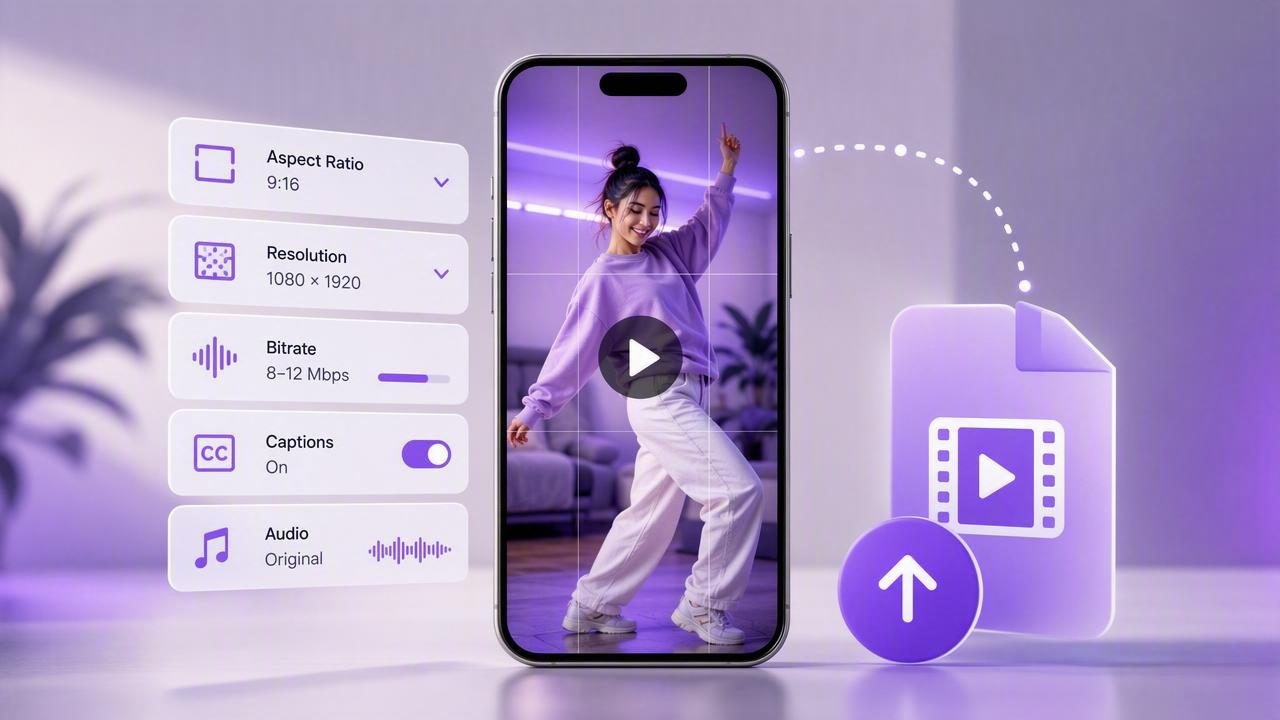
A successful TikTok video export is more than tapping “save” after editing. Your export settings affect how sharp the video looks, whether captions remain readable, how clean the audio sounds, and whether your composition fills the screen correctly. Even a well-recorded iPhone video can lose impact if it is exported in the wrong shape, compressed too heavily, or uploaded with important text too close to the edge.
This guide explains how to prepare, export, and check vertical videos for TikTok. It focuses on practical decisions creators can make before uploading, including resolution, frame rate, captions, audio, file format, and safe-screen placement. The goal is not to chase a single “perfect” preset, because TikTok can process uploaded files differently over time. Instead, it is to create a reliable workflow that gives the platform a clean, well-structured source file.
Start With the TikTok Viewing Format
TikTok is designed primarily for full-screen vertical viewing on a phone. For most talking-head videos, tutorials, product demonstrations, and script-led clips, the most useful starting point is a 9:16 vertical frame.
| Setting | Practical recommendation | Why it matters |
|---|---|---|
| Aspect ratio | 9:16 vertical | Fills the phone screen without side borders or unnecessary cropping. |
| Common resolution | 1080 × 1920 pixels | Provides a clear full-HD vertical source for social distribution. |
| Frame rate | Match your original footage where possible | Avoids motion changes caused by converting frame rates unnecessarily. |
| File type | MP4 with a widely supported video codec | Offers a practical balance of compatibility and file size. |
| Audio | Clear, balanced speech with no clipping | Dialogue quality often matters more than visual polish in educational videos. |
Although 1080 × 1920 is a common delivery size, the best recording resolution depends on your workflow. Recording at a higher resolution can give you extra room to crop, reframe, or stabilize footage during editing. However, exporting a much larger file does not guarantee viewers will see more detail. Social platforms may compress or adapt videos during processing, and individual viewers may have different network conditions and device screens.
Think of export quality as preserving the best possible source, not as a guarantee of identical playback quality after upload.
Record for the Export You Need
Export problems often begin before editing. If you know the final destination is TikTok, record with a vertical composition from the beginning whenever possible. This helps you avoid cutting off hands, products, subtitles, or graphics later.
Frame the subject with room for interface elements
TikTok’s interface can overlap parts of a video. Captions or key visual details placed at the very bottom, far right, or top edge may be harder to read. Leave breathing room around essential text and avoid placing a speaker’s face too low in the frame.
A useful approach is to keep the presenter near the upper-middle portion of the screen while reserving a clear lower-middle area for subtitles. This is especially helpful for educational videos where viewers need to watch the speaker and read captions at the same time.
Match frame rate instead of converting by habit
If you recorded at 30 frames per second, exporting at 30 frames per second is usually the simplest choice. If you recorded at 60 frames per second for smooth movement, you can decide whether that extra motion detail serves the final video. Converting footage back and forth between frame rates can create uneven movement, duplicate frames, or a less natural look.
Use 60 fps when the video benefits from fast action, movement, or a crisp demonstration. For a seated speaking video, 30 fps may be entirely appropriate. The important point is consistency: record, edit, and export with a deliberate frame-rate choice.
A Practical TikTok Video Export Workflow
Here is a concrete example for a 45-second vertical tutorial in which a creator explains three steps while speaking directly to the camera.
- Record vertically. Frame the presenter from the chest upward, leaving space above the head and below the face for captions.
- Review the first and last seconds. Remove accidental reaching for the record button, long pauses, or a rushed ending.
- Add captions after the main edit. Generate or type captions only after the spoken timing is final, so the text does not drift away from the audio.
- Use readable text styling. Choose a high-contrast caption color and background treatment that remains legible over changing footage.
- Export in 9:16. Use a full-screen vertical canvas, commonly 1080 × 1920, rather than placing a horizontal video inside a vertical frame.
- Watch the exported file before uploading. Check it in the iPhone Photos app with sound on, rather than judging only from the editing preview.
- Upload the final file. Add the title, description, cover, and platform-specific features after confirming that the exported video itself is correct.
This sequence prevents a common mistake: trying to solve recording, editing, captioning, compression, and publishing issues all at once. Treat each stage as a short quality check.
How to Keep Captions Readable After Export
Captions can make a TikTok video easier to follow when viewers are in a quiet place, a noisy place, or simply scrolling with sound muted. But captions must be designed for a phone screen, not a desktop editing timeline.
- Use short caption lines. Two concise lines are generally easier to scan than a large paragraph.
- Keep text away from the edges. Leave margin around captions to reduce the chance of overlap with interface controls.
- Check timing at normal speed. A caption may be technically accurate but still appear too quickly for viewers to read.
- Prioritize important words. If a sentence is long, break it at a natural phrase rather than forcing every word into one display.
- Review contrast on real footage. White captions can disappear against a bright shirt, window, or background unless they have a shadow, outline, or background panel.
For example, instead of displaying “To improve your TikTok video export quality, make sure you use a vertical high-resolution format and readable captions,” divide it into shorter units:
“Export in a vertical format.”
“Then check caption readability.”
The shorter version is easier to absorb while a viewer is also watching the speaker.
Audio Checks That Matter Before Uploading
Viewers may tolerate a small visual imperfection, but distracting audio can make them scroll away quickly. Before export, listen through headphones and through the iPhone speaker. These two checks reveal different problems.
Headphones can expose background hum, breaths, handling noise, or uneven levels. The phone speaker can reveal whether speech still sounds understandable when played in a more typical mobile setting. If the audio is harsh, distorted, or extremely quiet in the exported file, fix it before uploading rather than expecting platform processing to improve it.
Do a brief audio test at the beginning of a recording session, particularly if you changed location, microphone setup, or distance from the phone. A quiet room, steady microphone distance, and a clear speaking pace usually make a larger difference than aggressive audio processing later.
When 4K Recording Helps—and When It Does Not
Recording in 4K can be useful when you expect to crop into a shot, reframe a vertical composition, or retain more flexibility in post-production. For instance, a creator filming a wide demonstration may record at a higher resolution and later crop the most useful area into a 9:16 TikTok frame.
However, 4K is not automatically the best choice for every TikTok video export. Higher-resolution files take more storage space, may take longer to process, and can be unnecessary for a simple front-facing talking video with no planned crop. If your final export is 1080 × 1920, the value of 4K is often editing flexibility rather than a promise of sharper playback on TikTok.
Choose the recording setting that supports your intended edit. Do not select a larger file merely because it sounds more professional.
Common TikTok Export Problems and Fixes
| Problem | Likely cause | Practical fix |
|---|---|---|
| Black bars on the sides | Horizontal footage placed in a vertical project | Crop or reframe intentionally, or record vertically next time. |
| Blurry uploaded video | Low-quality source, heavy re-exporting, or platform processing | Export once from a clean master and avoid repeatedly saving compressed copies. |
| Captions are hidden or difficult to read | Text is too close to edges or lacks contrast | Move captions inward and add a readable background, outline, or shadow. |
| Speech sounds too quiet | Low input level or excessive distance from the mic | Improve recording conditions and confirm the exported file with headphones. |
| Video feels choppy | Unnecessary frame-rate conversion or unstable footage | Match the source frame rate and stabilize only when needed. |
Final TikTok Video Export Checklist
- Is the video vertical at 9:16?
- Does the framing still work on a phone screen?
- Are captions accurate, readable, and placed away from edges?
- Does speech sound clear through both headphones and the phone speaker?
- Have you trimmed dead space at the beginning and end?
- Does the exported file play correctly before upload?
- Are you uploading a final master rather than a repeatedly compressed copy?
A consistent export routine helps you spend less time fixing preventable issues after publishing. Keep the process simple: create a clean vertical source, edit with mobile viewing in mind, verify captions and audio, then upload the best final version you have.
If you record scripted iPhone videos, a tool such as CueCam’s guide to recording video while reading a script can help you plan a script-to-video workflow before you reach the TikTok export stage.
