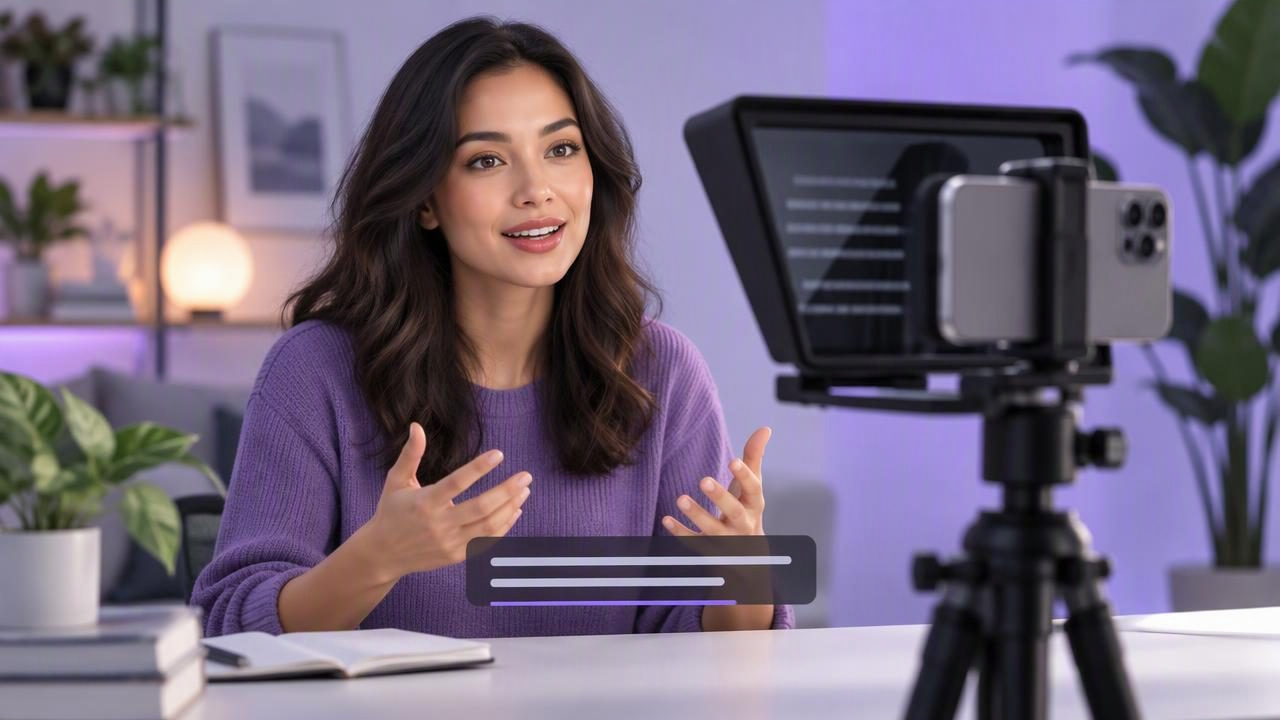
A teleprompter with camera recording and captions can bring three parts of a creator workflow together: reading a prepared script, filming the take and adding subtitles. The benefit is practical, not magical. You still need a script that sounds like you, a comfortable reading pace, a well-placed camera and a quick check of the finished captions.
This guide walks through a specific iPhone example: recording a short, roughly 45-second video that explains how to prepare a weekly meal plan. You can adapt the same process for a product introduction, lesson, social post or talking-head update. The goal is to reduce avoidable retakes while keeping the delivery conversational.
What a teleprompter with recording and captions does
A teleprompter displays your script near the camera lens while you speak. Depending on the app and mode, the text may scroll at a fixed speed, follow a timer or move in response to your voice. Recording in the same app can make it easier to move from reading to filming without rebuilding the setup elsewhere. Caption tools then create on-screen text from the recorded speech.
These functions are related but distinct. A teleprompter helps you deliver your message; camera controls capture the video; captions represent the audio as text. A single app may offer all three, but each part still has its own settings and limitations. Treat the script, picture and subtitles as separate things to check.
Start with a script that works aloud
For the meal-planning example, begin with one clear point: planning a few dinners before shopping can make the week easier. Then arrange the script into short thought groups: the problem, one useful action and a closing suggestion. Write in the words you would actually say, not in dense paragraphs meant for an article.
Read the draft aloud before filming. Replace phrases that feel awkward, split long sentences and remove details that do not support the main point. Add simple cues such as [pause] or [show the list] only where they help you remember an action. Avoid putting production notes into the spoken text if your teleprompter will display the full script while you record.
- Use short lines: Break the script at natural pauses so your eyes do not have to travel across a long block of text.
- Mark emphasis sparingly: Highlight only a few words or transitions; too many cues compete with the message.
- Keep the ending purposeful: Finish with one next step rather than adding a second conclusion.
A useful test is to record yourself reading one paragraph as a voice memo. If the language sounds stiff without a camera, it is unlikely to sound more natural when you are watching a screen.
Set a readable pace before recording
Scrolling speed is personal: the same setting can feel relaxed to one speaker and rushed to another. First estimate the length of your script by reading it aloud at the pace you want on camera. For a short social video, leave enough room for pauses and emphasis rather than trying to fit every word into an arbitrary duration.
Then test the teleprompter with a few lines. Keep your shoulders relaxed and speak as if explaining the idea to one person. If your eyes race ahead, slow the scroll or shorten the visible line lengths. If you repeatedly wait for the next line, increase the pace slightly or revise the spacing. Test again after any change; a setting that works for one script may not suit another.
Voice-following scrolling can be useful when you pause or vary your delivery, but it should not be treated as a guarantee that text will always move perfectly. Performance can depend on the app, device, speaking conditions and supported language. If tracking feels jumpy during your test, try fixed-speed or timed scrolling, where available, and choose the mode that lets you read comfortably.
Place the camera and script for natural eye contact
Position the iPhone at eye level, with the lens close to the text area. The closer the words sit to the lens, the less obvious it is when your eyes move to read. A phone placed low on a desk can make you look down, while text far from the lens can create a visible side-to-side glance. Use a stable stand or another secure support, and frame yourself before you begin.
Check the shot at the size and orientation you intend to publish. Leave comfortable space above your head and keep your face well lit. If the video is for a vertical platform, frame vertically from the beginning rather than cropping a horizontal take later and discovering that important details fall outside the frame. Keep the background simple enough that it does not distract from your words.
Do a brief rehearsal while looking at the lens between phrases. You do not need to stare without blinking; natural expression and small pauses matter. The aim is to make reading look like speaking, not to hide the fact that you prepared.
Run a short audio test before the full take
Good framing cannot compensate for unclear speech. Before recording the complete meal-planning video, capture a short test using the microphone and room you plan to use. Say a line at your normal volume, pause, then listen back with headphones if available. Check that the voice is understandable, the room is not adding distracting echo and any background noise is acceptable.
Do not assume a microphone will work simply because it can be connected to a phone. Compatibility and setup depend on the particular equipment and app. Confirm that the recording is receiving the intended audio source before you start a longer take. If you change rooms, move the phone or connect different equipment, repeat the short test.
Also check that your voice is not too quiet or clipped. Speak toward the microphone in your ordinary delivery instead of turning your head away to read. A single test can reveal a loose connection, an unexpectedly noisy room or a script that needs more breathing space.
Record in manageable sections
Once the test sounds clear, record the full script. If you lose your place, pause, take a breath and restart the sentence or thought group rather than rushing to catch up. Short sections are easier to deliver consistently and can be simpler to trim, though they may require more editing to make transitions feel smooth. For a brief video, one continuous take may be perfectly workable.
Keep the prompter and camera settings steady between takes. If you change the scroll speed, framing or distance from the microphone midway through, the final edit may feel uneven. Review the start and end of each take as well as the middle: a strong explanation can still be weakened by a clipped first word or a rushed final line.
When available, recording at a higher resolution such as 4K can provide more room for a later crop, but it also creates larger files and does not automatically improve lighting, sound or delivery. Choose recording settings that suit your device, storage and destination. Frame carefully in camera rather than relying on cropping to fix every composition problem.
Generate captions, then review them
Captions can improve accessibility and help viewers follow a video when they cannot play audio. Some tools create subtitles from the recording; others may require an internet connection or have limits based on device, language or feature availability. Check the app’s supported languages and requirements before relying on a particular caption workflow, especially if you are recording in a language other than your usual one.
Generated captions are a draft, not a guaranteed word-for-word transcript. Review names, numbers, specialist terms and short phrases that could be misheard. In the meal-planning example, check that a quantity such as “three dinners” has not become a different number. Also watch for punctuation that changes the meaning, missing words and breaks that divide a phrase awkwardly.
Read the captions while watching the video with the sound off. Make sure the text is legible, appears at a comfortable pace and does not cover a face or an important visual. If the platform adds its own captions or interface elements, leave space for them when framing and placing text. Captions should support the video, not compete with it.
Keep the workflow simple without skipping checks
- Shape the message: Write one main idea in short, spoken sentences.
- Test the read: Rehearse a few lines and adjust the scroll mode or script length.
- Check the shot: Place the lens near eye level and confirm the intended orientation.
- Test the sound: Record a short sample and listen before filming the full take.
- Review the result: Trim mistakes if needed, inspect captions and watch the final video before sharing.
Having tools in one workflow may reduce app switching, but it does not remove the need to check each stage. A clean recording depends on the script, room, framing, audio and your delivery. A caption pass remains important even when subtitles are generated automatically.
Consider privacy and device limits
Before choosing a teleprompter and recording setup, consider where scripts and videos are processed and stored. Some tools rely on online services for particular functions; others can handle certain tasks on the device. Read the app’s privacy information and check which features work offline if that matters for your workflow. On-device processing can be useful when you want to avoid uploading material for a task, but availability varies by feature, language and device.
For example, CueCam describes its iPhone workflow and explains how to record video while reading a script, including its on-device subtitle approach. Check the current feature and device details before recording, since app capabilities and language support can have limits.
Make the first take a useful one
A teleprompter with camera recording and captions is most helpful when it supports a clear message rather than adding more setup. Write for speech, place the text near the lens, test the pace, and listen to a short audio sample. After recording, review both the image and the generated subtitles instead of assuming that a successful take is automatically ready to publish.
For the 45-second meal-planning video, that might mean tightening the script to three points, choosing a pace that leaves room for a pause, checking the microphone in the actual room and correcting the caption for the number of dinners. Those small checks make the workflow more dependable while leaving room for a natural, personal delivery.
