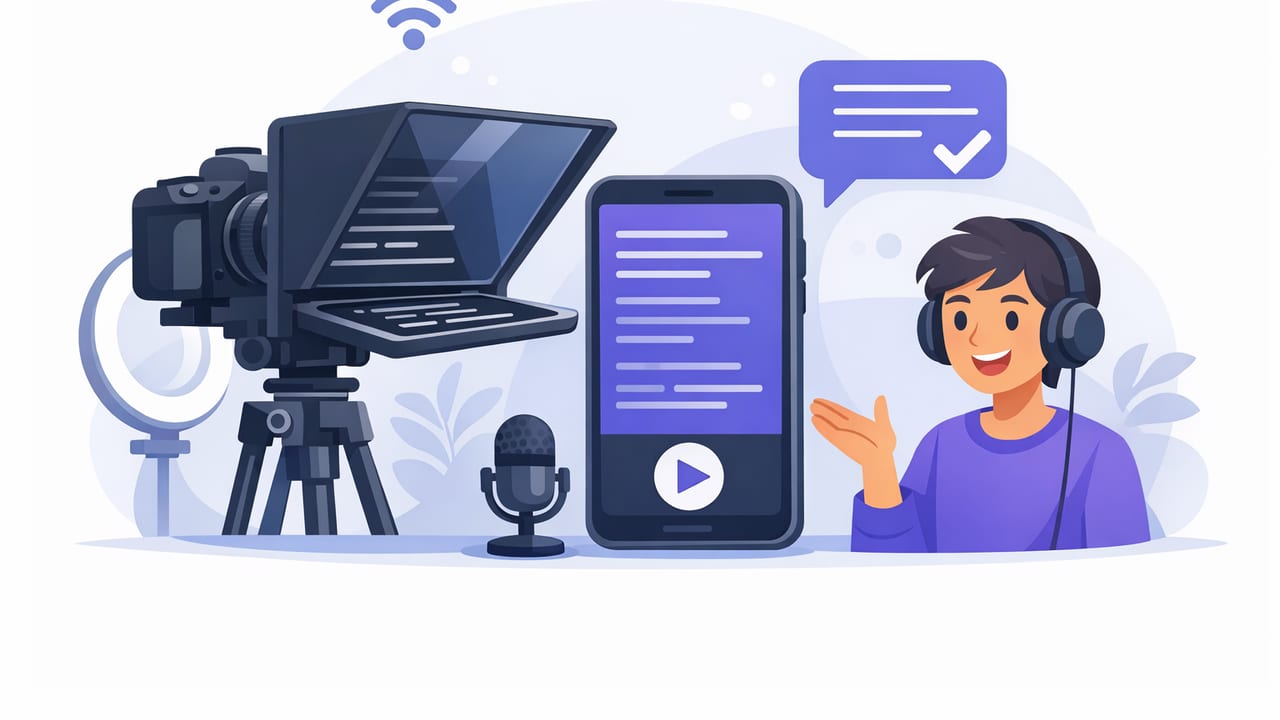
Using a teleprompter app for content creators can double your output—if your scripts sound human and your setup keeps your eyes on the lens. The goal isn’t to “read” on camera. It’s to deliver a clear message with the pace, emphasis, and spontaneity your audience expects.
This guide walks through a practical, repeatable iPhone workflow: write a script that sounds like you, format it for on-screen reading, record in a way that preserves eye contact, and finish with subtitles and exports built for short-form and long-form platforms.
Why teleprompter videos often feel robotic (and how to fix it)
Most “teleprompter voice” problems come from script design, not your delivery. Common causes:
- Written-language sentences (too long, too formal) that don’t match spoken rhythm.
- No breathing room—paragraphs are dense and visually intimidating.
- Missing emphasis cues for key phrases, so everything lands at the same intensity.
- Mismatched scroll speed that forces you to chase the text (or wait for it).
Fixing these is surprisingly mechanical: write in spoken beats, format for scanning, and pick a scrolling mode that matches how you naturally talk.
Step 1: Write like you talk (the “beats” method)
Instead of writing paragraphs, write in beats—short units you can say in one breath. You’ll look up more often, keep energy high, and make fewer mistakes.
A simple beat template
- Hook (1–2 beats): what they get + why now.
- Context (2–3 beats): the problem, in their words.
- Steps (3–7 beats): the method.
- Close (1–2 beats): the takeaway + next action.
For short videos, keep each beat to one line on your phone. For longer videos, group 3–5 beats into a section, then reset your tone.
Make it sound natural with micro-imperfections
Human speech includes contractions, small asides, and occasional sentence fragments. Use them intentionally:
- Prefer “you’ll” over “you will”.
- Add a quick aside: “(this is the part most people skip)”.
- Use fragments for emphasis: “And that’s the key.”
Creator note: “If I can’t say a line out loud without running out of breath, it doesn’t belong on a teleprompter.”
Step 2: Format your script for teleprompter reading
A teleprompter app for content creators works best when the text is visually easy to track. Formatting is the hidden performance hack.
Teleprompter-friendly formatting rules
- One idea per line. Treat the script like captions, not an essay.
- Short lines win. Long lines force more eye movement (and look less like eye contact).
- Add pause markers. Mark breaths and beats so you don’t rush.
- Highlight keywords. Emphasize the 1–2 words that must land.
Example: a script formatted for iPhone teleprompter use
[HOOK]
If your videos feel stiff on camera—
this one change fixes it.

[CONTEXT]
Most people write scripts like blog posts.
So they *sound* like they’re reading.

[STEPS]
Write in beats. / Short lines. / One breath each.
Bold the words that matter.
Then match scroll speed to your speaking pace.

[CLOSE]
Do that for one video today.
Your delivery will instantly feel more natural.
Those separators (/) and section tags aren’t for the audience—they’re for you. They reduce cognitive load while recording, which means fewer retakes.
Step 3: Choose the right scroll mode (and when to switch)
Most iPhone teleprompters offer a few scrolling options. Picking the right one is less about “best” and more about your filming style and how tightly your script is written.
| Mode | Best for | Pros | Watch-outs |
|---|---|---|---|
| Fixed-speed scrolling | Consistent delivery, rehearsed scripts | Simple, predictable pace | Forces you to match the screen (can feel rushed) |
| Timed scrolling | Ads, promos, segments with strict duration | Great for hitting exact lengths | Any stumble can throw timing off |
| Voice-following / word tracking | Conversational takes, teaching, longer videos | Text follows your pace; fewer “chase the text” moments | Needs clear audio input; very noisy rooms can confuse tracking |
If you’re just starting, try voice-following for comfort. If you’re filming a tight 20–30 second script, try timed mode so you don’t overshoot.
Step 4: iPhone setup that preserves eye contact
Eye contact is mostly geometry. You want your gaze to land as close to the lens as possible, even while reading.
Practical setup tips
- Place the text near the camera lens. The farther the text sits from the lens, the more obvious your eye shifts.
- Use larger text instead of moving your eyes. Bigger font reduces darting.
- Keep lines short. Short lines reduce left-right scanning.
- Lift your phone to eye level. Filming from below emphasizes “reading down.”
Camera choice: front vs. rear
For many creators, the rear camera looks better, but the front camera is easier for framing and monitoring. If you’re filming talking-head content, a common compromise is:
- Rear camera when quality is the priority (courses, YouTube, client work).
- Front camera when speed is the priority (daily shorts, quick updates).
Step 5: Record clean takes (without perfectionism)
The best scripted videos feel like a single clean thought, not a flawless performance. Use these habits to keep momentum:
Do a 10-second “pace test”
Before recording the full script, record just the first 10 seconds. Check:
- Are you speaking faster than the scroll?
- Are your eyes jumping line-to-line?
- Do you sound breathless?
Adjust font size and scroll speed before you burn time on full takes.
Use “pickups” instead of full retakes
If you stumble on one line, pause, repeat the sentence cleanly, and keep going. In editing, you can cut on a natural blink or breath. This single habit can cut filming time in half.
Quick quality checks (iPhone-specific)
- Lock exposure/focus so brightness doesn’t pulse mid-take.
- Use an external mic when possible (lav or shotgun) for intelligibility.
- Record in 4K if you plan to crop for multiple formats (wide to vertical).
Step 6: Subtitles that match your script (and protect privacy)
Subtitles are not optional for most platforms—especially for educational content and social feeds that autoplay on mute. The smoothest workflow is when captions are generated directly from the audio and then quickly corrected using your script as the reference.
What to look for in subtitle generation
- On-device processing if privacy matters and you don’t want uploads.
- Multi-language support if you publish internationally.
- Editable captions for names, brands, and technical terms.
If your captions repeatedly mis-transcribe a term, add a phonetic helper into your script (for your eyes only). Example: write “Cache (cash)” the first time, then revert to “Cache” afterward.
A repeatable “script-to-video” checklist
Save this checklist as a note and run it every time you film with a teleprompter app for content creators:
- Script: beats, short lines, contractions, emphasis.
- Format: pauses marked, keywords highlighted, one idea per line.
- Prompting mode: voice-following for conversational, timed for strict length.
- Setup: phone at eye level, text near lens, larger font.
- Audio: quiet room, mic positioned, quick sound check.
- Record: 10-second pace test, then full take with pickups.
- Edit: trim dead space, cut mistakes, resize for platform.
- Subtitles: generate, fix proper nouns, export with safe margins.
Troubleshooting common teleprompter problems
“My eyes still look like I’m reading.”
- Increase font size and reduce line length.
- Move the text closer to the lens area.
- Rewrite long sentences into two beats.
“I keep losing my place.”
- Add more spacing between beats.
- Use clear section headers like HOOK, STEP 1, CLOSE.
- Switch to voice-following if your pace varies.
“I sound monotone.”
- Bold (or capitalize) 1–2 words per beat to cue emphasis.
- Add pause markers before key lines.
- Stand up while filming to improve breath and energy.
Putting it all together
A teleprompter doesn’t make content feel scripted—scripts do. When you write in beats, format for fast scanning, and choose a prompting mode that matches your speaking style, your iPhone becomes a reliable production setup: clear delivery, strong eye contact, fewer retakes, and faster publishing.
If you’re looking for an iPhone option that combines prompting, 4K recording, and on-device subtitles in a privacy-first workflow, you can explore CueCam as one example—but the principles in this guide will improve your results in any teleprompter setup.
