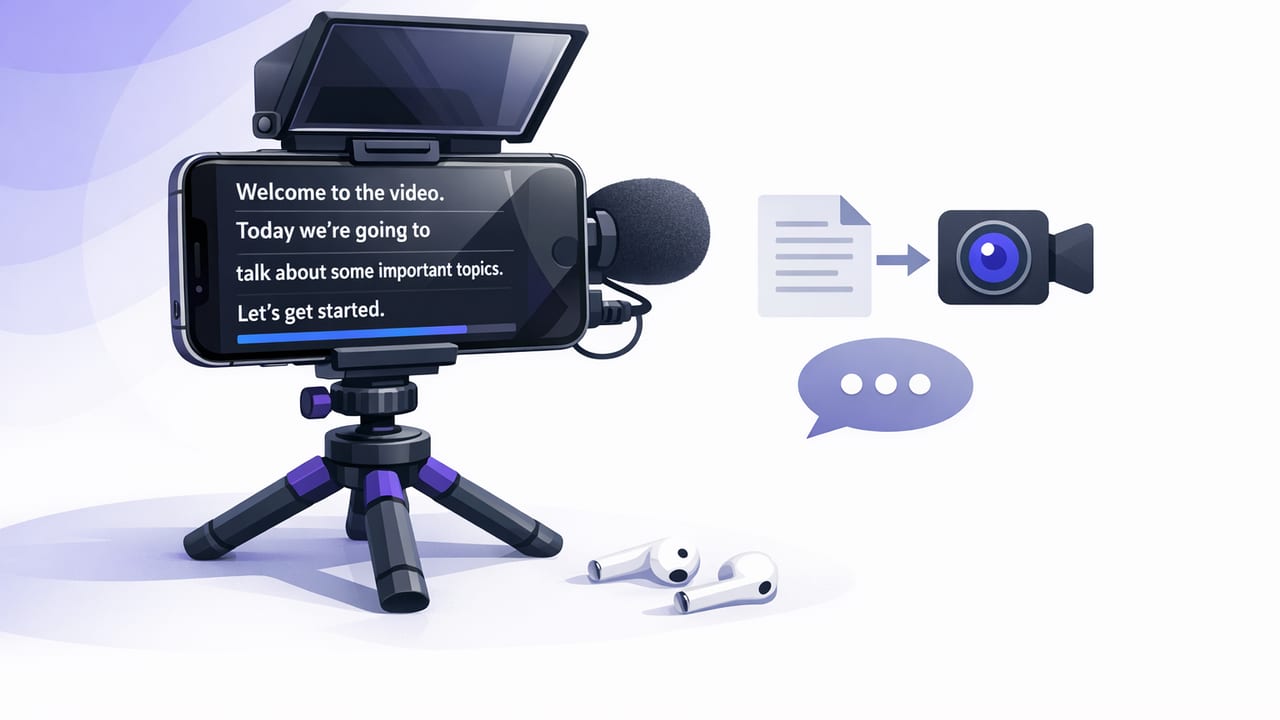
A teleprompter for iPhone can be the difference between “one more take” and a clean, confident delivery on the first or second try. If you make tutorials, talking-head reels, product demos, or YouTube explainers, the iPhone is already an excellent camera—what most creators need next is a repeatable way to read a script while keeping natural eye contact.
This guide breaks down what to look for in an iPhone teleprompter, how to set it up for real-world filming, and how to build a script-to-video workflow that’s fast, consistent, and privacy-conscious.
Why creators use a teleprompter for iPhone (and why it works)
Reading from notes off-screen usually creates three problems: shifting eyes, inconsistent pacing, and lots of edits to remove stumbles. A teleprompter solves these by putting the text close to the lens and giving you a controlled pace. That leads to:
- Better retention: viewers stick around when delivery feels direct and confident.
- Fewer cuts: smoother speaking reduces jumpy edits.
- Consistent brand voice: scripted content keeps your messaging tight across platforms.
- Faster production: less time recording and re-recording.
Key features to look for in a teleprompter for iPhone
Not all teleprompter apps are built for creator workflows. When you’re choosing one, prioritize features that reduce retakes and simplify the path from script to publishable video.
1) Scrolling modes: voice-following, fixed speed, and timed
Scrolling is where teleprompters win or lose. Ideally, you should be able to match the scroll to your real speaking rhythm.
| Mode | Best for | Pros | Tradeoffs |
|---|---|---|---|
| Voice-following | Natural delivery, variable pacing | Scroll adapts to pauses, emphasis, and ad-libs | Needs clean audio input for best tracking |
| Fixed speed | Short scripts, practiced reads | Simple and predictable | Can feel rushed or slow if your pace changes |
| Timed scrolling | Scripts that must hit exact durations (ads, promos) | Great for 15s/30s/60s formats | Less forgiving if you stumble or pause |
2) Camera quality: 4K recording, frame rate, and stabilization
If your teleprompter is also your recording tool, it should support the video specs creators actually use. Look for:
- 4K recording (useful for cropping, reframing, and sharper text overlays)
- 60 fps options if you plan to mix B-roll or want smoother motion
- Stabilization for handheld or walking intros
- Manual/pro controls (exposure and focus lock are big quality upgrades)
3) Audio support: external mics and clean capture
Viewers will forgive imperfect lighting before they forgive muddy audio. A solid teleprompter for iPhone should play nicely with external microphones (wired or wireless) and make it easy to confirm which mic is active. Bonus points if your workflow includes basic audio cleanup for spoken voice.
4) Built-in editing: trim, resize, and quick exports
Creators often need to publish the same script in multiple aspect ratios. Helpful built-in tools include:
- Trimming to remove dead air at the start/end
- Resizing for 9:16 (shorts), 1:1, and 16:9
- Background replacement for quick “studio” looks
- Export presets tailored to TikTok, Instagram, and YouTube
5) Subtitles: offline, on-device, multilingual
Subtitles are no longer optional for many formats. If your teleprompter workflow includes subtitles, look for:
- On-device generation (works without internet and can be more privacy-friendly)
- Multiple languages if you serve global audiences
- Editable captions (brand names and jargon need quick correction)
6) Privacy: no sign-up and on-device storage
Scripts can include pricing, client details, or pre-launch info. A privacy-forward iPhone teleprompter keeps your scripts and footage on your phone and doesn’t require an account just to start recording. If privacy matters to your brand or clients, treat this as a must-have.
A repeatable script-to-video workflow (step-by-step)
Here’s a simple workflow you can reuse for most scripted videos—whether you post daily short-form clips or weekly YouTube content.
Step 1: Write for the ear, not the page
Great teleprompter scripts sound like speech. Use short sentences, contractions, and clear transitions. If a sentence is hard to say in one breath, rewrite it.
Step 2: Format the script for teleprompter reading
Formatting is a hidden superpower. Use spacing and cues to reduce mistakes and keep your pacing natural.
- One idea per line (less eye travel)
- Double-space between paragraphs
- CAPS for emphasis (sparingly)
- [PAUSE] and [SMILE] stage directions
Example formatting you can copy:
[HOOK]
Today I’ll show you a simple way to sound confident on camera.

[POINT 1]
Keep your sentences short.
[PAUSE]
If you need to breathe, rewrite the line.

[POINT 2]
Put the text near the lens so your eyes don’t drift.

[CTA]
If you want the checklist, I’ll link it in the description.
Step 3: Set your pacing (choose the right scrolling mode)
- Start with voice-following if you tend to ad-lib or vary your rhythm.
- Use fixed speed for short scripts you’ve rehearsed.
- Use timed scrolling when you must fit an exact duration (e.g., 30-second ad reads).
Practical tip: do a 10–15 second test read and adjust speed/size before recording the full take.
Step 4: Nail eye contact (without looking robotic)
Even with a teleprompter, you want your delivery to feel human. Try these techniques:
- Raise the font size so your eyes move less.
- Keep the scroll slow enough that you’re not “chasing” text.
- Speak to one person (imagine a single viewer, not an audience).
- Mark emphasis in the script where you want warmth or energy.
Creator rule: If you feel like you’re reading, slow down and add a beat. A half-second pause often sounds more confident than rushing.
Step 5: Capture clean audio (fast checklist)
- Record in a quiet room (turn off fans and AC if possible).
- Use an external mic when you can (lav or shotgun).
- Keep the mic distance consistent.
- Do a short test recording and listen back on headphones.
Step 6: Edit for clarity and platform fit
For most scripted content, editing is about removing friction:
- Trim the first/last seconds and any long pauses.
- Reframe to 9:16 for short-form, keeping eyes near the top third.
- Add subtitles for silent viewers and accessibility.
- Export in the platform-friendly format to avoid extra compression.
Common mistakes (and how to fix them quickly)
“My eyes still drift.”
Increase font size, reduce line length, and keep the text closer to the lens. Also slow the scroll—eye drift often comes from trying to keep up.
“I sound monotone.”
Add emphasis cues in your script (underline or CAPS), and insert intentional pauses. Consider rewriting long sentences into two shorter ones.
“My pacing is inconsistent.”
Switch to voice-following if available, or record with fixed speed after a practice read to find your comfortable words-per-minute.
“Subtitles have errors.”
Proofread proper nouns (brand names, product terms) and keep your audio clean. Caption accuracy improves dramatically with fewer background noises.
Quick checklist: choosing the best teleprompter for iPhone
- Scrolling modes: voice-following + fixed speed + timed
- Recording: 4K options, 60 fps, stabilization, pro controls
- Audio: external mic support + reliable monitoring
- Subtitles: on-device/offline, multilingual, editable
- Editing: trim, resize, background tools, clean exports
- Privacy: on-device storage, minimal data collection, no forced sign-up
FAQ
Do I need a physical teleprompter rig, or is an app enough?
For many creators, an app alone is enough—especially for desk setups. A physical rig can help if you need a true lens-mirror setup, but most short-form talking-head videos can be done effectively with an iPhone teleprompter app and good positioning.
What’s a good script length for short-form videos?
A common starting point is 120–160 words per minute for conversational delivery. For a 30-second video, aim around 60–80 words, then adjust based on your natural pace.
Are offline subtitles worth it?
Yes—offline, on-device subtitles can be faster when you’re on the go, and they’re often preferable when your scripts or recordings are sensitive and you want more privacy control.
Putting it all together
The best teleprompter for iPhone isn’t just about reading text—it’s about reducing retakes, protecting your tone and pacing, and speeding up your script-to-video workflow. If you prioritize the right scrolling mode, clean audio, 4K recording options, and a simple path to subtitles and exports, you’ll publish more consistently with less effort.
If you’re looking for an iPhone teleprompter app that combines voice-following scrolling, pro-quality recording, on-device subtitles, and a privacy-first workflow, CueCam is one option to explore.
