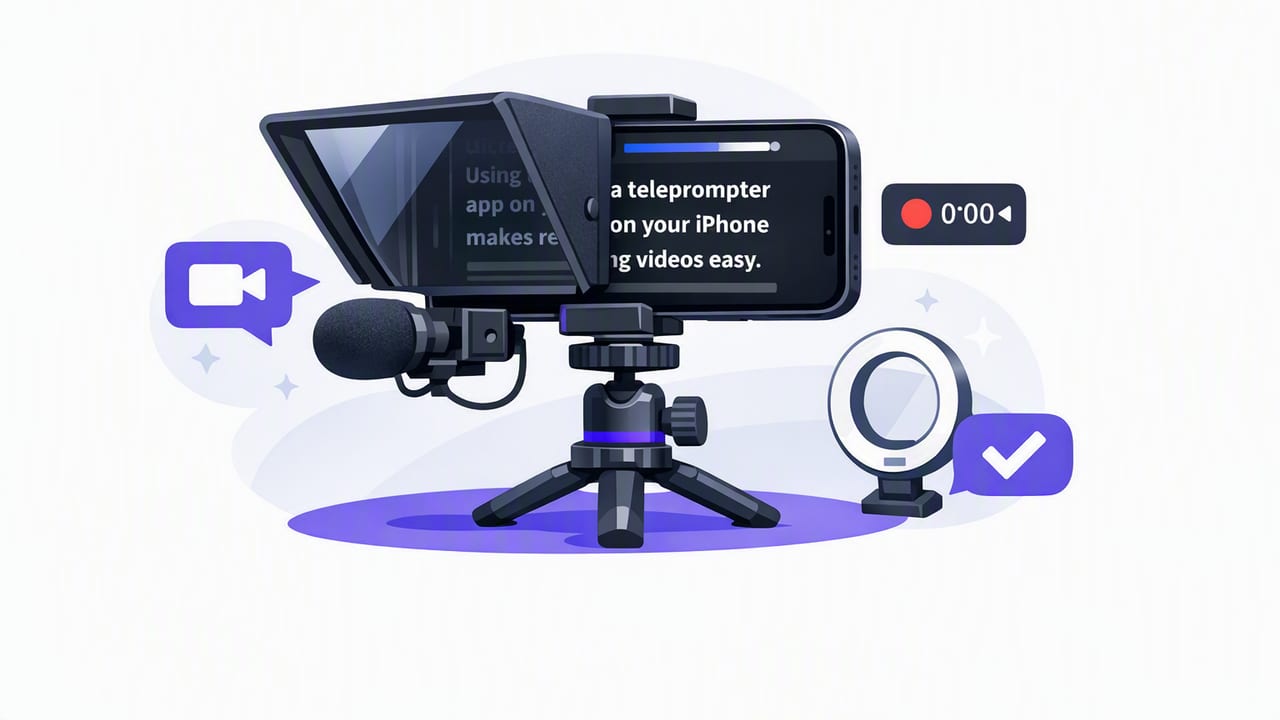
A teleprompter for iPhone can be the difference between “I know what I want to say” and a video that actually sounds confident, clear, and conversational. Whether you’re filming tutorials, talking-head content, product demos, announcements, or client updates, a teleprompter workflow helps you stay on-message while keeping natural eye contact with the camera.
This guide breaks down a practical, creator-friendly approach: choosing the right teleprompter mode, preparing scripts that sound human, dialing in pacing, recording clean audio, and finishing with subtitles—without turning your process into a production headache.
Why use a teleprompter on iPhone (instead of memorizing)?
Memorizing sounds ideal—until you’re on take 12 and your delivery gets stiff. An iPhone teleprompter workflow helps you:
- Maintain accuracy for names, numbers, and calls-to-action
- Reduce retakes because you don’t lose your place
- Stay consistent across series content (tone, wording, structure)
- Keep your energy up by focusing on performance, not recall
Great teleprompter delivery doesn’t sound “read.” It sounds like you’re thinking clearly in real time.
What to look for in a teleprompter for iPhone
Most creators benefit from three capabilities: camera recording inside the app, flexible scrolling controls, and fast post-production (captions, crops, and exports). Here are the key features to evaluate.
1) Scrolling modes that match your speaking style
Different scripts and speakers need different pacing. A solid teleprompter for iPhone typically offers at least one of these modes:
| Mode | Best for | Pros | Watch-outs |
|---|---|---|---|
| Fixed-speed scroll | Short takes, rehearsed scripts | Simple and predictable | Can drift if you speed up/slow down |
| Timed scroll | Ads, announcements, strict runtime | Helps you hit a target duration | Requires practice to feel natural |
| Voice-following (auto pace) | Conversational delivery, longer scripts | Adapts as you pause or emphasize | Needs clear audio input to work best |
2) Eye-contact friendly layout
The goal is to keep your gaze near the lens so your audience feels like you’re speaking to them, not reading below the camera. Look for options like:
- Adjustable text size and line spacing
- Margins/“safe zone” controls to keep text close to the camera
- Mirroring options if you use a physical beamsplitter teleprompter rig
3) Pro recording basics (so you don’t outgrow it)
If you’re filming on iPhone, recording quality matters. Helpful capabilities include:
- 4K recording with higher frame rates (useful for crisp footage)
- External mic support (wired or wireless)
- Stabilization options for handheld or walk-and-talk shots
Step-by-step: a reliable iPhone teleprompter workflow
Here’s a repeatable workflow you can use for most talking-head videos.
Step 1: Write for the ear, not the page
Teleprompter scripts fail when they read like essays. Convert your ideas into spoken language:
- Use short sentences (one idea per line)
- Prefer everyday words over formal phrasing
- Add intentional pauses where you would naturally breathe
- Write contractions (“you’re,” “it’s”) if that matches your voice
Step 2: Format the script so it’s hard to mess up
Good formatting reduces stumbles more than you’d think. Try this pattern:
- One sentence per line
- Double line breaks between sections (gives your eyes a reset)
- Capitalize emphasis sparingly (don’t shout the whole script)
- Use simple cues like [PAUSE] or [SMILE]
Example formatting you can paste into a notes app or teleprompter:
[HOOK]
Today I’ll show you a simple setup for filming on iPhone.

[PROBLEM]
If you look down at your notes, viewers feel the disconnect.

[SOLUTION]
Use a teleprompter layout that keeps text close to the lens.

[PAUSE]
And keep your sentences short.

[CTA]
If you want more iPhone filming tips, follow for the next video.
Step 3: Choose your pace (and set it slower than you think)
Most people set teleprompter speed too fast because they read faster silently than they speak aloud. Use this quick calibration:
- Read your first paragraph out loud at a comfortable, friendly pace.
- Adjust scrolling so the next line arrives just before you need it.
- Build in room for micro-pauses after key points.
If your teleprompter for iPhone supports voice-following, do a short test to confirm it tracks well when you pause for emphasis.
Step 4: Set up your camera framing for “near-lens” reading
You can make teleprompted delivery look natural by keeping your eyes close to the lens:
- Place text as high as possible on screen (without covering key framing)
- Use a larger font so you’re not “searching” with your eyes
- Keep your head still; let your eyes move subtly, not dramatically
Step 5: Record clean audio (it’s 50% of “professional”)
Viewers will forgive imperfect lighting before they forgive muddy audio. For iPhone recording:
- Use an external mic when possible (lav or compact shotgun)
- Record in a soft room (curtains, rugs, furniture reduce echo)
- Keep mic placement consistent across takes
Step 6: Do two takes: one “safe,” one “performance”
A simple trick to avoid perfection paralysis:
- Safe take: read cleanly and clearly, no fancy delivery.
- Performance take: add warmth, smiles, emphasis, and micro-pauses.
Often the performance take becomes your final, but the safe take removes pressure.
Common teleprompter mistakes (and how to fix them)
Problem: Your eyes look like they’re “scanning”
Fix: Increase font size, shorten line length, and add more line breaks. Also slow the scroll slightly so your eyes aren’t racing ahead.
Problem: You sound monotone
Fix: Add delivery cues. Literally write [SMILE], [PAUSE], [ENERGY UP] into the script. It feels silly—until it works.
Problem: You keep losing your place after a mistake
Fix: Use a “reset line.” Add a short, easy sentence at the start of each section so you can jump back in without hunting.
Problem: The script feels too long
Fix: Cut 20% of your words. Most talking-head videos improve when you remove every non-essential sentence. Keep one idea per segment.
Subtitles: the fastest way to improve watch time
Captions help in three major ways: accessibility, silent viewing, and clarity for fast-paced content. A strong workflow is:
- Generate subtitles (ideally in multiple languages if your audience is global)
- Scan for proper nouns, brand names, and technical terms
- Burn in captions for short-form platforms, or export separate caption files where needed
If you can generate subtitles on-device (without uploading video to a server), that’s also a meaningful privacy win—especially for client work, internal content, or unreleased product info.
Quick checklist: pre-flight settings for iPhone recording
- Resolution: Use 4K when you plan to crop for multiple platforms
- Frame rate: Match your style (higher fps for crisp motion; standard fps for a cinematic look)
- Lighting: Face a window or use a soft key light at 45°
- Background: Keep it simple; avoid clutter and bright highlights
- Script: Short lines, big font, breathing room
- Teleprompter mode: Fixed-speed for short reads; voice-following for conversational takes
Example: turn one script into three platform versions
A teleprompter for iPhone is even more valuable when you repurpose content. Start with a 60–90 second master script, then create:
- Short-form: keep hook + 3 points + CTA (20–40 seconds)
- Mid-form: add one example or mini-story (60–90 seconds)
- Long-form: add steps, context, and FAQs (2–5 minutes)
Because the wording stays consistent, you can batch record quickly and keep your on-camera delivery steady.
Choosing the right setup: app-only vs. physical teleprompter rig
Many creators start with an app-only workflow (reading on-screen near the lens). As your needs grow, you might add a physical teleprompter rig that reflects text in front of the camera.
- App-only: fastest, minimal gear, great for daily content
- Rig + beamsplitter glass: best for perfect eye line, more setup time
If you go with a rig, choose a teleprompter app that supports mirroring and large, high-contrast text.
Wrap-up: a teleprompter should reduce friction, not add it
The best teleprompter for iPhone is the one that keeps you filming: it matches your speaking style, keeps your eyes near the lens, records in high quality, and helps you finish with captions and exports quickly. Build your workflow around repeatable steps—script format, pacing calibration, clean audio, and subtitles—and your videos will look more confident with far fewer retakes.
If you’re looking for an iPhone teleprompter workflow that combines script reading, camera recording, and on-device subtitles in one place, an app like CueCam is one option to explore.
