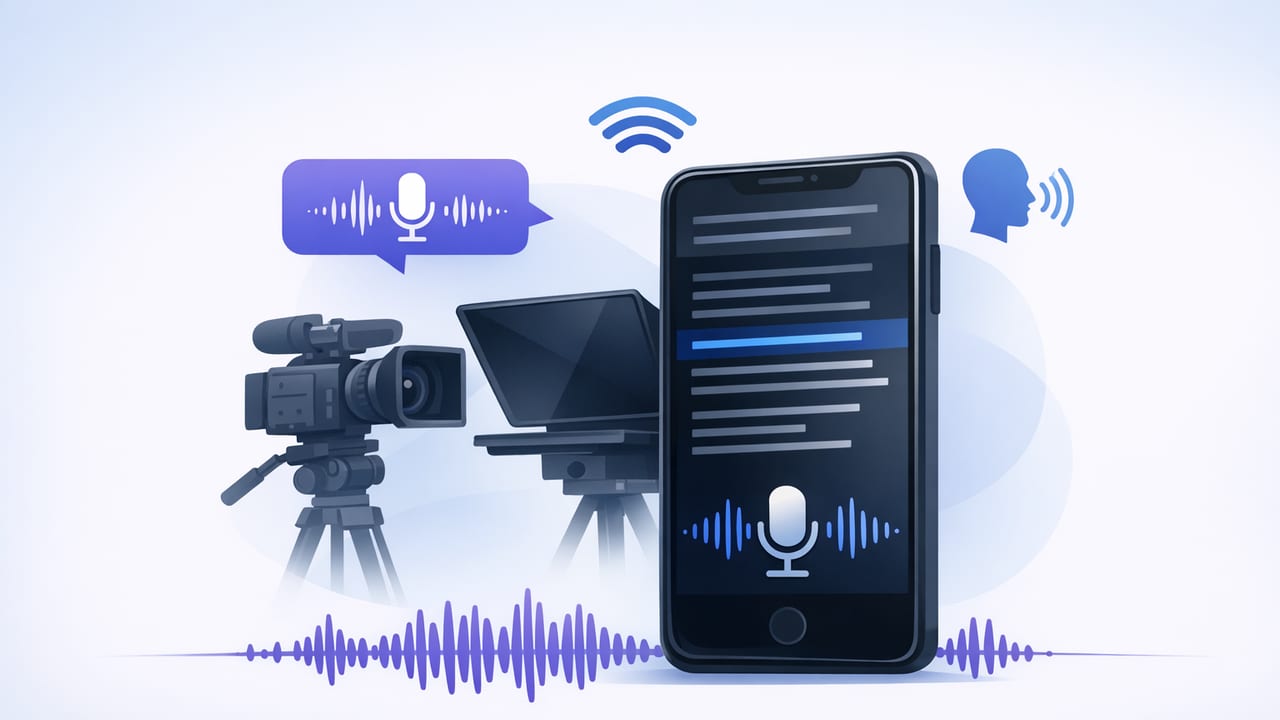
A teleprompter app with voice tracking can be the difference between “one more take” and a clean, confident delivery on your first record. Instead of forcing you to match a fixed scroll speed, voice tracking listens as you speak and keeps the script aligned with your pace—helping you stay present, maintain eye contact, and sound like yourself.
This guide breaks down a practical iPhone workflow for voice-tracked prompting: how to format scripts for natural delivery, how to set up your camera and audio, when to use voice tracking vs. timed scrolling, and how to move from script to subtitled exports quickly—without turning your process into a tech project.
What “voice tracking” really does (and what it doesn’t)
In most apps, voice tracking (sometimes called voice-following or word tracking) uses on-device speech recognition to follow your reading and keep the highlighted word or scroll position synced to what you say.
- It helps pacing: You can pause for emphasis, repeat a line, or slow down for clarity without losing your place.
- It reduces cognitive load: You’re not managing scroll speed while trying to perform.
- It improves eye contact: Because the script stays where you are, you’re less likely to glance away and “hunt” for the next line.
What it doesn’t do: voice tracking won’t automatically make your delivery sound conversational if the script is written like an essay. The script still needs to be built for speaking.
Rule of thumb: If you wouldn’t say it out loud in a coffee shop, rewrite it before you record it.
Choose the right prompting mode for the video you’re making
Voice tracking is powerful, but it’s not the best choice for every scenario. Many creators rotate between three modes: voice tracking, fixed-speed scrolling, and timed scrolling.
| Mode | Best for | Trade-offs |
|---|---|---|
| Voice tracking | Talking-head videos, tutorials, sales intros, thought leadership | Needs clear audio; very noisy rooms can reduce tracking accuracy |
| Fixed-speed | Highly rehearsed scripts, consistent pacing, quick retakes | You must match the speed; harder to pause naturally |
| Timed scrolling | Videos with a target runtime, multi-scene scripts, ad reads | Less flexible if you change phrasing mid-take |
If you’re building a repeatable creator workflow, start with voice tracking for most speaking-to-camera content, then use timed scrolling when you have to hit a strict length.
Script formatting that makes voice tracking feel “effortless”
The secret to a natural read is not “reading better”—it’s writing for breath, emphasis, and eye movement. Here’s a script format that works well with a teleprompter app with voice tracking on iPhone:
1) Write in spoken sentences (shorter than you think)
Aim for 8–14 words per line of thought. If a sentence needs three commas, it probably needs two sentences.
2) Add intentional pauses
Pauses make you sound confident and give the voice tracker time to stay locked.
[HOOK]
If you feel stiff on camera—
this will fix it.

[POINT 1]
Use voice tracking.
Then speak like you’re explaining it to one person.

[PAUSE]
(beat)

[CTA]
Try one take with shorter lines.
Your eye contact will instantly improve.
3) Use emphasis cues sparingly
Use bold or ALL CAPS for one or two words per paragraph—too much emphasis becomes noise. Also consider adding pronunciation notes for brand names or technical terms.
4) Keep paragraph “camera-friendly”
Big blocks of text encourage big blocks of monotone delivery. Break paragraphs into 1–2 sentence chunks.
iPhone setup: camera, lens choice, and framing
Before you worry about teleprompter settings, lock in a repeatable filming setup. Consistency reduces reshoots and makes editing faster.
Lens and framing
- Front camera: convenient for framing yourself, especially for quick social videos.
- Rear camera: usually better quality; ideal if you want crisp detail and flexibility in lighting.
- Framing tip: Put your eyes in the top third of the frame and keep the prompter text close to the lens so your gaze stays natural.
Resolution and frame rate
For most creators, 4K is useful when you want room to crop vertical clips from horizontal footage, and 60fps is helpful for motion or energetic delivery. If you’re filming a calm talking head, 4K/30fps can be easier on storage and still look excellent.
Stability and lighting
- Use a tripod whenever possible. Even minor hand shake can make eye contact feel less “locked in.”
- Place your key light slightly above eye level and 30–45° off-center for natural facial shape.
- Reduce screen brightness glare: if your teleprompter text reflects in glasses, lower brightness and move the light.
Audio setup: the hidden key to better voice tracking
Voice tracking is only as reliable as the audio it can “hear.” Better audio improves both tracking and your final video.
Quick audio checklist
- Use an external mic when possible (wired lav, wireless, or shotgun).
- Record in a soft room: curtains, rugs, and furniture reduce echo.
- Turn off noisy fans and keep phones away from buzzing electronics.
- Do a 10-second test: speak at your real volume, then listen back on headphones.
If you’re in a noisy environment, voice tracking may drift. In that case, consider switching to fixed-speed scrolling or recording a cleaner voiceover later.
Teleprompter settings that improve eye contact (without looking robotic)
Once your script and setup are ready, tune the prompter for natural performance.
Text size and distance
- Go larger than you think: Large text means smaller eye movements.
- Keep lines short: Fewer words per line reduces side-to-side scanning.
- Place the text near the lens: the closer your gaze is to the camera, the more direct the eye contact looks.
Voice tracking sensitivity (if available)
Some apps let you adjust how quickly the highlight advances. If you tend to paraphrase, reduce sensitivity so it doesn’t jump ahead. If you read word-for-word, increase responsiveness for a smoother feel.
Use “anchors” in your script
Add small headings like [HOOK], [STEP 1], [STORY]. They act as navigation points if you need to restart mid-take.
A repeatable workflow: script → record → captions → export
Here’s a practical pipeline you can reuse for YouTube, TikTok, Reels, courses, or internal updates.
Step 1: Write a “speakable” draft
Read it out loud once before you ever open the camera. Fix tongue-twisters, long clauses, and unnatural transitions.
Step 2: Do a rehearsal take with voice tracking
Don’t aim for perfection. Aim to confirm:
- Text size is comfortable
- Your eyes stay near the lens
- Tracking stays aligned even with small pauses
Step 3: Record 2 “performance” takes
Most creators get their best version on take 2 or 3—after they relax but before they overthink. If you flub a line, pause, repeat the sentence, and keep rolling. That’s easier to edit than stopping constantly.
Step 4: Trim and resize for the platform
- Short vertical: crop to 9:16 and keep your eyes near the top third.
- Horizontal: preserve 16:9 for YouTube and presentations.
- Square: useful for some social placements and feed previews.
Step 5: Generate subtitles (ideally on-device)
Captions increase watch time, improve accessibility, and help comprehension when viewers scroll with sound off. On-device subtitle generation also supports a privacy-focused workflow when you’re working with client scripts, internal announcements, or unreleased product info.
Step 6: Export with a naming system
A simple naming pattern prevents chaos when you create multiple versions:
topic_platform_aspect_take_version
example: voice-tracking_tiktok_9x16_take2_v1
Troubleshooting: common voice-tracking issues (and fixes)
Problem: The text advances too fast
- Slow your delivery slightly and add pauses at sentence ends.
- Reduce tracking sensitivity (if available).
- Rewrite sentences with fewer filler words and cleaner structure.
Problem: The tracker “loses” you after a mistake
- Repeat the last complete sentence rather than restarting the whole paragraph.
- Use anchors like [POINT 2] so you can quickly jump back in.
- Ensure your mic audio is clear and close.
Problem: Your eyes still look like they’re reading
- Increase font size and reduce line width.
- Move the text closer to the lens (or adjust the layout to center it).
- Turn long sentences into two short ones and add a beat between them.
Best practices for a creator workflow that scales
- Build a script template: hook → 3 points → recap → call-to-action.
- Batch production: write 3 scripts, then record all 3 while your setup is ready.
- Create an “A-roll checklist”: framing, focus, mic, lighting, prompter mode, subtitle language.
- Keep it private when needed: if your scripts are sensitive, choose tools that keep projects on-device and don’t require accounts.
Putting it all together
A teleprompter app with voice tracking is most effective when you treat it as part of a system: write for spoken delivery, record with clean audio, keep text close to the lens, and finish with captions and platform-specific exports. Do that consistently and you’ll spend less time “trying to sound natural” and more time shipping videos that feel like a real conversation.
If you’re looking for an iPhone workflow that combines voice-tracked prompting, high-quality recording, on-device subtitles, and privacy-first processing, an app like CueCam is one option to explore.
