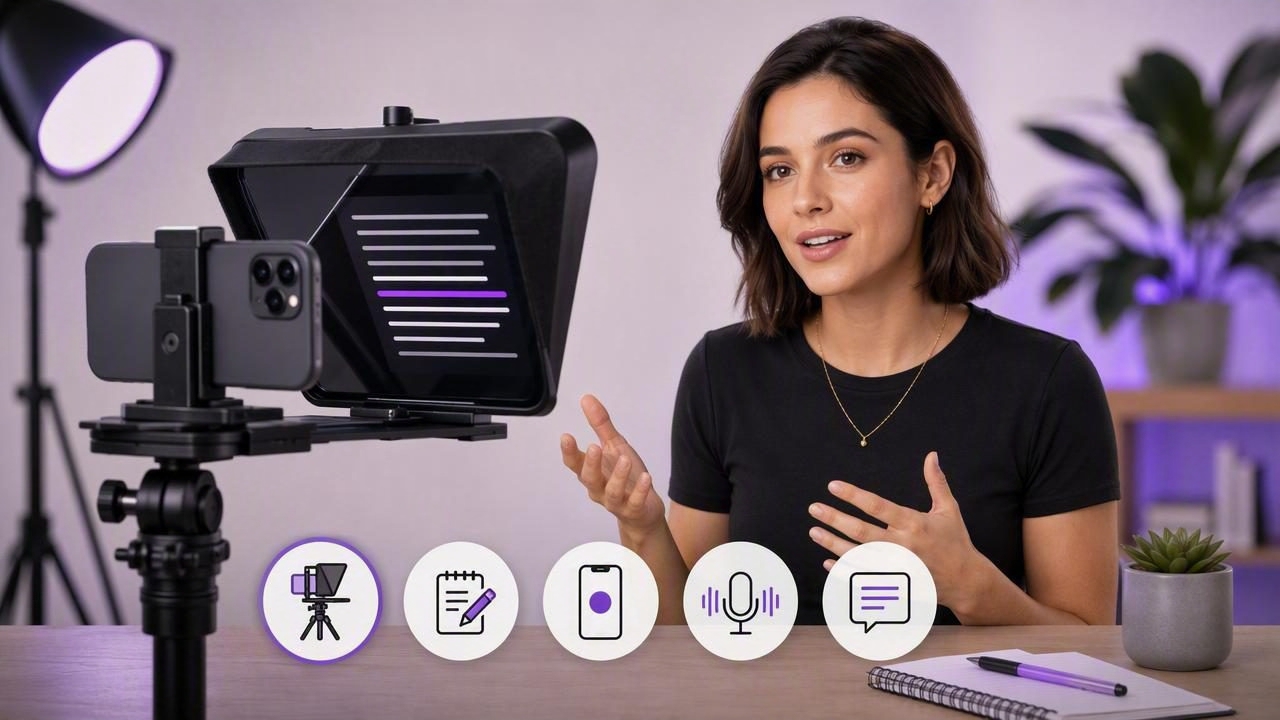
A self tape teleprompter for professional iPhone videos can make the difference between a hesitant recording and a confident, polished performance. Whether you are filming an audition, a client introduction, a course lesson, a social media video, or a business presentation, remembering every line while looking directly into the camera is challenging.
That is where a teleprompter workflow helps. Instead of placing a printed script beside your phone or repeatedly checking notes between takes, you can display your words close to the lens and record in one smoother process. With the right script formatting, iPhone setup, scrolling speed, and post-production steps, you can create videos that feel natural rather than read.
This guide explains how to use an iPhone teleprompter effectively for self tapes and other professional videos, including practical techniques for maintaining eye contact, recording high-quality audio, and adding accessible subtitles without complicating your creator workflow.
Why use a teleprompter for self tapes and professional videos?
Self tapes require presence. Casting teams, clients, students, and viewers want to see a person who appears prepared, engaged, and comfortable. Looking away from the camera to find your next line can interrupt that connection. Trying to memorize a long script can have the opposite effect: your delivery may become stiff because you are focused on recall instead of communication.
A teleprompter places the script close to the camera lens, reducing visible eye movement and making it easier to stay on message. It is especially useful for content that needs precise language, such as:
- Audition slates, monologues, and self-tape introductions
- Corporate updates and internal training videos
- Educational lessons, tutorials, and course modules
- Sales demos, product explanations, and pitch videos
- Creator videos with calls to action, technical details, or brand requirements
- Public speaking practice and interview preparation
The goal is not to sound as if you are reading. The goal is to remove the mental burden of remembering every word so you can focus on tone, pacing, expression, and clarity.
Choose the right iPhone teleprompter setup
There are two common approaches: a hardware teleprompter with reflective glass or a teleprompter app that displays the script on your iPhone while recording. Both can work well, but they suit different situations.
| Setup | Best for | Main advantage | Watch out for |
|---|---|---|---|
| App-based iPhone teleprompter | Fast self tapes, social content, travel, solo recording | Portable and simple | Script must stay close to the lens |
| Glass teleprompter rig | Studio shoots and longer productions | Excellent lens alignment | More equipment and setup time |
| Second-device script display | Budget setups with a tripod | Large text and flexible placement | Eye-line shifts can be noticeable |
For most solo creators, an app-based setup is the most efficient option. It keeps the entire script-to-video process on one device: write or paste a script, adjust text, record, trim the best take, add subtitles, and export a platform-ready file.
If you use a second phone or tablet for the script, position it immediately below, above, or beside the iPhone camera. Keep the text as close to the lens as possible. Even a small distance can create a noticeable side-to-side eye movement, particularly in close-up self tapes.
Prepare a script that sounds spoken, not written
Teleprompters improve consistency, but they cannot fix a script that is too formal or dense. Write for the ear, not for the page. Short sentences, conversational vocabulary, and clear transitions are easier to deliver naturally.
Format your script for delivery
- Use short paragraphs: Aim for one thought at a time.
- Add intentional pauses: Use line breaks or a slash mark where you want to breathe.
- Highlight emphasis: Bold key words or use capitalization sparingly.
- Spell out difficult terms phonetically: This prevents a stumble during recording.
- Remove filler wording: If a sentence does not sound like something you would say, rewrite it.
For example, replace a formal line such as, “In this presentation, I will endeavor to provide an overview of our proposed solution” with: “In the next few minutes, I’ll show you how this solution works and why it matters.”
For auditions, do not over-format the dialogue to the point that it becomes mechanical. Mark beats, emotional turns, and pauses, but leave room for genuine reactions. A teleprompter should support the performance, not dictate it.
Set scrolling speed for natural delivery
Scrolling too quickly creates rushed speech. Scrolling too slowly causes you to wait for the next line and can make your eyes wander. The best pace is usually slightly slower than your first instinct.
Most teleprompter tools provide several scrolling modes. Each serves a different recording style:
- Voice-following tracking: The script advances as you speak. This is useful when your pace changes or when you want to pause for emphasis.
- Fixed-speed scrolling: Text moves at a consistent rate. It works well for rehearsed scripts with a predictable pace.
- Timed scrolling: The script is matched to a planned duration. This can help when a video must fit a strict time limit.
Before recording the final take, read the first 20 to 30 seconds aloud. Adjust the speed, then test it again. Do not judge pacing silently; the right reading speed depends on your actual speaking voice, breathing, and pauses.
Practical rule: If you feel pressured to catch up with the text, slow it down. A short pause looks more confident on camera than rushed speech.
Build a professional iPhone recording setup
A teleprompter handles the script, but production quality still depends on framing, lighting, sound, and camera settings. You do not need a full studio to create a professional result. A few controlled choices make a major difference.
1. Stabilize the iPhone
Use a tripod or secure phone mount. Handheld recording can be appropriate for casual social content, but it is rarely ideal for self tapes, training videos, or client-facing work. Position the camera at eye level. A low camera angle can feel unflattering and less direct, while a camera placed too high may make you appear to look downward.
2. Use the rear camera when possible
The rear camera generally offers stronger image quality than the front camera. If your teleprompter app supports it and you can frame yourself reliably, record with the rear lens. For high-detail footage, 4K recording provides flexibility for cropping or reframing later. However, 1080p can still be an excellent choice when storage space, upload speed, or simple delivery matters more.
3. Prioritize clear audio
Viewers will often tolerate a video that is not perfectly lit, but poor audio quickly feels unprofessional. Record in a quiet room with soft furnishings to reduce echo. For the best results, use an external wired, wireless, or shotgun microphone compatible with your iPhone. Make a short test recording and listen with headphones before the final take.
4. Light your face evenly
Face a window for soft daylight, or place a diffused light in front of you. Avoid having a bright window directly behind you, as it can turn your face into a silhouette. Keep your background simple and intentional: a clean wall, tasteful office, or relevant filming environment works well.
How to maintain eye contact while reading
The defining challenge of teleprompter video is making your eye contact look real. The closer text is to the camera lens, the less noticeable your reading becomes. Use a smaller font if necessary to keep more words near the center of the screen, but never make it so small that you strain to read it.
Try these performance techniques:
- Read in thought groups. Look at a short phrase, then deliver the idea to the lens rather than following every individual word with your eyes.
- Pause at punctuation. A brief pause allows your eyes to reset naturally.
- Use expressive emphasis. Let your face, voice, and gestures carry important points.
- Keep your body relaxed. Release your shoulders and plant your feet before recording.
- Record in sections. For longer videos, capture short segments and join them later rather than forcing one perfect ten-minute take.
For a self tape, keep movements appropriate to the scene and framing. If you are filming a close-up, small choices in expression and eye focus can be more effective than large gestures.
Edit, subtitle, and export with intention
Once you have a strong take, edit only what improves clarity. Trim false starts, long setup pauses, and the moment when you reach for the phone. Avoid over-editing a self tape, especially if submission rules require a straightforward, unaltered performance.
For creator, business, and educational video, subtitles are a valuable addition. Captions help viewers watching without sound, improve comprehension, and make content more accessible. Review automatic subtitles carefully for names, technical words, and punctuation before exporting.
Choose the frame size based on where the video will appear:
- 9:16 vertical: TikTok, Instagram Reels, YouTube Shorts
- 16:9 horizontal: YouTube videos, presentations, websites
- 1:1 square: Some social feed placements and ads
Keep a clean master version whenever possible. Then create resized copies for each channel instead of repeatedly editing the same exported file. This protects quality and speeds up future publishing.
Protect scripts, takes, and personal information
Self tapes and professional videos may contain unreleased scripts, client information, personal contact details, or sensitive creative work. Before choosing a teleprompter and editing workflow, check where your video and script data are processed. On-device tools can be particularly useful when privacy matters because your files do not need to be uploaded merely to scroll text or create subtitles.
Also review the final frame before sending it. Confirm that no notifications, names, documents, or background details reveal information you did not intend to share.
A faster self-tape workflow
A repeatable process prevents technical details from distracting you from your performance. Use this checklist before every recording:
- Paste and format the script for spoken delivery.
- Set the iPhone at eye level and lock the framing.
- Test lighting, microphone levels, and teleprompter speed.
- Record a short rehearsal and review eye contact.
- Capture two or three complete takes.
- Choose the most connected performance, not just the most word-perfect one.
- Trim, subtitle where appropriate, and export in the required format.
A dedicated iPhone teleprompter app such as CueCam can streamline this workflow by combining script scrolling, recording, editing, and on-device subtitle creation in one place. Whatever tools you choose, the best setup is the one that lets you focus less on technology and more on delivering a clear, believable message.
