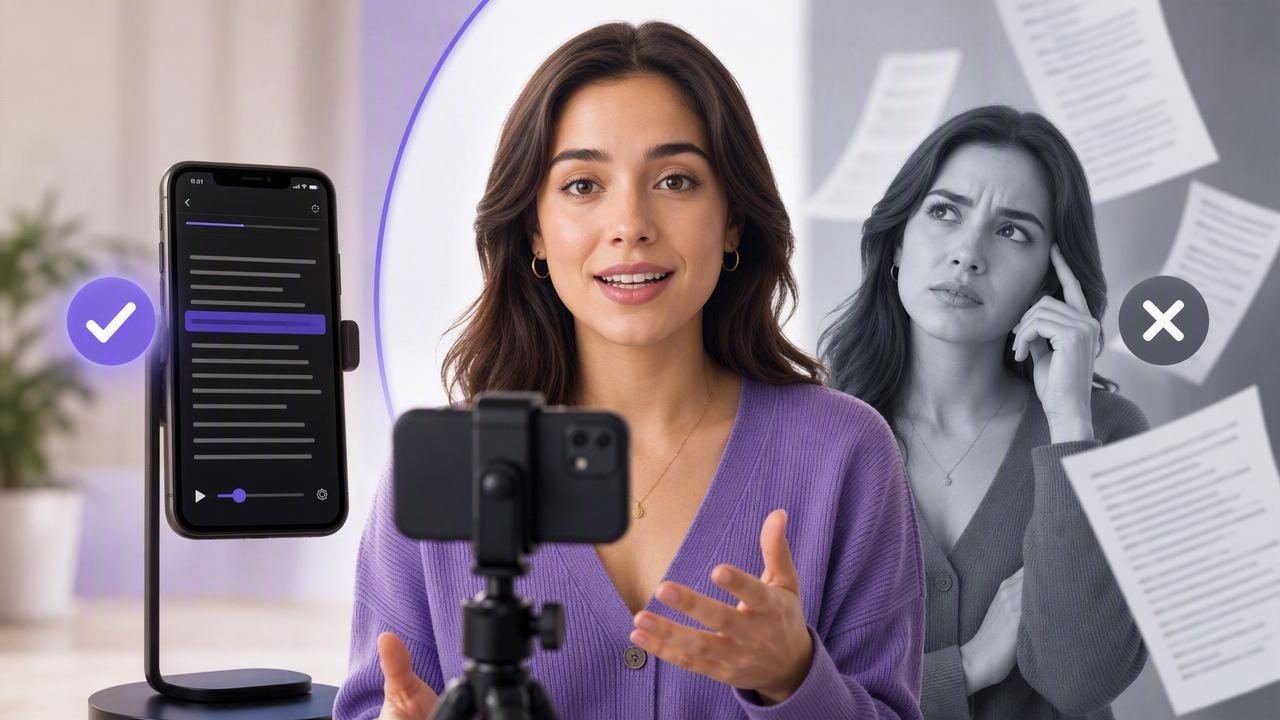
When you need to record a polished video, one decision can shape the entire process: should you memorize your lines or use a script scrolling app? For creators, educators, founders, marketers, and professionals filming on an iPhone, the answer affects more than confidence. It influences recording time, eye contact, message accuracy, editing workload, and how natural the final video feels.
Memorizing can work well for short, familiar talking points. But it becomes difficult when a video includes precise language, technical details, calls to action, names, numbers, or several minutes of structured information. A script scrolling app, often called a teleprompter app, gives you another option: read your words while looking toward the camera lens.
This guide compares script scrolling app vs memorizing scripts approaches, explains where each method works best, and provides a practical workflow for recording more confidently on your iPhone.
The Core Difference: Recall vs. Guided Delivery
Memorizing a script means internalizing every sentence, then delivering it from memory while recording. Some creators memorize word for word. Others learn a loose outline and improvise around key points. This can create an energetic, conversational delivery, but it also introduces the risk of forgotten lines, missed details, and inconsistent takes.
A script scrolling app displays your prepared text near the front-facing or rear camera lens. As the words move, you read and record simultaneously. The purpose is not to sound as though you are reading. Instead, it is to reduce cognitive load so you can focus on expression, pacing, posture, and connection with the audience.
| Factor | Memorizing Scripts | Using a Script Scrolling App |
|---|---|---|
| Preparation time | Higher for detailed videos | Lower once the script is written |
| Message accuracy | Can vary between takes | High, especially for exact wording |
| Natural delivery | Strong when well rehearsed | Strong with good pacing and formatting |
| Eye contact | Easy if you remember your lines | Easy when text stays close to the lens |
| Best for | Short, spontaneous, personal content | Educational, sales, technical, and repeatable videos |
When Memorizing Scripts Makes Sense
Memorization is not outdated. It can be the best choice when the message is short, emotionally personal, or intended to feel spontaneous. A 15-second reaction video, quick story, behind-the-scenes update, or informal social post may not need a fully written script at all.
This method is especially useful when you already know the subject deeply. For example, a fitness coach explaining one familiar exercise cue may only need three bullet points. A founder sharing a personal lesson may sound more authentic by speaking from an outline than by reading a complete paragraph.
Advantages of memorizing
- It can produce a loose, conversational rhythm.
- You can move freely without worrying about reading speed.
- It is useful for short-form videos with simple messages.
- It helps speakers develop stronger command of recurring material.
Where memorization becomes inefficient
The downside appears as complexity increases. Trying to remember a five-minute tutorial, legal disclaimer, product specification, course lesson, or detailed sales pitch can take far longer than writing and reading a well-structured script. You may also deliver the message differently in every take, making it harder to choose clips or maintain consistency across a video series.
A useful rule: if forgetting one sentence could change the meaning of your video, consider using a scrolling script rather than relying on memory.
When a Script Scrolling App Is the Better Choice
A script scrolling app is most valuable when accuracy, repeatability, and speed matter. Rather than spending an hour memorizing, you can spend that time improving your hook, clarifying your examples, and planning visuals. The result is often a more useful video because your audience receives the complete message you intended to deliver.
For iPhone creators, a teleprompter-style workflow is particularly practical. You can write or paste a script, set the scrolling behavior, record in high resolution, and move directly into editing and subtitles without transferring your footage between multiple devices.
Use script scrolling for these video types
- Product demos: Keep feature names, instructions, and benefit statements accurate.
- Educational videos: Deliver lessons in a logical order without skipping steps.
- Course modules: Maintain consistency across multiple lessons and updates.
- Sales and onboarding videos: Use approved messaging and clear calls to action.
- Thought-leadership content: Present a well-developed point without losing your place.
- Multilingual recordings: Read unfamiliar names, phrasing, or translations more confidently.
Does Reading a Script Make You Sound Robotic?
Not necessarily. A robotic delivery usually comes from a script that was written for reading rather than speaking, or from scrolling text that moves at the wrong pace. The solution is not always to memorize more. It is to make the script and setup easier to use.
Write in short sentences. Use contractions. Add intentional pauses. Break long ideas into separate lines. Most importantly, write the way you would explain the idea to one person, not the way you would write a formal report.
For instance, this sentence is difficult to read naturally:
Our platform facilitates the implementation of a streamlined process
for the creation and distribution of high-quality video assets.
A more natural version is:
Our tool helps you make and share better videos faster.The second version is easier to scan, easier to say, and easier for viewers to understand.
How to Make Script Scrolling Look Natural
The best teleprompter videos do not look like teleprompter videos. Viewers should feel that you are speaking directly to them. Use these techniques to preserve a natural presence on camera.
- Place text as close to the lens as possible. The farther your eyes travel from the camera, the more obvious it becomes that you are reading.
- Use a comfortable font size. Large text reduces eye movement and helps you maintain steady eye contact.
- Adjust speed before recording. Begin slightly slower than your normal speaking pace, then increase it after a test take if needed.
- Format for breath and emphasis. Use line breaks after major ideas. Add blank lines where you want a longer pause.
- Read ahead, not word by word. Train your eyes to recognize a short phrase while you speak the previous phrase.
- Record in sections. Split a long script into logical segments rather than forcing a single perfect take.
Voice-following scrolling can be especially helpful for people whose pace changes naturally. Instead of chasing text at a fixed rate, the script advances as you speak. Fixed-speed scrolling may work better when you have rehearsed the script and want a predictable cadence. Timed scrolling is useful when the recording must match a specific duration.
A Practical iPhone Script-to-Video Workflow
A reliable creator workflow is designed to reduce repeated takes. Whether you use a dedicated iPhone teleprompter or another script tool, follow this sequence.
1. Write for the platform
Start with a direct hook. For vertical short-form video, state the problem or promised outcome in the first few seconds. For YouTube or course content, give viewers a reason to stay before moving into the details. Keep one central idea per video whenever possible.
2. Convert paragraphs into speaking lines
Keep each line short enough to read at a glance. Add emphasis using spacing rather than relying on capital letters everywhere. Mark optional lines so you can skip them if a take is already working well.
3. Test the scroll and camera framing
Record 20 to 30 seconds before filming the full piece. Check whether your gaze stays near the lens, whether the pace feels natural, and whether your head remains centered in the frame. If you are filming in 4K, remember that good lighting and available storage matter just as much as resolution.
4. Prioritize clean audio
Audiences will often tolerate imperfect lighting before they tolerate unclear sound. Use a compatible external microphone when possible, monitor your environment for echo or traffic noise, and leave a second of silence before and after each take for easier editing.
5. Edit for retention, then add subtitles
Trim pauses, mistakes, and repeated phrases. Add readable subtitles because many people watch social video without sound. On-device subtitle generation can be useful for privacy-conscious creators who do not want to upload scripts or recordings to a cloud service simply to create captions.
Choosing Between Fixed-Speed and Voice-Following Scrolling
The scrolling mode you choose should support your speaking style rather than force you into an unnatural pace.
- Fixed speed: Best for rehearsed scripts, presenters with a steady pace, and videos where timing is important.
- Voice following: Best for conversational delivery, variable pacing, pauses, and creators who are new to teleprompter reading.
- Timed scrolling: Best for a video that must fit a strict length, such as an ad placement or presentation slot.
Whichever mode you choose, rehearse once aloud. Silent reading does not reveal tongue-twisters, overly long sentences, or sections that need more breathing room.
Common Mistakes to Avoid
- Writing too much: A script that is too long encourages rushing. Cut secondary points before recording.
- Using formal language: Replace jargon and long clauses with familiar spoken words.
- Looking at the screen instead of the lens: Keep the text near the camera and avoid checking your appearance during delivery.
- Trying to capture everything in one take: Record in sections and combine the strongest clips.
- Skipping captions: Subtitles improve accessibility and help viewers follow along in quiet or noisy settings.
Final Verdict: Script Scrolling App vs. Memorizing Scripts
Memorizing scripts is effective for short, simple, and highly personal videos. It can create a spontaneous tone when you already know your message well. However, a script scrolling app is usually the more efficient option for longer, detailed, or repeatable content. It protects message accuracy, reduces retakes, and helps you maintain eye contact while recording.
The strongest approach is often a hybrid: script the key wording, use scrolling support for structure, and leave room for your own personality. With practice, reading from a teleprompter can feel as natural as speaking from memory. For creators who want an iPhone-based workflow with script scrolling, recording, editing, and private on-device subtitles, CueCam is one option to explore.
Put the workflow into practice
For the practical setup after choosing scrolling over memorization, see the record video while reading script guide. Rehearse a short paragraph at a comfortable pace and check eye position before recording the full script.
See CueCam on the App Store for current availability and details.
