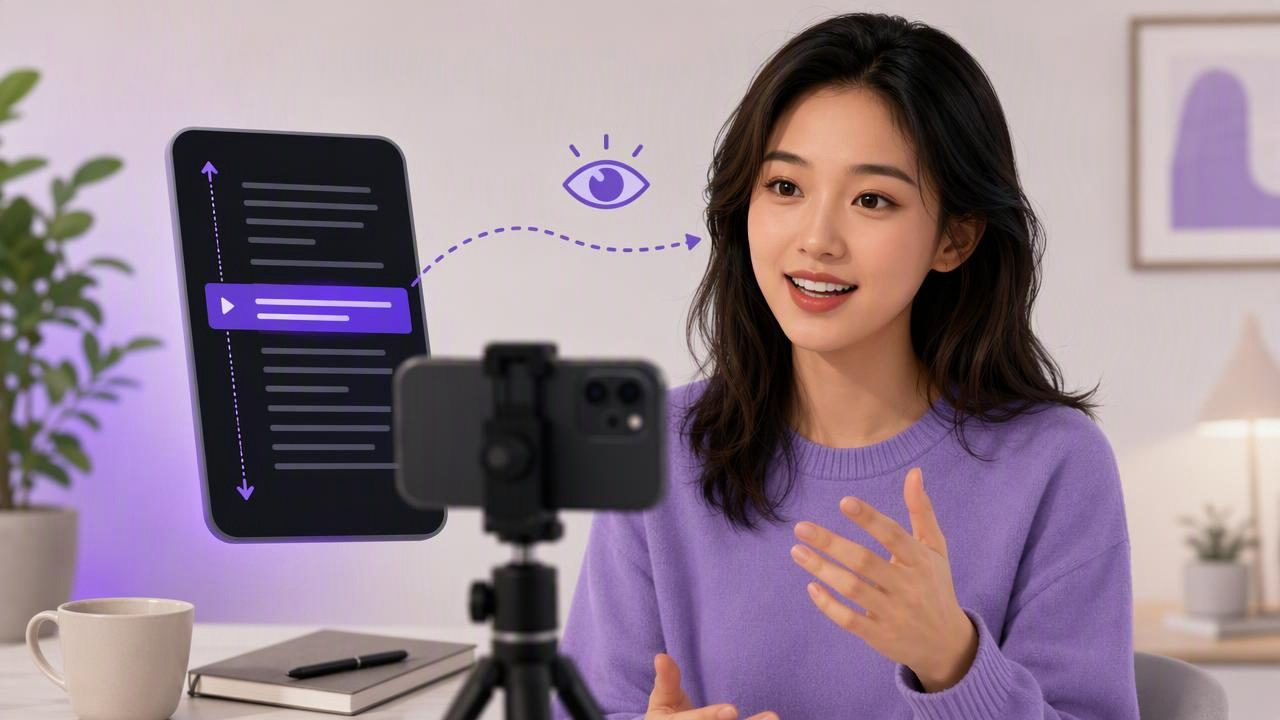
Memorizing every line is one of the slowest ways to create a scripted video. It can lead to repeated takes, uneven delivery, and the familiar cycle of looking at notes, restarting, and losing your natural tone. A script scrolling app for fewer memorized lines changes that workflow by keeping your words close to the camera while you record.
The goal is not to read in a stiff or robotic way. It is to reduce the mental work of remembering exact phrasing so you can concentrate on speaking clearly, making eye contact, and communicating your point. For creators recording product explanations, social videos, tutorials, sales messages, self-tapes, or internal updates, this can make script-to-video production more manageable.
This guide explains how to prepare a script for scrolling, choose a reading pace, position your iPhone, and record a practical short-form video without needing to memorize a full monologue.
Why memorizing every line can slow down video creation
Memorization is useful when you need to perform without any visible prompt, but it is not always the best production method. In a typical iPhone video workflow, memorizing a 60- to 90-second script can create several problems:
- More retakes: A missed phrase can force you to restart from the beginning.
- Less consistent wording: Important product details, calls to action, or names may change between takes.
- Higher cognitive load: You are trying to remember, speak, look at the lens, and manage your delivery at once.
- Slower revisions: Updating one sentence may mean learning the entire section again.
- More visible nerves: Searching for the next thought can create long pauses or rushed filler words.
A scrolling script does not remove the need to understand your message. Instead, it provides a visual safety net. You can still rehearse the opening, key transitions, and final line, while relying on the prompt for the exact language in between.
What a script scrolling app actually helps you do
A script scrolling app displays your text in a controlled format while you record. Depending on the app and device, scrolling may run at a fixed speed, follow a timed duration, or respond to your spoken pace. The most useful setup places the text as close to the front camera as possible, helping you look toward the lens rather than down at a separate document.
This is particularly helpful when your script includes language that should stay precise, such as:
- Pricing explanations or eligibility language
- Technical instructions and numbered steps
- Names, dates, measurements, or product specifications
- Legal, compliance, or approval-required wording
- Multilingual phrases you do not use every day
It also supports a more repeatable creator workflow. Once a script is approved, you can record it in sections, review the result, trim errors, and create subtitles without reconstructing the message from memory.
Start with a script written for spoken delivery
The best scrolling experience starts before you open the camera. Written copy and spoken copy are not identical. A paragraph that reads well on a webpage may feel too dense when spoken aloud.
Write for the ear by using shorter sentences, common words, and clear transitions. Break up long thoughts into separate lines. Add punctuation where you want to breathe. If a sentence is difficult to say during rehearsal, simplify it instead of hoping you will deliver it perfectly under pressure.
A practical 45-second example
Imagine you are creating a short video about a new scheduling feature. Rather than memorizing a polished but lengthy paragraph, format it like this:
“Still spending too much time arranging meetings?
Our new scheduling view shows your available time in one place.
Choose a slot, share the link, and let people book without the back-and-forth.
Try it when you plan your next client call.”
Each line contains one idea. The pauses are natural, and the wording is easy to scan. If you lose your place, you can find the next line quickly instead of trying to recall an entire paragraph.
Use formatting cues without overloading the screen
Simple script markup can improve delivery. Avoid filling the screen with directions, but add only the cues that genuinely help.
[SMILE]
Still spending too much time arranging meetings?

[PAUSE]
Our new scheduling view shows your available time in one place.

[EMPHASIZE: “without the back-and-forth”]
Choose a slot, share the link, and let people book.
Keep directions short. If your script is crowded with notes, you may begin reading the instructions rather than speaking naturally.
Set your scrolling pace before you press record
Scroll speed is one of the biggest factors in whether a teleprompter-style recording feels comfortable. If text moves too quickly, you may rush and sound breathless. If it moves too slowly, you may wait for the next line and create awkward pauses.
For a fixed-speed scroll, begin slower than you think you need. Read the script aloud once at your normal conversational pace, then adjust the speed in small increments. Do not set the speed based on silent reading; people generally read aloud more slowly.
| Script type | Suggested delivery approach | Scrolling consideration |
|---|---|---|
| Short social video | Clear, energetic, direct | Use short lines and leave room for pauses. |
| Product tutorial | Steady and instructional | Slow down for steps, menu names, and demonstrations. |
| Sales message | Conversational and confident | Pause after benefits so they are easy to understand. |
| Longer presentation | Measured and structured | Split the script into sections instead of one long take. |
Voice-following modes can be useful when your pace changes from line to line. However, performance can vary by device, language, pronunciation, background noise, and how clearly you speak. Always rehearse with your actual script rather than assuming automatic tracking will match every delivery style.
Place the iPhone so your eye line stays natural
Text placement matters as much as scrolling speed. The farther your script is from the camera lens, the more obvious it may be that you are reading. On an iPhone, use the front camera and position the scrolling text close to the lens area whenever possible.
Place the phone at eye level or slightly above it. Looking down at a phone placed on a desk can create an unflattering angle and make your eye movement more noticeable. Use a stable support, then frame yourself with a little room above your head and enough space around your shoulders for the intended platform crop.
For vertical video, stay centered and avoid standing too close to the camera. For a horizontal tutorial or YouTube-style recording, consider leaving space beside you for screen captures, product visuals, or text overlays later.
Run a short audio and camera test
Before recording the full script, make a 10- to 15-second test. Read the opening lines at your planned speed and watch it back with sound.
Check these details:
- Are your eyes generally directed toward the camera?
- Can you read without rushing or waiting for the text?
- Is your voice clear above room noise?
- Does the lighting make your face easy to see?
- Is the recording framed correctly for the platform you will use?
If you use an external microphone, test the actual connection and recording level before the full take. Do not assume every microphone, adapter, or recording configuration will behave the same way on every iPhone. A quick test is more reliable than discovering an issue after recording several minutes of video.
Record in sections when the script is longer
You do not need to record a three-minute video in one flawless take. Breaking a script into sections reduces pressure and makes editing easier. A useful structure is:
- Section 1: Hook and problem
- Section 2: Main explanation or demonstration
- Section 3: Key benefit or proof point
- Section 4: Call to action
Pause for one or two seconds before and after each section. Those clean gaps make trimming easier. If you make a small mistake, stop, take a breath, repeat the sentence, and continue. You may be able to remove the error later rather than restarting the entire recording.
For creators who need 4K recording, remember that higher-resolution video can require more device storage and may take longer to process or export. Check available storage before a longer session, especially when recording multiple takes.
Add subtitles after the best take is selected
Subtitles make video easier to follow when viewers watch without sound, are in a noisy environment, or prefer reading along. They can also reinforce key terms and make a fast-paced clip more accessible.
Generate or review captions only after choosing the strongest take. Automatic subtitles can mishear names, acronyms, technical language, or words affected by background noise. Review the transcript, correct important terms, and keep captions readable by avoiding overly long lines.
On-device subtitle tools may have language and device limitations, so confirm that your intended language is supported in your chosen workflow. If privacy is important, consider whether your script, recording, and caption generation remain on your device rather than being uploaded elsewhere.
When a scrolling script is not the best choice
A script scrolling app is helpful, but it is not the answer to every video format. For highly emotional storytelling, casual live conversation, or interviews, reading exact wording can make delivery feel less spontaneous. In those situations, use a short outline with bullet points instead of a full script.
It may also be better to memorize a brief opening and closing line. That lets you begin and end with confidence while using the prompt for more detailed information in the middle.
A simpler way to turn scripts into videos
The purpose of a scrolling script is not to eliminate preparation. It is to help you spend less time memorizing and more time delivering a clear message. Write in short spoken lines, position the iPhone at eye level, test the pace and audio, and record in manageable sections. Those small decisions can make a scripted video look more natural and take less time to produce.
If you want a practical iPhone walkthrough, CueCam’s guide to recording video while reading a script explains the basic setup for keeping your script visible while you film.
