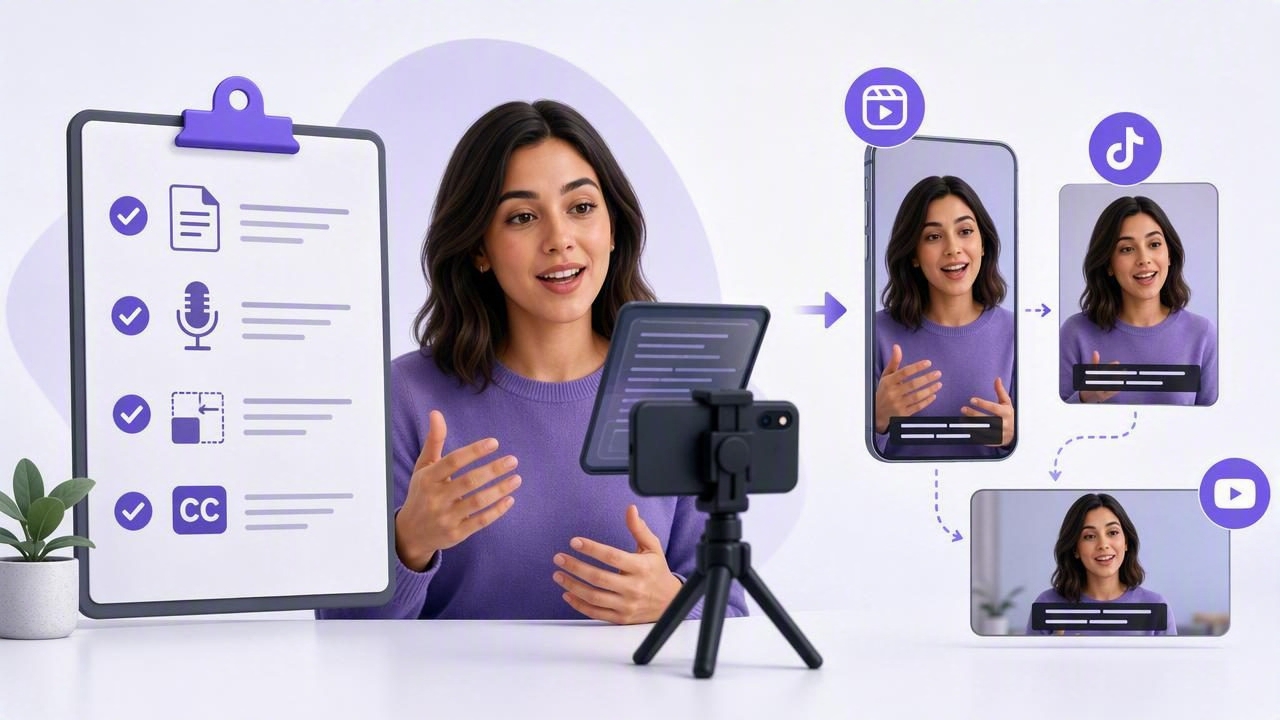
Creating one strong video is only half the job. To make that video work across TikTok, Instagram Reels, YouTube Shorts, LinkedIn, and standard YouTube, you need a practical plan for recording, framing, subtitles, and export formats. The goal is not simply to resize video for social platforms after filming. It is to make recording decisions that preserve quality and keep important visual elements visible wherever you publish.
This checklist walks through a creator-friendly script-to-video workflow, including how to use a voice tracking teleprompter, choose recording settings, protect your framing during cropping, add accessible subtitles, and export versions that look intentional on every platform.
Why Resizing Should Start Before You Press Record
Many creators record a video, post it to one platform, then try to force the same file into every other format. That often creates awkward crops, blurry exports, missing captions, or a talking head that is positioned too high or too low.
Instead, treat resizing as a production decision. Before you record, decide whether the video will be primarily vertical, horizontal, or square. Then position yourself, your product, your text overlays, and your background to support that choice.
For short-form content, vertical 9:16 is usually the best master format. It fills a mobile screen, suits social discovery feeds, and works well for direct-to-camera scripts. However, if you are recording a tutorial, an interview, or a presentation that needs wide visuals, a horizontal version may be worth creating separately.
Common social video aspect ratios
| Format | Aspect Ratio | Typical Use | Recommended Resolution |
|---|---|---|---|
| Vertical | 9:16 | Reels, TikTok, Shorts, Stories | 1080 × 1920 |
| Square | 1:1 | Feed posts and some ads | 1080 × 1080 |
| Portrait feed | 4:5 | Instagram and Facebook feeds | 1080 × 1350 |
| Landscape | 16:9 | YouTube, courses, presentations | 1920 × 1080 or 3840 × 2160 |
Resolution is not the same as aspect ratio. A 4K recording can still be vertical or horizontal. Recording at a higher resolution gives you more room to crop, stabilize, or create alternate versions without making the image look soft.
The Pre-Recording Checklist for Multi-Platform Video
A reliable workflow begins with a short preparation process. This takes only a few minutes and can prevent a reshoot later.
- Choose the primary platform. Decide where the video must perform best. For most solo creators, that is a vertical mobile platform.
- Write for the format. Use short sentences, a clear hook, and one main takeaway. Vertical viewers often decide whether to keep watching in the first few seconds.
- Set a framing-safe zone. Keep your face and key props near the center. Leave space away from the extreme top, bottom, and sides for app controls, captions, and platform labels.
- Plan on-screen text. Put headline text in the upper-middle portion of the frame. Keep subtitles low enough to read but high enough to avoid interface buttons.
- Use consistent lighting and audio. Clean sound and even light make a larger difference than an elaborate set.
- Record a clean master. Avoid baking in platform-specific stickers, music labels, or text that cannot be moved later.
Use a Voice Tracking Teleprompter for More Natural Delivery
A teleprompter helps you follow a script without looking down at notes or drifting away from your message. But fixed-speed scrolling can create a new problem: your delivery starts to follow the pace of the screen rather than your natural speaking rhythm.
A voice tracking teleprompter solves this by advancing the script as you speak. If you pause to emphasize a point, take a breath, repeat a phrase, or make a correction, the text can wait with you. This makes it especially useful for educational videos, product explainers, sales messages, course lessons, and founder updates.
The benefit is not that you sound perfectly memorized. The benefit is that you can sound prepared while maintaining eye contact with the camera.
Teleprompter setup tips for better eye contact
- Place the script as close to the camera lens as possible.
- Use a larger font size so your eyes do not visibly scan across each line.
- Keep lines short and write conversationally rather than using dense paragraphs.
- Mark pauses, emphasis, and transitions directly in the script.
- Practice the opening hook twice before recording the full take.
- Leave a beat after important points for easier editing and subtitle timing.
For example, instead of writing, “Today I am going to explain several strategies that can help small business owners create better video content for a variety of social media channels,” write: “Your video does not need a bigger budget. It needs a better workflow. Here is the checklist I use before posting anywhere.”
Record a Flexible Master File
When you expect to resize video for social platforms, capture footage with editing flexibility in mind. A 4K master can be helpful because it allows you to crop into a 1080p export while retaining detail. It is particularly useful when you need to turn a horizontal recording into a tighter vertical clip or reframe a demonstration.
That said, 4K is not automatically necessary for every video. It creates larger files, uses more storage, and may slow down editing on some devices. For simple direct-to-camera short-form content, 1080p can be more than enough. The better choice depends on whether you expect to crop substantially, use stabilization, or create multiple aspect ratios from one take.
Suggested iPhone recording approach
- For vertical short-form video: Record vertically at 1080p or 4K, using 30 frames per second for a natural speaking style.
- For movement or demonstrations: Consider 60 frames per second when you need smoother motion or may create slow-motion moments.
- For professional audio: Use an external microphone when possible, and record in a quiet space with soft furnishings to reduce echo.
- For handheld footage: Enable stabilization or use a tripod to avoid distracting shake.
Before your full take, record a ten-second test. Check exposure, microphone level, focus, background distractions, and whether your subtitle area will remain readable.
How to Resize Without Ruining Composition
Resizing is not just stretching a video into a new shape. It means deciding what stays in frame, what gets cropped, and where the viewer’s attention should go.
When converting a video from 16:9 to 9:16, you will lose a significant amount of content from the left and right sides. If your face is on one edge and a product is on the other, one of them may disappear. The easiest fix is to record with the final shape in mind or create a dedicated version for the second platform.
Three resizing options
- Crop and reframe: Best for talking-head videos when the key subject is centered. Crop into the important action and reposition the frame as needed.
- Add a background canvas: Best when you need to preserve a horizontal screen recording or interview. Place the original video over a blurred, branded, or simple background.
- Build a new edit: Best for high-value content. Recut the opening, adjust text placement, and choose new B-roll for the target aspect ratio.
For a polished result, avoid placing all important information in the lower third. Captions, descriptions, and app buttons compete for that space. Keep titles and key visual proof in a central safe area.
Subtitles Are Part of the Resize Workflow
Subtitles should be considered before export, not added as an afterthought. They improve accessibility, help viewers understand content in noisy environments, and make fast-paced instructional videos easier to follow. They can also reinforce a hook when someone is watching with sound off.
When adding captions, prioritize accuracy and readability. Use high contrast, sufficient font size, and short subtitle groups. Avoid displaying a full paragraph on screen at once. Instead, break speech into readable phrases that follow the rhythm of the video.
Practical rule: If viewers need to choose between reading captions and seeing your face, the captions are probably too large or placed too high.
For privacy-conscious creators, on-device subtitle generation can be valuable. It reduces the need to upload drafts, client scripts, or unreleased footage to a remote service. This is especially relevant for coaches, internal communications teams, healthcare-adjacent creators, and businesses working with confidential material.
Final Export Checklist for Each Platform
Use this checklist every time you publish a new version:
- Is the aspect ratio correct for the destination?
- Is the main subject centered and visible after cropping?
- Are subtitles readable and clear of interface overlays?
- Does the first frame communicate the topic immediately?
- Is the audio clean, balanced, and free of abrupt cuts?
- Have you checked for spelling errors in captions and on-screen text?
- Is the export resolution at least 1080 pixels wide or tall for the chosen orientation?
- Have you watched the finished file on a phone, not only in the editor?
Finally, keep the original master, the editable project, and exported versions organized with clear names. A structure such as topic_platform_ratio_version makes future repurposing much easier:
video-resize-checklist_reels_9x16_v1.mp4
video-resize-checklist_youtube_16x9_v1.mp4
video-resize-checklist_linkedin_4x5_v1.mp4
Build a Repeatable Script-to-Video System
The fastest creators are not always the ones who film the fastest. They are the ones with a repeatable system: write a focused script, record with eye contact, protect the frame for cropping, add subtitles, and export purpose-built versions.
Once this workflow becomes routine, resizing no longer feels like a last-minute technical chore. It becomes a simple publishing step that lets one clear message reach more people without sacrificing quality. An iPhone teleprompter and video workflow such as CueCam can help keep those steps in one privacy-focused, on-device process.
