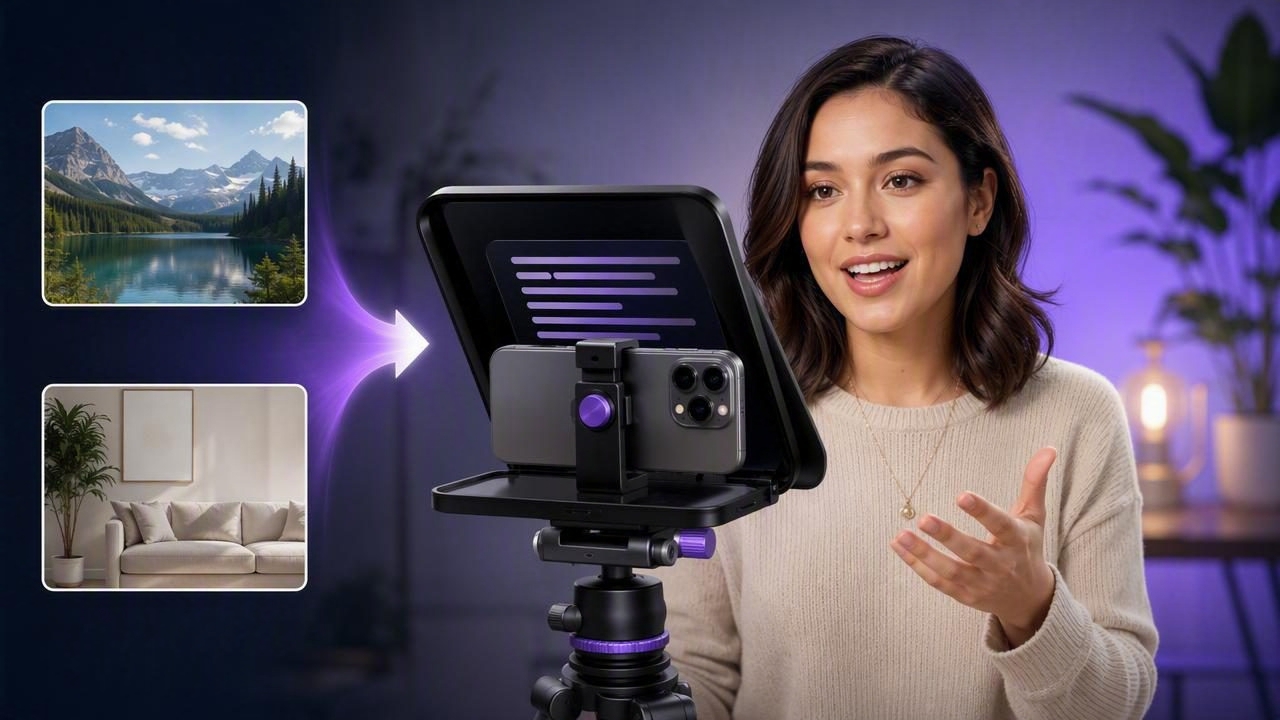
To replace a video background with an iPhone teleprompter app, start by recording a clean, well-lit talking-head video while reading your script at a comfortable pace. Then use the app’s background replacement tool to place yourself against a more suitable visual setting, such as a branded office, a plain studio backdrop, or a relevant presentation image.
This workflow can be useful when you need to record in a bedroom, shared office, hotel room, or any location that does not match the tone of your content. The teleprompter portion helps you deliver your message with steady eye contact; the background tool helps make the final video feel more intentional.
However, background replacement is not a substitute for good recording conditions. Clear subject separation, even lighting, and a simple original backdrop still matter. The better your source footage, the more natural the replaced background is likely to look.
Why Combine a Teleprompter and Background Replacement?
Creators often face two related problems: they need a confident script delivery, and they need a recording environment that looks appropriate for the video. Solving only one problem can leave the video feeling unfinished. A polished background does not help much if the speaker is repeatedly looking away to read notes, while smooth delivery can be distracted from by a cluttered room behind the speaker.
An iPhone teleprompter workflow brings the script close to the camera lens, helping you read key points without constantly shifting your gaze. Background replacement can then give the footage a cleaner setting without requiring a dedicated studio.
This approach is especially practical for:
- Course instructors recording lessons from home
- Founders filming product announcements or investor updates
- Social media creators making short educational videos
- Real estate, sales, and customer-success teams recording explainers
- Freelancers creating client updates in changing locations
The goal is not to make every video look artificially perfect. It is to remove visual distractions so viewers can focus on the message, the speaker, and any supporting visuals.
Use This Script-to-Video Example
Imagine you are a course creator filming a 60-second lesson about improving presentation openings. You are working from a small home office with shelves, boxes, and a window behind you. Rather than spending time rearranging the room, you can write a concise script and record yourself against the existing space before replacing the background with a simple, softly lit virtual office.
Your script could be structured like this:
Hook: “Most presentations lose attention in the first ten seconds.”
Teaching point: “Start with a specific problem your audience already recognizes.”
Example: “Instead of saying, ‘Today I’ll discuss customer retention,’ say, ‘If customers leave after their first purchase, your onboarding may be the problem.’”
Close: “Use that structure in your next opening, then review the first ten seconds before you publish.”
That script is short enough to read naturally. It also leaves room for pauses, emphasis, and captions. After recording, a clean background can support the educational tone without competing with the words on screen.
Prepare the Original Recording Before Replacing Anything
Background replacement works best when the iPhone can clearly distinguish you from the area behind you. You do not need a professional green screen for every video, but you do need to give the camera a usable image.
1. Leave space between yourself and the wall
Stand or sit a few feet away from the background where possible. This separation can make it easier to define the outline of your head, shoulders, hair, and clothing. If you are directly against a wall, shadows and similar colors can make the edges less distinct.
2. Light your face evenly
Place your main light in front of you, slightly above eye level, rather than relying on a bright window behind you. Backlighting can turn your face into a dark silhouette and can complicate edge detection. A window facing you can work well during the day, but check that the brightness does not shift dramatically as clouds move.
3. Choose clothing that separates from the background
If you wear a dark shirt against a dark wall, parts of your shoulders may blend into the scene. Likewise, pale clothing against a very bright wall can reduce definition. Choose a color that contrasts with your real background and also works with the replacement background you plan to use.
4. Keep the frame stable
Use a tripod, a secure phone mount, or a stable surface. Avoid handheld recording for a talking-head script unless movement is part of the creative concept. Stable footage makes the result easier to watch and helps avoid distracting shifts around the subject.
Set Up the Teleprompter for Natural Eye Contact
Reading a script on an iPhone does not have to sound read. The key is to format your script for speech rather than treating it like an article or a slide deck.
- Use short sentences and one thought per line.
- Add line breaks where you want to pause.
- Write contractions such as “you’re” and “it’s” if that matches how you speak.
- Highlight numbers, names, or technical terms you need to emphasize.
- Remove filler phrases that do not add meaning.
Set the text large enough to read without squinting. Keep the scrolling area near the camera lens so your eyes stay close to the viewer’s perspective. If the text moves too quickly, your delivery may become tense; if it moves too slowly, you may start waiting for the next line.
For a short educational video, practice the script aloud once before recording. Then do a brief audio test of around 10 seconds. Listen for room echo, traffic noise, air conditioning, and clothing rustle. Fixing those issues before a full take is easier than trying to rescue unclear audio later.
Choose a Background That Supports the Message
A replaced background should make the video easier to understand, not simply more decorative. Match it to the subject and the platform where the video will appear.
| Video Type | Useful Background Direction | What to Avoid |
|---|---|---|
| Business update | Simple office, subtle brand colors, minimal texture | Busy coworking scenes or moving visuals |
| Educational lesson | Neutral studio, desk setting, relevant visual graphic | Backgrounds with tiny unreadable details |
| Product explanation | Clean backdrop with space for product images or text | Colors that clash with the product |
| Short social video | High-contrast but uncluttered setting | Visuals that compete with captions |
For the course-creator example, a muted office or library-style background may reinforce credibility. A tropical beach or an overly futuristic virtual studio would probably distract from the teaching point. Consistency is often more valuable than novelty, especially if viewers will watch a series of related videos.
Record in Short Sections When the Script Is Complex
You do not need to record an entire three-minute lesson in one flawless take. If your script has several sections, record them in logical blocks. For example, record the hook, the main example, and the closing separately. This can make it easier to maintain a natural pace and restart only the part that needs improvement.
When recording sections, keep your posture, camera position, lighting, and teleprompter settings consistent. Major changes between takes can be noticeable once clips are placed together. Leave a second or two of silence at the beginning and end of each take so trimming is easier.
During the take, look toward the lens area, not at your own preview image. Speak slightly slower than you think you need to. A calm pace gives viewers time to process the message and gives captions more room to remain readable.
Add Captions After the Background Is Replaced
Captions can improve accessibility and help viewers follow your message when they watch without sound. They are particularly useful for short vertical videos, where viewers may encounter the content while scrolling in a noisy or silent environment.
Check captions carefully after they are generated. Names, product terms, acronyms, and industry-specific language may need correction. Also consider caption placement: subtitles positioned too low can be covered by platform controls, while captions placed across your face can reduce the impact of eye contact.
A practical layout is to keep captions in the lower-middle portion of the frame, leaving a comfortable margin from the bottom edge. If your new background contains text, a logo, or visual details, make sure the captions still have enough contrast to be readable.
Know the Limits of iPhone Background Replacement
Background replacement can be effective, but results vary based on the footage and the complexity of the scene. Fine details such as loose hair, transparent glasses, fast hand movements, smoke, reflective objects, or similarly colored clothing can create imperfect edges. Low light may also introduce image noise that makes separation less precise.
Be careful with backgrounds that have strong directional light. If the replacement shows bright sunlight from the left but your face is lit from the right, the final image may look inconsistent. Select a background with soft, neutral lighting when you want the most believable result.
It is also worth considering privacy. Before using a real photo or office image as a replacement background, check that it does not reveal client information, private documents, location details, or copyrighted visuals you do not have permission to use.
A Practical Final Check Before Publishing
- Watch the first five seconds without sound and confirm the visual looks clean.
- Listen with headphones for distracting noise or abrupt cuts.
- Check the edges around your hair, hands, and shoulders.
- Confirm that captions are accurate and readable on a small screen.
- Make sure the background supports the topic instead of stealing attention.
- Review the video in the intended vertical or horizontal format before export.
The strongest result comes from treating the teleprompter, camera setup, audio, background, and captions as one creator workflow. A polished background cannot fix an unclear message, but it can help a well-prepared script feel more focused and professional.
If you want to record while reading a script and keep the workflow on your iPhone, CueCam’s guide to recording video while reading a script provides a useful starting point for setting up your teleprompter recording process.
