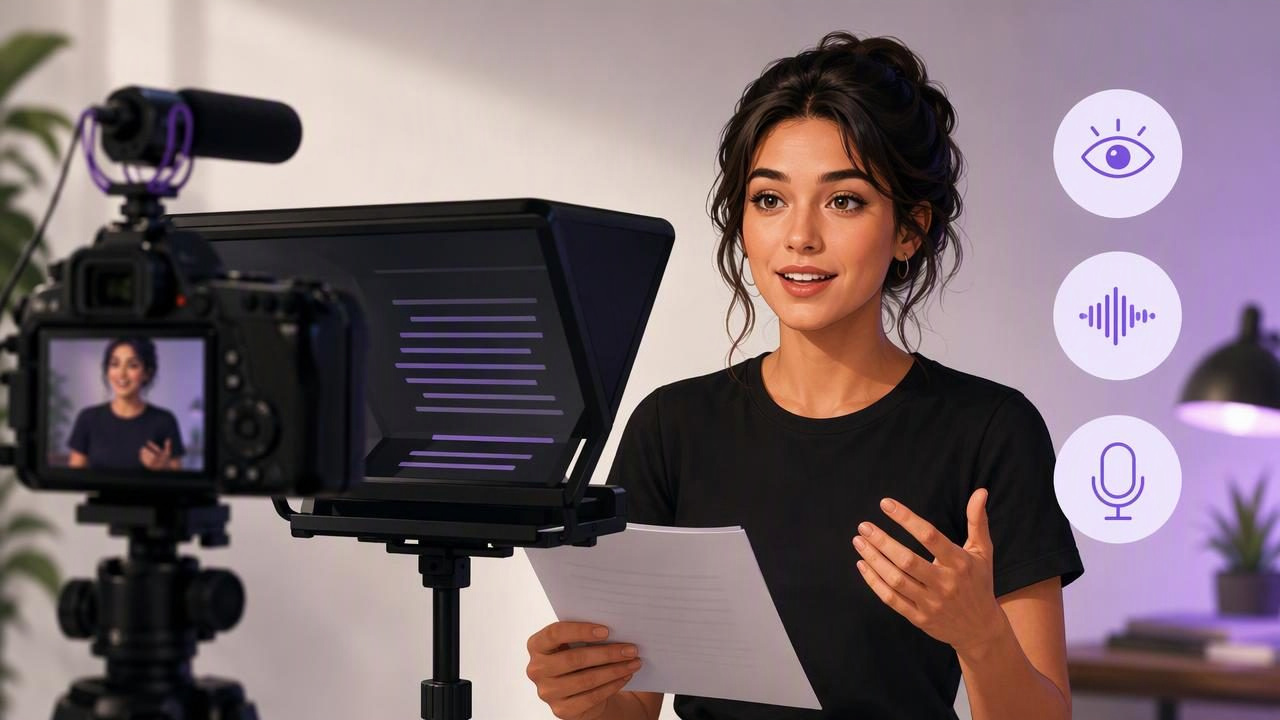
Learning to record while reading a script with a self-tape teleprompter can make video creation feel far more manageable. Instead of trying to memorize every line, creators, actors, presenters, and job seekers can focus on delivery, eye contact, and clear communication.
A self-tape teleprompter setup does not need to be complicated. The essential goal is simple: position your script as close to the camera lens as possible, set a comfortable reading pace, and create a recording environment where your voice and face are easy to understand.
However, reading from a script naturally is a skill. If the words scroll too quickly, your eyes may dart across the screen. If the camera is too low, too far away, or poorly positioned, your delivery can look less direct. This guide explains how to prepare, record, review, and improve script-based self-tapes without relying on memorization alone.
Why Use a Self-Tape Teleprompter?
A teleprompter is useful whenever accuracy matters but memorizing a script would slow you down. It can help you deliver key details consistently while keeping your attention close to the viewer’s perspective.
- Actors can stay focused on performance choices instead of recalling every word.
- Content creators can explain products, tutorials, or opinions with fewer missed points.
- Job seekers can prepare confident video introductions or interview answers.
- Educators and presenters can deliver structured lessons and updates without repeatedly checking notes.
- Business teams can create clearer training, sales, and internal communication videos.
The aim is not to make your delivery sound overly rehearsed. A good teleprompter workflow gives you enough support to stay on message while leaving room for expression, pauses, and natural emphasis.
Set Up Your Camera Before You Start Reading
Your camera placement has a major effect on whether a scripted recording feels personal. Place the lens at approximately eye level. When the camera sits too low, you may appear to be looking down at the viewer. When it sits too high, the result can feel less conversational.
For a self-tape teleprompter workflow, keep the text near the lens rather than far below it. The farther your eyes travel away from the lens, the more noticeable the reading movement becomes. This matters especially for close-up video, where even small eye shifts can be visible.
Use This Basic Recording Setup
| Setup element | Recommended approach | Why it matters |
|---|---|---|
| Camera height | Place the lens at eye level | Creates a more direct, comfortable appearance |
| Distance | Frame from mid-chest or shoulders upward | Keeps facial expression visible without feeling too close |
| Lighting | Face a window or use soft front lighting | Helps viewers see your eyes and expressions clearly |
| Background | Choose a simple, uncluttered space | Keeps attention on your delivery |
| Audio | Reduce room noise and test your voice first | Clear speech is as important as a clear image |
Stabilize the phone or camera before recording. Holding it by hand can introduce movement that distracts from your performance and makes reading more difficult. A tripod, stand, or stable surface lets you concentrate on the script instead of framing.
Prepare a Script That Sounds Like You
Many teleprompter problems begin before recording. A script written for reading silently may sound stiff when spoken aloud. The best self-tape scripts use short sentences, straightforward language, and clear transitions.
Read the script out loud once before loading it into a teleprompter. Mark any sentence that makes you pause, lose your breath, or sound unlike yourself. Then revise it. Spoken video usually benefits from simpler wording than written material.
Format Your Script for Easier Reading
- Keep paragraphs short: ideally one thought per section.
- Use line breaks before important points or transitions.
- Write numbers in the way you would say them aloud.
- Add pause markers such as [pause] when a moment needs space.
- Use emphasis sparingly for words that need vocal weight.
- Remove long introductions and get to the point early.
For example, this sentence may be difficult to deliver naturally:
“Our comprehensive approach enables stakeholders to leverage an integrated process designed to facilitate meaningful operational improvements.”
A more natural video version would be:
“We help teams simplify their process, so they can spend less time managing tasks and more time improving the work.”
The second version is easier to scan while recording, easier to say in one breath, and easier for a viewer to understand.
Choose a Scrolling Method That Matches Your Delivery
There is no single scrolling speed that works for everyone. Your ideal setting depends on the script, your speaking pace, and whether you plan to pause for expression or demonstration.
Fixed-speed scrolling can work well when you have rehearsed the script and know your pacing. Timed scrolling can be useful when you need to fit a defined video length. Voice-following scrolling may be helpful for speakers whose pace changes naturally, but its performance can vary based on the device, language, pronunciation, background noise, and how clearly you speak.
Whichever mode you use, begin slower than you think you need. Rushing is more noticeable than taking a short pause. You can gradually increase the speed after a test take.
A Practical Self-Tape Example: A 60-Second Introduction
Imagine you are recording a one-minute introduction for a casting submission, client application, or creator collaboration. Your goal is to appear prepared and friendly without sounding memorized.
Start with a script of roughly 120 to 145 words. That range gives many speakers enough room to pause and speak clearly, although individual speaking rates vary. Avoid trying to fill every second.
Hi, I’m Jordan. I’m a presenter and video creator based in Chicago.

I enjoy turning complicated topics into clear, useful stories.

In recent projects, I’ve created short educational videos for audiences who need quick answers without unnecessary jargon.

I’m excited about this opportunity because it combines clear communication, creativity, and a strong focus on the audience.

Thank you for watching.
Before your final recording, make a short test of the first two lines. Watch it without sound first. Are your eyes moving noticeably side to side? If so, enlarge the text, move it closer to the lens, or slow the scroll. Then listen to the audio. If your voice sounds distant, echoey, or uneven, adjust the room or microphone position before recording the full take.
This brief review is more efficient than recording five full versions with the same setup issue.
Follow a Simple Record-and-Review Routine
- Set the frame. Check camera height, lighting, background, and headroom.
- Load the revised script. Use readable text size and clear paragraph breaks.
- Do a 10-second audio test. Speak at your normal volume and listen back with headphones if possible.
- Record a short pace test. Use the first section of the script to confirm scrolling speed.
- Record the full take. Keep going after minor mistakes if you can recover naturally.
- Review for clarity. Check eye line, pacing, pronunciation, framing, and audio before deciding whether to retake.
Do not stop immediately for every small stumble. In many cases, a brief pause and a clean restart of the sentence creates an easy edit point. Stopping repeatedly can make the process feel more stressful and may interrupt a delivery that was otherwise strong.
Common Teleprompter Mistakes and How to Fix Them
Your Eyes Look Like They Are Reading
Make the text larger and reduce the width of each line. Shorter lines require less side-to-side eye movement. Also move the script display as close to the camera lens as your setup allows.
You Sound Too Fast
Lower the scrolling speed, add line breaks, and write fewer words. A clear 45-second video is usually more effective than a rushed 60-second recording.
You Sound Flat or Over-Rehearsed
Practice the meaning of each section rather than trying to perform every sentence identically. Add intentional pauses after key ideas, and imagine speaking to one person rather than to a screen.
Your Audio Is Hard to Hear
Close windows, turn off nearby fans when possible, and record away from reflective empty rooms. A short test is essential because a visually strong take can still be unusable if speech is unclear.
Add Captions After Recording
Captions make scripted videos easier to follow in sound-off environments and can support accessibility. Review automatically generated subtitles before publishing, especially for names, industry terms, numbers, and words that may be interpreted incorrectly.
If your video will be shared across platforms, keep captions within safe visual areas so interface buttons or cropped vertical framing do not cover important text. Captions should support the message, not compete with your face or the teleprompter-led delivery.
Know the Limits of a Self-Tape Teleprompter
A teleprompter can improve consistency, but it cannot replace preparation. You still need a script that fits your natural voice, a camera position that supports eye contact, and a quiet place for usable audio. Voice-controlled features and automatic captions may also depend on device capability, available languages, speaking clarity, and recording conditions.
For the best result, treat your first recording as a diagnostic take. It reveals whether your pacing, script formatting, lighting, and audio work together before you invest time in a final performance.
Make Scripted Video Feel More Human
The most effective self-tape teleprompter recordings do not hide the fact that you prepared. They show that you respect the viewer’s time enough to communicate clearly. Keep your script close to the lens, speak at a sustainable pace, and leave room for genuine expression.
If you record scripted videos on iPhone, this guide to recording video while reading a script offers an additional device-focused walkthrough for building that workflow.
