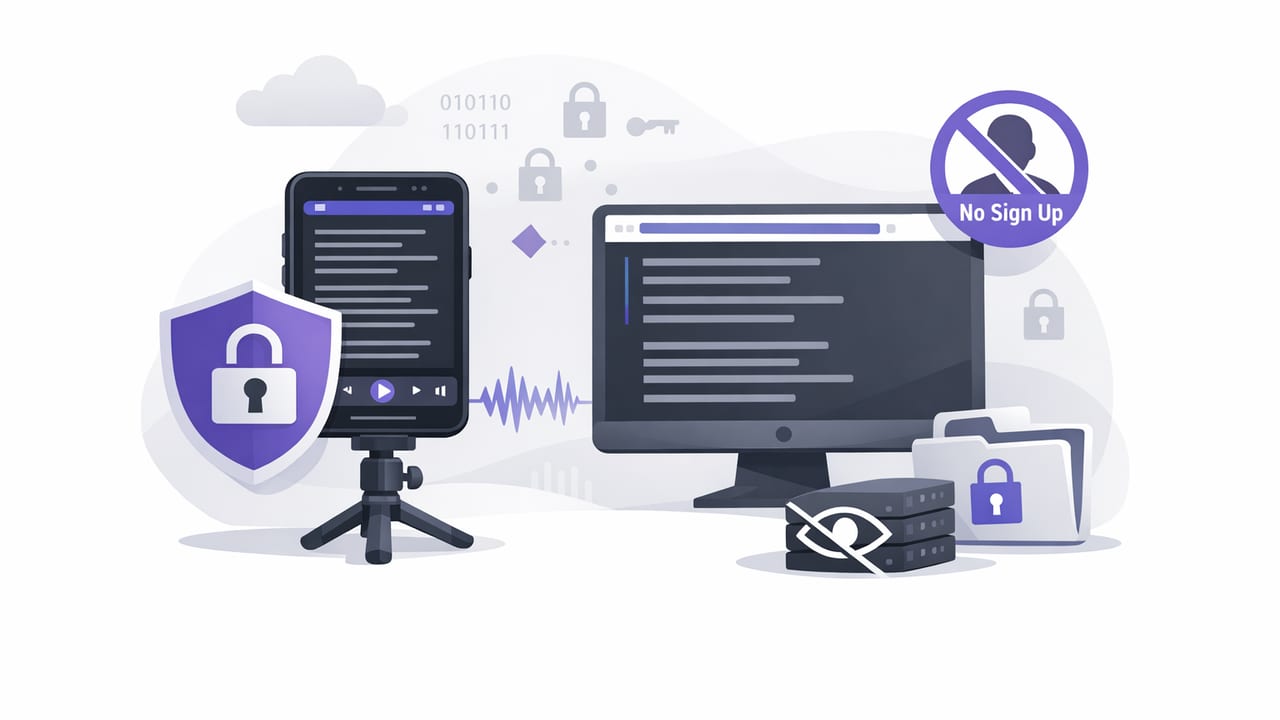
Reading a script while keeping natural eye contact is one of the fastest ways to level up your videos—especially for talking-head content, product demos, tutorials, course lessons, and client work. But teleprompter apps can also touch some of your most sensitive assets: unreleased scripts, client names, brand messaging, and raw footage. That’s why many creators specifically look for a privacy focused teleprompter app no signup—something that lets you record confidently without handing over your email, uploading drafts to a server, or building yet another account.
This guide breaks down what “privacy-focused” actually means in practice, how to evaluate teleprompter apps beyond marketing claims, and a simple iPhone workflow for scripting, recording in high quality, and generating subtitles—while keeping your content under your control.
Why privacy matters for teleprompter workflows
A teleprompter app isn’t just a scrolling text tool. Depending on how it’s built, it can process or store:
- Scripts (often containing private details, pricing, launch plans, or client information)
- Voice data (if the app uses voice-following features)
- Video/audio recordings (especially if it includes built-in recording and editing)
- Usage analytics (device identifiers, IP addresses, and behavior patterns)
For creators, the privacy risks aren’t hypothetical. Common pain points include:
- Leaked drafts (scripts synced to cloud services without clear controls)
- Client confidentiality issues (agency work, legal/medical topics, internal comms)
- Account lockouts (email-based accounts you don’t want to maintain)
- Platform profiling (unnecessary tracking tied to ad networks)
Privacy-focused tools don’t just protect data from “hackers.” They reduce the amount of data created, stored, and shared in the first place.
What “privacy-focused” should mean (not just a buzzword)
When you’re comparing options, look for concrete, verifiable behaviors—especially if you want a privacy focused teleprompter app no signup. Here are the most practical signals.
1) No signup (and no forced identity)
“No signup” is more than convenience. It reduces:
- Account databases tied to your content
- Password/credential risk
- Email-based tracking and marketing pipelines
2) On-device processing for sensitive features
Features like subtitle generation, voice-following, and editing can be done either:
- On-device (processed locally on your iPhone)
- In the cloud (uploaded to remote servers)
On-device processing typically improves privacy because your audio/video doesn’t need to leave your phone for analysis.
3) Clear storage model (where do scripts and videos live?)
Prefer apps that store drafts and recordings locally (e.g., within the app’s sandbox or your Photos/Files), with export choices you control. If sync exists, it should be optional and transparent.
4) Minimal permissions
A teleprompter/recording app usually needs camera and microphone access. Be cautious if it requests access unrelated to core function (like contacts, location, or broad tracking). On iPhone, also look for options like “Selected Photos” rather than full library access.
5) Limited analytics and tracking
Some apps include third-party SDKs for ads or analytics. If privacy is a priority, choose tools that don’t rely on ad tracking and don’t require cross-app identifiers to function.
Quick comparison: cloud-first vs on-device teleprompter workflows
| Workflow choice | What happens behind the scenes | Privacy implication |
|---|---|---|
| Cloud sync for scripts | Text stored on remote servers for access across devices | Creates extra copies; access depends on account security |
| Cloud subtitle generation | Audio uploaded, transcribed remotely, then returned | Voice content leaves device; retention policies vary |
| On-device subtitles | Transcription happens locally on the iPhone | Audio can stay local; less exposure to third parties |
| No-signup local projects | Projects stored only on the phone until you export | Fewer identity links; fewer cloud footprints |
A practical iPhone workflow: script → record → subtitles (with privacy in mind)
You can build a fast creator pipeline without sacrificing control. Here’s a simple approach that works for Reels, TikTok, Shorts, and longer YouTube videos.
Step 1: Write a “teleprompter-ready” script (less robotic, easier to read)
The best scripts are designed for spoken delivery, not essays. Keep sentences short, add breathing room, and mark emphasis. Try this lightweight template:
[HOOK]
Say the outcome in one sentence.

[CONTEXT]
One line: who this is for and why it matters.

[3 POINTS]
1) Point one (one breath)
2) Point two (example)
3) Point three (quick tip)

[CALL TO ACTION]
Ask for one clear action (comment, save, subscribe).
Pro scripting tip: put your “must-say” lines on their own lines. Teleprompter reading becomes smoother because your eyes don’t hunt across dense paragraphs.
Step 2: Format for effortless prompting
- Use line breaks every 6–12 words.
- Capitalize a single word you want to punch (don’t overdo it).
- Add stage directions in brackets: [pause], [smile], [show product].
- Write how you speak: contractions, simple vocabulary, natural rhythm.
Step 3: Choose a scrolling mode that matches your delivery
Most iPhone teleprompter tools offer some combination of:
- Voice-following: text advances as you speak (great for conversational pacing).
- Fixed-speed: consistent scroll (good for rehearsed reads and consistent cadence).
- Timed: you set a duration and the script fits it (useful for exact 30s/60s deliverables).
From a privacy standpoint, voice-following is worth a quick double-check: confirm whether speech analysis happens on-device, and whether audio is retained or uploaded.
Step 4: Record in high quality without creating extra copies
If you’re recording inside a teleprompter app, aim for settings that preserve quality while keeping your footage local:
- Resolution/frame rate: 4K (if supported) for flexibility in cropping; 60fps if you want smoother motion.
- Stabilization: enable it for handheld or walking shots.
- Audio: use an external mic when possible (wired or wireless). Clean audio reduces the need for cloud processing later.
Privacy habit: export only the final cut to Photos/Files. Keep raw takes inside a local workflow until you know what you’ll publish.
Step 5: Generate subtitles offline when possible
Subtitles improve watch time and accessibility—but many caption tools require uploading audio. If privacy is a priority, look for on-device subtitle generation so your speech stays on your phone. Offline subtitles are also practical when you’re traveling, on set, or working with limited connectivity.
When reviewing captions, focus on:
- Names and brands (easy to mis-transcribe)
- Numbers (pricing, dates, measurements)
- Industry terms (acronyms, product names)
Step 6: Export for the platform—without leaking drafts
Export settings aren’t only about sharpness. They also affect where your files end up and who can access them.
- Vertical video: 9:16 for Reels/TikTok/Shorts.
- Keep the master: save a high-quality version locally before uploading.
- Be intentional about sharing: export to Files if you want tighter control, or Photos if your posting workflow is Photos-based.
iPhone privacy checklist for teleprompter creators
Use this quick checklist to reduce exposure while keeping your workflow fast.
- Check app permissions: Settings → Privacy & Security → Camera/Microphone/Photos.
- Limit Photos access: choose “Selected Photos” when available.
- Review tracking: Settings → Privacy & Security → Tracking (disable if you don’t need it).
- Avoid unnecessary cloud sync for drafts and raw takes unless required.
- Lock your phone (Face ID + strong passcode), because “on-device” still means “on your device.”
- Separate client work: consider a dedicated folder structure in Files and consistent naming.
How to evaluate a privacy focused teleprompter app no signup (in 3 minutes)
Before committing, do this quick evaluation:
- Open the app: does it force account creation before you can test core features?
- Check the App Store privacy labels: look for data linked to you vs not linked, and whether tracking is listed.
- Test airplane mode: can you still prompt, record, and caption? If yes, that’s a strong sign key features are on-device.
Common creator scenarios where privacy-first matters most
Client and agency videos
If you’re reading a client-approved script, you may be bound by confidentiality. Local projects and no-signup tools reduce accidental sharing.
Pre-launch product content
Teasers, demos, and internal messaging often include embargoed details. The fewer places your drafts live, the better.
Personal or sensitive topics
Health journeys, legal explainers, and personal stories deserve extra care—especially around audio uploads and third-party analytics.
FAQ
Is “no signup” enough to guarantee privacy?
No. A no-signup app can still upload content or include tracking. Pair “no signup” with on-device processing, minimal permissions, and clear storage behavior.
Do offline subtitles reduce quality?
Not necessarily. Accuracy depends on the transcription model, your mic quality, and how clearly you speak. Offline can be both accurate and fast, while keeping audio local.
What’s the simplest privacy-first setup for talking-head videos?
Use an iPhone on a tripod, an external mic, a local teleprompter workflow with voice-following or fixed-speed scroll, on-device subtitles, and export only final files.
Putting it all together
A privacy-first teleprompter workflow doesn’t need to be complicated. The goal is simple: keep scripts, audio, and video on your iPhone unless you explicitly choose to share them. Look for on-device features (especially subtitles and voice-following), minimal permissions, and a true no-account experience. If you want a single iPhone tool that aligns with that approach, CueCam is one example of a privacy-focused teleprompter and script-to-video app that works without signup and keeps projects on-device.
