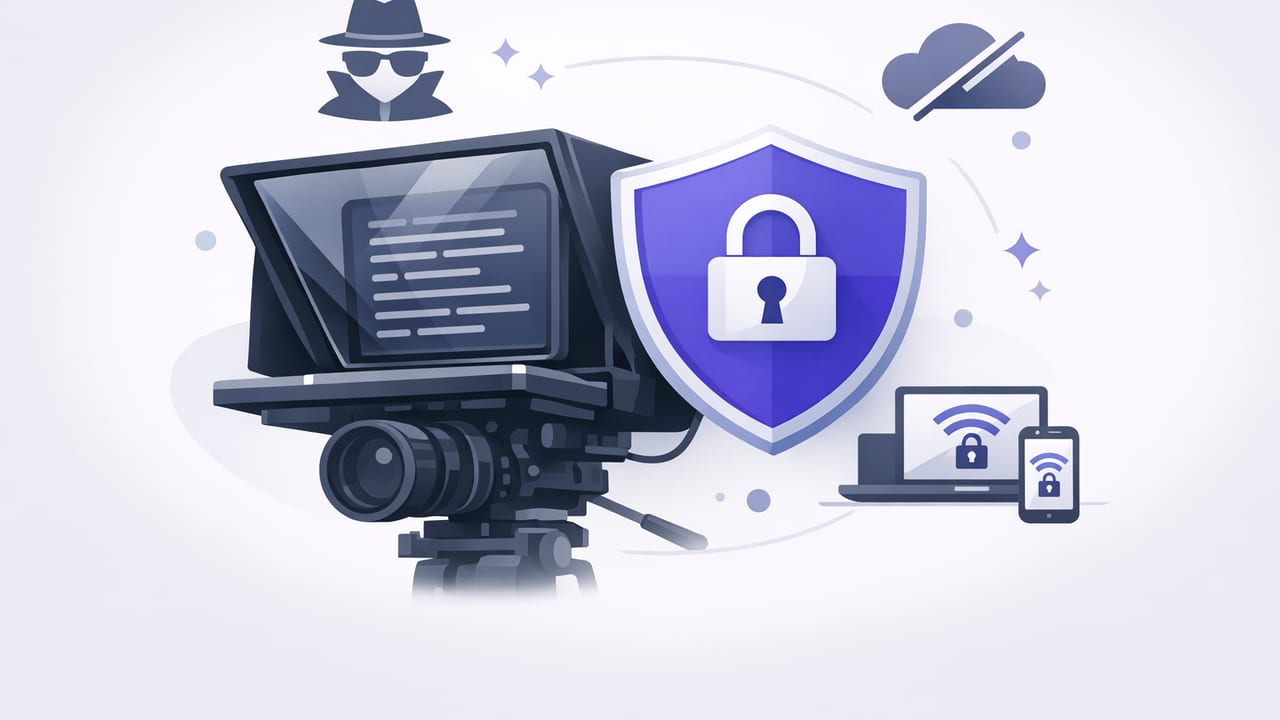
Scripted video is faster when you can read cleanly and keep eye contact—but many creator tools trade convenience for data collection. If your scripts include client names, pricing, product roadmaps, or personal stories, uploading them to unknown servers can be a real risk. The good news: you can build a privacy focused teleprompter no sign up workflow on iPhone that still delivers professional results—teleprompter reading, 4K recording, captions, and exports—while keeping sensitive content on-device.
This guide explains how to design a creator workflow that minimizes exposure: from writing scripts to recording, editing, subtitle generation, and publishing—without turning your phone into a data pipeline.
Why privacy matters for scripted video (more than you think)
Scripts are often more sensitive than the final video. A typical script can reveal:
- Unannounced plans (launch timelines, feature lists, partnerships)
- Client details (testimonials, internal processes, pricing, contacts)
- Personal data (health, location hints, family names, routines)
- Brand voice and IP (original frameworks, training materials, course modules)
When an app requires an account, auto-syncs to a cloud, or runs transcription on a server, you may be sharing more than you intended. A privacy-first approach reduces that footprint.
Privacy is easier when you practice data minimization: collect less, store less, transmit less.
What “privacy-first” actually means in a teleprompter workflow
Privacy is not a single setting—it’s a set of choices. For iPhone creators, a privacy-first setup usually means:
- No sign-up required for core features (reduces identity linkage and tracking)
- On-device processing for subtitles/transcription where possible
- Local script storage (not auto-uploaded to third-party servers)
- Transparent permissions (camera/mic access only when recording)
- Export control (you choose when/where files are shared)
Cloud vs on-device: quick comparison
| Workflow component | Cloud-based approach | On-device approach |
|---|---|---|
| Script storage | Synced to account; may be accessible across devices | Saved locally; shared only when you export |
| Subtitles/transcription | Audio uploaded to servers for processing | Processed offline on iPhone (no upload) |
| Analytics/telemetry | Often tied to identity and usage patterns | Can be minimal or absent depending on app |
| Risk surface | Breaches, retention policies, access logs, third parties | Mostly limited to your device security and backups |
| Convenience | Easy cross-device syncing | More manual file handling (but more control) |
Step-by-step: a privacy-focused iPhone teleprompter workflow
Below is a practical flow you can adopt immediately. It’s designed for creators who want script-to-video speed without sacrificing control.
1) Write and store scripts locally
Use a local-first notes app or a teleprompter tool that keeps scripts on-device. Good practices:
- Avoid pasting sensitive scripts into tools that auto-sync to unknown clouds.
- Use short modular blocks (hook, body, CTA). This speeds retakes and reduces what any single file reveals.
- Keep a “safe version” of scripts for collaboration (remove client names and specifics).
2) Configure your teleprompter for natural delivery
A teleprompter is most convincing when the pacing matches your speaking. For iPhone teleprompters, the common scrolling modes are:
- Voice-following: the text advances as you speak—great for conversational delivery.
- Fixed-speed: simple and predictable once you find your pace.
- Timed scrolling: aligns with a target duration (useful for 30–60 second shorts).
Privacy note: voice-following may analyze audio locally or remotely depending on the tool. If privacy is your priority, prefer apps that explicitly state on-device processing.
3) Record in 4K only when it’s worth it
High-resolution recording is great for cropping vertical clips from horizontal footage, adding subtle zooms, and preserving detail. But it also produces larger files, which can increase sharing mistakes (accidentally uploading a draft) and complicate storage. A balanced approach:
- Use 4K for evergreen videos, courses, client work, and anything you’ll repurpose.
- Use 1080p for fast daily content when speed matters more than cropping.
Also consider pairing your iPhone with an external mic (wired or wireless). Clean audio reduces the need for cloud noise cleanup services and improves subtitle accuracy.
4) Generate subtitles offline (and keep drafts private)
Subtitles boost retention and accessibility, but server-based transcription means your audio leaves your phone. If your content is sensitive, prioritize offline caption generation. When reviewing captions:
- Fix names and numbers first (those are the highest-stakes errors).
- Standardize punctuation for your brand voice.
- Export captions burned-in for short-form platforms, or keep them as a separate track if your editor supports it.
5) Edit with a “minimal sharing” mindset
You can do a lot on-device: trimming, resizing to vertical, background cleanup/replacement, and basic audio enhancement. Privacy tips during editing:
- Disable auto-upload features in any editor that tries to sync projects.
- Keep drafts local and only export final versions to Photos/Files.
- Use watermarks carefully—they can reveal client names or internal project labels.
6) Export settings that protect privacy (and look good)
Export is where privacy mistakes happen: wrong file, wrong destination, wrong metadata. Use a repeatable checklist:
- Confirm the right cut: no outtakes, no “between takes” audio.
- Check the background: reflections, documents, screens, notifications.
- Choose the correct aspect ratio: 9:16 for TikTok/Reels/Shorts.
- Strip or avoid extra metadata when possible (some apps include project tags).
- Export to a local folder first, then upload from the platform app.
Privacy checklist: how to evaluate a teleprompter app quickly
When you’re deciding whether a teleprompter tool is safe enough for client or personal scripts, scan for these signals:
- No sign-up required to create scripts or record (reduces identity and tracking).
- Clear statement about on-device processing for subtitles and speech features.
- Offline functionality (core features work without internet).
- Minimal permissions (camera/mic only; no unnecessary contacts/location access).
- Local storage defaults and explicit export/share steps.
Pro tip: verify permissions on iPhone
Even privacy-friendly apps should be permission-scoped. Review them periodically:
- Settings > Privacy & Security: check Camera, Microphone, Photos.
- Settings > [App Name]: confirm what it can access.
If you build iOS apps and want a simple example of requesting camera access responsibly, here’s a minimal Swift snippet that checks permission before recording:
import AVFoundation

func ensureCameraPermission(completion: @escaping (Bool) -> Void) {
    switch AVCaptureDevice.authorizationStatus(for: .video) {
    case .authorized:
        completion(true)
    case .notDetermined:
        AVCaptureDevice.requestAccess(for: .video) { granted in
            DispatchQueue.main.async { completion(granted) }
        }
    default:
        completion(false)
    }
}
Common privacy pitfalls (and how to avoid them)
Accidental cloud backups of drafts
Even if an app is local-first, your device backups may sync content elsewhere. If you handle sensitive scripts, consider separating “public content” and “private content” devices or accounts, or store the most sensitive drafts in a protected location and delete after publishing.
Sharing the wrong file
Teleprompter recordings often include multiple takes. Create a consistent naming pattern in Files (for example: client_topic_platform_final) and delete unused exports immediately.
Notifications and screen reflections
Enable Focus mode while recording. Also watch for reflective surfaces (windows, glossy frames) that can leak information from your environment.
Putting it together: a fast, private script-to-video routine
If you want a repeatable routine that balances speed and privacy, try this:
- Draft your script in short sections (hook, 3 points, CTA).
- Record with a teleprompter in voice-following or fixed-speed mode.
- Trim the best take immediately.
- Generate subtitles offline and correct names/numbers.
- Resize to vertical and export locally.
- Upload only the final export to the platform.
This keeps your sensitive inputs (scripts and raw takes) from wandering into cloud systems you don’t control, while still producing high-quality content consistently.
Final thoughts
A privacy focused teleprompter no sign up setup is not about being paranoid—it’s about staying in control of your creative assets. The more your workflow relies on local processing and explicit exports, the less you have to wonder where your scripts and recordings end up.
If you’re looking for an iPhone teleprompter that emphasizes on-device workflows (including offline subtitles) and doesn’t require an account, you can explore CueCam as one option.
