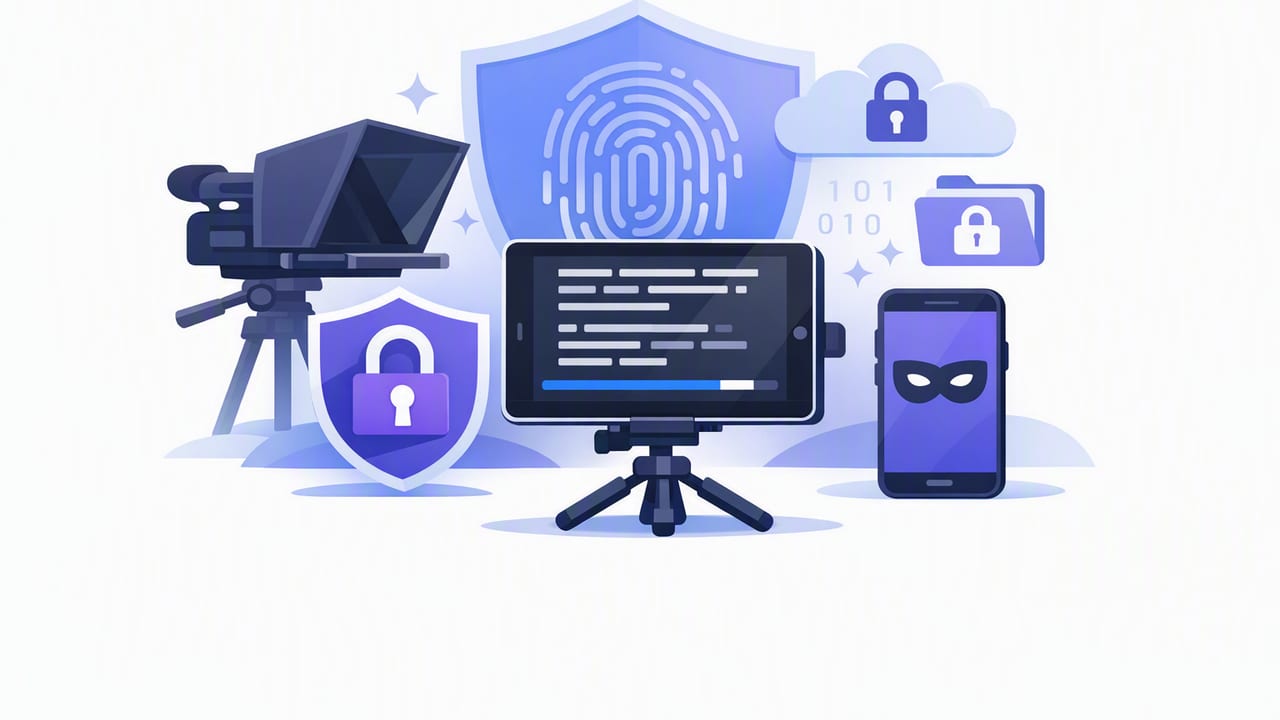
Creators are producing more camera-facing content than ever—client explainers, coaching modules, product demos, compliance updates, internal training, and personal brand videos. At the same time, scripts and raw footage often include sensitive information: unreleased launches, customer details, financials, medical topics, HR updates, or simply content you don’t want indexed, scanned, or stored on someone else’s servers.
If you’re searching for a privacy focused teleprompter app, you’re probably trying to solve a practical problem: read a script naturally while keeping your data on your iPhone. This guide breaks down what “privacy-first” really means for teleprompter + video workflows, what to look for in an iPhone teleprompter, and how to set up a repeatable script-to-video process that stays local from writing to subtitles to export.
What “privacy-first” should mean in a teleprompter app
Not every app that claims “privacy” delivers the same protections. For creator workflows, privacy-first typically includes:
- On-device processing: Script handling, captions/subtitles, and editing happen locally—no forced uploads.
- No account required: If you can use core features without creating an account, there’s less personal data collected.
- Clear storage behavior: You should know where scripts and videos live (ideally in-app or in your Photos/Files) and how to delete them.
- Minimal permissions: Only request camera/mic/photo library access when needed, not at first launch “just in case.”
- Offline capability: Subtitles and teleprompter playback should work without internet, preventing background syncing.
Privacy-first doesn’t mean you can’t share—only that you control when and how your content leaves your device.
Why privacy matters for script-to-video workflows
Teleprompter workflows combine two sensitive assets: a written script (often containing names, claims, or confidential points) and raw camera footage (which may include private spaces, whiteboards, or client materials). Here are common risk points:
- Cloud transcription can send audio off-device for captioning.
- Auto-backups may copy drafts and raw takes into third-party storage.
- Account-based projects can centralize content and metadata on external servers.
- Unclear retention policies can keep deleted content accessible longer than expected.
For regulated fields (health, finance, education, enterprise internal comms), the safest default is: create, edit, caption, and export locally—then upload only the final cut to the platform you choose.
Key features to look for in a privacy focused teleprompter app
Privacy is the foundation, but usability determines whether you’ll actually stick to the workflow. For iPhone creators, prioritize:
1) Teleprompter readability + natural delivery
- Voice-following (word tracking) so the script keeps pace with you.
- Fixed-speed scrolling for consistent pacing.
- Timed scrolling when you need a precise duration (e.g., 60 seconds).
- Large, adjustable text and safe margins to keep your eyes near the lens.
2) Integrated recording (or smooth camera handoff)
- 4K/60 recording support (when your iPhone supports it) for sharp, crop-friendly footage.
- External microphone support for cleaner audio and fewer retakes.
- Stabilization or compatibility with tripod/gimbal setups.
3) On-device subtitles
Captions are a growth lever and an accessibility must-have. But cloud captioning can be a privacy leak. Look for:
- Offline transcription (no internet required).
- Multiple languages if you repurpose content globally.
- Editable subtitles so you can fix names, brand terms, or acronyms.
4) Local editing + export controls
- Trim and crop/resize for vertical/horizontal deliverables.
- Audio cleanup for basic noise reduction.
- Export presets for TikTok, Instagram Reels, and YouTube.
- Watermark options (or none) depending on your use case.
Privacy-by-design checklist (quick evaluation)
| Question | What you want | Why it matters |
|---|---|---|
| Does it require sign-up? | No (or optional) | Less personal data, fewer cloud ties |
| Do subtitles generate offline? | Yes | Prevents uploading audio for transcription |
| Where are scripts stored? | On-device, clearly deletable | Reduces accidental exposure |
| Is there a web dashboard? | Not required | Avoids server-side project storage |
| Are exports under your control? | Yes (Photos/Files) | You decide when to upload/share |
A secure iPhone workflow: script → record → captions → export
This workflow keeps everything local until you intentionally publish.
Step 1: Write a “spoken” script that reads naturally
Teleprompters are powerful, but word-for-word reading can sound stiff if the script is written like an article. Use:
- Short lines (one idea per sentence).
- Breath marks like “—” for pauses.
- Emphasis cues (bold a word you must hit).
Script tip: If you can’t say a sentence comfortably in one breath, rewrite it. Your delivery will instantly sound more human.
Step 2: Configure your teleprompter mode for fewer retakes
Pick the mode that matches your content type:
- Voice-following: Best for conversational videos, demos, and coaching where pacing varies.
- Fixed-speed: Best for practiced scripts and consistent tone (announcements, intros, ads).
- Timed: Best for strict runtime targets like 30–90 second social clips.
Practical settings that help eye contact:
- Increase font size until you can read without squinting.
- Keep line width narrow so your eyes move less side-to-side.
- Position the text close to the lens area (within the app’s safe layout).
Step 3: Record with quality settings that protect flexibility
If privacy is your priority, you may not want to reshoot. Recording cleanly the first time is a privacy win because it reduces the number of raw takes you manage.
- Resolution: 4K is ideal if you plan to crop vertical from horizontal or punch in for emphasis.
- Frame rate: 30fps for most talking head; 60fps if you want smoother motion or plan for slow-motion b-roll.
- Audio: Use a wired or wireless external mic when possible. Monitor levels if the app supports it.
- Stability: Use a tripod; enable stabilization if available.
Step 4: Generate subtitles on-device (and edit the “danger words”)
Captions increase watch time, but accuracy matters—especially for brand names, products, and people’s names. After generating subtitles offline:
- Scan for proper nouns (names, company, location).
- Check numbers (prices, dates, measurements).
- Normalize jargon (industry acronyms).
To reduce rework, keep a short “caption dictionary” you can copy/paste from your Notes app (still on-device):
Brand terms to double-check:
- ProductNameX
- CEO: Jane Doe
- Feature: Voice-following teleprompter
- Acronym: LTV, CAC, ARR
Step 5: Edit locally and export platform-ready versions
Keep edits simple and consistent:
- Trim dead space at the start/end.
- Resize once per platform (9:16 vertical for Reels/TikTok, 16:9 for YouTube).
- Background cleanup only if needed—avoid overprocessing skin tones.
- Audio cleanup lightly; aggressive noise removal can sound robotic.
Export to Photos or Files, then upload directly to the platform. If you’re posting for a client, share the final file through your agreed delivery method rather than handing over raw takes.
Operational privacy tips creators forget
- Review iCloud Photos settings: If you need strict local-only storage, confirm what syncs automatically.
- Use separate albums: Keep “Raw Takes” and “Final Exports” organized to avoid accidental sharing.
- Delete confidently: After delivery, remove unused takes and clear the “Recently Deleted” album if appropriate.
- Mind your background: Whiteboards, mail, and computer screens can leak more than your script.
Common questions about privacy-first teleprompter setups
Is offline subtitles generation as accurate as cloud transcription?
It can be very strong for clear speech and good audio, especially when you use an external mic and record in a quiet room. Cloud tools sometimes edge out on rare names, but that’s exactly where you should manually review anyway.
Do I need a separate teleprompter rig?
Not necessarily. For many creators, an iPhone teleprompter app with on-screen prompting is enough. A physical beamsplitter teleprompter can help for longer scripts, but it adds setup time and isn’t required for privacy.
What’s the simplest “secure” setup that still looks professional?
Tripod + external mic + good light + a privacy focused teleprompter app that records and captions offline. That combination removes most quality problems that cause retakes, while keeping your content on-device.
Putting it all together
A privacy-first workflow isn’t just a policy statement—it’s a set of product choices and habits that keep scripts, audio, and video under your control. When your teleprompter, recording, subtitles, and editing can all happen on your iPhone, you get a faster creator workflow and fewer opportunities for accidental sharing.
If you’re looking for an iPhone teleprompter that emphasizes on-device creation (including offline subtitles and local exports), you can evaluate options that follow these principles—one example is CueCam, which is designed around keeping scripts and videos on your phone without requiring sign-up.
