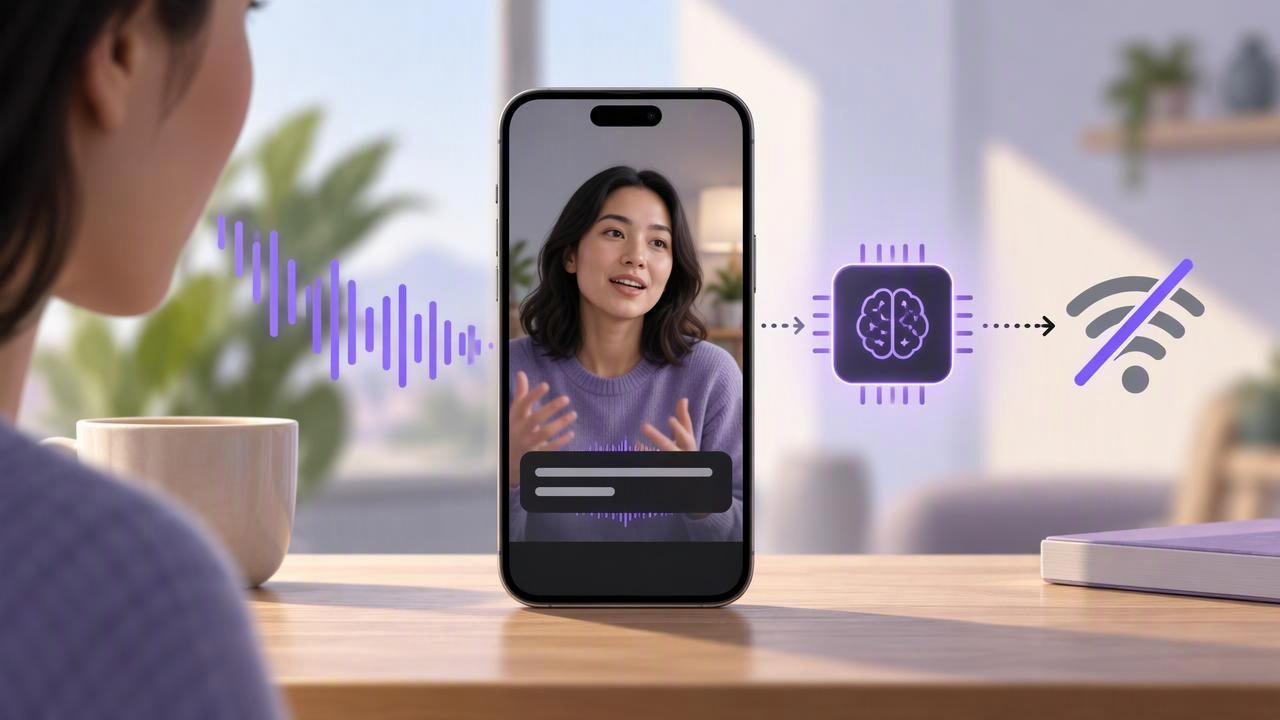
Captions can make a video easier to follow in a quiet office, on a noisy commute, or with the sound turned off. But what if you’re filming somewhere with weak Wi-Fi or no mobile data? With on-device subtitles without internet, speech can be processed on your phone rather than sent to an online service. That can make a captioning workflow more practical away from a reliable connection—and may help keep your recording on your device.
Offline captioning still has requirements and limits. Language availability, phone capabilities, recording conditions, and the app’s design can all affect whether captions are available and how accurately they reflect your speech. Here’s how to plan an iPhone recording, check the result, and avoid assuming that “offline” means “effortless.”
What does “on-device subtitles” mean?
Speech recognition turns spoken words into text. In an on-device workflow, the phone processes the audio locally instead of relying on an internet connection to send it to a remote service. If the app supports offline speech recognition for your selected language and device, it can create subtitles even when you’re not online.
That distinction matters because not every captioning feature works the same way. An app may need a connection to download language resources, sign in, or use a cloud-based transcription service. Other tools may process speech locally but support only certain languages or devices. Check the app’s own requirements before you leave coverage, and test the exact language and workflow you intend to use.
Subtitles are also not the same as a teleprompter script. A script is the text you plan to say; subtitles are a text version of what the speech recognizer detects in the recording. If you skip a line, change a phrase, or stumble, captions may reflect what you actually said rather than the original script.
When offline captions are useful
Local caption processing can help when you record on location without dependable internet, such as a workshop, a quiet outdoor spot, or a room with poor reception. It can also reduce dependence on uploading a video just to generate a first caption draft. For creators who prefer to keep raw footage on their phone, processing that stays on-device can be a useful privacy consideration.
Offline subtitles are not a substitute for checking your video. Recognition can confuse similar-sounding words, names, technical terms, or speech delivered very quickly. Noise, echo, and overlapping voices may make the audio harder to interpret. Think of automatic captions as a starting point, not a guarantee that every word, punctuation mark, or timing choice is correct.
A practical iPhone workflow for recording and captioning offline
1. Confirm what works before you go offline
While you still have a connection, open the app and confirm that its subtitle feature supports your language and works without internet on your device. Check whether any setup or language download is needed. Then, if possible, switch off Wi-Fi and mobile data for a brief test recording. This is a straightforward way to discover whether your intended workflow really is available offline rather than finding out after filming.
Also make sure the phone has enough free storage for the recording and any editing you plan to do. A long 4K video can take up more space than a short test clip, and keeping storage available helps prevent avoidable interruptions. The amount required depends on your recording settings and clip length.
2. Write for speech, not for the page
Prepare a script that is easy to say aloud. Keep each idea short, use words you naturally use in conversation, and spell out names or uncommon terms clearly. If a phrase is easy to mishear, consider rewording it rather than expecting the captioning system to infer what you meant. Add punctuation to the script as a reading aid, but remember that your script and generated subtitles are separate things.
For example, a creator filming a 30-second café update might write: “The new menu starts on Thursday. My pick is the roasted vegetable sandwich.” That is easier to deliver and review than one long sentence with several details. If the venue name or a menu item is unfamiliar, say it distinctly and check the caption afterward.
3. Set your pace and camera position
If you’re reading while recording, position the script close to the camera lens so your eye movement looks less noticeable. Keep the phone stable at roughly eye level, frame yourself before recording, and leave enough room for any captions that may appear near the bottom of the image. Avoid placing essential on-screen text where platform buttons or captions could cover it.
Choose a reading pace that lets you speak clearly. A voice-following teleprompter may move through a script in response to your speech, while fixed-speed and timed scrolling use different approaches. Whichever mode you use, rehearse a few lines first. Long sentences, frequent pauses, and last-minute wording changes can make it harder to maintain a natural delivery. For general guidance on reading to camera, see this guide to recording video while reading a script.
4. Make a short audio test
Before filming the full take, record and play back a few seconds of speech. Listen for a low or distant voice, room echo, fan noise, or other sounds that might compete with your words. Keep the phone or microphone positioned consistently, and speak toward it without turning away for long stretches. An external microphone may be an option, but check that your particular setup works with the recording app and device rather than assuming compatibility.
A quick test also reveals whether your delivery is clear enough for captions. Try the same speaking volume and pace you plan to use in the final take. If you’re recording outside, listen for wind and passing traffic. Improving the sound at the source is usually more helpful than hoping captions will repair an unclear recording.
5. Generate captions and review the complete video
After recording, create subtitles using the app’s supported on-device workflow. Then read every caption while listening to the corresponding audio. Pay particular attention to names, numbers, contractions, product terms, and the first and last words of each sentence. Correct mistakes where editing is available, and make sure line breaks and timing are comfortable to read.
Review the video with its captions visible on the phone screen, not only in an editing view. Check that text is legible against the background and does not hide a face, product, or important visual detail. If you plan to publish to more than one platform, check the framing and caption placement for each destination; safe areas and interface overlays can differ.
What can affect offline caption accuracy?
| Factor | Why it matters | What to try |
|---|---|---|
| Language support | Offline recognition may not be available for every language or device. | Confirm support and test the selected language before filming. |
| Audio clarity | Noise, echo, or quiet speech can make words difficult to distinguish. | Choose a quieter space and make a short playback test. |
| Speaking style | Very fast delivery, overlapping speakers, or unclear pronunciation can affect recognition. | Use a conversational pace and leave brief pauses between ideas. |
| Unfamiliar vocabulary | Names and specialist terms may be transcribed as similar-sounding words. | Say them clearly and inspect those captions first. |
Even a clean recording can produce an occasional error. Caption quality also depends on the app’s implementation and the capabilities available on the phone. Avoid promising yourself a perfect transcript simply because processing happens locally. A focused human review remains part of a reliable publishing process.
Privacy and offline recording: what to verify
On-device processing can reduce the need to send audio to an online transcription service, but it is worth checking the app’s privacy information to understand exactly how it handles recordings and captions. Offline captioning does not automatically mean that every part of an app is offline, or that a video will never be shared. Uploading, cloud backups, and publishing are separate actions that depend on your settings and choices.
If a recording includes other people, consider their privacy before filming and sharing it. Keep a copy of important footage if you need one, and check whether the app stores scripts and videos locally or offers other storage options. The key is to understand the workflow rather than treating “on-device” as a blanket description of every feature.
Quick checklist before you publish
- Confirm offline support for your device and chosen caption language.
- Prepare a concise script with clear, speakable wording.
- Place the camera near eye level and keep your script close to the lens.
- Record and listen to a short audio test.
- Generate subtitles, then check them against the spoken recording.
- Review readability, timing, framing, and platform-safe areas.
The takeaway
On-device subtitles without internet can make it possible to create captioned videos when a connection is unavailable, provided the app, language, and phone support the required workflow. The dependable approach is to verify offline availability in advance, capture clear audio, speak at a measured pace, and review every caption before sharing. That combination gives you a practical script-to-video process without mistaking automatic recognition for a finished edit.
