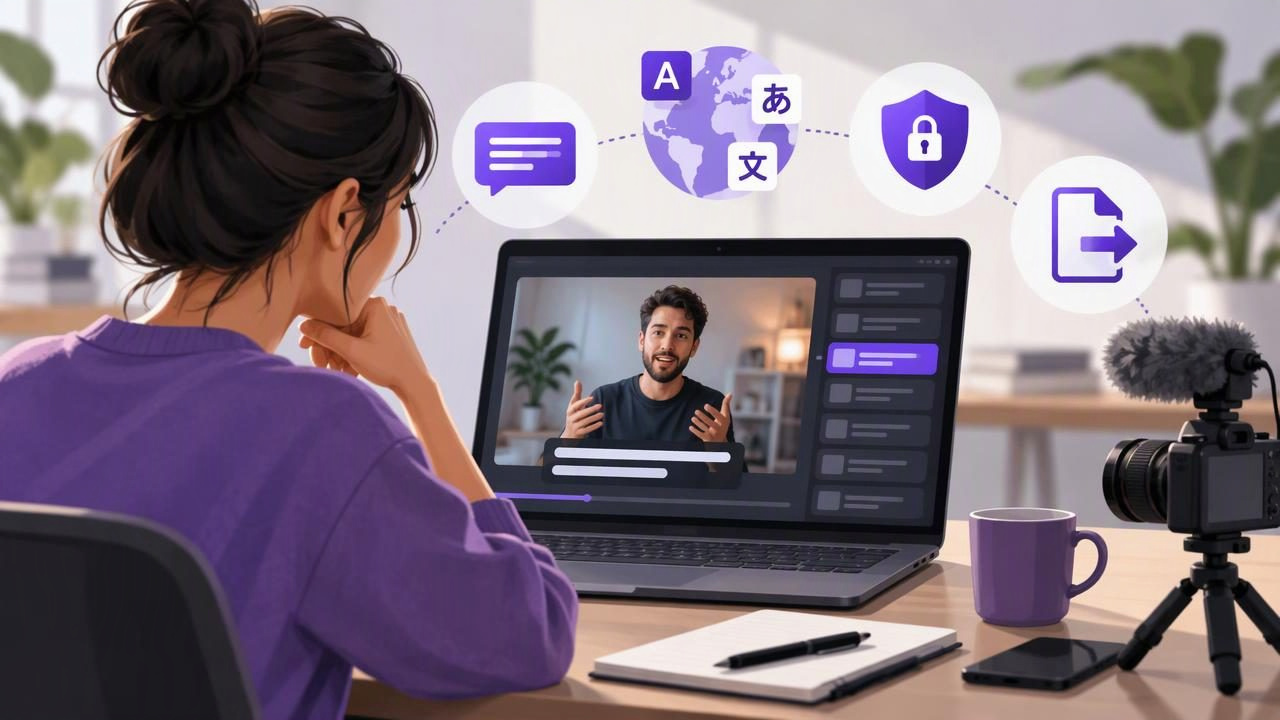
Captions can make a YouTube video easier to follow when viewers are watching without sound, in a noisy place, or while learning a new topic. An on-device subtitle app for YouTube creators can also be useful when you want to create captions without sending your recording to an online service. But “on-device” describes where speech processing happens; it does not automatically guarantee accurate subtitles, support for every language, or a particular export format.
The practical goal is to create a clear recording, generate captions in a language the app supports, check the words and timing, and confirm how the captions will appear in your finished video. Here’s how to assess that workflow before relying on it for a YouTube upload.
What “on-device subtitles” means
Speech recognition converts spoken words into text. With on-device processing, the app performs that recognition on the phone instead of requiring the audio to be sent to a remote service for transcription. Depending on the app, this may let you create subtitles without an internet connection and keep the recording on your device during processing.
Those details are app-specific. Check whether the app can generate captions offline, which languages and devices it supports, and whether any part of the workflow requires an internet connection. Also check its privacy information: local transcription does not, by itself, tell you how an app stores, backs up, or shares finished videos. Consider the complete path from recording to export, not just the captioning step.
On-device recognition can still make mistakes. Names, specialist terms, accents, fast speech, overlapping voices, and music under speech can all make words harder to identify. Treat the result as a draft to review rather than a guaranteed transcript.
Choose the right caption approach for your video
Creators may mean different things by “subtitles.” Captions can be placed directly on the video image, often called burned-in captions, or kept as a separate caption track or file. These options serve different purposes.
- Text on the video: Viewers see the words as part of the image. This can suit a short tutorial or vertical clip, but the text cannot be switched off and may cover visual details if positioned poorly.
- A separate caption track or file: This keeps text separate from the video image, when the editing or publishing workflow supports that option. Check which formats the app provides and what your YouTube workflow accepts before recording a full series.
- Captions added through YouTube: You can use YouTube’s own captioning options as part of publishing. If you use an app to create subtitles first, decide whether those captions complement or replace your platform workflow.
Do not assume an app that displays captions in a preview can also export a separate subtitle file. Look for an explicit description of the available output. If you need editable text, selectable captions, or a particular file type, confirm that requirement before choosing an app.
A worked example: caption a short tutorial
Suppose you are filming a 45-second YouTube Short that explains how to adjust a desk lamp. You want viewers to understand the three steps even if their sound is off. Write a short script with one idea per sentence: “Move the lamp beside your monitor. Tilt the shade away from the screen. Then check that the light does not reflect in your eyes.” This is easier to caption and review than a long sentence with several instructions.
Read the script at a comfortable pace and pause briefly between steps. Put the phone near eye level, with the lens close to the words you are reading, so your gaze does not travel far from the camera. If you use a teleprompter, position the script so it is easy to follow without rushing. Record a short audio test before the full take: listen for clear speech, distracting room noise, and any words that sound muffled. A microphone choice depends on your setup and device, so test the equipment you plan to use rather than assuming it will work well.
After recording, generate the subtitles in the app and inspect the result against the audio. Check the three action verbs—“move,” “tilt,” and “check”—because a recognition error could change the instruction. Correct the product or brand names, punctuation, and any missing words. Then watch the video with the captions visible. Make sure each phrase appears while you say it, remains on screen long enough to read, and does not hide the lamp or another important detail.
This small example shows why caption quality depends on both the recording and the review. A clear take gives speech recognition a better starting point, but only listening and reading along can reveal whether the text says what you intended.
Make the spoken script easier to caption
Captioning starts before the recording. Write for speech rather than for a page: use direct language, short sentences, and clear transitions. If you plan to say a name, acronym, or technical term, check it carefully in the generated text. When a term is repeatedly misheard, consider saying it more slowly or adding a short explanation in the script. Do not change a correct spoken explanation just to make the captions look tidy.
Read the script aloud once before filming. That helps you spot awkward phrasing and identify places where you need a pause. For a teleprompter take, use a reading speed that lets you articulate the words naturally. A scrolling script that moves too quickly can lead to rushed speech, which is harder for viewers to follow and may also make caption review more difficult.
Keep visual actions in mind when writing. If you demonstrate a step, leave room for the viewer to see it rather than filling the frame with text at the same moment. For an explanation with several steps, a short pause between each one can make both the speech and the caption timing clearer.
Review captions for reading comfort and accuracy
Automatic captions are not a substitute for proofreading. Play the video with sound and follow the text, then check it once more with the sound off. The first pass helps catch transcription and timing errors; the second reveals whether the words alone communicate the intended message.
- Check names, numbers, measurements, acronyms, and technical vocabulary against the spoken audio.
- Look for missing words, repeated phrases, punctuation problems, and captions that appear too early or late.
- Break long phrases into readable chunks where your app allows editing, without splitting a phrase in a confusing place.
- Check that text contrasts with the background and stays clear of faces, labels, and important demonstrations.
- Review the final exported video, not only the editor preview, because the export is what viewers will see.
There is no single display style that fits every video. As a practical starting point, use concise caption chunks, a legible size, and enough contrast for the scene. Then check the result on a phone-sized screen. If the text competes with the subject or requires viewers to read too many words at once, simplify the layout or revise the timing where possible.
Check language and device limitations first
Language support may vary by app, device, and feature. An app might support speech recognition in a language without offering every editing or subtitle option in that same language. Look for a current list of supported languages and verify the one you need before recording. For multilingual channels, do not assume automatic translation is included just because speech-to-text is available.
Offline capability also has boundaries. A specific language model or feature may need to be available on the device, and processing can differ between phone models or operating system versions. Confirm the app’s stated requirements and test a short sample using your actual recording conditions. If you are filming a longer video, testing a small clip first can reveal language, timing, or export issues before you invest time in a full take.
Privacy needs the same careful check. Ask where the original video, transcript, and exported file are stored, whether an account is required, and whether any online services are involved. For sensitive material, review the app’s privacy details and your own backup or sharing settings rather than relying on a broad “offline” label.
Build captions into a practical YouTube workflow
For a simple creator workflow, decide first whether you need text embedded in the video or a separate caption option. Prepare and read a concise script, place the camera near your natural eye line, and make a brief sound check. Record the video, generate subtitles only after confirming language and device support, then review every line against the audio. Finally, inspect the exported version and confirm it fits the YouTube format you intend to publish.
This approach is useful for tutorials, explainers, and scripted introductions, but it does not eliminate editing. A noisy location, multiple speakers, unusual terminology, or speech in an unsupported language may require more correction or a different captioning workflow. If the app cannot provide the export format you need, keep the clean video and use another suitable captioning step rather than assuming the visible preview is enough.
Creators who also want to read a script while recording can explore CueCam’s guide to recording video while reading a script. Whichever tools you choose, the reliable habit is the same: test a short sample, review captions against the actual audio, and check the finished video before publishing.
