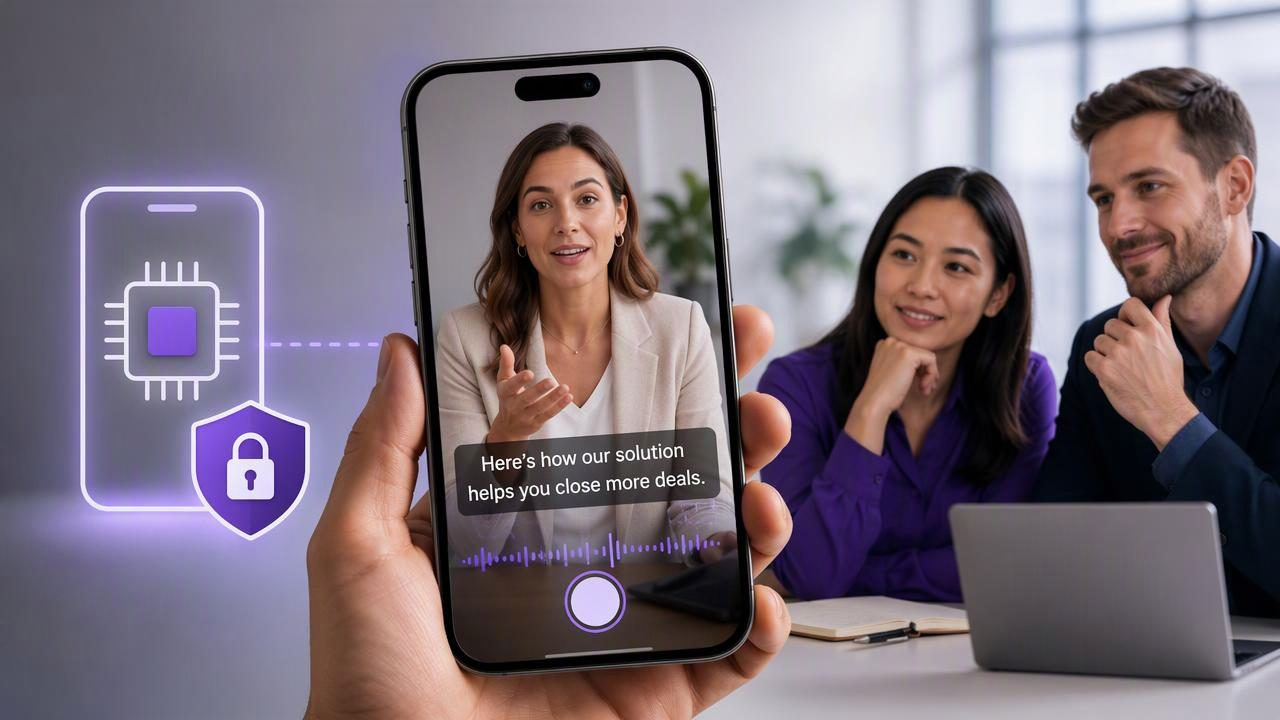
Sales video is most effective when it feels personal, clear, and easy to watch anywhere. A short product walkthrough, account update, prospecting introduction, or follow-up message can help a representative explain value faster than a long email. But video also creates a common problem: many recipients watch with the sound off, in busy offices, on public transport, or between meetings.
That is where subtitles matter. An on-device subtitle app for sales teams can help representatives create captioned videos directly on a phone, without routinely moving sensitive recordings or scripts through external services. This is especially useful when videos include prospect names, pricing context, customer-specific workflows, internal terminology, or product information that should be handled carefully.
This guide explains how to plan, record, caption, review, and share sales videos using an on-device workflow. It also covers realistic limitations, practical quality checks, and a concrete example your team can adapt.
Why subtitles are essential for sales videos
Subtitles do more than make a video look polished. They make the message easier to understand in more viewing situations. A prospect may be in an open office, a manager may scan a video between calls, or a customer may need visual reinforcement for a technical term. Captions give viewers another way to follow the message without depending entirely on audio.
For a sales team, subtitles can support:
- Silent viewing: Recipients can understand the core message without turning on sound.
- Clarity: Product names, feature labels, numbers, and next steps are visible on screen.
- Accessibility: Captions can improve access for viewers who are deaf, hard of hearing, or processing content in a noisy environment.
- Retention: A concise spoken point is easier to revisit when the words are also displayed.
- Consistency: Teams can use a repeatable structure for account updates and outreach videos.
Subtitles are not a substitute for a useful message. They work best when the speaker is concise, the audio is understandable, and the video has one clear purpose.
What “on-device” means for a sales workflow
On-device subtitle creation means the speech processing and caption generation happen on the phone rather than requiring the video to be uploaded to a remote processing service. The practical benefit is that the recording, script, and generated subtitle data can remain on the device during the creation process.
For sales teams, this can be an important consideration when a recording contains:
- A prospect’s name, company, or role
- Account-specific recommendations
- Commercial terms or non-public product details
- Internal sales language, pipeline context, or demo environments
- Customer screenshots and confidential documents
However, on-device processing does not automatically make every sharing method private. Once a representative exports a video, sends it by email, uploads it to a platform, or shares it in a messaging tool, that destination has its own permissions, retention policies, and security considerations. Sales leaders should define where videos may be stored and shared before rolling out a video workflow.
Start with a subtitle-friendly sales script
Caption quality begins before recording. Automatic subtitles are more useful when the speaker uses short sentences, clear names, and a steady pace. A sales script should sound natural when spoken, not read like a dense proposal.
Use this simple structure for a 45- to 60-second sales video:
- Personal opening: State the recipient’s context or the reason for the video.
- Relevant problem: Name one workflow challenge or business outcome.
- Specific value: Explain how your product, service, or recommendation addresses that issue.
- One next step: Ask for a short meeting, reply, or review of a resource.
For example, a representative reaching out after a discovery call could say:
“Hi Maya. Based on our conversation, your team is spending too much time compiling weekly account updates. I recorded this short overview to show the reporting workflow we discussed and where your managers can see current activity. If it looks relevant, would a 20-minute review on Thursday be useful?”
This is easier to caption than a long, improvised explanation because the sentences are direct and the call to action is clear. If a name, acronym, or product term is likely to be transcribed incorrectly, say it slowly and review that caption before sharing.
Write for the ear and the screen
Sales representatives often try to include every feature, proof point, and objection response in one recording. That makes the video harder to follow and creates dense subtitle blocks. Instead, aim for one message per video.
| Less effective approach | More subtitle-friendly approach |
|---|---|
| “We have lots of tools that could help your reporting, onboarding, and forecasting.” | “This video focuses on one issue: reducing the time needed for weekly reporting.” |
| Long feature lists with multiple clauses | One feature, one outcome, then a pause |
| Several meeting requests in one message | One specific next step |
Set up the iPhone recording before you speak
A captioned video still needs a professional recording foundation. Before pressing record, take two minutes to check framing, lighting, camera position, and audio.
- Place the camera at eye level. Looking toward the lens creates a more direct, conversational impression.
- Use a simple background. Avoid visual clutter that competes with subtitle text.
- Leave lower-screen space. Captions often appear near the bottom of the frame, so do not place important visuals there.
- Face a light source. A window or soft front-facing light is generally more useful than strong backlighting.
- Run a short audio test. Record 10 seconds, listen with headphones if possible, and check for echo, traffic, HVAC noise, or distorted speech.
If you are using a teleprompter-style script, position the text as close to the front camera as possible. This reduces visible eye movement and helps the speaker keep a natural connection with the viewer. Use large text, comfortable line spacing, and a pace that allows natural pauses.
Create subtitles, then review the details that matter
Automatic captions can save time, but they should be treated as a first draft rather than a final approval step. Accuracy can vary based on pronunciation, background noise, speaking speed, device capabilities, and supported language settings.
After subtitles are generated, review the video from beginning to end. Prioritize corrections that could change meaning or create confusion:
- Prospect and company names
- Product names, acronyms, and industry terms
- Prices, quantities, dates, and percentages
- Competitor references, if your policy permits mentioning them
- Meeting links, deadlines, and the final call to action
Also check subtitle placement. Captions should not cover a product interface, a customer logo, a slide heading, or a presenter’s face. If the video includes a screen recording or a demo, consider shortening the spoken introduction and reserving visible space for the relevant interface.
A fast review checklist for representatives
- Watch once with sound to confirm the message and audio quality.
- Watch once muted to confirm the subtitles communicate the full idea.
- Correct names, numbers, acronyms, and technical terms.
- Confirm captions do not obscure key visuals.
- Make sure the final request is specific and easy to act on.
This review process does not need to be slow. For a 60-second video, a focused two-minute check can catch the errors that matter most.
Use a repeatable sales-video format
Consistency helps sales teams create videos without overthinking each recording. Build a small library of approved script patterns rather than asking every representative to start from a blank page.
Here are three useful formats:
- Prospecting video: One relevant observation, one likely challenge, one invitation to talk.
- Post-demo follow-up: Recap the priority discussed, show one relevant workflow, and confirm the next action.
- Customer success update: Explain one progress point, one recommendation, and one requested decision.
Keep each format short enough to be watched in one sitting. If a topic needs more than 90 seconds, break it into separate videos with clear titles. A prospect is more likely to watch “How the approval step works” than a six-minute recording covering every part of a platform.
Know the limitations before standardizing the process
An on-device subtitle app can be a practical option, but it is not a replacement for sales enablement policy, human review, or secure sharing practices. Teams should test their intended language, device models, caption behavior, and export requirements before making assumptions about results.
For example, voice tracking, recording resolution, subtitle languages, and caption accuracy may depend on the specific device, operating system, available storage, app settings, and spoken language. External microphone behavior can also vary by device and configuration. Run a small internal pilot with the real scenarios your team uses: a quiet office, a home office, a product demo, and a customer-specific follow-up.
During that pilot, agree on:
- Which types of account information may appear in videos
- Who reviews customer-facing recordings when needed
- Approved storage and sharing destinations
- Subtitle style, terminology, and brand language
- When a video should be replaced by a written summary or live call
Build a practical, private script-to-video habit
The strongest sales videos are not necessarily highly produced. They are relevant, brief, clearly spoken, and easy to understand without audio. An on-device subtitle workflow can support that goal by keeping script preparation, recording, caption generation, and basic review close together on the iPhone.
Start with one use case, such as post-demo recaps. Give representatives a short script framework, ask them to complete an audio test, and require a final caption review before sharing. Once the process feels natural, expand it to personalized outreach, onboarding explanations, and account updates.
For teams that want to combine script reading, iPhone recording, and captioned video creation in one workflow, CueCam’s guide to recording video while reading a script offers a useful starting point.
