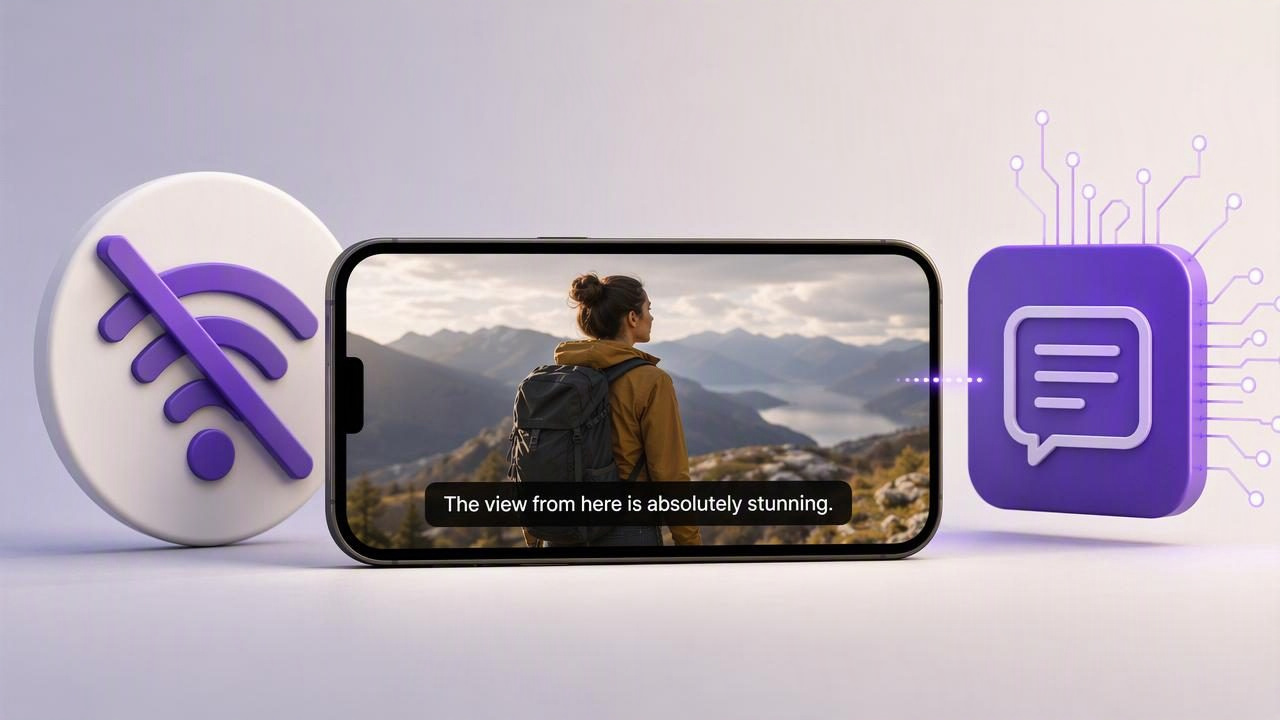
Captions help viewers follow a video when they are watching silently, in a noisy place, or in a language that is not their first. For creators who record on an iPhone, subtitles can also make a scripted video easier to scan, more accessible, and better suited to social feeds where sound is often off by default.
However, many captioning workflows depend on uploading footage to a cloud service. That can be inconvenient when you are traveling, working in a location with poor connectivity, handling confidential material, or simply trying to finish a video without waiting for an upload. An offline subtitles app no internet required workflow processes captions on the device instead, allowing you to create and review subtitles without sending the video to a remote server.
This guide explains what offline subtitles are, how to prepare your recording for more accurate captions, and where on-device captioning has practical limits. It also includes a concrete iPhone workflow for turning a short scripted video into a captioned post while staying offline.
What Is an Offline Subtitles App?
An offline subtitles app creates text captions from spoken audio directly on a phone or other device. Instead of uploading the recording for online speech recognition, the app uses available on-device processing to identify spoken words and place them along the video timeline.
The main distinction is where the processing happens:
| Workflow type | Where audio is processed | Internet connection | Privacy consideration |
|---|---|---|---|
| Cloud captioning | On a remote server after upload | Usually required | Video or audio may leave your device |
| Offline captioning | On the device | Not required for caption generation | Footage can remain on the device |
Offline does not mean captions are automatically perfect. Speech recognition still depends on the recording quality, the spoken language, pronunciation, pace, background noise, and the device’s supported capabilities. The useful benefit is control: you can generate subtitles in a place without reliable internet and inspect the words before exporting.
When On-Device Subtitles Are Especially Useful
Offline subtitles are not necessary for every creator, but they are particularly practical in a few common situations.
- Travel recording: You may be filming in transit, at an event, or in a rural location where Wi-Fi and mobile data are unreliable.
- Private video content: Internal updates, client drafts, product discussions, and personal recordings may be better kept on the phone until you decide to share them.
- Fast social publishing: You can record, caption, correct, and export without adding an upload-and-download step to the workflow.
- Limited data plans: Long video uploads can use substantial mobile data, especially when the original recording is high resolution.
- Repeatable creator workflows: A predictable on-device process reduces dependence on browser tabs, account logins, and connection quality.
For example, imagine a real estate agent recording a 45-second property update in an empty apartment. The building has weak reception, but the agent wants to review the take immediately, add readable subtitles, and save a vertical version for later posting. An offline workflow lets them complete the captioning portion before leaving the property.
Start With Audio That Is Easy to Caption
Caption quality starts before you tap the subtitle button. Speech recognition works best when the voice is clear, consistent, and not competing with other sounds. A few recording choices can make review much faster.
Use a simple script structure
Write in short sentences and include natural pauses. A dense paragraph may be difficult to deliver and difficult to display as readable captions. Instead of trying to say every detail in one line, separate the idea into small beats.
Less clear:
"Our new service gives teams a flexible way to organize every part of their weekly production process."

Easier to say and caption:
"Planning content takes time."
"A simple workflow keeps each step visible."
"That means less time searching for the next task."
Shorter lines do not guarantee caption accuracy, but they create cleaner pauses. Those pauses help viewers read while continuing to watch the speaker.
Record a short audio test first
Before recording a full video, capture a 10-second test. Play it back with headphones if possible and listen for room echo, traffic, air conditioning, handling noise, or a voice that is too quiet. If a word is difficult for you to understand in playback, captioning software may also struggle with it.
Move closer to the phone when appropriate, choose a quieter position, and avoid talking over music. If you use an external microphone, confirm that the recording is using the intended audio source before filming the final take. Specific microphone support and behavior can vary by device and app, so a quick test is more reliable than an assumption.
Speak at a steady pace
Fast delivery can produce captions that change before viewers have time to read them. Aim for a conversational pace, pronounce names and technical terms clearly, and pause between key points. If you need to use a brand name, acronym, or uncommon term, plan to check that word manually after captions are generated.
Practical rule: Captions should support the video, not become a race the viewer has to win.
A Concrete Offline Caption Workflow on iPhone
Here is a practical workflow for a 30- to 60-second vertical tip video. The example assumes you are recording yourself explaining a simple process, such as three steps for preparing a client meeting.
- Draft a spoken version, not an essay. Write three points in plain language. Keep each point to one or two sentences and mark a pause after each one.
- Set up the camera at eye level. Position the iPhone so your eyes are near the lens. Face a window or soft, even light when possible, and keep the background visually simple.
- Make a 10-second test recording. Say the first line, then replay it. Adjust your position if the voice is quiet or the room sounds echoey.
- Record the final take. Leave a brief silence before and after speaking. This gives you room to trim the start and end without cutting into a word.
- Generate subtitles while offline. Select the spoken language supported by your device and captioning tool. Wait for the on-device process to finish before reviewing the text.
- Review every caption, especially key terms. Correct names, numbers, URLs, acronyms, product terminology, and punctuation. Check that caption breaks do not split a phrase in an awkward place.
- Preview on a small screen. Make sure the text does not cover your mouth, a product, or an important visual. Also check that captions remain readable over bright or busy parts of the frame.
- Export the finished version. Save the captioned video in the aspect ratio appropriate for the platform where you plan to share it.
The important step is review. Automatic subtitles can save time, but they should be treated as a first draft. A single incorrect word can change the meaning of an instruction, price, date, or name.
How to Make Subtitles Easier to Read
Readable captions are more than a transcription. They are part of the video’s visual design. Keep them short enough to scan quickly and place them where they do not hide essential content.
- Use high contrast between text and the video background.
- Keep caption lines concise rather than filling the screen with a large block of text.
- Avoid placing subtitles too close to the bottom edge, where platform interface controls may cover them.
- Break captions at natural language boundaries, such as after a complete phrase.
- Review captions after resizing a video, since crop changes can affect placement.
- Use punctuation to clarify meaning, particularly in instructions, questions, and lists.
For the meeting-preparation example, this caption is easier to scan:
Step one: confirm the goal.

Ask what decision the meeting needs to produce.
Compared with a long single caption, this presentation gives the viewer time to absorb the point while still following the speaker.
Important Limitations of Offline Captioning
An offline subtitles app offers convenience and privacy benefits, but it also has constraints. On-device caption availability may vary by iPhone model, operating system, selected language, and app implementation. Do not assume every language, dialect, or feature is supported in every situation.
Accuracy can also drop when audio includes:
- Multiple people speaking at the same time
- Strong background music or environmental noise
- Very fast delivery or frequent interruptions
- Heavy echo or distant microphone placement
- Specialized vocabulary, names, or mixed languages
Offline subtitles may be less suitable when you need formal legal, medical, compliance, or broadcast-quality transcription. In those cases, use a careful human review process and follow any applicable accessibility, privacy, and approval requirements. Captions improve access, but automatically generated text should not be treated as a substitute for professional verification when precision is critical.
Build Captions Into Your Script-to-Video Process
The best time to think about subtitles is before recording. When you write for the ear, record clear audio, speak at a manageable pace, and leave room for text on screen, captioning becomes a straightforward finishing step rather than a repair job.
If your videos also require reading a script while maintaining eye contact with the camera, CueCam’s guide to recording video while reading a script outlines a practical teleprompter setup for iPhone creators. Pairing a clear script with on-device subtitles can help keep a script-to-video workflow organized, private, and workable even when internet access is unavailable.
