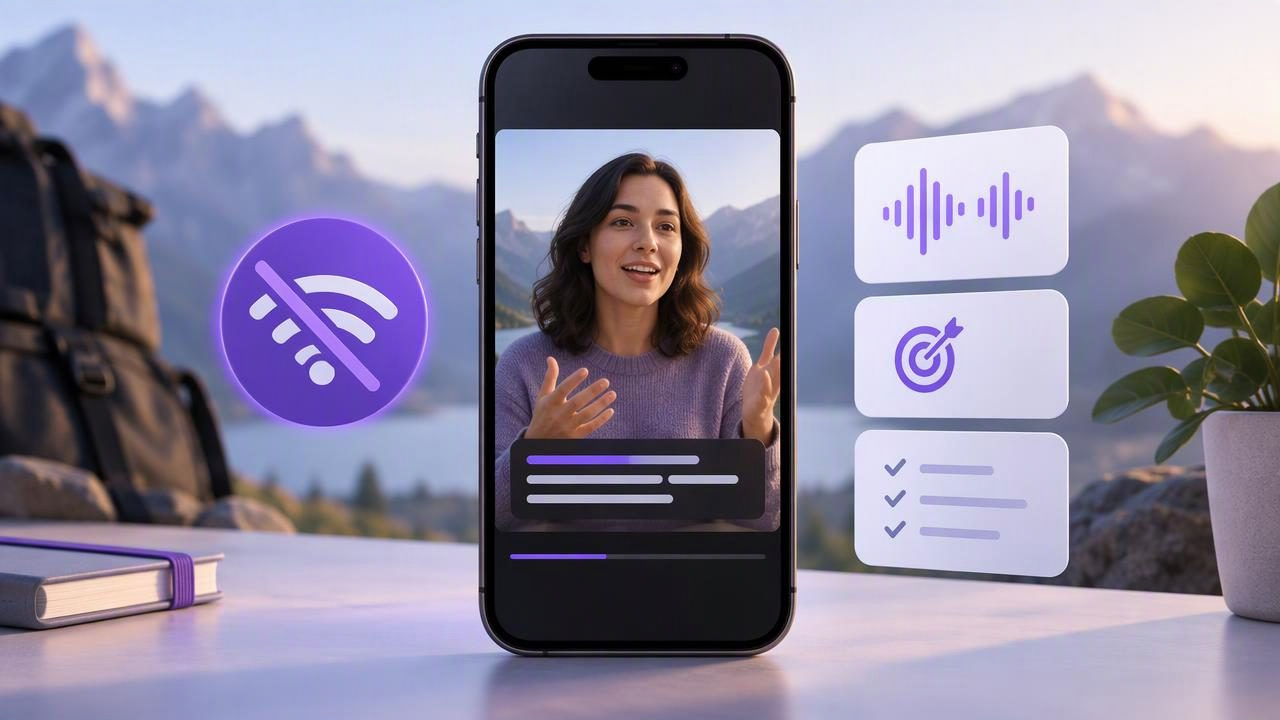
An offline auto subtitles app for iPhone can turn spoken words into on-screen text without sending a video to an online captioning service. That can be useful when you are travelling, working with a private recording, or simply want to finish a short video without waiting for a connection.
Offline captioning is not a promise of perfect transcription. Language support, processing behavior, and results can vary by app, iPhone, and recording conditions. The best approach is to understand what the app processes on the device, record a short test, and review every subtitle before sharing the finished video.
What “offline auto subtitles” means
Automatic subtitles are text created from speech in a video or audio recording. With on-device processing, the speech recognition happens on the iPhone rather than relying on an internet connection to send the audio to a remote service. Once the relevant tools are available on the device, an app may be able to create subtitles without internet access.
Offline does not necessarily mean every language or feature works in every situation. An app may support many languages overall, while availability for a particular language depends on the app and device. Some workflows may also need an initial connection for setup or downloads. Check the app’s own language and device information, and test the exact workflow you plan to use.
Subtitles are also different from a verbatim transcript. Captions are usually timed to appear with the speech and may be formatted for viewing. They can include errors, omit a word, or misunderstand a name even when the video sounds clear to you.
When offline captioning is useful
- Recording away from reliable internet: You can create captions while travelling or working in a location with limited connectivity, if the app’s required on-device resources are ready.
- Keeping a local workflow: Processing on the iPhone can suit creators who prefer to keep scripts and video files on their device. Check the app’s privacy details rather than assuming every app handles data the same way.
- Making videos easier to follow: Subtitles can help viewers understand speech when they watch with the sound low or muted.
- Reducing handoffs: Creating and checking captions as part of editing may be simpler than moving a file between several services.
Offline subtitles do not improve the audio in the original recording by themselves. If speech is muffled, distant, or covered by background noise, recognition may be less reliable whether processing happens online or on-device.
Set up the recording for readable, accurate subtitles
Start with the words and the sound, not the caption style. Write short sentences and use punctuation where a speaker would naturally pause. If you are reading from a script, keep the language conversational: long sentences can be harder to deliver smoothly and more difficult to caption cleanly.
For example, a product update might begin: “The new schedule is ready. It starts on Monday. Here are the two changes to know about.” Those three short thoughts give the speaker clear places to pause. They also make it easier to spot a caption that has combined separate ideas or missed a word.
Place the iPhone so the camera is close to eye level and the lens sits near your line of sight. If you use an iPhone teleprompter, position the scrolling text close to the camera area and choose a pace that lets you speak naturally. Do not make the text so small that you need to squint or lose your place. A stable phone and consistent framing also make it easier to keep your face and any captions within the intended composition.
Before the full take, make a short audio test. Say one or two complete sentences at your normal volume, then listen back with headphones if available. Check that your voice is clear, the microphone is not rubbing against clothing, and the room noise is manageable. This test can reveal a problem before you record a longer script; it cannot guarantee that automatic captions will transcribe every word correctly.
A practical example: a short update recorded without Wi-Fi
Imagine filming a 30-second announcement in a quiet room while your iPhone is offline. First, confirm that the app you intend to use supports on-device subtitles for the language you will speak and that the relevant feature is available on your device. If the workflow has not been tested before, try it in advance rather than discovering a limitation after recording.
- Frame and test: Set the phone at eye level, check that your face is in frame, and record a short sample to assess the voice level and room sound.
- Deliver the script: Read the short sentences at a comfortable pace. Pause briefly between points instead of rushing to finish the take.
- Create and review the subtitles: Use the app’s subtitle feature, then compare the displayed words with what you actually said. Correct names, numbers, punctuation, and any missed phrases.
- Check the finished frame: Watch the video from beginning to end. Make sure the text is readable and does not cover a face, a product, or important information.
This example is a workflow to test, not a guarantee that every app will process every language in airplane mode. Confirm the behavior with your own iPhone, app version, and chosen language before relying on it for important content.
What affects subtitle accuracy?
| Factor | Why it matters | What to try |
|---|---|---|
| Voice clarity | Quiet or distant speech can be difficult to distinguish. | Keep the microphone in a sensible position and record a short audio test. |
| Room noise | Fans, traffic, and other voices can compete with the speaker. | Choose a quieter space where practical and listen back before captioning. |
| Speaking pace | Rushed words and overlapping phrases can be harder to separate. | Use natural pauses and avoid cramming too much into one sentence. |
| Names and specialist terms | Unfamiliar words may be transcribed incorrectly. | Check people, places, acronyms, and technical vocabulary manually. |
| Language selection | The selected language and available on-device support affect recognition. | Confirm the app’s language options and review the full result. |
Changing a subtitle after recognition is normal editing, not evidence that offline processing has failed. A human review is particularly important for medical, legal, financial, or otherwise sensitive information, where a mistaken word could change the meaning.
Limitations to keep in mind
- Language coverage is app-specific: Do not assume that every language, dialect, or mixed-language recording is supported offline.
- Recognition is not proofreading: Names, numbers, accents, and quiet speech need particular attention. Review the captions against the audio.
- Offline processing does not fix recording problems: Distortion, echo, background noise, and a poorly placed microphone can still affect the result.
- Subtitle appearance matters: Text can be accurate yet hard to read if it is too small, too low in the frame, or displayed too briefly.
- App behavior can differ: Confirm whether the specific app processes captions on-device and whether it requires any setup before you disconnect.
Also consider the platform where you plan to post. A caption position that looks fine in a full-screen preview may be obscured by interface elements or cropped in another aspect ratio. Review the video in the intended format before publishing.
How to choose an offline subtitles app for iPhone
Look for clear information about on-device processing, supported languages, and device requirements. Then check whether the app lets you inspect or edit the generated text and preview how subtitles appear in the video. If you are also recording a scripted video, consider whether the workflow can accommodate reading, camera framing, and caption review without adding unnecessary steps.
Privacy is another practical question. “Offline” describes a processing condition; it does not, by itself, tell you how an app stores files or handles other data. Read the app’s privacy information and understand where your scripts, recordings, and edits are kept. If keeping files on your phone is important, confirm that detail for the app you choose.
Make offline captions part of a careful creator workflow
The most dependable results come from treating automatic subtitles as a first draft. Keep the script easy to say, position the camera near eye level, and make a brief sound check. After recording, read along with the captions while listening to the video. Correct errors, check timing, and watch the final frame at the size viewers are likely to see it.
For a script-led recording workflow, CueCam’s guide to recording video while reading a script explains how to approach the camera and script setup. CueCam offers on-device subtitles in supported languages, but language and device availability still matter; verify the workflow on your iPhone before an important shoot.
An offline auto subtitles app for iPhone can make captioning more convenient when a connection is unavailable and can help keep a recording workflow on the device. It works best when the audio is clear, the spoken delivery is measured, and a person checks the words before the video goes live.
