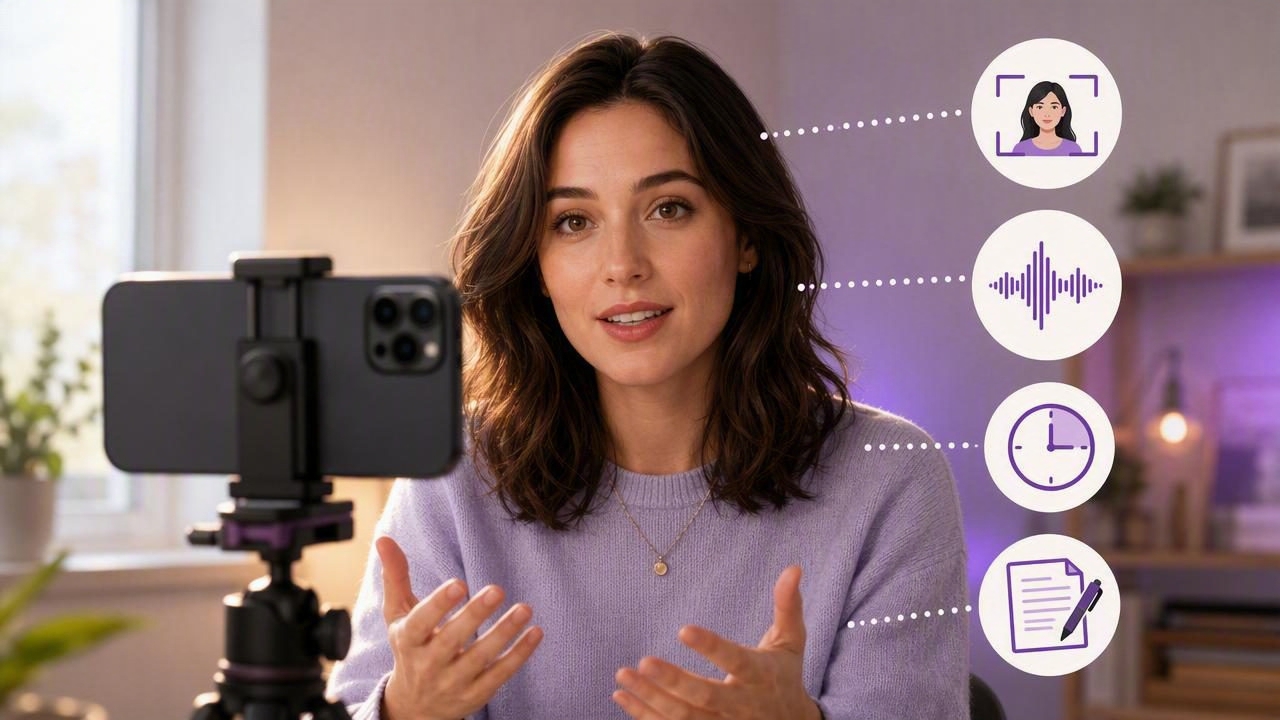
Learning how to get natural camera eye contact with a 4K recording app can make a major difference in how your videos feel. Whether you are filming a product explanation, a lesson, a client update, or a short social video, eye contact helps viewers feel that you are speaking directly to them rather than reading from a screen.
High-resolution video alone does not create a convincing on-camera presence. A 4K recording can look sharp while still feeling distant if your eyes continually move away from the lens. The goal is to combine good camera placement, a readable script, a comfortable speaking pace, clean audio, and a teleprompter setup that keeps your words close to the camera.
This guide explains a practical iPhone workflow for recording natural-looking, script-led video in 4K without trying to memorize every line.
Why Camera Eye Contact Matters More Than Perfect Delivery
Viewers instinctively notice where you are looking. When your gaze stays near the camera lens, your video can feel more personal and credible. When you frequently look down at notes or off to the side at a laptop, the same message may appear less confident, even if the information is useful.
Natural eye contact does not mean staring without blinking or holding a rigid expression. It means returning your gaze to the lens area often enough that the audience feels included in the conversation.
A teleprompter can help because it places your script near the lens. However, the results depend on how you prepare and use it. If the text is too wide, scrolls too fast, or sits too far below the camera, viewers may still see your eyes moving line by line.
Start With a Script That Sounds Like Speech
A natural recording begins before you press Record. Scripts written like formal documents are difficult to deliver conversationally. Long sentences, dense paragraphs, and unfamiliar wording encourage you to read rather than speak.
Instead, write for the ear. Use short sentences, contractions, pauses, and clear transitions. Each line should be easy to say in one breath.
Use this simple script structure
- Hook: State the viewer's problem or desired outcome in the first few seconds.
- Context: Explain why the topic matters.
- Main points: Cover two to four ideas in a logical order.
- Example: Show how the advice works in a realistic situation.
- Closing: Give the viewer one clear next step.
For example, instead of writing, “The implementation of an appropriately structured recording workflow can potentially improve audience engagement,” write: “A simple recording setup can help your videos feel more direct and easier to watch.”
Read your script aloud once before filming. If a sentence feels awkward in your mouth, revise it. Spoken video should sound like a person explaining an idea, not like someone reading a report.
Place the iPhone at Eye Level
Camera position affects both eye contact and the overall look of your video. Place your iPhone so that the lens is close to eye level. A phone positioned too low can create an unflattering upward angle, while a phone placed too high can make you look down toward the viewer.
Use a stable tripod, stand, or secure mount. Stabilization can help during handheld recording, but for a scripted talking-head video, a fixed camera is usually easier to frame consistently.
Keep enough distance between yourself and the phone to avoid an overly wide-angle appearance. In many indoor setups, standing or sitting roughly an arm's length or more from the camera gives you room to frame your head and shoulders without placing the lens uncomfortably close to your face.
| Setup element | Recommended approach | Why it helps |
|---|---|---|
| Camera height | Keep the lens near eye level | Creates a more direct, balanced perspective |
| Script position | Place text as close to the lens as possible | Reduces noticeable side-to-side eye movement |
| Text width | Use narrow, short lines | Makes each line faster to scan |
| Distance | Leave room between you and the phone | Improves framing and makes gaze shifts less obvious |
| Phone support | Use a secure stand or tripod | Keeps framing stable between takes |
Set Up Your Teleprompter Text for Minimal Eye Movement
The closer your words appear to the lens, the more natural your eye contact can look. This is why text layout matters as much as camera quality.
Choose a readable font size, but avoid making the text so large that only a few words fit on each line. You may have to experiment based on your phone size, viewing distance, and eyesight. The best setting is one that lets you read comfortably without visibly tracking across long lines.
Try these formatting choices:
- Use one thought per line or short sentence block.
- Break long paragraphs into visual pauses.
- Put emphasis words on their own line when helpful.
- Add stage notes such as [pause] or [show product] sparingly.
- Remove filler phrases that do not add meaning.
Do not attempt to maintain eye contact by locking your eyes on one exact pixel near the lens. That can create a tense appearance. Let your eyes move naturally within a small area around the camera, blink normally, and use small facial expressions as you speak.
Choose a Scrolling Pace You Can Actually Follow
Scrolling speed is one of the most common reasons teleprompter delivery looks unnatural. If text moves faster than your normal speaking speed, you may rush, flatten your voice, or lose your place. If it moves too slowly, you may wait for the next line and sound hesitant.
There is no universal words-per-minute setting because speaking speed changes with the topic, the script, and your delivery style. A technical explanation may require a slower pace than a casual short-form video. Start slower than you think you need, then adjust after a brief rehearsal.
Voice-following tracking can be useful when your pace varies. A fixed-speed mode may work well when you have practiced the script and know your rhythm. Timed scrolling can be helpful when you need a video to fit a specific duration, but it requires a script that has been rehearsed to that timing.
Practical rule: If you need to race to catch the next line, slow the scroll. If you repeatedly pause while waiting for text, increase it slightly.
Use 4K Recording Intentionally
4K recording provides more image detail than lower-resolution capture and can give you additional flexibility when editing a shot. For example, if your final output is smaller than 4K, you may be able to make a modest crop while preserving a detailed image.
But 4K is not automatically the right choice for every recording. It can use more storage, take longer to transfer or process, and may be unnecessary for a quick vertical post that will be heavily compressed by a platform. Check that your iPhone has available space before a longer session.
Good lighting still matters. In dim rooms, increasing resolution will not solve soft focus, visual noise, or uneven lighting. Face a window when practical, or use a soft light placed slightly in front of you. Avoid strong backlighting from a bright window directly behind your head unless that look is intentional.
Run a Short Audio and Framing Test
Before recording the full script, capture a 15- to 30-second test. Say the opening lines at your intended pace, then review the clip with the sound on.
Look for four things:
- Gaze: Do your eyes appear to stay near the lens?
- Framing: Is there enough space above your head and around your shoulders?
- Audio: Can you hear your voice clearly without distracting room noise?
- Delivery: Are you rushing, speaking too quietly, or sounding overly scripted?
If you use an external microphone, confirm that your recording setup is receiving the intended audio source before you begin the full take. Compatibility and available recording options can vary by device, connection method, and app settings, so a short test is more reliable than assuming a microphone is active.
A Concrete Example: Recording a 60-Second Product Explanation
Imagine you need to record a one-minute video explaining a new feature to customers. Rather than memorizing the entire message, write a script of about 130 to 150 spoken words, depending on your natural pace.
Set the iPhone vertically if the video is intended for a vertical social feed. Position the lens at eye level, use a simple uncluttered background, and place the first script line near the camera. Start with a short hook: “Here is how to complete the setup in three steps.”
Film the introduction first. Then pause and record the next section if needed. Recording in short sections can reduce pressure and make it easier to choose a strong take. When editing, trim the silent moments before and after each segment. If your final video needs subtitles, review them carefully, especially product names, industry terms, names, and numbers.
This approach is more natural than trying to deliver a flawless minute-long monologue in one attempt.
Know the Limitations of Teleprompter-Assisted Recording
A teleprompter supports delivery; it does not replace preparation. Eye movement may still be visible, particularly when text sits far from the lens or when you are reading long lines. Voice tracking and caption generation can also depend on device capabilities, language support, audio clarity, and the way a script is spoken.
Captions are valuable for accessibility and silent viewing, but automatically generated text should be checked before publishing. Review punctuation, names, acronyms, and any phrase that could change meaning if transcribed incorrectly.
Also remember that natural eye contact includes natural variation. A brief glance away to think, demonstrate something, or refer to an object can make a video feel human. The goal is not perfection. It is helping viewers stay connected to your message.
Build a Repeatable iPhone Video Routine
For consistent results, use the same sequence every time: simplify the script, mount the phone at eye level, put text close to the lens, test your pace, record a short sample, and then capture the full take. This reduces setup decisions and lets you focus on your message.
If you want an iPhone tool that combines script reading and recording, CueCam's guide to recording video while reading a script offers a useful starting point for building that workflow.
With a clear script, a lens-level setup, steady pacing, and a short test before each session, you can create 4K video that looks polished while still feeling like a real conversation.
