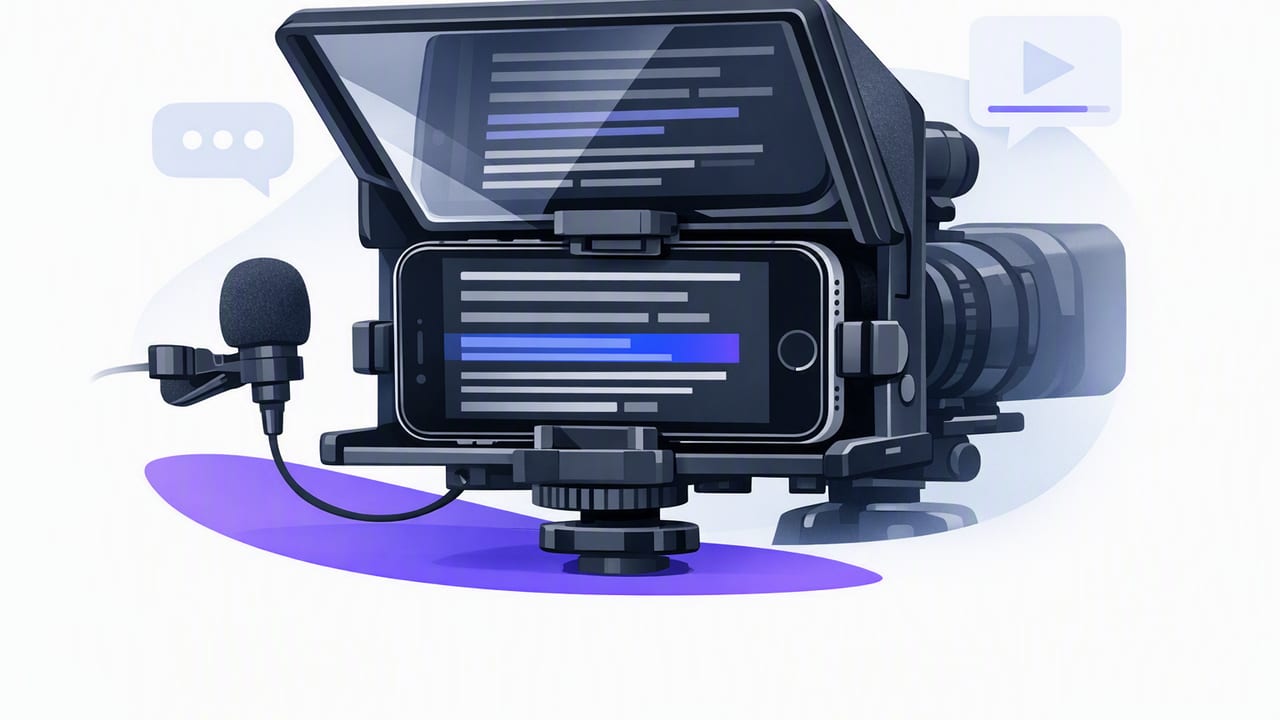
If you’ve ever recorded a script-based video on your iPhone, you’ve probably faced the same trade-off: look at the camera and forget lines, or read notes and lose eye contact. An iPhone teleprompter fixes that by putting your words close to the lens so you can deliver confidently while still looking like you’re speaking naturally.
This guide breaks down a practical, creator-friendly workflow: how to choose the right scrolling mode, format scripts so they sound human, capture clean audio, record in high quality, and add subtitles efficiently—while keeping your process simple and privacy-conscious.
What an iPhone teleprompter actually helps with
At a basic level, a teleprompter helps you read a script. In practice, it solves several production problems at once:
- Eye contact: reduces the “reading off-screen” look by keeping your gaze near the lens.
- Consistency: keeps your wording tight across retakes, series, or brand/legal messaging.
- Speed: fewer resets and fewer “what did I say last time?” moments.
- Confidence on camera: lets you focus on tone, pacing, and expression instead of memory.
- Accessibility: makes it easier to produce accurate subtitles because your spoken track matches your intended wording.
Choose your scrolling mode (and when to use each)
Most teleprompter experiences fall into three pacing styles: fixed-speed scrolling, voice-following tracking, and timed scrolling. Your best choice depends on how “live” your delivery is and how tightly you need to hit a duration.
| Mode | Best for | Pros | Watch out for |
|---|---|---|---|
| Fixed-speed | Short scripts, repeatable takes, ads | Simple, predictable, great for rehearsing | If you speed up/slow down, you can lose your place |
| Voice-following | Conversational delivery, beginners, long reads | Feels natural, adapts to your pace | Needs clear audio and fewer interruptions to track well |
| Timed | Exact duration (e.g., 30–60s), presentations | Hits a target runtime, useful for tight briefs | Requires you to match the clock; rehearse first |
Rule of thumb
- Want the most natural delivery? Try voice-following.
- Want maximum simplicity? Use fixed-speed and adjust speed after one test read.
- Need to land on an exact time? Choose timed and rehearse once to lock pacing.
Script formatting that sounds natural on camera
The biggest mistake creators make with an iPhone teleprompter is using a script that reads well on paper but sounds stiff out loud. You’ll get a better performance by writing for speech:
- Short sentences. If you need commas everywhere, split it.
- One idea per line. It reduces skipping and helps your eyes return to the right spot.
- Write like you talk. Contractions (“you’ll”, “it’s”) help.
- Add breathing marks. Use line breaks where you naturally pause.
- Highlight emphasis words (sparingly) to keep energy consistent across takes.
Here’s a simple, teleprompter-friendly format you can adapt:
[HOOK]
If your videos look like you’re reading off-screen,
this is the fix.

[VALUE]
Put your script close to the lens.
Speak in short lines.
And let the scrolling match your pace.

[PROOF]
You’ll keep eye contact,
sound more confident,
and need fewer retakes.

[CTA]
Try it on your next talking-head video.
Save this checklist for later.
Pro tip: If you stumble on a line, don’t restart immediately. Pause, take a breath, and repeat the sentence cleanly. You can cut the mistake later.
Set up your iPhone teleprompter for better eye contact
You don’t need a studio. You need alignment. The closer your text is to the lens (and the less your eyes travel), the more “present” you look.
Quick setup checklist
- Camera at eye level: stack books or use a tripod; avoid looking down at a desk.
- Use the rear camera when possible: it’s typically better quality than the selfie camera.
- Increase text size: large enough to read without squinting (squinting looks like uncertainty).
- Center the text near the lens: keep your gaze changes subtle.
- Lock exposure/focus if your camera app allows it, especially with shifting light.
- Do one 10-second test: check framing, audio levels, and whether your eyes look centered.
Recording settings: quality without overcomplicating it
Your iPhone can capture excellent footage. The trick is to pick settings you can repeat consistently.
Resolution and frame rate (practical guidance)
- 4K at 30fps: great default for talking-head content; sharp and flexible for cropping.
- 4K at 60fps: useful if you move a lot, demonstrate products by hand, or want smoother motion. Expect larger file sizes.
- 1080p at 30fps: fine for speed and storage; still looks great with good lighting.
Stabilization
If you’re handheld, stabilization matters. But for scripted content, the best stabilization is still simple: mount the phone. A steady shot looks more “professional” than almost any filter or effect.
Audio: the fastest way to look (and feel) more professional
Viewers will forgive imperfect video faster than they forgive messy audio. For scripted videos, clean audio also improves subtitle accuracy.
Three audio setups (from easiest to best)
- Quiet room + close distance: stand closer to the phone and reduce room echo (curtains, rugs, soft furniture).
- Wired lav mic: inexpensive, consistent, and great for speaking.
- Wireless mic system: best if you move around, but monitor levels and battery.
Keep your mic levels steady by maintaining the same distance from the mic as you read. If you turn your head dramatically to “act,” your audio can shift—another reason teleprompter alignment helps.
Lighting that flatters without a studio
Lighting doesn’t need to be complicated. You mainly want soft, forward light so your face looks clear and your eyes have catchlights (tiny reflections that make you look more awake).
- Window light: face a window, avoid strong backlight.
- One key light: a small LED panel or ring light slightly above eye level works well.
- Background separation: step a little away from the wall to reduce harsh shadows.
Subtitles workflow: faster, cleaner, more accurate
Subtitles are no longer optional on most platforms. The good news: scripted videos are ideal for subtitles because the narration is clear and structured.
How to get better subtitle results
- Speak cleanly: avoid talking over yourself or trailing off at the end of lines.
- Pause on punctuation: natural pauses create better caption breaks.
- Minimize background noise: it reduces misheard words.
- Review proper nouns: names, brands, and acronyms often need manual correction.
If your subtitle tool supports multiple languages, you can often create localized captions from the same audio track. When you do, always spot-check key lines—especially your hook, claims, and calls-to-action.
Editing: keep it minimal, keep it moving
A teleprompter reduces editing time because your delivery is cleaner. Still, a few edits can dramatically improve retention:
- Trim the start so you begin speaking within the first second.
- Remove long pauses between sentences.
- Punch in (a slight zoom) after key points to add rhythm.
- Resize for platform (9:16 for shorts, 16:9 for YouTube, 1:1 for some feeds).
- Keep background clean: if you use background replacement, prioritize natural edges around hair and hands.
Common iPhone teleprompter problems (and quick fixes)
You still look like you’re reading
- Move the text closer to the lens area.
- Increase font size so your eyes don’t scan.
- Write shorter lines and add more line breaks.
Your pacing feels robotic
- Switch from fixed-speed to voice-following, or slow your scroll.
- Add “performance notes” like (smile), (pause), (emphasize).
- Record two takes: one “clean,” one more conversational, then choose the best.
You lose your place while scrolling
- Use larger line spacing.
- Break scripts into sections with headers like [HOOK], [POINT 1], [CTA].
- Rehearse once at 70% speed before recording.
On-device privacy: why creators care
Scripts often include sensitive details: product plans, client names, pricing, or unreleased messaging. A privacy-minded workflow minimizes risk by keeping drafts, recordings, and subtitle generation on your phone whenever possible. It also reduces friction: fewer logins, fewer uploads, fewer places where something can go wrong.
Copy-and-use workflow: from script to finished video
- Write your script in short lines with clear sections.
- Choose a scroll mode (voice-following for natural delivery; timed for strict length).
- Set your camera (rear camera if possible; 4K/30 as a solid default).
- Check audio with a 10-second test clip.
- Record 2–3 takes without stopping for small mistakes.
- Trim and tighten (remove dead space, keep the first second strong).
- Generate subtitles, then quickly review names and key phrases.
- Export to the right aspect ratio for the platform you’re posting to.
If you want a single tool that combines teleprompter reading, high-quality iPhone recording, and on-device subtitle generation in one workflow, an app like CueCam is built for that style of creation—especially if you prefer keeping scripts and videos on your phone.
