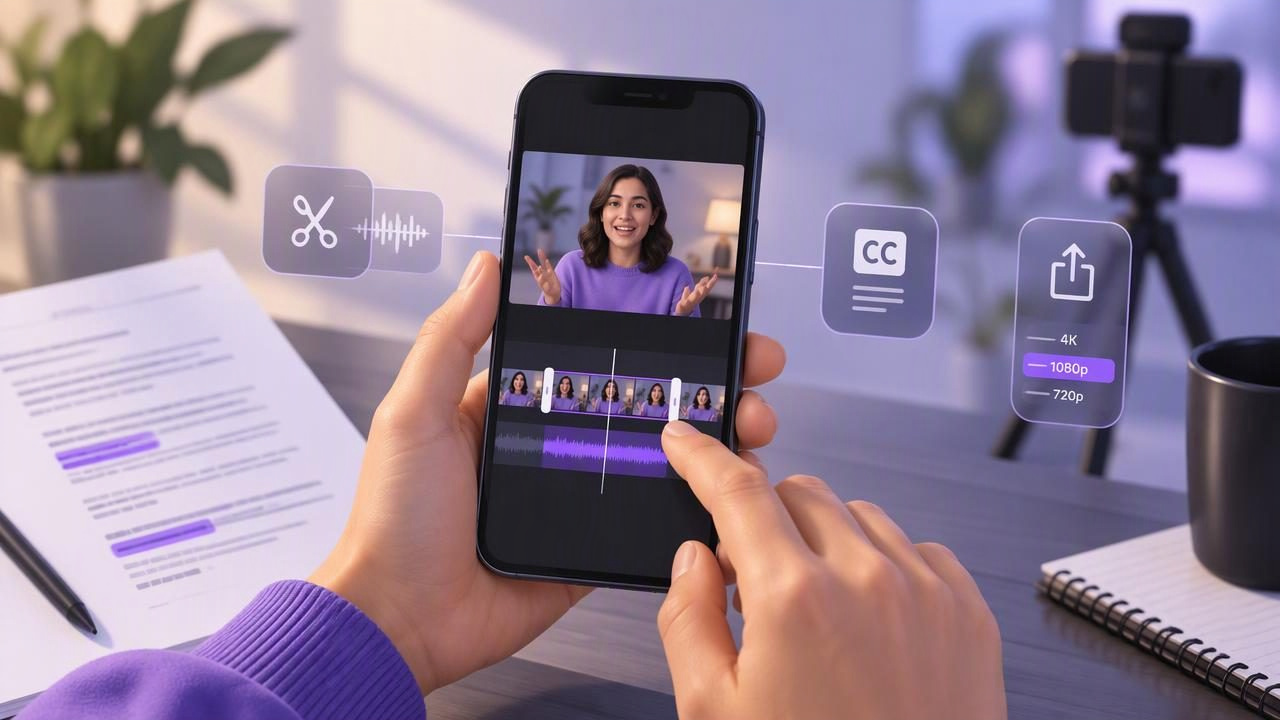
An iPhone video editor can help you turn a straightforward camera recording into a clear, polished video without moving the project to a computer. For a scripted video, the edit usually comes down to a few practical decisions: where to trim, how to make the voice easy to hear, whether captions are needed, and which frame size suits the platform.
The editing stage works best when the recording is already usable. A clean take with steady framing and understandable audio is easier to refine than a clip that needs every sentence rescued. This guide walks through an example workflow for a short, script-led video and explains what to check before sharing it.
Start with the job the video needs to do
Before opening an editor, decide where the video will appear and what viewers should take away from it. A vertical tip for a short-form feed has different framing needs from a horizontal tutorial or a talking-head introduction for a website. The destination can affect the crop, text placement, and export dimensions, so it is useful to know it early.
For example, imagine filming a 45-second explanation of how to organize a weekly meal plan. The goal is one useful idea, not a complete cooking lesson. Keep the opening direct, explain the steps in order, and end with a simple next action. A focused script makes it easier to spot unnecessary pauses and repeated lines during editing.
Write for speech rather than an essay. Short sentences, familiar words, and clear transitions are easier to deliver naturally. If you use a teleprompter, divide the script into thought-sized lines instead of long paragraphs. That gives you more chances to glance ahead without losing your place.
Make a quick recording check before you edit
Editing can remove an awkward pause, but it cannot reliably fix every problem created during recording. Before the full take, record a short test and listen to it with headphones. Check that your voice is clear, the room is reasonably quiet, and the microphone is not picking up distracting handling or clothing noise. Microphone behavior can vary by device and setup, so judge the actual test recording rather than assuming a particular connection will work.
Also check the camera position. Place the lens near eye level and keep your gaze close to it when reading. If the script appears far below the lens, viewers may notice your eyes repeatedly dropping away. A teleprompter can reduce that movement, but it does not guarantee natural eye contact: script placement, font size, reading pace, and how familiar you are with the material all matter.
Take a moment to confirm the frame. Leave a little room around your head and shoulders, and check that important background details are not distracting. For vertical video, keep your face and any essential visual information away from the extreme edges, where platform controls or later cropping may cover them.
Choose an editor that fits the task
When searching for a video editor iPhone users can choose from built-in tools and dedicated editing apps. The right option depends on what you need to change. A basic trim may be enough for a one-take clip; a more involved project may need a crop, captions, audio adjustments, or a way to combine several clips. App features, supported formats, and available controls differ, so check the current description and test the workflow with a short sample.
| Editing need | What to check | Practical note |
|---|---|---|
| Remove a rough start or finish | Whether the editor can trim the clip edges | Keep a small natural lead-in and ending if they help the delivery feel unhurried. |
| Change the frame | Available aspect ratios and crop controls | Review the crop at full size so a face or on-screen detail is not cut off. |
| Add subtitles | Language support, correction options, and text placement | Automatic captions can mishear names and specialist terms; proofread them. |
| Improve sound | What audio adjustments are offered | Listen to the edited result, not only the live preview. |
Do not choose an editor based only on the number of effects it advertises. For a simple spoken video, reliable trimming, a readable preview, and an export suited to your destination may matter more than transitions you will not use.
Trim for clarity, not just speed
Watch the entire recording once before making cuts. Mark the point where the useful content begins, any long silence, a repeated sentence, and the moment the final thought ends. Then trim conservatively. Removing every breath and pause can make speech feel rushed or unnatural, especially when the speaker is explaining something new.
In the meal-planning example, suppose the clip opens with three seconds of reaching for the phone, then includes a pause before the first tip. Removing the setup and shortening the pause could make the opening feel more immediate. But leave a brief beat after a key instruction if viewers need time to absorb it. If a cut makes the speaker appear to jump abruptly, try a slightly wider trim or record a clean pickup rather than adding an effect by default.
When a sentence needs correction, compare the edited audio and picture around the cut. A jump in background position, hand movement, or room sound can make the edit noticeable. If you have more than one take, choose the clearest complete delivery where possible; stitching many tiny fragments together can create a choppy rhythm.
Check framing and audio after edits
Resizing or cropping can help adapt a recording to a platform, but it changes what appears in the frame. Preview the whole clip after changing dimensions, not just the opening still. Check that the speaker remains comfortably framed throughout and that any gestures or objects needed to understand the explanation are still visible.
Sound deserves the same attention. Listen at a moderate volume in a quiet place, then check the result through the phone speaker if that reflects how your audience may watch. Make sure the voice remains understandable and that added music, if any, does not compete with it. Avoid assuming an audio-cleanup control will remove every room sound or repair a clipped recording. Processing varies, and stronger adjustments can sometimes make a voice sound unnatural.
If you recorded in 4K or at a high frame rate, remember that the final file may be larger than a lower-resolution version. Higher recording specifications are not automatically better for every post: the platform, available storage, lighting, and intended viewing size all influence what makes sense. Check the editor’s export options and review the saved file before deleting your original take.
Add subtitles carefully
Captions can make spoken content easier to follow when viewers watch with sound off, and they can support accessibility. If your editor offers automatic subtitle generation, treat the result as a draft. Names, numbers, acronyms, accents, and unfamiliar vocabulary deserve a careful review. Correct punctuation and line breaks too; a technically accurate transcript can still be hard to read if too many words appear at once.
Keep captions clear of the speaker’s face and other important information. Preview them on the actual video dimensions, since a placement that looks fine in an editing panel may sit under interface elements on a social platform. If subtitles are generated on the device, language availability and performance may depend on the app and device. Check the relevant settings instead of assuming every language or workflow is supported.
For the meal-planning clip, check that phrases such as “write down three dinners” are captioned as spoken, rather than changed into a different instruction. Read the subtitles from beginning to end while the video plays. This catches timing problems as well as transcription errors.
Keep the workflow manageable and private
A simple, repeatable process can save more time than a complicated edit. Keep the script, source recording, and finished version easy to distinguish, and decide how long you need to retain the original. Before granting an app access to photos, microphone, or other data, review its permissions and privacy information. Apps differ in how they handle media and processing; do not assume that editing on a phone means every step happens only on the device.
Some creators prefer an app that combines script reading, recording, and basic editing, while others record first and edit in a separate tool. Choose based on the steps you actually need, not on the promise of an all-in-one workflow. If reading from a script while filming is part of your process, CueCam’s guide to recording video while reading a script explains considerations such as camera placement and reading pace. Features such as voice-following scroll, recording modes, subtitles, and on-device processing can have device or language constraints, so verify the details before relying on them.
Use a final review checklist
Before sharing, watch the finished video from the beginning to the end. A single uninterrupted review is more likely to reveal a distracting cut, a missed caption, or a weak ending than checking isolated frames. Confirm that the opening makes sense without a long wait, the main point is easy to follow, and the final words are not cut off.
- Does the crop suit the intended destination?
- Is the voice clear, with no distracting peaks or abrupt changes?
- Are captions accurate, readable, and correctly timed?
- Do edits preserve a natural pace rather than cutting every pause?
- Did the file save at the intended quality, and can it play back correctly?
A good iPhone video editor helps refine a recording, but strong results still begin with a clear message and a usable take. For a short scripted video, focus on a few thoughtful cuts, understandable audio, suitable framing, and captions that have been checked by a person. That approach keeps the process efficient while leaving the delivery feeling like a real conversation.
