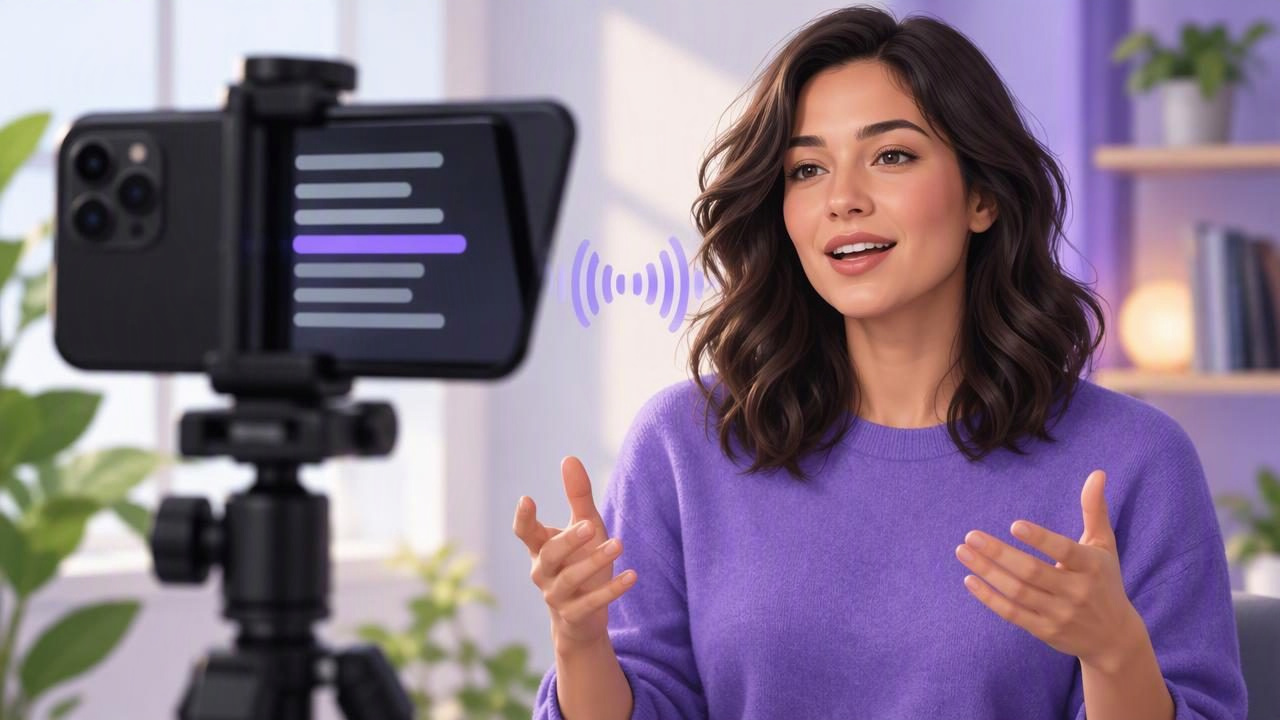
A teleprompter app for iPhone with voice tracking can help you read a script while looking toward the camera. Instead of moving the text at one constant speed, a voice-following mode tracks your progress through the script as you speak. That can make it easier to pause, change pace, or repeat a phrase without watching the words rush ahead.
Voice tracking is not a substitute for a clear script or a quick rehearsal. It can also behave differently depending on the app, device, language, room noise, and delivery. This guide explains how to prepare, position, test, and use a voice-following teleprompter for a short video.
What voice tracking does—and what it does not
A voice-tracking teleprompter follows spoken words and adjusts the displayed script position to keep the current line near your reading point. Unlike fixed-speed scrolling, it is designed to respond to your delivery. Unlike timed scrolling, it does not rely on a set duration for each section.
| Mode | How it behaves | Useful when |
|---|---|---|
| Voice tracking | Follows speech against the script, where supported. | Your pace varies or you pause naturally. |
| Fixed-speed scrolling | Moves text at a steady rate you choose. | You can maintain a consistent reading rhythm. |
| Timed scrolling | Moves through the script according to a planned duration. | You need to fit a prepared script into a time window. |
Voice tracking does not write or correct your script, guarantee a perfect match, or remove the need to speak clearly. A long pause, a repeated phrase, an ad-lib, or a noisy room may affect how well the text follows you. Language and device support can also vary, so check the app’s current requirements before relying on this mode for an important recording.
Prepare a script that is easy to follow
Write for speech rather than for the page. Short sentences are easier to deliver and easier to track than dense paragraphs with several clauses. Use words you would naturally say, and spell out abbreviations that you might otherwise pronounce differently from how they appear on screen.
Break the script into short sections. A line break can mark a breath or a change in thought; a blank line can separate the opening, main point, and closing. Keep stage directions distinct from words you intend to say, and remove editing notes before recording so they are not mistaken for dialogue.
For example, a short introduction might read:
“If your houseplants keep drooping, check the soil before you water again.
Today, I’ll show you one simple way to tell whether the top layer is dry.
Try it with your next plant, and adjust for its needs.”
This script has a clear opening, one main promise, and a simple closing. Its short sentences leave room to breathe. If you add a product name, technical term, or number, say it aloud during rehearsal. That lets you notice awkward wording before the phone is recording.
Position the iPhone for natural eye contact
Place the camera close to eye level, then position the script as near to the lens as your setup allows. The closer your reading point is to the lens, the less your gaze needs to travel. If the text sits low on the screen, your eyes may repeatedly drop, even if the words are tracking correctly.
Frame yourself before fine-tuning text size. Leave enough room around your head and shoulders for the intended format, whether you are making a vertical clip or a horizontal video. Keep the phone stable, and check that your chosen camera view, lighting, and background look as intended. Avoid placing the phone so far away that the script becomes difficult to read.
Do not assume every setup places text directly over the camera lens. App layouts and recording arrangements differ. Use the preview to see where your eyes land, and make a small adjustment to the phone or your posture if you look noticeably away from the lens.
Set a comfortable reading pace
Start slower than you think you need to. Read the script aloud once without recording, paying attention to phrases that feel cramped and places where you naturally pause. Then choose a text size you can read comfortably without leaning toward the phone. If the app offers voice tracking, begin with that mode; if it does not follow reliably in your conditions, try fixed-speed or timed scrolling instead.
Speak to the camera as if explaining the idea to one person. Do not race to keep up with the text, and do not over-enunciate just to satisfy a tracking system. Add a short pause after an important point. If the displayed words move ahead or fall behind, stop, return to the right place, and continue rather than trying to catch up while speaking.
Run a short test before the full take
A brief test can reveal problems with sound, framing, and text movement before you record the complete script. Record roughly 10 to 15 seconds that include a normal sentence, a short pause, and one phrase with a name or unfamiliar word. Review the clip with headphones if available.
- Check the voice: Is your speech clear, and is there distracting room noise or echo?
- Check the picture: Is the camera steady, and are your eyes close to the lens?
- Check tracking: Does the script stay near the words you are saying through a pause and a change of pace?
- Adjust one thing: Change the room, script, text size, or scrolling mode, then test again.
This is especially useful if you are using an external microphone. Confirm that the recording contains the sound you expect; do not assume a microphone is connected or selected just because it is plugged in. Microphone compatibility and setup depend on the equipment and app, so check the instructions for your specific devices.
What to do when voice tracking loses your place
If the displayed text drifts, pause and identify the last line that matches what you said. Depending on the app, you may be able to reposition the script manually or restart the section. Avoid continuing while reading unrelated lines: that can make the delivery less natural and complicate editing later.
Try these fixes one at a time:
- Reduce background sound. Fans, music, other speakers, and strong room echo can make speech harder to distinguish.
- Make the script match your spoken words. If you paraphrase, repeat phrases, or skip a sentence, a tracker may not follow the intended text.
- Use shorter sections. Smaller blocks make it easier to find your place after a stumble.
- Switch modes if needed. A fixed pace or timed scroll may be more predictable for a particular recording.
- Check support details. Confirm the app’s language and device requirements rather than assuming voice following works the same in every setup.
For a high-stakes take, make a backup plan: know where the next section begins, or record in shorter segments if your workflow allows it. Voice tracking is a convenience, not a promise that every word will be recognized in every environment.
Think about recording, captions, and privacy separately
A teleprompter helps you deliver lines; recording quality still depends on your camera setup, light, stability, and sound. Some iPhone recording apps provide controls such as resolution or frame rate, but available options depend on the app and device. Choose a setting appropriate to the destination and storage you have, and check the final clip rather than assuming a setting was applied.
Captions are a separate step from voice tracking. An app may offer on-device subtitle generation, but language availability and results can vary. Review captions for names, punctuation, and technical terms before publishing. Likewise, privacy practices differ across apps: check where scripts, recordings, and speech processing take place, and whether an account or internet connection is required. Do not assume these details are shared across all teleprompter apps.
A simple workflow for a one-minute video
For a one-minute explainer, write a short hook, two or three useful points, and one closing line. Read it aloud, edit any sentence that feels difficult, and divide the script into manageable sections. Set the phone near eye level, open the camera preview, and check the frame. Run the short audio and tracking test, then record the full take. Review the video for eye line, sound, and missed words; make corrections before adding captions or exporting.
The goal is not to sound as if you are reading perfectly. It is to use the script as a guide while keeping your attention on the viewer. A well-prepared script, camera near the reading point, and a tested scrolling mode usually matter more than trying to force an unsuitable setup to work.
For a practical walkthrough of the script-to-video process, see CueCam’s guide to recording video while reading a script. The app and its voice-following, recording, and caption features may have device or language requirements, so check the current details for your setup.
