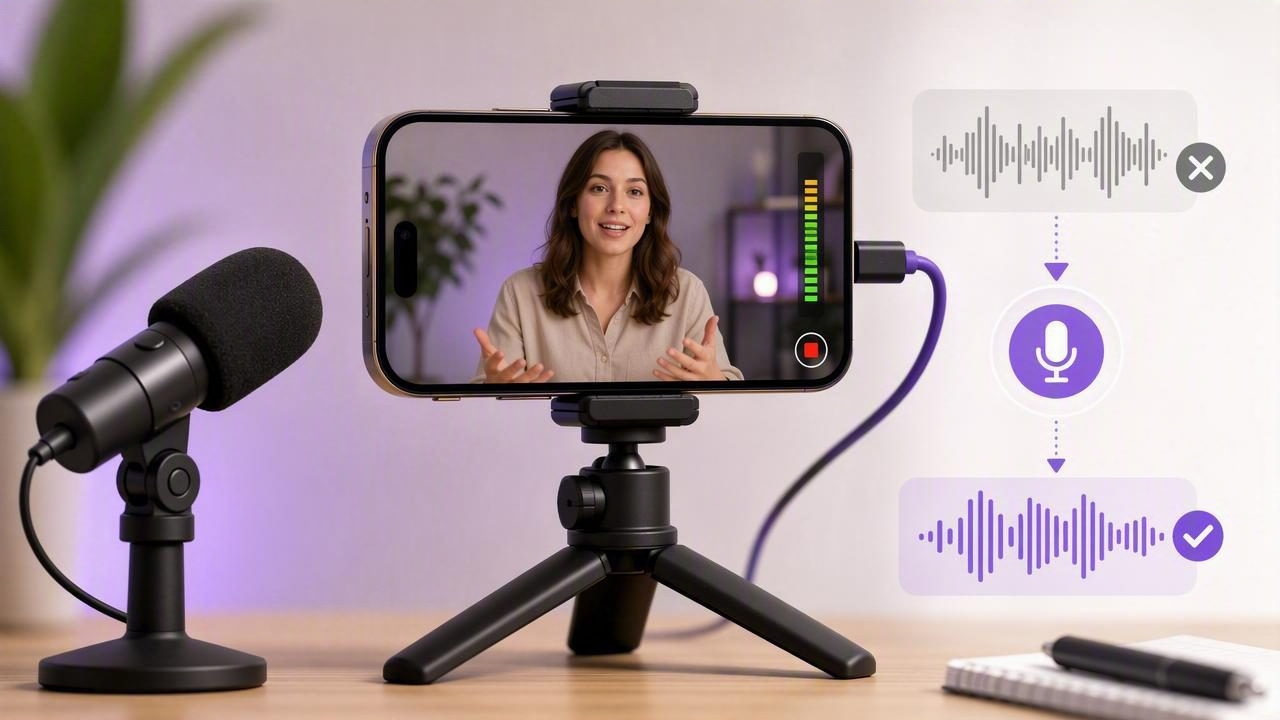
Great video can lose its impact quickly when the audio is noisy, distant, or inconsistent. Viewers may forgive a slightly imperfect frame, but they often scroll away when they cannot clearly hear the speaker. For creators recording interviews, tutorials, social videos, course lessons, product demos, and talking-head content, an external mic video app can make a meaningful difference in production quality.
Using an external microphone with an iPhone gives you more control over voice clarity, background noise, recording distance, and overall consistency. The right setup also lets you record polished script-to-video content without moving every project to a computer. This guide explains how to connect an external mic, choose the right microphone type, confirm that your video app is using it, and build a repeatable iPhone recording workflow.
Why External Audio Matters for iPhone Video
Your iPhone’s built-in microphones are capable, especially in quiet spaces. However, they are designed to capture sound from a broad area around the device. That can be a disadvantage when you are recording in a room with echoes, traffic noise, air conditioning, keyboard clicks, or other people nearby.
An external microphone improves audio by placing the recording source closer to the speaker or aiming it more precisely at the sound you want to capture. The result is usually a fuller voice, less room echo, and reduced distracting noise.
- Clearer dialogue: Your voice remains easier to understand, even on small phone speakers.
- More professional sound: A close microphone creates a warmer, more direct vocal recording.
- Less editing work: Better source audio means less time trying to repair noise later.
- More flexibility: You can record interviews, walk-and-talk clips, voiceovers, and studio-style videos with one phone.
For creators who publish frequently, audio quality is not just a technical detail. It is part of a reliable creator workflow. When your audio setup works consistently, you can focus more on the script, delivery, framing, and message.
Choose the Right External Microphone Type
There is no single best microphone for every kind of iPhone video. The ideal option depends on where you record, how far you are from the phone, whether you move around, and whether you need to capture one person or several.
| Microphone Type | Best For | Key Consideration |
|---|---|---|
| Wired lavalier | Talking-head videos, tutorials, courses | Keep the cable hidden and avoid fabric rubbing. |
| Wireless lavalier | Walk-and-talk clips, interviews, movement | Monitor battery life and wireless connection stability. |
| Shotgun microphone | Desk recordings, vlogs, directional pickup | Works best when positioned fairly close to the speaker. |
| USB microphone | Podcasts, voiceovers, seated studio recording | May require a compatible USB-C or Lightning adapter. |
| Handheld microphone | Street interviews, events, reporting | Needs deliberate placement and handling technique. |
Start with microphone distance, not price
A modest lavalier microphone positioned six to eight inches from your mouth will often sound better than an expensive microphone placed several feet away. This is because close placement captures more of your voice and less of the room.
Before investing in more gear, improve your recording environment and microphone position. Soft furnishings, curtains, rugs, and bookshelves can reduce echo. Turning off fans, closing windows, and silencing notifications can also improve the raw recording dramatically.
Check iPhone Compatibility Before You Record
iPhone models use different connector standards, so your microphone setup may require an adapter. Many current accessories connect through USB-C, while older iPhones and microphone systems may use Lightning or a 3.5 mm connection. The connector is important, but compatibility also depends on whether the microphone is designed for iOS audio input.
Before a recording session, confirm these details:
- Check your iPhone connector type.
- Make sure your cable or adapter supports audio input, not only charging.
- Update the microphone receiver firmware if the manufacturer provides updates.
- Charge wireless transmitters and receivers completely.
- Connect the microphone before opening your recording app when possible.
A common issue is using a low-quality adapter that does not reliably pass microphone audio to the phone. If your iPhone does not recognize the external mic, test with a certified or manufacturer-recommended adapter before assuming the microphone is faulty.
How an External Mic Video App Fits Into Your Workflow
Not every camera app handles audio controls in the same way. A capable external mic video app should recognize compatible audio devices and let you record video while maintaining a dependable audio path. Some apps also provide useful tools such as input monitoring, audio meters, video stabilization, frame-rate controls, and manual exposure settings.
When evaluating an app, look for features that help you avoid mistakes before you press record:
- Visible audio level meters that move when you speak.
- Clear indication that an external microphone is connected.
- Support for your desired resolution, such as 4K recording.
- Compatibility with teleprompter or script-reading tools.
- Simple trimming and subtitle options for faster publishing.
- Reliable export settings for vertical and horizontal video formats.
The best workflow is not necessarily the one with the most settings. It is the one you can repeat without guessing which microphone is active, whether the audio is clipping, or whether your video format fits the platform where you plan to publish.
Set Up Your External Microphone Step by Step
Use this process every time you record. It takes only a few minutes and can prevent the frustration of discovering unusable audio after a long take.
- Prepare the room. Close windows, mute devices, and reduce steady background noise.
- Mount or place the microphone. Position a lavalier near the upper chest, or point a shotgun mic toward the speaker.
- Connect the microphone to the iPhone. Attach the receiver, cable, or compatible adapter securely.
- Open the video recording app. Check whether it identifies the external audio source.
- Watch the audio meter. Speak at your normal presentation volume and make sure levels respond.
- Record a short test. Play it back using headphones, listening for hiss, crackles, distortion, or room echo.
- Record the main take. Keep your microphone placement and speaking distance consistent.
For many creators, the test recording is the most important step. Do not rely only on moving meters. A meter can show that sound exists, but playback tells you whether the voice actually sounds clean and usable.
Set Proper Audio Levels Without Clipping
Clipping happens when your audio signal is too loud for the recording system. It can make words sound harsh, crunchy, or distorted, and the damage is difficult to remove later. On the other hand, audio recorded too quietly may need aggressive amplification, which can also raise background noise.
Aim for healthy levels with occasional louder words staying below the maximum. If your app displays decibel values, normal speech often works well when peaks land roughly around -12 dB to -6 dB. Exact numbers vary by app and microphone, but the goal is simple: record a strong signal with room for louder moments.
Record a short test using the loudest volume you expect to use in the final take—not just your quietest speaking voice.
If your wireless microphone has gain controls, adjust them gradually. Lowering the transmitter gain too far can create a weak signal, while setting it too high can overload the receiver before the iPhone ever records the sound.
Common External Mic Recording Problems and Fixes
The app records from the iPhone microphone instead
Disconnect and reconnect the microphone, then fully close and reopen the app. Confirm that your adapter supports audio input. If you are using a wireless system, verify that the receiver is powered on and connected securely.
Audio is distorted or popping
Move the microphone slightly farther from your mouth, reduce microphone gain, and avoid speaking directly into a lavalier capsule. For outdoor recording, use a windscreen or furry wind cover to reduce wind rumble and plosive sounds.
Clothing noise ruins lavalier audio
Secure the cable so it does not move against fabric. Mount the microphone where it will not rub against jackets, necklaces, hair, or loose clothing. Test your natural movements before filming.
Wireless audio cuts out
Check battery levels, reduce the distance between transmitter and receiver, and keep the signal path as clear as possible. In crowded wireless environments, recording closer to the receiver can improve reliability.
Pair Clean Audio With a Better Script-to-Video Process
Audio gear is only one part of an effective mobile video setup. To produce consistently useful content, combine your microphone workflow with a clear script, stable framing, intentional lighting, and an easy review process.
For example, a simple educational video workflow might look like this:
- Write a short script with a strong opening sentence.
- Set the phone at eye level and choose a quiet location.
- Connect and test your external microphone.
- Use an iPhone teleprompter to maintain eye contact while reading naturally.
- Record in the aspect ratio required for the destination platform.
- Trim mistakes, add accurate subtitles, and review the final audio on headphones.
Subtitles are especially valuable because many viewers watch social video with sound off at first. However, captions should support good audio rather than replace it. Clear original speech helps subtitle tools produce more accurate text and gives viewers a better experience when they do turn the sound on.
Final Checklist Before You Publish
- Is the external microphone selected and working?
- Did you listen to a real playback test?
- Are speech levels clear without clipping?
- Is the microphone free from wind or clothing noise?
- Does the video resolution suit your publishing needs?
- Have you added subtitles and checked their accuracy?
- Are private scripts and footage stored according to your preferences?
An external microphone can turn an iPhone into a far more capable recording setup, but the biggest benefit comes from using a repeatable process. Test every connection, listen before committing to a full take, and keep your recording environment as controlled as possible. Tools such as CueCam can help creators combine teleprompting, external-mic recording, on-device subtitles, and editing in one privacy-focused iPhone workflow.
Put the workflow into practice
The record video while reading script guide provides the starting workflow. Record and listen to a short test with your actual microphone and adapter before relying on that setup for a complete take.
See CueCam on the App Store for current availability and details.
