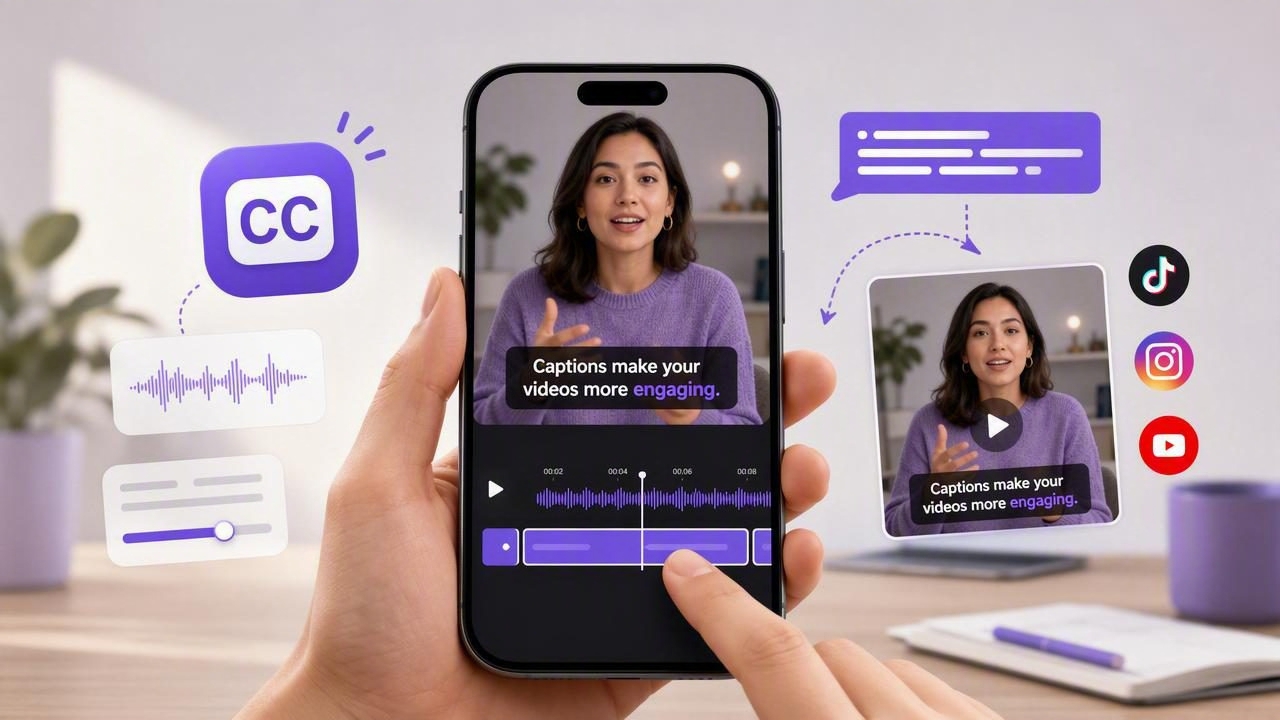
An automatic captions app can make short-form and long-form video easier to follow when viewers are watching silently, are in a noisy environment, or simply prefer reading along. Captions can also clarify names, numbers, product terms, and key takeaways that may be missed in fast-paced speech.
However, automatic captions are not a one-click substitute for reviewing your content. Speech recognition can misunderstand names, acronyms, technical terms, accents, or words spoken over music. Caption timing can also feel distracting when each line changes too quickly or stays on screen too long. The best workflow is to treat automatic captions as a useful first draft, then make a focused edit before publishing.
This guide explains how to create more readable captions from an iPhone video, what to check before exporting, and how to handle common accuracy issues without turning the process into a lengthy post-production task.
Why captions matter for creator videos
Captions are a practical accessibility and communication feature. They help people understand spoken content when audio is unavailable or difficult to hear. For creators, they can also help make a video’s opening message clearer during the first few seconds, when viewers decide whether to keep watching.
Captions are especially useful for:
- Educational clips with instructions, definitions, or step-by-step explanations
- Product videos that include feature names, prices, measurements, or specifications
- Founder updates and talking-head videos recorded in public or busy environments
- Interviews, testimonials, and customer stories
- Videos with a fast speaking pace or unfamiliar terminology
- Multilingual audiences who may find written context helpful
Good captions do not need to reproduce every sound, pause, or filler word. Their job is to communicate the meaning of what is being said in a way that is easy to read on a small screen.
Start with audio that captions can understand
Automatic caption quality begins before transcription. An app can only work with the audio it receives, so improving the recording conditions often saves more time than fixing captions afterward.
Before recording, do a short test of around 10 seconds. Speak at your normal pace, then listen back using headphones if possible. Check whether your voice is louder than air conditioning, traffic, fans, music, or room echo. If the audio is unclear to you, it may also be difficult for automatic speech recognition to identify correctly.
For a straightforward talking-head video, position the iPhone close enough that your voice is present and direct. Avoid placing the device far across a room. If you use an external microphone, test it before the full take and confirm that the recording uses the intended audio source. Compatibility and recording behavior can vary by device, microphone, app, and connection method.
Practical rule: Clear speech, steady volume, and fewer overlapping voices are more valuable than trying to fix poor audio with captions later.
Use a script to reduce caption errors
A script is not only useful for delivering a confident video. It can also reduce the mistakes an automatic captions app has to interpret. When you know your opening line, key points, product names, and closing call to action, you are less likely to restart sentences, trail off, or replace a specific term with a vague phrase such as “that thing.”
Write for speech rather than for a document. Keep sentences short, use familiar wording, and introduce unusual terms clearly. If a brand name or technical phrase is essential, say it slowly once. This gives you a better chance of receiving a usable first caption draft.
For example, imagine you are recording a 45-second tutorial about organizing client feedback:
Opening: “Client feedback gets easier when every comment has an owner.”
Point 1: “First, group comments by page or deliverable.”
Point 2: “Next, assign one person to confirm each requested change.”
Close: “That keeps revision rounds focused and easier to track.”
This script uses clear sentences, one idea at a time, and minimal jargon. It is likely to produce more readable caption segments than a rushed explanation with multiple side notes.
How to create captions from an iPhone video
Most caption workflows follow the same broad sequence: record or select a video, choose the spoken language when the option is available, generate a draft, review it, and export the finished file. The details differ between apps, so always check the controls and language availability in the tool you are using.
- Choose the best take. Select the version with the clearest audio and fewest interruptions. A clean take usually needs fewer caption edits.
- Set the language carefully. Pick the language actually spoken in the video. If your video switches languages, recognition quality may vary depending on the app and its supported language options.
- Generate the first draft. Let the automatic captions app process the speech before you begin making style decisions.
- Read while listening. Review the words and timing together. Silent reading alone can miss captions that appear too early, late, or briefly.
- Correct high-impact errors first. Fix names, numbers, URLs, product terms, and any word that changes the meaning of a sentence.
- Adjust line breaks for mobile viewing. Aim for short, natural phrases rather than dense blocks of text.
- Watch the complete video once more. Confirm that captions remain visible and readable when the video is viewed at normal speed.
What to review before publishing
You do not need to rewrite every caption segment. Prioritize issues that affect comprehension, credibility, or readability. The following table provides a practical review checklist.
| Caption issue | Why it matters | What to do |
|---|---|---|
| Incorrect name or brand term | Can confuse viewers and look unprofessional | Correct spelling manually and review similar terms |
| Wrong number, date, or price | May change the meaning of your message | Compare against your script or notes |
| Long caption block | Is difficult to scan on a phone | Split it into shorter phrases at natural pauses |
| Caption covers the subject | Distracts from facial expression or visual details | Move text away from the face or essential on-screen element |
| Caption changes too rapidly | Viewers may not have enough time to read | Shorten spoken phrasing in future takes or adjust segmentation |
| Background is too busy | Text may blend into the image | Use sufficient contrast and test on a phone screen |
Make captions readable, not overwhelming
Captions should support the video, not compete with it. Use a readable type size and strong contrast between the text and the background. If the footage changes from a dark room to a bright outdoor scene, check whether the captions remain legible in both parts.
Keep each caption focused on a single spoken thought. A viewer should be able to glance at the screen, understand the line, and return attention to your face or demonstration. Avoid placing captions over buttons, product screens, slides, or objects that viewers need to see.
It is also worth distinguishing between captions and decorative emphasis text. Captions represent the spoken message. Highlighted keywords can reinforce a point, but too many animated words, colors, or style changes may make an informational video harder to follow. Start with clarity, then add visual emphasis only when it improves the message.
Common limitations of automatic captions
Automatic captions can be highly useful, but they are not guaranteed to be correct. Results depend on audio quality, language support, speaker pronunciation, background noise, recording conditions, and the complexity of the vocabulary.
Be particularly careful with:
- Proper names, company names, and location names
- Acronyms and abbreviations
- Industry-specific vocabulary
- Multiple speakers talking at the same time
- Strong background music or sound effects
- Rapid speech, whispering, laughter, or incomplete sentences
- Videos that switch between languages
If a video includes legally sensitive statements, health guidance, financial information, contractual terms, or precise instructions, review captions with extra care. A transcription error in these contexts can be more than a minor typo.
A fast caption review routine for busy creators
A simple three-pass review keeps the process efficient. On the first pass, watch with sound and correct factual errors. On the second pass, mute the audio and read the captions as a viewer would. This reveals unclear line breaks, pacing issues, and text that disappears too quickly. On the final pass, view the video on the type of screen where your audience is likely to watch it: usually a phone.
For the 45-second client-feedback example, your highest-priority checks would be “client feedback,” “owner,” “deliverable,” and “revision rounds.” Those words carry the instructional value. If the app transcribes “owner” as “honor,” correct it immediately. If it includes an occasional “um,” you can decide whether removing it improves readability enough to justify the edit.
Build captions into your script-to-video workflow
The most reliable way to save time is to plan for captions before recording. Write concise lines, say critical terms clearly, record a quick audio test, and leave brief pauses between major points. Those small choices help both your delivery and your caption draft.
If you read from a script while filming, make sure the text is placed close to the camera so your eye line remains natural. A teleprompter workflow can also help you deliver cleaner phrasing with fewer restarts. For an iPhone approach that combines script reading and recording, CueCam’s guide to recording video while reading a script explains the basic setup.
Ultimately, the best automatic captions app workflow is not about generating more text on screen. It is about making your spoken message easier to understand. Record clear audio, use a focused script, review the words that matter, and publish captions that viewers can comfortably read from beginning to end.
