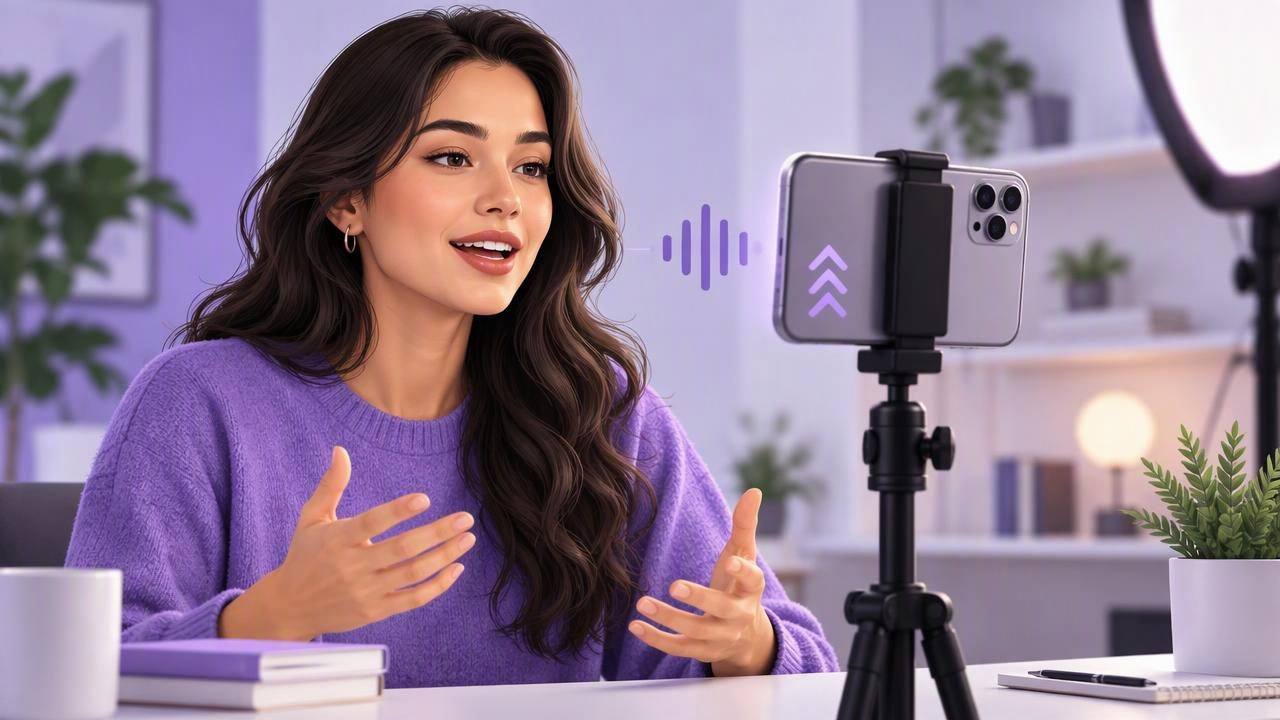
A voice scrolling teleprompter moves through your script as you speak, rather than at a fixed speed. That can make it easier to pause for emphasis, recover after a stumble, and keep your delivery conversational while looking near the camera. It can also feel distracting if the script is hard to read or your room is noisy.
The key is to treat voice tracking as a reading aid, not an automatic performance fix. Prepare short, speakable lines, position the text close to the lens, and test the tracking before recording a full take. This guide explains how to set up a voice scrolling teleprompter on iPhone, what to check, and where the method has limits.
What is a voice scrolling teleprompter?
A voice scrolling teleprompter follows your spoken delivery and advances the script to keep the current words in view. Unlike fixed-speed scrolling, it is not intended to move at one preset pace regardless of whether you are speaking quickly, slowly, or taking a breath. Some apps offer voice-following alongside fixed-speed or timed scrolling, so you can choose a mode that fits the script and recording conditions.
Voice following does not mean the app understands your message or edits your delivery. It is a way to synchronize visible text with speech. Depending on the app, device, language, and recording environment, tracking may respond differently. Check the app’s stated support and test it with your own voice before relying on it for an important take.
When voice following helps—and when it may not
This mode is useful when your script contains pauses, varied sentence lengths, or emphasis that would make a fixed scroll feel rushed or sluggish. It can also help when you want to speak in a natural rhythm instead of matching a timer. For example, a creator filming a 45-second product explanation can slow down on a key point without watching the rest of the script race ahead.
It may be less dependable in conditions that make speech difficult to follow, such as competing voices, loud background noise, or frequent interruptions. Unusual pronunciations, a language or accent the app does not support well, and long silent pauses can also affect the experience. These are reasons to test—not proof that tracking will fail. If the script must advance at a consistent pace, fixed-speed scrolling may be easier to predict.
| Scrolling mode | Best suited to | Consider |
|---|---|---|
| Voice following | Conversational delivery with natural pauses | Tracking depends on supported speech and recording conditions. |
| Fixed speed | Predictable pacing or rehearsed timing | You may need to adjust the speed to match your reading. |
| Timed scrolling | A script planned for a set duration | Pauses and changes in delivery can make timing less natural. |
Prepare a script that is easy to follow
Voice tracking can only help you follow the words you have prepared. Dense paragraphs, long sentences, and complicated phrasing make it harder to glance, read, and speak naturally. Edit for the ear: use language you would actually say, place one idea in each sentence, and remove words that do not add meaning.
- Break up long paragraphs. Give each new point its own short section so you can find your place at a glance.
- Mark pauses and emphasis. Use punctuation or simple cues such as “pause” where a beat matters. Keep cues distinct from words you should say aloud.
- Read the script out loud. If you run out of breath or stumble on a phrase, revise it before filming.
- Keep a little flexibility. Add only the details you need to remember. A script overloaded with stage directions can be as hard to read as a dense paragraph.
For a concrete example, imagine a short video about a reusable water bottle. Instead of a single block of copy, format the script as three ideas: “Here is the problem”; “Here is the feature that addresses it”; and “Here is how I use it.” Put the most important benefit in a short sentence. That gives you natural places to pause and makes it easier to resume after a brief stumble.
Set up your iPhone and camera position
Place the phone so the lens is close to the text you are reading. If the words sit far below or to the side of the lens, your eyes may visibly travel away from the camera even when you are following the script correctly. A stable support helps keep the framing consistent and frees you to concentrate on delivery.
Adjust the text size until you can read comfortably without leaning toward the screen. If the app offers controls for text size, spacing, or the reading window, change one setting at a time and check your position in the camera preview. Keep the phone at a comfortable height and frame yourself before starting; avoid changing the setup halfway through a take unless necessary.
Also consider how quickly you can glance at the words without losing your place in the delivery. A line that is too wide may require more eye movement, while text that is too small can make you squint. The best layout is readable at your chosen distance and keeps your attention near the camera.
Run a short voice-tracking test
Do not begin with your longest or most important recording. Make a brief test with the actual script, room, and speaking voice you plan to use. Read at your intended pace, pause once, and deliberately repeat a short phrase. Watch whether the text stays close to your delivery and whether it resumes comfortably after the pause.
- Check the room. Reduce avoidable background sound and ask others nearby to pause their conversation.
- Check the words. Use a section with ordinary phrases, a longer sentence, and a planned pause.
- Check the movement. Notice if the script races ahead, lags behind, or moves in a way that distracts you.
- Adjust or switch modes. Revise the script, change available settings, or try fixed-speed or timed scrolling if that better suits the recording.
Keep the test short enough that you can review it without pressure. A quick playback can reveal whether your eyes are near the lens and whether the audio is clear. If you use an external microphone, confirm that the recording captures the intended sound; compatibility and setup can vary, so check the specific equipment and app instructions rather than assuming every microphone will work the same way.
Choose a pace that sounds spoken, not read
Following the words is only part of a good delivery. Speak to one person, finish important phrases, and leave space after a key point. Avoid racing simply because the next line is visible. If your delivery sounds flat, try shortening the sentence or adding a clear pause rather than forcing more expression into the same block of text.
When you stumble, stop for a moment, find your place, and restart the sentence if that will make editing simpler. A voice scrolling teleprompter may continue tracking differently during silence or a repeated phrase, so use the test to learn how your chosen app behaves. You can always record a fresh take instead of trying to push through a line that has lost its rhythm.
Voice scrolling is not the same as subtitles
Teleprompter tracking and subtitles serve different purposes. The teleprompter displays a script for the person recording. Subtitles are text added to a finished or recorded video so viewers can follow the speech. One should not be assumed to create, check, or synchronize the other automatically.
If you plan to add captions, review them separately for names, technical terms, punctuation, and line breaks. Automatic or on-device subtitle tools may support only certain languages or devices, and generated text can contain errors. Captions are especially worth checking when a video includes unusual vocabulary or when accuracy is important.
Privacy and practical limits
Before using any recording app, understand where scripts and recordings are stored and whether a feature requires an internet connection. Privacy practices differ by app. Do not assume that “voice tracking” means audio is processed in a particular way; consult the app’s privacy information and feature details for that answer.
Likewise, do not assume voice following supports every language, accent, device, or quiet-room condition equally. Availability and performance can depend on the app and the phone. If a feature is unavailable or does not suit your recording, a manual scrolling mode remains a useful alternative. The goal is a readable script and a confident take, not using one mode at all costs.
A simple workflow for a scripted iPhone video
For a short social video, write a concise script, divide it into clear sections, and read it aloud once. Position the iPhone with the lens near the text, choose voice following, and record a brief test that includes a pause. Review the framing and sound, adjust the setup, then record the full take. Afterward, trim unnecessary beginnings or endings and review any subtitles as a separate step.
If you want a walkthrough of recording while reading, see CueCam’s guide to recording video while reading a script. Whatever app you choose, the reliable approach is to test the real script in the real setup, then use the scrolling mode that lets you focus on speaking to the camera.
