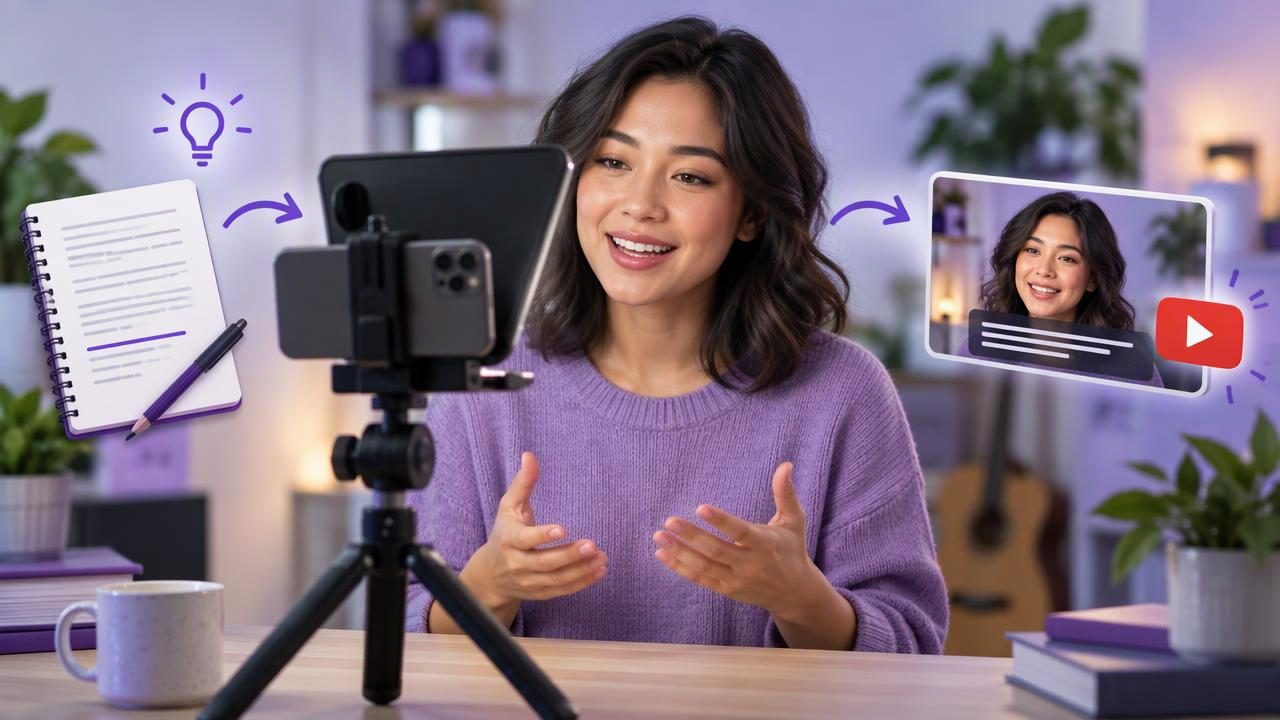
A teleprompter app for YouTube creators can make scripted videos easier to deliver without making them sound like a speech. The key is not simply putting your script on screen. It is shaping the words for speaking, positioning the text near the camera, and choosing a pace that leaves room for natural pauses.
This guide walks through a practical iPhone workflow for a short YouTube explainer: from preparing the script to recording a test, reviewing captions and checking the final frame. The same principles apply to tutorials, channel updates, product demonstrations and talking-head introductions.
Why use a teleprompter app for YouTube?
When you look away to check notes, your gaze can shift from the lens and interrupt the connection with viewers. A teleprompter places your words close to the camera, making it easier to follow a planned explanation while keeping your eyes directed forward. It can also help you stay on topic and reduce the need to restart after forgetting a point.
A teleprompter is not a substitute for rehearsal. If the script is difficult to say, text scrolling smoothly will not make the delivery sound natural. Treat the app as a reading aid, not a reason to write in a formal or overly dense style.
1. Write a script for speaking, not reading
Start with the viewer’s question. For example, a video about choosing a desk microphone might open with the problem the viewer has, explain two or three considerations, and finish with a clear takeaway. That structure gives the video direction without forcing every sentence to sound polished on the page.
Use short, direct sentences and familiar words. Read each line aloud while editing. If you run out of breath, lose your place, or stumble over a phrase, simplify it. Contractions and conversational transitions often sound more natural than formal wording. Add paragraph breaks where you want to pause, change topics or emphasize a point.
For a short explainer, mark a few delivery cues in the script, such as [pause] or [show the menu]. Keep cues visually distinct so you do not accidentally read them aloud. Avoid putting stage directions in every line: too many interruptions make the script harder to follow.
As a concrete example, a tutorial could begin: “If your video looks sharp but the sound feels distant, check your microphone position before changing your camera settings.” That is easier to say directly to camera than a longer sentence packed with technical details. Follow it with one point at a time, and explain any specialist term before relying on it.
2. Place the iPhone and text for comfortable eye contact
Put the phone at approximately eye level and frame the shot before you start reading. For a typical talking-head video, leave a little space above your head and check that your face is not too close to the top or side of the frame. If you are filming in landscape for a standard YouTube video, rotate and secure the phone before adjusting the teleprompter layout. For a vertical video intended for Shorts, compose vertically instead.
Keep the scrolling words as close to the lens as your setup allows. Text far below or beside the camera can make your eyes visibly travel across the screen. Increase the text size enough to read without leaning forward, and use a line length that lets you take in a phrase without sweeping your gaze from edge to edge. The most comfortable layout depends on screen size, reading distance and personal eyesight, so check it in a short recording.
Also check the background and lighting. A bright window behind you can make your face look dark, while a cluttered background may compete with the explanation. You do not need a complex studio: aim for a stable phone, an uncluttered composition and enough light to see your face clearly.
3. Set a reading pace that leaves room to speak
Choose a starting scroll speed that feels slightly slower than your fastest comfortable reading pace. The camera captures your pauses, breaths and emphasis, not just the number of words you can get through. If the text moves too quickly, you may rush. If it crawls, you may sound as though you are waiting for each line.
Read a paragraph aloud while watching the prompt. Adjust the speed until you can look ahead briefly, deliver the sentence, and pause at punctuation without losing your place. Then test a longer section. A pace that works for one sentence may feel wrong across several paragraphs, especially when the script includes longer technical terms.
Use punctuation as a performance guide. A full stop can signal a complete thought; a paragraph break can indicate a longer pause or a change in subject. Do not make every sentence end with the same intonation. Vary your emphasis as you would in a conversation, and allow important points to land before continuing.
4. Pick a scrolling mode that suits the recording
Teleprompter apps commonly offer different ways to move the text. Fixed-speed scrolling advances at a chosen rate, which can work well when your delivery is steady and the script is carefully timed. Timed scrolling can be useful when you want text to progress over a planned duration, though you still need to confirm that the timing matches your real speaking pace.
Voice-following word tracking is designed to move through the script in response to speech rather than relying only on a constant pace. It may suit a conversational delivery with pauses, but performance can depend on the app, device, language, audio conditions and how closely you follow the script. It is not a guarantee that every word, accent or room will be tracked perfectly.
Choose a mode by testing the actual passage you plan to record. If voice tracking loses its place, try clearer audio, a simpler script or a fixed pace instead. Do not assume that a mode that works in one room or language will behave identically in another.
5. Run a short audio and framing test
Before recording the full take, capture a brief test that includes a normal sentence, a pause and any difficult words in the script. Listen back with headphones if available. Check whether your voice is clear, whether the level stays consistent, and whether background noise or room echo is distracting. If you change the microphone or move farther from the phone, record another test rather than assuming the sound is unchanged.
Confirm that your eyes remain near the lens, the text is readable, and the phone is stable. Check that you have enough space around your framing for the format you intend to publish. A test is especially useful when switching between a built-in microphone and an external microphone: compatibility and setup vary, so verify that the recording is capturing the intended input.
Once the setup is checked, record in manageable sections if that helps you maintain focus. Leave a brief pause before and after each section. Those quiet moments can make trimming easier, but keep your delivery consistent so cuts do not feel abrupt.
6. Review captions and the finished video
Subtitles can make spoken content easier to follow, but automatic captions need review. Proper nouns, technical vocabulary, numbers and speech recorded in noisy conditions may be transcribed incorrectly. Check the captions against the audio, correct obvious mistakes, and make sure line breaks do not obscure important details on screen.
Caption availability, language support and whether processing happens on the device depend on the app and device. If privacy or offline use matters to you, check those details before recording or creating subtitles. Do not assume that every language or feature is available in every setup.
Before publishing, watch the video once for content and once for presentation. Confirm that the opening gets to the point, the audio is understandable, the captions match, and the framing works on a phone-sized screen. If you edit or resize the video for another format, check the result again; a crop that works in landscape may cut off a face, caption or important visual in vertical framing.
A repeatable YouTube recording checklist
- Shape the script around one clear viewer question and read it aloud during editing.
- Position the iPhone near eye level and place the prompt close to the lens.
- Choose a scrolling mode and test it with the language and passage you will record.
- Record a short sample to check framing, eye line, microphone input and room sound.
- Review the full take and captions before publishing, correcting transcription and crop issues.
Make the workflow yours
A teleprompter should support your delivery, not dictate it. Begin with a script that sounds like something you would say, then adjust placement and pace until reading feels comfortable. Keep the test recording short, listen carefully, and make changes based on what you can actually see and hear. That small preparation step can prevent avoidable problems in a longer take.
If you are recording on an iPhone, CueCam’s guide to recording video while reading a script offers further context for planning this kind of setup. Whatever app you use, confirm its device and language requirements, test your audio, and review the finished video before sharing it.
