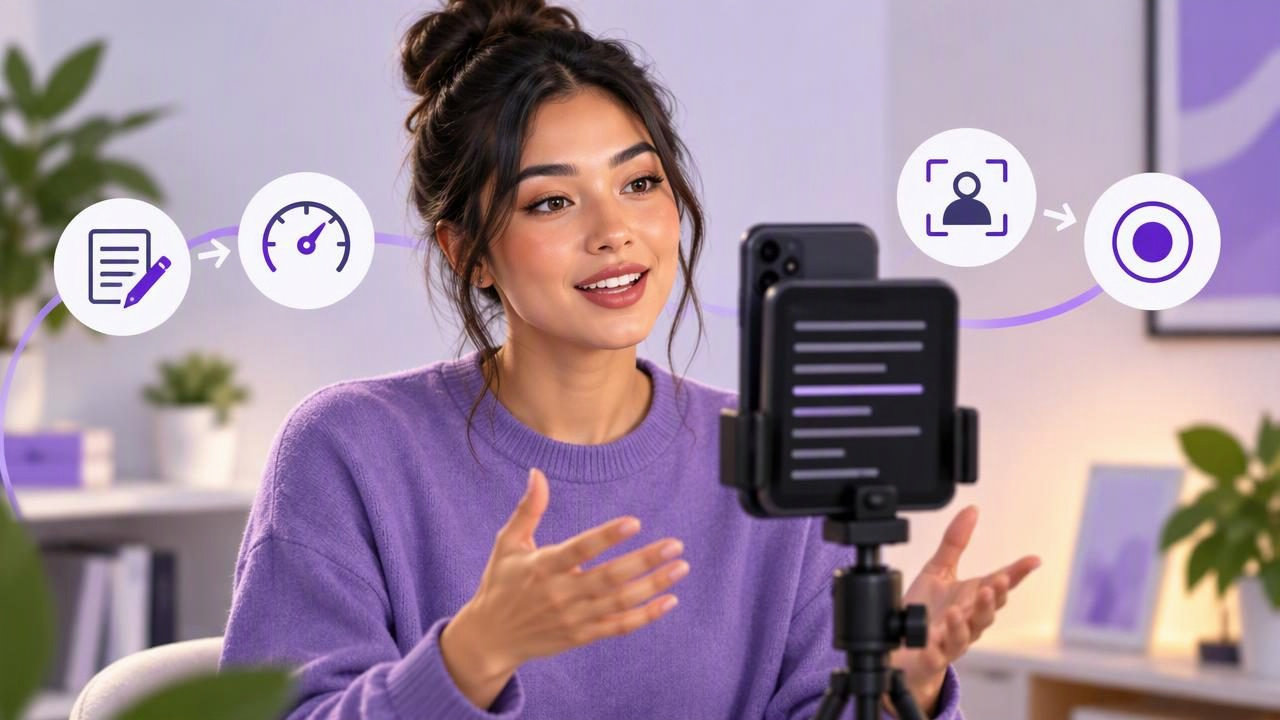
A teleprompter app for TikTok videos can help you deliver a clear message without memorizing every line. It is especially useful for tutorials, product explainers, short lessons, and direct-to-camera updates—formats where missing a key point can mean recording another take.
The goal is not to read as if you are delivering a speech. It is to make the script easy to follow while keeping your attention near the camera lens. That takes more than pasting text into an app: you need a concise script, a comfortable reading pace, thoughtful phone placement, and a quick audio check.
Why use a teleprompter for TikTok?
Short videos still need structure. A viewer may decide quickly whether to keep watching, and a rambling introduction can bury the useful part. A script gives your video a clear beginning, middle, and end. A teleprompter lets you refer to that structure while speaking, rather than repeatedly looking down at notes or trying to remember exact wording.
It can also help when you make several videos on a related topic. You can keep important terms, steps, or calls to action consistent. But a polished read is not automatically an engaging one. Use the script as a guide, and leave room for natural emphasis, pauses, and a conversational tone.
Write for a spoken short video
Start with one viewer question or one point you want people to remember. If the topic needs several explanations, consider splitting it into separate videos rather than squeezing everything into one script. A focused idea is easier to deliver and easier for viewers to follow.
Use plain spoken language. Read the draft aloud before loading it into the teleprompter. Replace phrases that feel formal or difficult to say, and remove details that do not support the main point. Short sentences make it easier to glance ahead and recover if you lose your place.
A simple structure can help:
- Opening: State the question, problem, or useful outcome.
- Main point: Explain the idea or show the steps in a logical order.
- Close: Summarize the takeaway or offer a relevant next step.
For example, a video about keeping herbs fresh might begin: “Do your herbs wilt before you use them? Try this simple storage check.” The middle can explain one or two practical steps, and the close can remind viewers what to look for. This is more direct than beginning with a long personal introduction.
Do not assume a particular word count will fit every TikTok. Speaking speed, pauses, demonstrations, and the amount of on-screen action all affect the finished length. Read your draft at the pace you intend to use and time it. If it feels rushed, cut a point instead of speeding up every line.
Set up the teleprompter for natural eye contact
Place the phone so the camera lens is close to the text you are reading. If the words sit far below or beside the lens, your eyes may visibly move away from the viewer. The exact setup depends on your phone, camera choice, and recording space, so check the framing in a test clip rather than relying on a general placement rule.
Keep the text comfortable to read at a glance. Very small text can make you squint; overly large text may show too few words at once and cause frequent jumps. If the app allows adjustments to text size or scrolling, try a setting that lets you read ahead without losing your place. Avoid changing several settings at once—make one adjustment, then check another short recording.
Frame yourself with the intended TikTok presentation in mind. A vertical composition is commonly used for TikTok, but leave enough space for your gestures or any object you plan to demonstrate. Check that your face is well lit, the background is not distracting, and important visual details are not hidden near the edges. If you plan to add text or interface elements later, keep the central subject clear.
Choose a reading pace that leaves room to speak
A fixed-speed teleprompter scrolls at a set rate, while voice-following modes move in response to speech. Some apps also offer timed scrolling or other pacing controls. These modes behave differently, and availability or performance can depend on the app and device. Test the mode you plan to use with your own script and speaking style before recording a full take.
Start at a pace that feels slightly slower than your instinctive read. That gives you room to pronounce names, pause after an important point, and keep your expression relaxed. If you are constantly catching up, the text is moving too quickly or the script is too dense. If you wait for the next line, it may be moving too slowly. Adjust until you can look ahead comfortably.
Mark natural pauses in the script with line breaks or punctuation. Put a break after the hook, before a key instruction, or where you want to demonstrate an action. Do not add so many breaks that the teleprompter becomes choppy. The purpose is to make the delivery easier, not to dictate every breath.
Do a short recording and audio test
Before recording the complete video, make a brief test with the same camera position, script display, and microphone setup you plan to use. Check that your eyes stay near the lens, the text is readable, and your voice is clear. Listen back with headphones or in a quiet setting if possible; a preview on a muted screen will not tell you whether the audio is usable.
Pay attention to background noise, room echo, and whether your voice is too quiet or distorted. If you change your distance from the phone or adjust the microphone, record another short test. Do not assume every external microphone works with every phone or app configuration; check the connections and recording setup you have, and confirm that the test video actually captured the intended audio.
Also verify the recording format and framing before the real take. A teleprompter app may offer camera recording controls, but supported resolution, frame rate, stabilization, and other options can vary by device and app. Choose settings your phone can record reliably and that suit the video, rather than selecting the highest option without checking storage, heat, or playback needs.
Use captions without treating them as a script replacement
Subtitles can make spoken content easier to follow, including when someone watches with the sound off. They are also useful for checking whether your delivery is understandable. Still, automatic captions can misrecognize names, specialist terms, and speech recorded in noisy conditions. Review the text and correct errors before publishing whenever editing is available.
Caption generation is not identical across apps. It may depend on the phone, operating system, language support, and whether processing happens on the device or through an online service. Check the app's stated language and device requirements instead of assuming every language or phone supports the same features. Captions also do not fix an unclear recording; clean speech and a quick listen remain important.
Keep the recording workflow practical
Once the test looks and sounds right, record in manageable sections if that helps you stay relaxed. If you stumble, pause and repeat the sentence rather than restarting automatically. A small edit can remove a restart, while trying to deliver a perfect uninterrupted take may make the performance stiffer.
Review the finished clip for more than mistakes. Check that the opening gets to the point, the examples are visible, and the ending does not stop abruptly. Trim pauses that distract, but leave enough breathing room for the video to feel human. If you resize or reframe the clip for a platform, make sure the subject and any important demonstration remain visible.
Privacy can matter when scripts include unpublished ideas or personal information. Apps handle scripts and recordings differently: some process content on-device, while others may use online services or accounts. Read the app's privacy information and understand where your material is stored before adding anything sensitive. On-device processing can reduce the need to send certain content elsewhere, but it does not replace checking an app's actual policies.
A repeatable TikTok teleprompter routine
- Choose one clear idea and write a short, spoken script.
- Read it aloud and cut any line that sounds unnatural or unnecessary.
- Position the text near the camera lens and set a comfortable reading size and pace.
- Record a short test, then check eye line, framing, and audio.
- Make the full recording, review the result, and check captions and edits before posting.
This routine is useful without becoming rigid. A scripted video can still feel spontaneous when the language sounds like you and the pacing leaves room for expression. The teleprompter should reduce the effort of remembering lines—not draw attention to itself.
For an iPhone-specific walkthrough of reading while recording, see CueCam's guide to recording video while reading a script. The same core checks apply whatever tool you choose: prepare words for speech, keep the text near the lens, test the reading pace, and listen to a short sample before filming the full TikTok.
