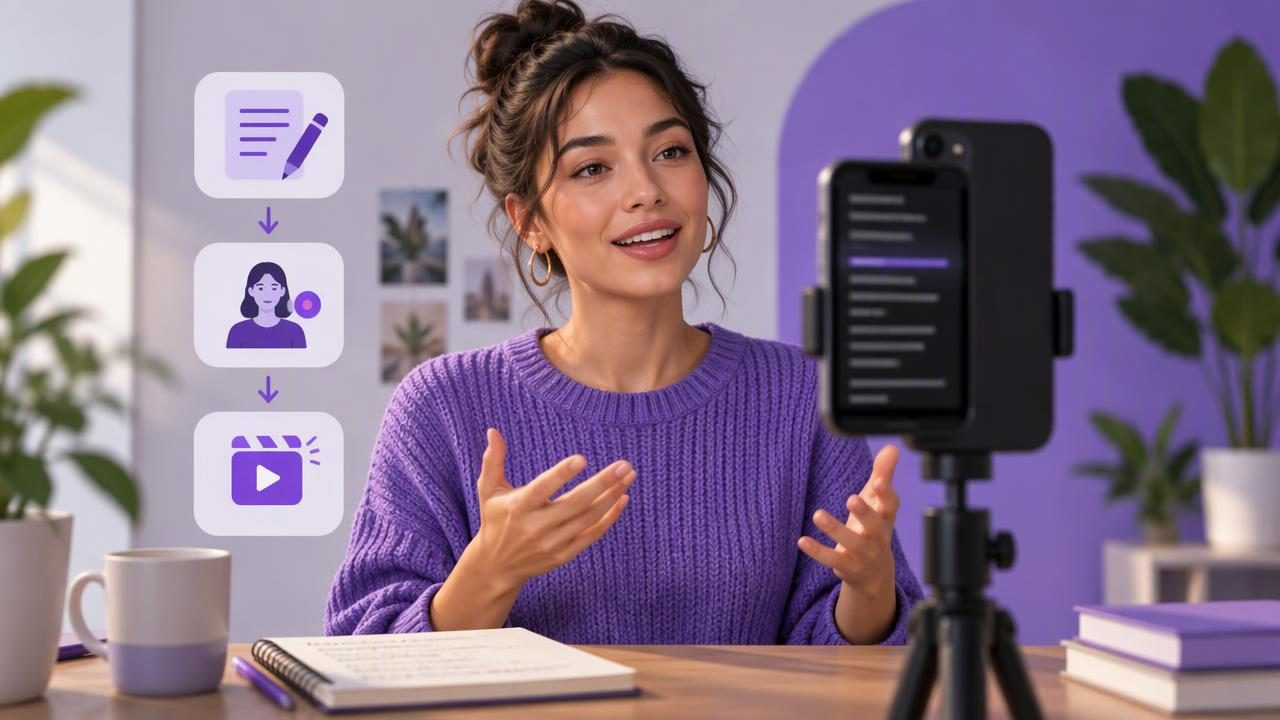
A teleprompter app for Instagram Reels can help you deliver a clear message without memorizing every line. The goal is not to sound as if you are reading. It is to keep your ideas in order while looking near the camera, so viewers can follow what you are saying.
Good results depend on more than scrolling text. Your script needs to fit a short video, the words should move at a comfortable pace, and the phone needs to be positioned so your eyes stay close to the lens. A quick audio and framing check before you record can save a retake later.
This guide walks through a practical script-to-video workflow, including what to check when using voice-following, fixed-speed, or timed scrolling. It also explains the limits of captions and phone-based recording, so you can choose a setup that suits your Reel.
Start with one idea, not a full speech
Reels are usually easier to watch when each video answers one question or makes one point. Before writing, finish this sentence: “After watching, I want someone to know…” If the answer contains several unrelated ideas, split them into separate videos or remove the less important details.
Then sketch a simple structure:
- Opening: Name the problem, question, or useful outcome.
- Main point: Explain one idea, ideally with a specific example.
- Close: Summarize the takeaway or give viewers a relevant next step.
For example, a Reel about planning a week of lunches could open with, “Short on time at lunch? Try preparing one flexible base.” The middle might explain how cooked grains can be paired with different vegetables and toppings. The close could remind viewers to prepare ingredients they actually enjoy. That is more focused than a script that also covers shopping, storage, nutrition, and several recipes.
Write for speaking and for the screen
A script that looks tidy in a document may feel stiff aloud. Use short sentences and familiar words. Read each line out loud while editing, and replace any phrase that makes you stumble. Contractions often sound more conversational than formal constructions, but keep the language true to your normal speaking style.
Break the script into small thought groups. Line breaks can make it easier to glance at the next idea without losing your place. You might also add simple cues such as “[pause]” or “[show item]” if they help you remember a visual beat. Keep cues distinct from the words you plan to say.
Do not write every breath or reaction into the script. Leave room for a natural pause and a little variation in emphasis. If you need an exact phrase, keep it; if not, use concise prompts rather than a paragraph. The right balance depends on how comfortably you speak from text.
Estimate the length before you record
Read the script aloud at the pace you expect to use on camera and time it. This simple test is more useful than trying to squeeze a chosen word count into a particular duration. A line that seems brief on the page can take longer when you pause, demonstrate an object, or give viewers time to understand a point.
If the recording feels too long, remove repeated explanations before speeding up your delivery. Preserve the opening and the most useful detail; trim background that viewers do not need to understand the takeaway. If the script feels rushed, shorten it or plan a pause rather than racing through the final lines.
Position the iPhone for comfortable eye contact
Place the phone at approximately eye level and frame yourself before opening the script. If the camera sits far above or below your face, your gaze may look noticeably off-angle. When the script scrolls on the same screen, position its text as close to the lens area as your setup allows. A small difference in gaze is normal; repeatedly looking down at text near the bottom of the screen is more distracting.
Check the frame for headroom, background clutter, and anything that could cover your face or the text. For a vertical Reel, compose the shot vertically and leave some breathing room around your head and shoulders. If you intend to add on-screen text later, avoid placing important visual details where that text may need to go.
Keep the phone stable using a secure surface or support. Confirm that the lens is clean and that the view is not blocked by a case or accessory. Do a short framing check from the same position you will use for the full recording; moving closer to the phone can change both the crop and your eyeline.
Choose a scrolling mode that suits the script
Teleprompter apps commonly offer different ways to move text. The best choice depends on the script, your delivery, and the controls available in the app:
- Fixed-speed scrolling moves text at a steady rate. It can work well for a practiced script with a consistent rhythm, but you may need to adjust the speed before recording.
- Timed scrolling distributes the script across a set duration. It can help you plan around a target recording length, though it will not automatically account for every pause or change in emphasis.
- Voice-following scrolling follows spoken words rather than relying only on a set pace. It may suit a more conversational delivery, but performance can depend on the app, device, language, and recording conditions.
Whichever mode you choose, rehearse a few lines first. Notice whether you can read comfortably without darting your eyes across the screen. If the text advances too quickly, slow it down; if you keep waiting for it, increase the pace or revise the line breaks. Do not assume voice tracking will interpret every pause, restart, or pronunciation exactly as you expect.
Run a short audio and recording test
Before the full take, record a brief sample while speaking at your intended volume. Listen back with headphones or a quiet playback setup. Check that your voice is understandable, not too distant, and not overwhelmed by room noise. This matters even if the video looks well lit: a viewer may tolerate a simple background more readily than difficult-to-hear speech.
Listen for echo, traffic, fans, handling noise, and changes in volume as you move. If you use an external microphone, confirm that the phone and recording setup are actually receiving its signal before continuing. Compatibility and behavior can vary by device and equipment, so a test is safer than assuming the connection is working.
Also check that recording has started, the lens shows the intended view, and the teleprompter text is readable at your chosen size. If the app has a voice-following mode, test it in the same room and language you will use for the take. A quick sample helps reveal setup problems; it cannot guarantee that every later take will be identical.
Record in sections when a single take feels unnatural
You do not have to deliver a whole Reel in one uninterrupted performance. If the message has clear sections, record one thought at a time and pause between them. This can make a long explanation more manageable and give you a chance to reset your posture or pace.
Leave a little silence at the beginning and end of each section. It gives you room to make clean edits and avoids cutting into a word. Keep your phone position, lighting, and distance consistent between takes so the cuts are less noticeable. If you change the script, return to the last complete thought rather than restarting midway through a sentence.
When reviewing a take, look for more than mistakes. Check that the opening makes sense without extra context, each section leads naturally to the next, and the close does not introduce a new idea at the last moment. Trim pauses that distract, but preserve natural breathing and expression.
Add captions and review the finished video
Captions can help viewers follow speech when they watch without sound and can make spoken details easier to revisit. Automatic subtitles are a starting point, not a substitute for review. Proper names, technical terms, accents, background noise, and short words may be transcribed incorrectly. Read the captions while listening to the video and correct anything that changes the meaning.
On-device subtitle generation may be available in some apps, but supported languages and device requirements vary. Check those limits before relying on a particular language or workflow. Captions also do not replace clear audio: if the original voice is hard to understand, correcting text alone will not fix the recording.
Before sharing, watch the full export on your phone. Check that the opening is not cut off, the video remains correctly framed, captions are readable, and the audio is consistent. If you record in 4K or use other high-resolution settings, remember that file size and recording limits can vary with the device, available storage, settings, and app. Choose a recording quality that fits your needs and confirm the final export looks right for the platform.
A repeatable Reel workflow
- Choose one viewer question or takeaway.
- Write a short spoken script and read it aloud once.
- Trim or revise lines that feel rushed, repetitive, or unnatural.
- Set the phone at eye level and place the scrolling text near the lens.
- Choose a scrolling mode, then rehearse several lines at a comfortable pace.
- Record a short audio and framing test; play it back before the full take.
- Record the Reel, edit only what needs editing, and review captions and export.
A teleprompter app should support the performance, not dictate it. Use the script to keep your message on track, but leave enough space for pauses and expression. For more guidance on reading while filming, CueCam’s guide to recording video while reading a script offers a related look at the setup.
