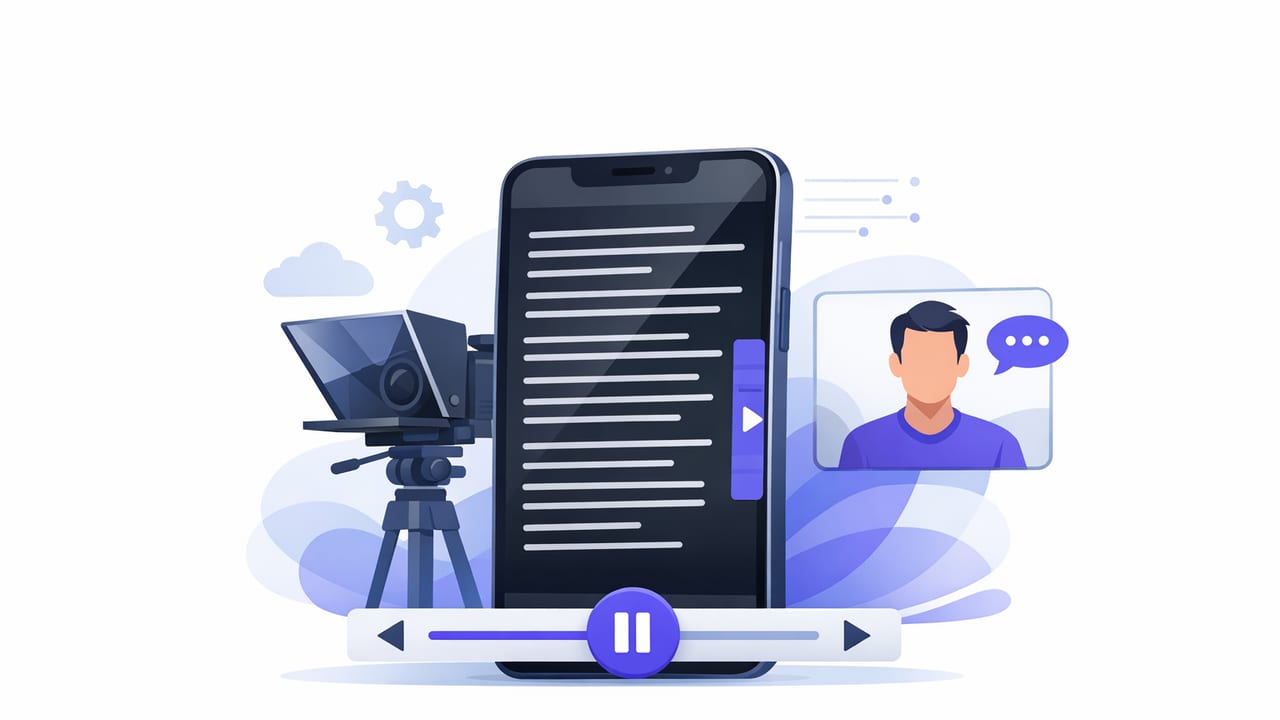
A scrolling teleprompter app can turn “I know what I want to say” into a clean, confident take—without darting eyes, awkward pauses, or forgetting key points. The trick isn’t just loading a script and hitting record. It’s choosing the right scrolling mode, formatting the script for reading, matching the pace to your voice, and building a repeatable creator workflow (script → record → edit → captions → export).
This guide focuses on practical techniques for iPhone creators who want natural delivery while maintaining eye contact with the camera.
Why a scrolling teleprompter app works (and when it doesn’t)
Reading from a script doesn’t have to look like reading. A teleprompter becomes “invisible” when the scrolling pace matches how you speak and when the script is written for spoken delivery.
- Best for: tutorials, product explanations, thought-leadership clips, talking-head ads, course lessons, and any content where accuracy matters.
- Less ideal for: highly emotional storytelling that needs spontaneous timing, or interactive formats where you constantly react to prompts.
If your videos feel stiff, it’s usually not because you used a script—it’s because the script is written like an article, not a conversation.
The three scrolling modes you’ll see (and how to choose)
Most iPhone teleprompter tools offer multiple ways to scroll. Understanding these modes helps you pick the right one for your content type and recording environment.
| Mode | How it works | Best for | Watch out for |
|---|---|---|---|
| Fixed-speed scrolling | Text scrolls at a constant speed you set | Short scripts, consistent pace, rehearsed lines | If you pause or ad-lib, the text keeps moving |
| Timed scrolling | Script is designed to finish in a target duration | Ads, reels, promos with exact timing | Rushing to “hit the time” can sound unnatural |
| Voice-following (word tracking) | Scroll follows your voice as you read | Natural delivery, longer takes, light improvisation | Very noisy rooms can reduce accuracy |
Quick decision rule
- If you want the most natural feel: voice-following.
- If you’re making a 30–60 second promo: timed.
- If you’re doing a simple one-take with rehearsed lines: fixed-speed.
Script formatting that makes reading look effortless
A scrolling teleprompter app is only as good as the script inside it. Format for the eyes and for the mouth.
1) Write for speaking, not reading
Use shorter sentences, contractions, and simple transitions. Replace complex clauses with two short lines. Your goal is a spoken rhythm.
Rule of thumb: If you wouldn’t say it in a voice note to a friend, rewrite it.
2) Use line breaks to control pacing
Line breaks are “silent punctuation.” They tell you when to breathe and help the scroll feel steady.
Instead of:
“Today I’m going to show you how to set up lighting for a small room so your iPhone videos look sharp and natural.”

Try:
“Today I’ll show you a simple lighting setup.
For a small room.
So your iPhone videos look sharp—and natural.”
3) Add emphasis markers (sparingly)
Capitals can look aggressive. Prefer subtle cues like italics or bracket notes that you remove later.
- Good: “This is the one setting most people miss.”
- Also good: “[pause] Here’s why.”
4) Keep paragraphs short for faster scanning
Even with voice-following, your eyes still scan ahead. Dense blocks increase mistakes.
Dialing in scroll speed without guessing
Speed is where most creators struggle. Instead of random tweaking, set speed using a repeatable method.
A practical speed setup
- Record a 20-second test reading the first section.
- Watch your eyes (not your voice). If your gaze jumps, the scroll is too fast or the text is too small.
- Adjust one variable at a time: speed, font size, or line spacing.
- Re-test until your eyes move smoothly with minimal “catch-up” glances.
If your app supports it, increase line spacing before you lower speed too much. Extra spacing improves readability without making the delivery slow.
Timed scrolling tip: build in breathing room
If you must hit a specific duration (e.g., 45 seconds), don’t script exactly 45 seconds. Script ~40–42 seconds, then allow natural pauses and emphasis to fill the rest.
Camera placement: the secret to real eye contact
Even the best scrolling teleprompter app won’t help if your eyes aren’t close to the lens. Aim for the smallest distance between where you read and where the camera is.
- Keep the text close to the lens: Place the script window as near the camera cutout as possible.
- Use a larger font: So you don’t squint or “hunt” for the next line.
- Stand/sit at a consistent distance: If you move closer, your eye movement becomes more obvious.
If you’re using a physical teleprompter rig with a beam-splitter, great—but many creators get excellent results with on-screen prompting by optimizing layout and distance.
One-take workflow: script → record → quick polish
A teleprompter is most powerful when it reduces editing time. Here’s a streamlined workflow many creators use for short-form and talking-head content.
Step 1: Outline first, then write the final script
Start with 3–5 bullets (hook, context, steps, takeaway, call-to-action). Then write in spoken language.
Step 2: Do a “cold read” rehearsal
Don’t memorize. Just read once to find tongue-twisters and rewrite them. If you stumble twice on a phrase, it’s the phrase—not you.
Step 3: Record with consistent settings
If your app supports it, record in 4K when you plan to crop for multiple aspect ratios (9:16, 1:1, 16:9). Use stabilization if you’re handheld, and consider an external mic for clean dialogue.
Step 4: Do minimal edits that matter
- Trim starts/ends: Remove the “reach for the button” moment.
- Fix pacing: Cut long gaps, but keep micro-pauses for realism.
- Resize for platform: Export vertical for TikTok/Reels, horizontal for YouTube.
Subtitles: the fastest retention upgrade
Subtitles are not just an accessibility feature—they’re a performance feature. Many people watch on mute, and captions help viewers follow fast explanations.
Caption accuracy tips
- Speak punctuation: Natural pauses create cleaner caption breaks.
- Avoid jargon clusters: If you must use a technical term, slow slightly before and after it.
- Check names and brands: Proper nouns are where auto-captions fail most often.
If your workflow supports on-device subtitles, that’s also a privacy win—especially when you’re reading scripts that include client info, pricing, or unreleased product details.
Common problems (and quick fixes)
You sound monotone
- Fix: Add emphasis cues every 2–3 sentences: stress a word, then insert a short pause.
- Rewrite: Replace long sentences with two short ones.
Your eyes still look like they’re reading
- Fix: Increase font size and move the script closer to the lens.
- Fix: Shorten line length so your eyes don’t travel left-to-right as far.
You keep losing your place
- Fix: Add more line breaks and spacing.
- Fix: Switch from fixed-speed to voice-following, or slow the scroll and tighten the script.
The scroll feels “too fast” when you get excited
- Fix: Write excitement into the script as shorter, punchier lines rather than faster reading.
- Fix: For fixed-speed, slightly reduce speed and remove filler words.
Privacy and on-device workflows: why they matter for creators
Scripts often include sensitive details: client names, campaign plans, unpublished offers, or personal stories. A workflow that keeps scripts and recordings on your phone reduces risk and simplifies compliance for client work. It also makes it easier to create anywhere—without depending on an upload, a login, or an internet connection.
When comparing a scrolling teleprompter app, consider:
- Does it require an account? (Convenience vs. friction)
- Where is speech processing done? (Cloud vs. on-device)
- Can you export cleanly? (Watermarks, platform presets, resolution options)
Mini checklist: a repeatable setup for better takes
- Script: Short paragraphs, spoken language, line breaks for breath
- Layout: Large font, comfortable line spacing, narrow line width
- Mode: Voice-following for natural reads; timed for strict durations
- Environment: Quiet room, consistent mic distance, stable phone position
- Delivery: Pause on purpose, smile when it matters, don’t fear small imperfections
FAQ
How long should my script be for a 60-second video?
Many creators land around 130–170 spoken words for a natural 60-second take, depending on pace and pauses. If you want clarity and emphasis, aim lower and leave room to breathe.
Is voice-following better than fixed-speed?
For most talking-head content, yes—voice-following tends to look more natural because you can pause and ad-lib without “chasing” the text. Fixed-speed can be great for short, rehearsed promos.
Do I need a physical teleprompter rig?
Not necessarily. Many creators get strong results using an on-screen teleprompter on iPhone with careful camera/text placement, larger font, and good spacing. A rig helps when you need the most “true lens” eye contact at longer distances.
Putting it all together
A scrolling teleprompter app is less about reading and more about removing friction: fewer retakes, tighter messaging, and faster publishing. Nail the fundamentals—script formatting, scroll mode selection, camera proximity, and captions—and your videos will look confident without feeling overproduced.
If you’re looking for an iPhone tool that combines teleprompter scrolling, 4K recording options, and on-device subtitles in a privacy-first workflow, apps like CueCam are designed around that all-in-one approach.
