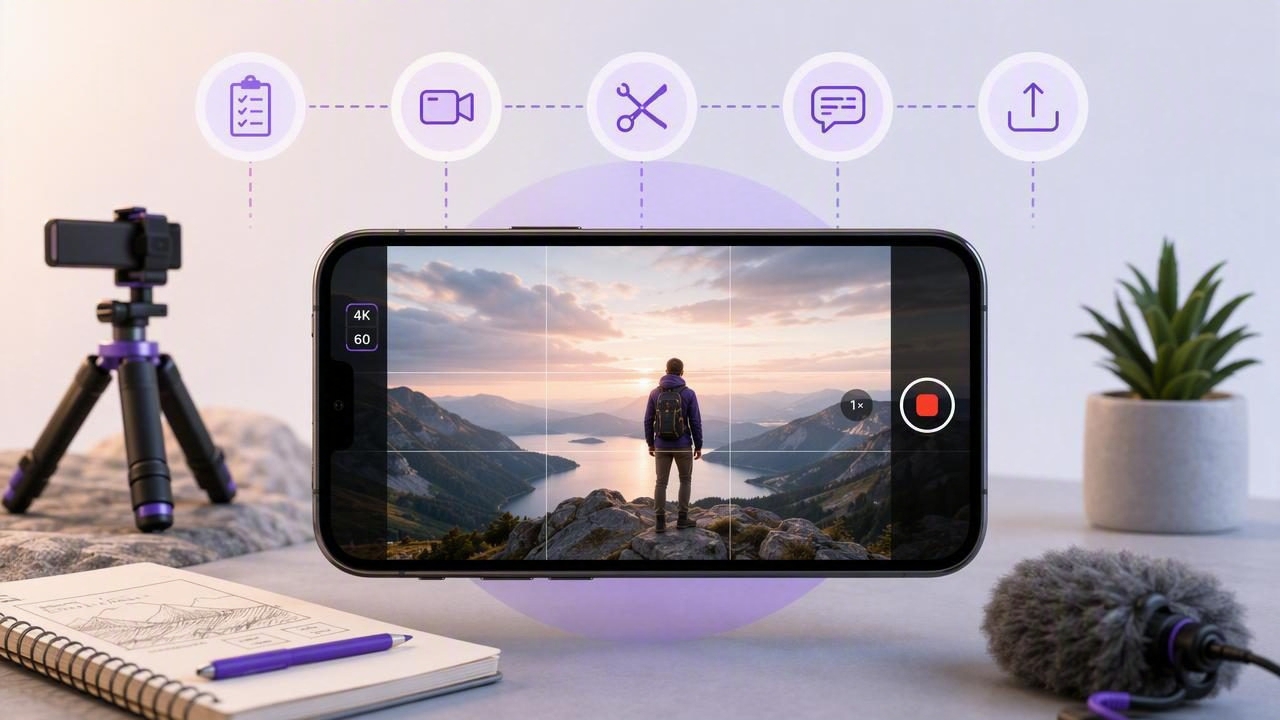
A 4K 60fps video app can help iPhone creators produce smoother, sharper videos without moving their workflow to a desktop camera setup. Whether you create tutorials, product demos, online courses, social videos, interviews, or founder updates, recording at 4K resolution and 60 frames per second gives you more flexibility during editing and export.
But higher-quality recording alone does not guarantee better content. Great results come from a repeatable script-to-video process: planning your message, setting up your iPhone properly, maintaining natural eye contact, capturing clean sound, editing efficiently, and adding accurate subtitles. This guide explains how to build that workflow while keeping your footage organized and your production process practical.
What Does 4K 60fps Mean for Video Creators?
4K refers to high-resolution video, typically 3840 × 2160 pixels on an iPhone. It captures substantially more visual detail than 1080p. 60fps, or 60 frames per second, records twice as many frames as standard 30fps video. The result is smoother motion, especially when a subject moves their hands, demonstrates a product, walks through a scene, or when the camera pans.
For creators, the most important benefit is flexibility. A 4K 60fps recording can be cropped, reframed, slowed down, or exported in different formats while retaining a polished appearance.
| Setting | Best for | Main advantage | Watch out for |
|---|---|---|---|
| 1080p at 30fps | Talking-head updates, quick posts | Smaller files and easy sharing | Less room to crop or reframe |
| 4K at 30fps | Interviews, tutorials, evergreen videos | High detail with manageable file sizes | Motion is less smooth than 60fps |
| 4K at 60fps | Demos, movement, premium social content | Smooth motion and slow-motion options | Larger files, more storage and light needed |
When Should You Record in 4K at 60fps?
Not every video needs the highest available settings. Recording in 4K at 60fps uses more storage, can drain battery faster, and may require brighter lighting. It is most useful when its benefits support your creative goal.
- Product demonstrations: Smooth motion makes hands, screens, packaging, and moving objects easier to follow.
- Fitness and movement content: Fast gestures and body movement appear more natural.
- B-roll footage: You can slow 60fps clips to 30fps for a clean half-speed effect.
- Multi-platform production: The extra resolution gives you room to crop a horizontal master into vertical clips.
- Professional client content: Higher-quality source files are useful when an editor needs more control later.
For a simple seated talking-head video, 4K at 30fps is often enough. However, if you want to punch in on your face during edits, create vertical and horizontal versions, or add a subtle slow-motion cutaway, a 4K 60fps video app can be a smart choice.
Build a Reliable iPhone Recording Setup
Your iPhone camera is only one piece of the production system. Before recording, create a setup you can repeat. Consistency reduces retakes and helps your audience recognize your visual style.
Prioritize Light Before Camera Settings
Good lighting has a larger effect on perceived quality than switching from 1080p to 4K. Position yourself facing a window, softbox, or diffused LED light. Avoid placing a bright window directly behind you, since it can turn your face into a silhouette.
At 60fps, each frame has less time to collect light than at 30fps. That means dim rooms may look darker or noisier. Add soft front light before increasing exposure artificially, which can introduce grain and reduce detail.
Stabilize the iPhone
Use a tripod, clamp, or stable mount whenever possible. A fixed camera angle makes talking-head footage feel intentional and helps you frame yourself consistently. For handheld footage, use stabilization and move slowly. Smooth movement matters even more when you are recording in detailed 4K.
Use an External Microphone When Audio Matters
Viewers may tolerate slightly imperfect visuals, but muffled or echoing sound quickly reduces trust. A wired lavalier microphone, wireless microphone system, or compact directional mic can make a major difference. Record a short test and listen through headphones before filming the full take.
Practical rule: If viewers cannot understand every sentence without turning up the volume, improve the audio before worrying about advanced video settings.
Use a Script Without Sounding Scripted
Scripts make content clearer, faster to record, and easier to edit. They are especially valuable for educational videos, product announcements, sales explainers, and social clips where every second matters. The challenge is reading naturally while keeping eye contact with the lens.
An iPhone teleprompter workflow solves this by placing your text close to the camera. Instead of memorizing every line or looking down at notes, you can follow a structured script while appearing to speak directly to the audience.
Write for Speech, Not for Reading
A strong video script should sound like a real person speaking. Keep sentences short, use contractions, and place one idea in each line. Remove formal phrases that you would never say aloud.
Less natural: “In this video, I will be discussing the implementation process.”
More natural: “Here’s how to set this up in three simple steps.”
Start with a hook, deliver the promised value quickly, and finish with a clear next step. For short-form video, a useful structure is:
- State the problem or surprising outcome.
- Explain the key idea in two to four points.
- Show proof, an example, or a quick demonstration.
- End with a relevant call to action.
Use a teleprompter’s voice-following mode when your pace changes from take to take. If your script is tightly timed, fixed-speed or timed scrolling can be more predictable. Whichever mode you use, leave space between paragraphs so you can pause naturally.
Record in Sections to Make Editing Easier
You do not need to deliver a five-minute script perfectly in one take. In fact, filming in short sections is often the fastest approach. Record the opening hook first, then each main point, then your closing. If you make a mistake, pause, repeat the sentence, and continue. The duplicate line creates a clear visual and audio marker for trimming later.
For each section, capture one clean take and one backup take. This gives you options without creating an overwhelming number of files. Name or organize footage immediately if your app supports project-based recording.
Before beginning, check these essentials:
- Clean the camera lens with a microfiber cloth.
- Confirm that 4K and 60fps are selected if the project needs them.
- Check available iPhone storage and battery level.
- Enable airplane mode or silence notifications.
- Frame your eyes near the upper third of the screen.
- Leave some space around your subject for later cropping.
Edit for Clarity, Not Just Visual Effects
Editing should make your message easier to understand. Start by trimming false starts, long pauses, repeated phrases, and distractions. Then add simple visual changes to maintain attention: a closer crop, a screen recording, a product shot, or a relevant B-roll clip.
Because 4K footage has extra resolution, you can create a tighter crop from the same recording without making a 1080p export look soft. This is useful for adding emphasis during a key sentence or adapting one master recording into vertical social content.
Do not overdo jump cuts, transitions, or animated text. A clean edit with good pacing generally performs better than a visually busy video that distracts from the point.
Choose the Right Export Format
Match your export to the platform and audience. Record once at high quality when necessary, then make intentional versions for each destination.
| Platform use | Recommended aspect ratio | Export consideration |
|---|---|---|
| TikTok, Reels, Shorts | 9:16 vertical | Keep important text and faces away from interface edges |
| YouTube standard video | 16:9 horizontal | Use 4K when the footage and upload workflow justify it |
| LinkedIn or feed posts | 1:1 or 4:5 | Use clear on-screen text and readable captions |
| Website or course lessons | 16:9 horizontal | Prioritize clear audio and efficient file sizes |
Add Subtitles for Accessibility and Retention
Subtitles are no longer optional for many creator workflows. People frequently watch video with sound off, in noisy locations, or in a language that is not their first. Accurate captions make your content more accessible and help viewers follow technical topics, names, statistics, and calls to action.
For best results, generate subtitles after the edit is nearly complete. Review them carefully for product names, industry terms, and punctuation. Break long caption lines into readable phrases, and ensure text contrast remains strong against the background.
On-device subtitle generation can be particularly useful for privacy-sensitive work. If your scripts, client videos, or internal training materials contain confidential information, keeping transcription and video processing on the iPhone reduces unnecessary uploads to third-party services.
Keep Your Script-to-Video Workflow Private and Organized
High-resolution video files can become difficult to manage quickly. Build a simple file routine: keep active projects on your iPhone, export final versions to the appropriate platform or secure storage, and remove unused takes once you confirm the final delivery.
Privacy should also be part of your workflow design. Consider where your scripts, recordings, captions, and draft exports are processed. On-device tools can be a good fit when you want to avoid sending unpublished material to a remote service, particularly for client work, personal stories, and business communications.
Final Takeaway
A 4K 60fps video app is most valuable when it supports a complete creator workflow rather than simply increasing resolution. Use strong lighting, stable framing, clean audio, a conversational script, and accurate subtitles. Record in sections, edit with purpose, and export each version for the platform where it will be watched.
For creators who want to combine an iPhone teleprompter, 4K recording, on-device subtitles, and privacy-conscious editing in one workflow, CueCam is one option to explore.
