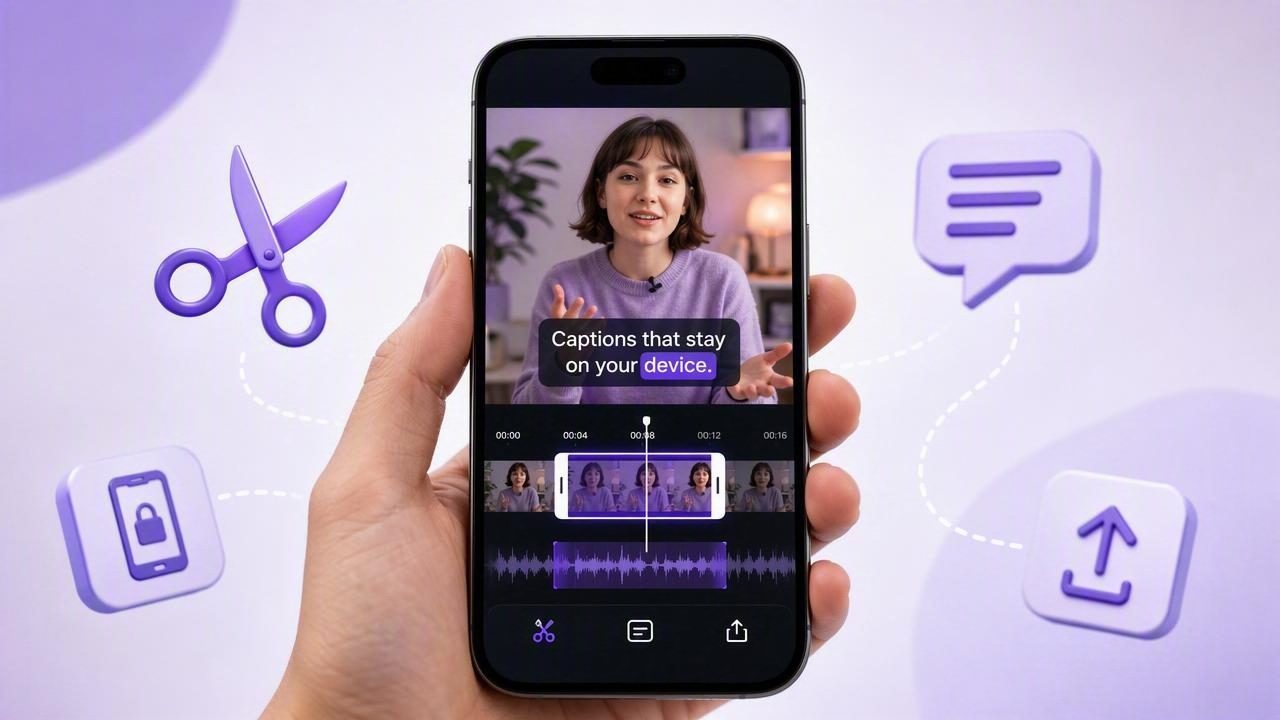
Knowing how to trim a take on iPhone with an on-device subtitle app can turn a nearly perfect recording into a polished, publish-ready video in minutes. Whether you make tutorials, product demos, online lessons, talking-head clips, or social posts, most recordings need a little cleanup: a pause before you begin, a missed line, an awkward ending, or a repeated sentence.
The challenge is not simply removing unwanted footage. A good mobile editing workflow also keeps subtitles accurate, preserves video quality, and protects sensitive scripts or recordings. By trimming first and adding captions on your phone, you can create a faster script-to-video process without moving files between multiple tools or relying on cloud uploads.
This guide explains the practical order of operations, the trim points to look for, subtitle editing best practices, and export choices for vertical and horizontal video.
Why trimming should happen before subtitle review
Automatic subtitles are generated from the audio in your recording. If you caption a full take before cutting it, you may spend time correcting words in sections that will be deleted anyway. You can also create timing problems when a caption remains attached to an old point in the timeline after a major edit.
A more efficient sequence is simple:
- Record the complete take.
- Trim unusable material from the beginning and end.
- Make any necessary cuts for obvious mistakes.
- Generate on-device subtitles from the cleaned video.
- Review text, timing, and visual style.
- Export a version sized for the intended platform.
This approach reduces caption cleanup and helps you focus on the actual message. It is especially useful when filming from a prepared script with an iPhone teleprompter, since retakes often contain a few seconds of setup before the useful delivery begins.
What to look for when trimming a video take
Trimming is the act of shortening the start or end of a clip. It is different from splitting a clip in the middle and removing a section. Start with trims because they are low-risk and often solve the most noticeable issues.
Trim the opening
Viewers decide quickly whether to keep watching. Remove the moment where you reach for the record button, settle into position, glance away from the lens, or take a preparatory breath. Begin close to your first intentional word or visual action.
Do not cut so tightly that the first syllable sounds clipped. Leave a small amount of natural room tone before speech begins. For many talking-head videos, a fraction of a second is enough to make the opening feel smooth.
Trim the ending
At the end, remove the pause where you check whether recording stopped, lower the phone, or change your expression. Let the final sentence finish naturally, then leave a short beat before the video ends. If you include a call to action, make sure the last caption remains visible long enough to read.
Identify mistakes that need a split
If you restarted a sentence halfway through the take, use a split edit rather than trimming the entire clip. Find the point just before the mistake, split the video, find the clean restart, then remove the unwanted section. Play the join several times with sound enabled. A cut that looks fine visually can still sound abrupt if the room tone changes suddenly.
| Issue in the take | Best edit | Subtitle impact |
|---|---|---|
| Long pause before speaking | Trim the beginning | Prevents empty caption space |
| Phone lowered after final line | Trim the end | Keeps the final caption readable |
| Mispronounced phrase in the middle | Split and delete the error | Generate captions after the cut |
| Repeated sentence | Split around the duplicate | Avoids duplicate subtitle lines |
| Long silent thinking pause | Shorten or remove it | Improves pacing and caption flow |
A step-by-step iPhone trimming workflow
You can make basic trims in the iPhone Photos app, but a dedicated video editor is more useful when you need captions, aspect-ratio changes, audio cleanup, or multiple cuts. The exact controls vary by app, but the editing logic remains the same.
- Duplicate or import the original. Keep the source clip untouched whenever possible. This gives you a safe version to return to if an edit does not work.
- Open the timeline. Expand the clip view until you can clearly see speech starts, pauses, and restarts. Waveforms are helpful when available.
- Set the in point. Drag the left edge of the clip to the frame where your natural opening begins.
- Set the out point. Drag the right edge to remove the post-recording pause without cutting off your final word.
- Play the revised clip from start to finish. Watch for clipped audio, sudden jumps, or visual changes that feel distracting.
- Split only where needed. For errors in the middle, split before and after the unwanted section, then close the gap.
- Save a working draft. A named draft makes it easier to create platform-specific versions later.
Editing tip: Make cuts on moments of stillness whenever possible. A brief pause, a natural breath, or a change in gesture can hide an edit more effectively than cutting in the middle of a moving word.
Generate subtitles on device after the edit
Once the picture edit is clean, generate subtitles from the final audio. An on-device subtitle app processes speech directly on your iPhone rather than sending the video to a remote service. This can be valuable for creators recording client material, internal training, unreleased products, healthcare-adjacent information, or personal stories.
On-device processing may also fit a more dependable mobile workflow. You can caption while traveling, working in a location with unreliable internet, or preparing content before a connection is available. The video and script remain on the device, which reduces the number of places where raw footage is stored.
Review subtitles for meaning, not just spelling
Automatic transcription is a major time-saver, but it should not be treated as final copy. Review names, product terms, abbreviations, numbers, URLs, and industry-specific vocabulary. A subtitle can be technically spelled correctly yet still communicate the wrong meaning.
Check these details before export:
- Correct brand names, people’s names, and technical terms.
- Confirm numbers, prices, dates, and measurements.
- Remove filler words if they do not serve the message.
- Break long sentences into readable caption units.
- Ensure captions do not cover your eyes, hands, or key product details.
- Check that caption timing matches the words after every split edit.
For quick social content, captions often work best in short chunks of one or two lines. Avoid placing too much text on screen at once. Viewers should be able to read the captions without missing your expression or demonstration.
Choose subtitle placement for each video format
Subtitle placement is part of editing, not an afterthought. The lower third is a conventional location, but platform buttons, descriptions, and interface overlays can obscure captions there. In vertical video, placing subtitles slightly above the bottom edge is usually safer.
For a 9:16 video, leave generous space at the top and bottom. For 16:9 YouTube videos, keep subtitles within the center-safe area and away from edges. If you reframe the same recording for multiple platforms, inspect captions again after resizing. A position that works in a landscape video may become unreadable after a vertical crop.
Use a readable caption style
Prioritize clarity over decorative effects. Choose a high-contrast font, a sufficiently large size, and a background, outline, or shadow when the footage has changing colors. Keep styling consistent across a series so viewers recognize your content quickly.
Captions should support the video, not compete with it. Excessive animation, constant color changes, or word-by-word effects can distract from instructional content. Reserve emphasis for genuinely important phrases, such as a key step, warning, or result.
Protect 4K quality while editing on iPhone
If you recorded in 4K, retain that resolution while trimming whenever your storage space and publishing destination justify it. Trimming itself should not require quality loss, but repeated exports can introduce compression. Work from the original high-quality clip, finish all edits in one project, and export the final version once.
For standard talking-head content, 4K gives you room to crop a horizontal recording into a vertical composition. It can also preserve detail in product shots and screen demonstrations. However, 1080p is often sufficient for fast social publishing and requires less storage, processing time, and upload bandwidth.
Before publishing, watch the exported file on the phone at full size. Check lip sync, subtitle accuracy, sharpness, audio level, and whether any text is hidden by platform interface elements.
A faster script-to-video checklist
- Prepare a concise script with a clear first sentence.
- Record with stable framing, clean lighting, and a connected external microphone if needed.
- Trim setup time and the ending first.
- Remove only mistakes that interrupt comprehension.
- Generate subtitles after picture edits are complete.
- Correct high-value words and confirm caption placement.
- Resize a copy for each platform instead of cropping the only master.
- Export once, review once, then publish.
Final thoughts
When you trim a take on iPhone with an on-device subtitle app, the goal is not perfection through endless editing. It is a clear, confident video that starts quickly, communicates accurately, and remains easy to watch with sound off. Trim first, caption the final cut, review the words that matter, and protect your original footage throughout the process.
For creators who want teleprompter recording, editing, and private on-device subtitle generation in one iPhone workflow, CueCam is one option to consider.
