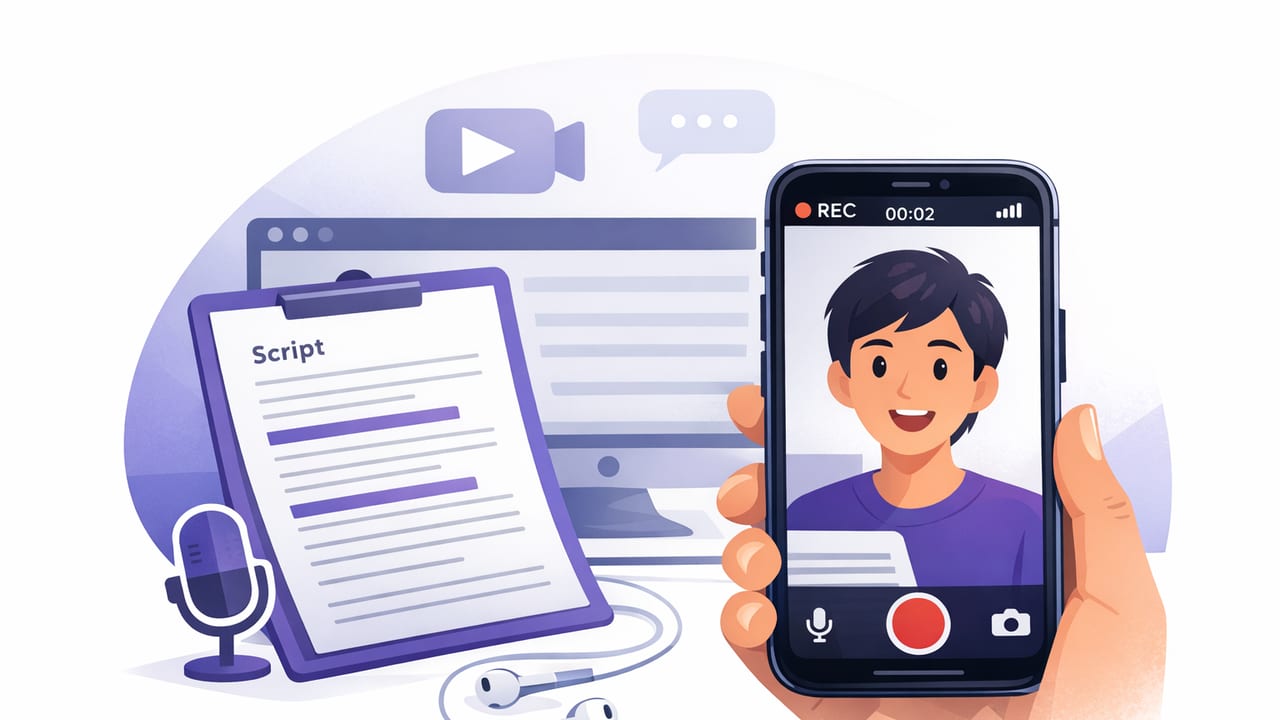
If you’ve ever tried to film a talking-head video on your iPhone while reading notes, you already know the two big problems: your eyes drift off-camera (so it looks like you’re distracted), and your delivery becomes choppy (so you end up doing too many retakes). The good news is you can record video while reading a script on iPhone and still keep natural eye contact—if you set up your script, camera, and pacing correctly.
This guide walks through a practical, creator-friendly workflow: from writing a teleprompter-ready script to choosing scrolling mode, nailing audio, and exporting versions that work for TikTok, Instagram Reels, and YouTube.
What you’re trying to achieve (and why it’s hard)
When people say they want to “read a script on camera,” what they usually mean is:
- Eye contact that feels direct and confident
- Natural pacing (not rushed or monotone)
- Clean audio without complicated gear
- Few retakes and fast editing
The challenge is that typical script reading forces you to look away from the lens. Even small eye movements are noticeable. A teleprompter-style workflow solves this by placing your script near the camera lens and scrolling it at the pace you speak.
The best “teleprompter read” doesn’t sound read at all—it sounds like you’re explaining something you know well, with the script acting as a safety net.
Three ways to read a script while filming on iPhone
Before we get tactical, choose the approach that matches your setup and content style.
| Method | Best for | Pros | Cons |
|---|---|---|---|
| Memorize + bullet points | Short videos, high energy | Most natural delivery | Easy to forget lines; more retakes |
| Second device (notes off to the side) | Long-form content | No special app needed | Eye-line shifts are obvious; harder to edit |
| Teleprompter workflow (script near lens) | Consistent creator workflow | Eye contact + fewer retakes | Requires setup and pacing practice |
If your goal is to record video while reading a script on iPhone with minimal eye drift, the teleprompter approach is usually the most reliable.
Step 1: Write a script that’s meant to be spoken
Most scripts fail on camera because they read like an essay. Spoken scripts should be:
- Short sentences (aim for 8–14 words)
- One idea per line (easier to track while scrolling)
- Conversational (use contractions, simple words)
- Structured (hook → value → steps → close)
Use “breath marks” and emphasis
Add light formatting so you know where to pause and what to stress. Here’s a simple teleprompter-friendly format you can paste into any script tool:
[HOOK]
If your eyes keep drifting off-camera,
this fix will make your iPhone videos feel confident.

[VALUE]
Keep the script close to the lens.
Scroll it at your speaking pace.
And record clean audio.

[STEP 1 — SETUP]
Place the phone at eye level. (pause)
Turn on grid lines.
Use the back camera if you can.

[STEP 2 — DELIVERY]
Speak like you’re explaining to one person.
Smile slightly on key lines.

[CLOSE]
Try one take at slow speed,
then increase until it feels natural.
Tip: If you tend to talk fast, insert “(pause)” cues every 1–2 sentences. It prevents the “run-on teleprompter” sound.
Step 2: Set your physical camera position for eye contact
Your setup matters as much as your app settings. Use this checklist:
- Eye level: Put the iPhone lens at (or slightly above) your eye line. A small tripod helps.
- Distance: Frame from mid-chest to a little above your head for most talking-head content.
- Lens choice: The back camera usually looks better than the selfie camera (sharper, better dynamic range).
- Lighting: Face a window or use a soft key light. Avoid overhead lights that create eye shadows.
- Background: Keep it uncluttered. A little depth (you 4–8 feet from the background) looks more professional.
Where should the script sit?
To maintain eye contact, the script should appear as close to the camera lens as possible. If the text sits too low (like reading from Notes), your eyes drop. If it’s too far left or right, it looks like you’re talking to someone off-screen.
Step 3: Choose the right scrolling mode (fixed speed vs timed vs voice-follow)
Teleprompter workflows generally offer three pacing styles. Choose based on your content type:
Fixed-speed scrolling
- Best for: Rehearsed scripts, consistent pacing, short takes
- How to use: Do one test read, then adjust speed until you’re slightly “ahead” of the text.
Timed scrolling
- Best for: Ads, scripts with strict length, segments you need to hit in a set duration
- How to use: Estimate your read time (e.g., 150 words/minute) and set the timer accordingly.
Voice-follow (word tracking)
- Best for: Natural delivery, variable pace, creators who like to improvise lightly
- How to use: Speak clearly, keep a consistent volume, and avoid big jumps or skipping paragraphs.
If you’re new, start with fixed speed because it forces you to practice pacing. Once you can deliver smoothly, voice-follow can feel more natural and forgiving.
Step 4: Dial in iPhone video settings (quality without huge files)
You don’t need cinema settings, but you do need consistency. A solid baseline:
- Resolution: 4K if you plan to crop for vertical and horizontal from the same take; otherwise 1080p is fine.
- Frame rate: 30fps for talking-head; 60fps only if you want extra smoothness or plan to slow footage.
- Stabilization: Enable it if your app offers enhanced stabilization, especially handheld or on lightweight tripods.
- Focus/exposure lock: Tap and hold on your face to lock focus and exposure so the brightness doesn’t “pump” mid-take.
Quick rule of thumb
Talking-head + social content: 4K/30 is a great default, because it keeps quality while giving you room to reframe for vertical clips.
Step 5: Record clean audio (the fastest “pro upgrade”)
Viewers will forgive imperfect video sooner than they forgive bad audio. Options from simplest to best:
- Quiet room + close distance: Stand/sit closer to the phone and reduce room echo (curtains, rug, soft furniture).
- Wired lav mic: Reliable and budget-friendly; great for static talking-head.
- Wireless lav system: Best flexibility; great if you move around.
If your recording app supports external microphones, make sure it’s actually using the mic you connected (do a 5-second test recording and listen back with headphones).
Step 6: Record in “sections” to reduce retakes
One of the most effective creator habits is to stop trying to nail a perfect 3–5 minute take. Instead:
- Record the hook as its own clip (often 1–2 takes)
- Record each main point as a separate clip
- Record the close last
This makes your delivery stronger because you’re focused on one point at a time—and editing becomes straightforward.
A simple marker trick
When you mess up, don’t stop immediately. Pause, take a breath, and restart the sentence. That pause creates a visible and audible “edit point” you can cut cleanly.
Step 7: Add subtitles and export for each platform
Subtitles are less about accessibility (though that matters) and more about retention—especially on short-form platforms where many viewers watch muted.
- Caption style: Use 1–2 lines max, large font, high contrast.
- Timing: Captions should change on natural phrases, not every word (unless you’re using a kinetic style).
- Languages: If your audience is global, consider multilingual subtitles.
Resize without re-recording
If you recorded in 4K, you can often crop the same source for:
- 9:16 (TikTok, Reels, Shorts)
- 1:1 (feed posts)
- 16:9 (YouTube)
Troubleshooting: common issues (and quick fixes)
“I still look like I’m reading”
- Increase font size so your eyes move less
- Move the text closer to the lens area
- Add more line breaks (one thought per line)
- Slow the scroll speed slightly and speak with more pauses
“My pacing sounds robotic”
- Mark emphasis words in bold in your script
- Smile lightly at the start of each section (it changes your tone)
- Try voice-follow mode if fixed speed is forcing you
“My video looks soft or noisy”
- Add more light (noise is usually low light)
- Clean your lens
- Use the back camera if possible
“My audio is echoey”
- Move closer to the mic (even 6–12 inches helps)
- Record in a smaller, softer room
- Add soft furnishings or a blanket out of frame to dampen reflections
A repeatable 10-minute workflow checklist
Use this when you want consistency without overthinking:
- Script: short lines, pauses, emphasis
- Setup: eye-level camera, simple background, good light
- Audio: external mic or quiet room test
- Prompt: choose fixed/timed/voice-follow and do a 10-second test
- Record: hook → points → close (sections)
- Edit: trim mistakes, tighten pauses
- Subtitles: add captions, check timing
- Export: resize for each platform
Privacy note: keep scripts and footage on-device when possible
Creators often forget that scripts can contain sensitive info (pricing, client names, unreleased ideas). If privacy matters, prioritize tools that can generate subtitles and handle editing on-device so your scripts and videos don’t need to leave your phone.
If you’re looking for an iPhone workflow that combines teleprompter-style reading, pro recording options, and on-device features in one place, apps like CueCam are designed around that script-to-video process.
