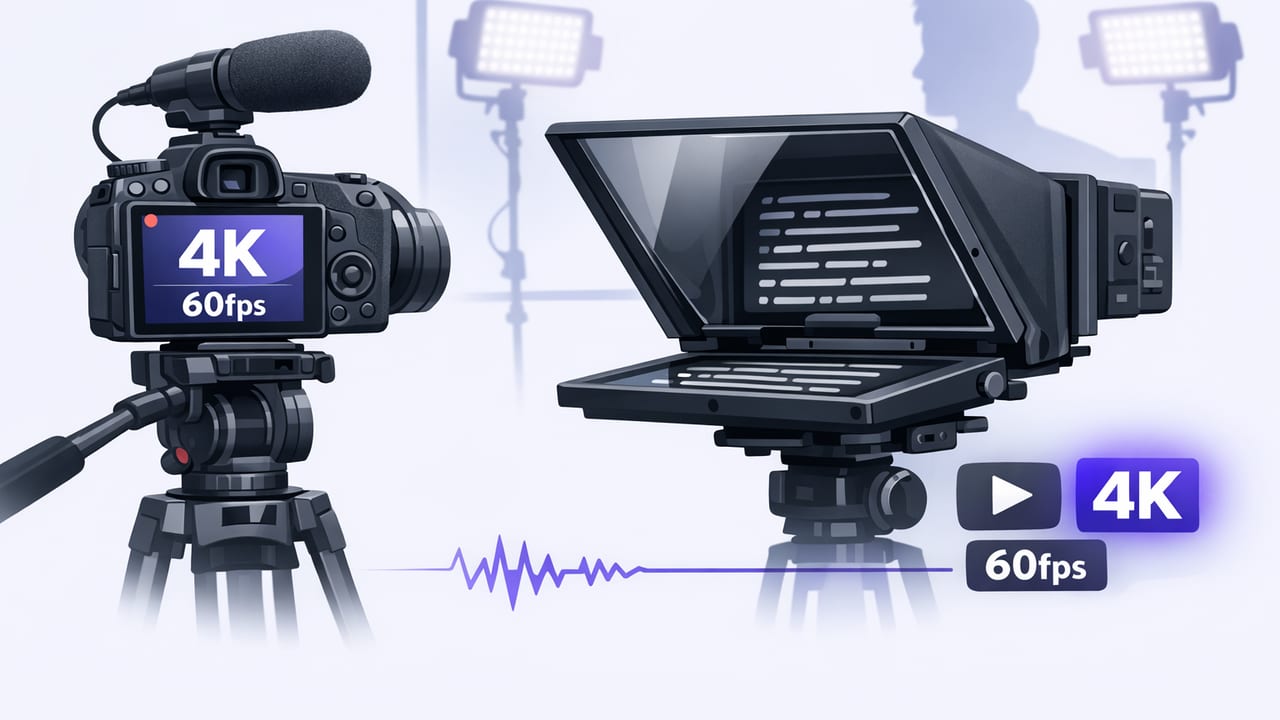
If you want footage that looks crisp, feels smooth, and still lets you deliver a tight script, learning to record 4k 60fps with teleprompter on an iPhone is one of the best upgrades you can make to your creator workflow. The challenge is that 4K/60fps is demanding: it can expose lighting issues, push storage and battery, and make your setup more sensitive to heat—especially when you’re also running a teleprompter overlay and capturing clean audio.
This guide breaks down a practical, repeatable setup for scripted talking-head videos, product demos, and tutorials—so you can maintain eye contact, read naturally, and still get a high-end 4K/60 look.
Why 4K/60fps changes your teleprompter workflow
Many creators pick 4K/60 for one (or more) of these reasons:
- Smoother motion for hand gestures, screen demos, and camera moves.
- Cleaner slow-motion options (conforming 60fps to 30fps gives you 50% slow motion).
- More flexibility in editing—4K lets you crop, punch in, or reframe for vertical platforms while keeping detail.
But 60fps also needs more light and more processing. That matters when you’re reading from a teleprompter, because you want the delivery to look relaxed—not like you’re fighting flicker, noise, or dropped frames.
Pre-flight checklist: what you need before you hit record
Before you start filming, run through these basics. They solve most “why does my 4K/60 look bad?” problems.
1) Storage headroom (don’t guess)
4K/60 files get big fast. Leave generous free space so your iPhone doesn’t stutter, overheat sooner, or stop recording.
- Aim for at least 15–25 GB free for short sessions.
- For long-form takes, keep 50 GB+ free if possible.
2) Battery and heat management
- Start above 50% battery (or use power).
- If plugged in, prefer a reliable charger and avoid charging in direct sun.
- Remove thick cases if your phone tends to overheat.
3) Clean lens + stable support
- Wipe the lens with a microfiber cloth (fingerprints ruin contrast).
- Use a tripod; if handheld, use stabilization and keep movements slow.
Dial in iPhone camera settings for 4K/60 teleprompter shots
To record 4K/60 smoothly while reading a script, you want consistent exposure and predictable motion. Auto settings can “breathe” (brighten/dim) mid-sentence, which looks amateurish and makes cuts harder.
Frame rate and shutter: the key relationship
A common cinematic guideline is the “180-degree shutter rule.” At 60fps, a natural-looking shutter speed is around 1/120. Not every iPhone camera app exposes shutter controls, but the goal remains:
- 60fps + fast enough shutter to avoid smear
- Enough light so the phone doesn’t crank ISO and add noise
Rule of thumb: If your 4K/60 footage looks noisy indoors, it’s usually a lighting problem, not a camera problem.
HDR considerations
HDR can look great, but it can complicate editing and matching clips. If you batch-produce scripted videos and want a consistent look, consider testing both workflows:
- HDR on: more highlight detail, can look punchy out of camera.
- HDR off: often easier to color match across takes.
Lock exposure and focus (so the teleprompter doesn’t “hunt”)
When you’re reading, you’ll naturally move your head slightly. If focus continuously hunts, your face can pulse between sharp/soft. Fix this by:
- Setting focus on your eyes/face.
- Locking exposure so brightness doesn’t shift mid-paragraph.
- Keeping your position consistent (mark the floor if needed).
Lighting for 4K/60: avoid noise and flicker
60fps needs more light than 24/30fps because each frame has less time to gather light. If your lighting is marginal, the phone raises ISO, which looks grainy—especially on skin tones.
Best simple setup for talking-head scripts
- Key light at ~45° from your face (softbox or diffused LED).
- Fill (reflection or second light) to soften shadows.
- Back/edge light optional, helps separation from background.
Prevent flicker (critical at 60fps)
Some LEDs flicker depending on dimmer settings and local power frequency. If you see subtle banding or pulsing:
- Avoid extreme dimming; increase distance instead.
- Use higher-quality lights rated “flicker-free.”
- Test a 10-second clip before recording the full script.
Teleprompter scrolling modes: choose what keeps 60fps feeling natural
Your teleprompter mode impacts delivery pace and how much you move (which affects focus, framing, and perceived smoothness). Here’s a practical comparison:
| Mode | Best for | Watch out for |
|---|---|---|
| Voice-following | Conversational delivery, flexible pacing | Very noisy rooms can confuse tracking |
| Fixed-speed scrolling | Short-form scripts, consistent cadence | Rushing if you stumble; practice helps |
| Timed scrolling | Ads, promos, or strict time windows | Can feel robotic if timing is too tight |
Formatting scripts for better eye contact
Small script tweaks make a big difference on camera:
- Write in short lines (your eyes travel less).
- Use bold for emphasis words and pauses.
- Insert breath marks like “(beat)” or “(smile)” to stay natural.
- Spell out tricky names phonetically.
Audio: the fastest way to sound “pro” in 4K/60
High-resolution video makes bad audio feel even worse. If you’re recording 4K/60 with a teleprompter, prioritize consistent vocal capture.
Recommended mic options
- Wired lav: reliable, great value, minimal latency issues.
- Wireless lav: more freedom, great for standing shots.
- Shotgun on stand: clean sound if placed close (just out of frame).
Quick audio checks before each take
- Do a 5-second test recording with your loudest line.
- Listen for clipping (harsh distortion) and room echo.
- Turn off fans/AC temporarily if possible.
Stabilization and framing: keep the “smooth” in 60fps
60fps can make jitter more noticeable because motion is clearer. For teleprompter videos, the goal is “stable and intentional.”
- Tripod first for scripted delivery.
- If handheld, use a grip and keep elbows tucked.
- Frame with enough headroom for captions (especially vertical crops).
Export strategy: 4K master, platform-ready versions
A smart workflow is to keep a high-quality master and create versions optimized for where you post.
Suggested deliverables
- Master: 4K/60 (archive, repurposing, future-proofing).
- YouTube: 4K (or 1440p) at 30 or 60 depending on style.
- Reels/TikTok: 1080×1920 (vertical), usually 30 or 60.
On-device subtitles: faster, more private
Captions often increase retention and accessibility, but uploading drafts to cloud services can be a privacy concern—especially for scripts, client work, or unreleased product info. If you can generate subtitles on-device, you keep drafts local and speed up turnaround without extra accounts or uploads.
A repeatable “script-to-video” workflow (step-by-step)
- Finalize the script (read aloud once; fix tongue twisters).
- Set teleprompter formatting: larger font, shorter lines, highlight key words.
- Set camera to 4K/60, lock focus/exposure, and confirm storage.
- Light the scene so ISO stays low (soft key light, avoid flicker).
- Record a 10-second test: check sharpness, skin tones, and audio.
- Record in sections (intro, body, CTA) to reduce retakes and heat.
- Edit quickly: trim mistakes, tighten pauses, normalize audio.
- Add subtitles and export platform sizes.
Troubleshooting: common 4K/60 teleprompter problems
Problem: Video looks grainy indoors
- Add more light (closest fix).
- Move the key light closer and diffuse it.
- Consider dropping to 30fps if lighting can’t improve.
Problem: Phone stops recording or gets hot
- Record shorter segments.
- Close background apps and avoid charging in heat.
- Lower screen brightness (teleprompter overlays can add load).
Problem: Eye line looks off
- Place the script closer to the lens area.
- Increase font size so you can read with smaller eye movements.
- Shorten lines and add more paragraph breaks.
Problem: Captions cover your face in vertical crops
- Frame slightly higher/wider in the original 4K shot.
- Leave “caption safe” space in the lower third.
Optional: naming your takes for faster editing
If you record multiple takes, a simple naming convention saves time later. You can paste this into your notes app as a template:
Project: ________
Scene: A-roll talking head
Take: 01 / 02 / 03
Notes: best energy / cleanest delivery / audio issue
Putting it all together
To reliably record 4k 60fps with teleprompter on iPhone, focus on four pillars: light (enough to stay clean), locked settings (no exposure hunting), audio (external mic when possible), and a teleprompter mode that matches your speaking style. Once those are stable, your workflow becomes repeatable—and your videos look consistent across sessions.
If you’re looking for an iPhone teleprompter workflow that combines script reading, 4K/60 capture, and on-device subtitle generation with a privacy-first approach, an app like CueCam can fit neatly into that process.
