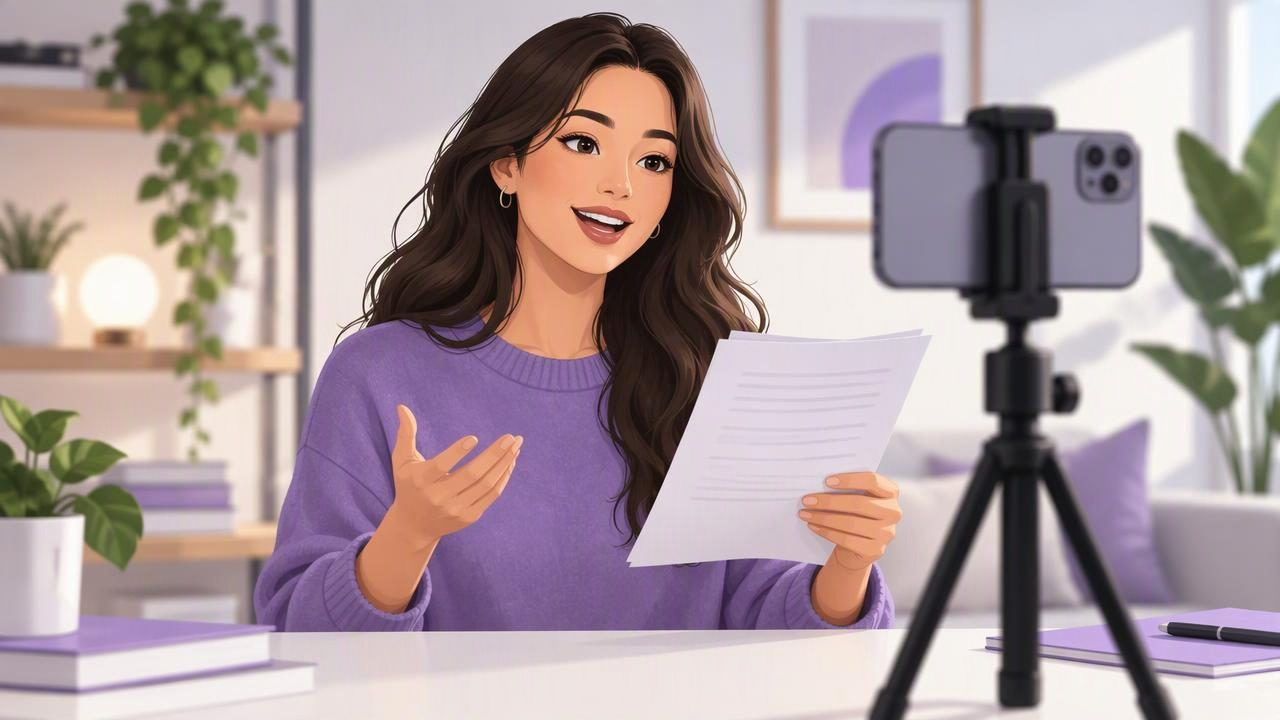
Reading a script while recording on iPhone can make a video clearer and easier to finish, especially when you need to explain several steps or get a precise message across. The challenge is keeping your delivery conversational while your eyes follow the words. A workable setup depends on where the script appears, how it moves, and how close the camera lens is to your reading line.
You can place your script beside the phone, read it from a second screen, or use an iPhone teleprompter app that displays text near the camera as you record. Each option has trade-offs. This guide explains how to choose one, prepare a short script, set a natural pace, and check your video and audio before recording a full take.
Choose a script-reading method for your setup
Paper or a nearby screen is the simplest option when you only need a few prompts. It does not require a teleprompter app, but looking down or sideways can be noticeable in a close-up. Put the prompts as near to the lens as possible, and use short phrases rather than full paragraphs.
A second device can show a longer script while your iPhone records. Position it directly behind or just beside the phone, with the text close to the camera’s height. This approach separates reading from recording, but your eye line may still shift, and you will need a way to keep both devices steady.
A teleprompter app on the iPhone can put the script close to the front camera and, depending on the app, let you record in the same workflow. That can reduce the need to move your gaze between devices. Check that the app supports the recording setup you want; app functions, voice tracking, and available recording options can vary by device and language.
Place the camera before adjusting the script
Start with the lens, not the text. Set the iPhone at roughly eye level and frame yourself in the orientation you need for the finished video. A vertical frame is common for short-form social posts, while a horizontal frame may suit a lesson or presentation. The right choice depends on where the video will be watched.
Keep the phone stable on a stand or another secure support. Then position the displayed script as close to the lens as the interface allows. The closer your reading line is to the lens, the less distance your eyes need to travel. Avoid putting a long block of text far below the camera: even a smooth read can look like you are looking away from the viewer.
Check the frame for distractions and make sure your face is clearly visible. If you use the rear camera, you may need another way to monitor framing. Do not assume the screen view will show exactly what your final recording looks like; make a brief test and review it before continuing.
Write for speaking, not silent reading
A script that looks tidy on a page may be difficult to say naturally. Break long sentences into shorter thoughts, use words you would actually say aloud, and put a line break where you want to pause. These breaks also make it easier to find your place after a stumble.
For example, instead of writing one dense sentence such as This quick setup helps you share the main steps clearly while keeping your attention on the camera, split it into short lines:
This setup makes the main steps easier to share.
Keep your attention near the camera.
Then show one example.
Use punctuation to guide your delivery, but do not treat every comma as a mandatory pause. Add a note such as [pause] only when a specific beat matters. If a phrase feels awkward during rehearsal, rewrite it rather than trying to force a perfect read.
Set a pace you can follow comfortably
If text scrolls too quickly, you may rush, lose your place, or sound as if you are chasing the words. If it moves too slowly, you may wait between lines and lose your natural rhythm. Begin with a slower pace than you think you need, read a short section aloud, and make a small adjustment after reviewing the test.
Teleprompter apps may offer fixed-speed scrolling, timed scrolling, or voice-following word tracking. Fixed speed moves text at a set rate, so it is predictable but does not respond to pauses. Timed scrolling can be useful when you know roughly how long a script should take, though reading speed still varies. Voice-following attempts to move with your speech, but performance can depend on the app, device, language, and recording conditions. It may not respond as expected to pauses, background noise, unfamiliar names, or changes in how you speak.
Whichever mode you choose, use a short rehearsal to find a comfortable setting. Leave room to breathe and emphasize key words. Do not increase the pace just to squeeze a detailed script into a short video; trim or simplify the script instead.
Try a short example before recording the whole video
Imagine you are recording a 30-second explanation of how to make a simple desk setup more comfortable. Write three short points: raise the screen, keep your shoulders relaxed, and take a movement break. Put those points into spoken sentences, with a pause between each one. This gives you enough text to test eye line and scrolling without investing time in a complete take.
- Frame the iPhone and place the script near the lens.
- Read the first point at your normal speaking pace.
- Pause briefly, then continue through the other points.
- Watch the test for eye movement, rushed words, and awkward gaps.
If your eyes visibly travel across a wide text area, shorten the displayed line width or move the script closer to the lens if the app allows it. If you sound rushed, slow the scroll or shorten the wording. If the pauses feel unnatural, adjust the line breaks. Change one thing at a time so you can tell what improved the result.
Do a quick audio check
Before a full recording, capture a short sample and listen to it with headphones or at a comfortable playback volume. Check that your voice is clear, that the room is not adding distracting noise, and that your words do not trail off at the ends of sentences. A picture that looks polished cannot compensate for audio that is difficult to understand.
If you use an external microphone, confirm that the iPhone and recording app recognize your chosen setup. Do not assume every microphone, adapter, or app combination will work the same way. Record a new test after changing your audio setup, and make sure the microphone is not rubbing against clothing or placed too far away.
Review the take before relying on captions
Watch the beginning, middle, and end of your recording. Look for a steady eye line, an even pace, and any point where you lose your place. Listen for room noise and clipped words. If the video is intended for a particular platform, check that the framing and important on-screen details still work in its format.
Captions can help viewers follow a video with the sound off or understand spoken content more easily. Some recording and editing apps can generate subtitles on the device, but language support and availability depend on the app and device. Automatic captions can mishear names, specialist terms, accents, or speech recorded in noisy conditions. Review the text, correct mistakes, and check that captions are timed and positioned clearly before sharing.
Recording resolution is another choice to make deliberately. If your recording app and iPhone support a higher-resolution option such as 4K, it may be useful when you want more detail or plan to crop the image later. Higher settings can also create larger files, and supported options vary by device and app. Choose a setting that fits the project rather than assuming the highest option is always necessary.
Common problems and practical fixes
- Your eyes look off-camera: Move the script closer to the lens, reduce the width of the text area, or use brief prompts instead of full sentences.
- You keep losing your place: Add clearer paragraph breaks, shorten long lines, and rehearse the opening before recording.
- The delivery sounds flat: Mark the words that need emphasis and allow yourself to pause. Reading every line at the same speed can sound mechanical.
- The scroll does not match your speech: Try another available scrolling mode or adjust the pace. Voice tracking is not a guarantee of perfectly synchronized movement.
- The video feels over-rehearsed: Use the script for accurate wording, but speak to the camera as if explaining the idea to one person. A small natural pause is usually better than racing to keep up.
Make the workflow repeatable
A reliable script-to-video routine does not require memorizing every line. Write for speech, position the camera and text carefully, rehearse a short section, and make a quick audio and framing test. Then record in manageable sections if that helps you stay relaxed. Review the result before spending time on detailed edits or captions.
For an iPhone-specific walkthrough, CueCam’s guide to recording video while reading a script explains the on-camera reading workflow. The same basic principles apply whichever tool you use: keep the words close to the lens, choose a pace you can speak naturally, and verify the finished take rather than relying on the setup alone.
