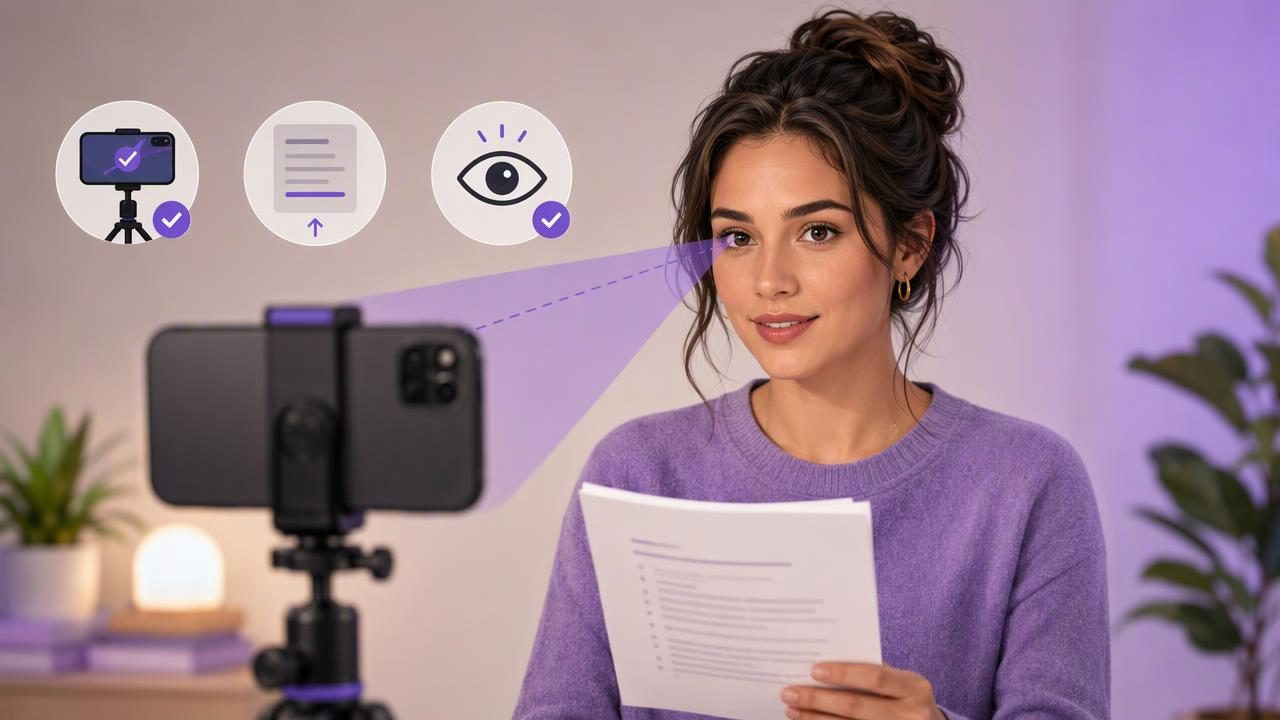
Strong eye contact with the camera can make a scripted video feel more personal, credible, and easier to watch. Whether you are filming an educational Reel, a client update, a product walkthrough, or a YouTube introduction, viewers usually interpret the camera lens as your eyes. Looking too far away from it—even when you are simply reading useful notes—can make your delivery feel disconnected.
The challenge is that reading and speaking naturally are different tasks. Your eyes need to follow the script, while your voice needs to sound conversational and your attention needs to remain directed toward the lens. Fortunately, you do not need to memorize every line to improve on-camera eye contact. A well-prepared script, careful phone placement, and an appropriate scrolling pace can make a meaningful difference.
This guide explains how to read a script while maintaining better camera eye contact, including a practical iPhone setup, common mistakes, and realistic limitations to keep in mind.
Why eye contact with the camera matters
In a face-to-face conversation, eye contact signals attention. Video changes the mechanics, but not the expectation. When you look directly into the lens, the viewer is more likely to feel that you are speaking to them rather than reading information beside them.
Consistent eye contact is especially helpful for:
- Educational videos where viewers need to follow instructions or explanations.
- Sales and client communications where confidence and clarity matter.
- Social media videos where the first few seconds affect whether people continue watching.
- Interviews and self-tapes where a focused delivery can support a professional impression.
- Leadership updates that need to feel direct rather than overly formal.
That does not mean you must stare into the lens without blinking or moving. Natural delivery includes brief glances, facial movement, pauses, and expression. The goal is not perfect visual stillness. It is to keep your script close enough to the lens that viewers do not repeatedly notice your eyes drifting away.
The core problem: the distance between the script and lens
The farther your script is from the camera lens, the more obvious your eye movement becomes. A document on a laptop below your phone may be easy to read, but your gaze will point downward. Notes placed at the side of the screen create sideways eye movement. Even a script displayed near the top of a screen can look unnatural if the lens sits far above it.
This is why teleprompter-style setups are useful: they place words close to the recording camera. On an iPhone, the practical objective is simple: keep the active line of text as close to the front-facing camera as possible without blocking the lens.
Small adjustments matter. Moving a script from the bottom half of the screen to the upper portion may noticeably reduce the appearance of looking down. Shorter lines can also reduce side-to-side scanning, helping your gaze stay centered.
Prepare a script that is easy to read aloud
Eye contact often breaks down before recording starts. A dense, overly formal, or poorly structured script forces you to search for your place. When that happens, your face tightens, your eyes move more often, and your delivery becomes less natural.
Write for speaking, not for reading silently. A spoken script should sound like a person explaining an idea to one listener.
Use short sentences and one idea at a time
Long sentences increase the chance that you will rush, lose your place, or look away while trying to process the next clause. Break complex thoughts into short spoken units.
| Less natural for video | Easier to read on camera |
|---|---|
| “In this video, I would like to provide several important considerations regarding the process.” | “Here are three things to check before you record.” |
| “It is important to note that consistency can contribute to improved communication.” | “Consistency helps your audience follow you.” |
Add visual breathing room
Format the script in short paragraphs. Leave blank lines between sections, and place key words on their own line if they need emphasis. This makes it easier to find your position after a pause.
Today, I’ll show you one simple setup.

First, place your phone at eye level.

Then, keep your script close to the lens.

Finally, slow down before your key point.
Do not treat every word as mandatory. If a phrase does not sound right while recording, say it differently. A clear explanation is usually more valuable than delivering a script word-for-word.
Set up your iPhone at eye level
Camera height has a major effect on both eye contact and comfort. If your iPhone is too low, you will naturally look down. If it is too high, you may lift your chin and create an awkward angle. Position the front camera roughly at your eye line, then sit or stand in a stable position.
- Place the iPhone on a tripod, stand, or secure support.
- Raise or lower the device until the front camera is close to your natural eye level.
- Center yourself in the frame before opening the script.
- Keep enough distance to avoid an overly wide-angle close-up.
- Lock in your position so you are not repeatedly adjusting the phone during takes.
If you use a rear camera for a particular shot, maintaining eye contact can be harder because you may not see your text and framing in the same way. A separate teleprompter accessory can help in that situation, but it adds setup complexity. For direct-to-camera videos where a natural delivery is the priority, a front-camera workflow may be simpler.
Choose a scrolling method that matches your delivery
The right script movement depends on how consistently you speak. There is no single best mode for everyone.
Fixed-speed scrolling
Fixed-speed scrolling moves text at a chosen rate. It can work well when you have rehearsed the script and know your speaking pace. Start slower than you think you need. People often speed up when the camera starts recording.
The downside is that the text keeps moving if you pause, restart a sentence, or add an unscripted explanation. If you frequently improvise, fixed speed may create pressure rather than reduce it.
Timed scrolling
Timed scrolling is useful when your video needs to fit a planned duration, such as a 30-second social clip or a one-minute announcement. You can estimate the total length and set a pace around it.
However, timing is only an estimate. Your actual speaking speed can change with emphasis, pauses, or retakes. Leave room for natural pauses instead of trying to fill every second.
Voice-following tracking
Voice-following word tracking can be helpful when your pace changes from line to line. Rather than forcing your voice to follow the screen, the screen can follow your spoken words. This may support a more relaxed delivery, particularly for explanatory videos.
Its performance can vary based on device capabilities, language support, audio conditions, pronunciation, and the clarity of the recorded voice. It is sensible to test the feature with your exact script before relying on it for an important recording.
Use a practical recording routine
A repeatable pre-recording routine can reduce distractions and make eye contact easier to maintain. Before filming the full video, take two or three minutes to check the setup.
- Read the first paragraph aloud once at a comfortable pace.
- Check whether the text is close enough to the lens.
- Increase the font size until you can read without squinting.
- Reduce scrolling speed if your eyes feel rushed.
- Record a short audio test and listen for room noise, clipping, or a microphone that is too far away.
- Watch the test with the sound off to evaluate visible eye movement.
Watching without sound is a useful diagnostic step. If your eyes seem to track clearly from left to right or noticeably downward, adjust text placement, font size, or line length before recording the final take.
A concrete example: filming a 45-second tutorial introduction
Imagine you need to record a 45-second introduction to a tutorial. Instead of writing one dense paragraph, divide it into four short sections: hook, promise, steps, and transition.
“Your iPhone videos can look more confident without memorizing a full script. In this tutorial, I’ll show you how to position your phone, place your text near the lens, and set a pace that feels natural. Let’s start with camera height.”
Place the text in short lines near the upper part of the display, close to the camera. Rehearse the opening once. If you tend to pause after “full script,” add a line break there. Then record the introduction in separate takes if needed.
This approach is often more effective than trying to record a perfect 45-second monologue in one attempt. You can trim pauses and combine clean sections later, while still preserving direct camera eye contact in each segment.
Common mistakes that make eye contact look unnatural
- Reading from below the phone: A laptop, desk notes, or another device positioned underneath creates a persistent downward gaze.
- Using text that is too small: Squinting and searching for words can make you appear tense.
- Scrolling too quickly: Fast text encourages rapid eye movement and rushed speech.
- Writing overly long lines: Long lines make viewers more likely to notice left-to-right eye tracking.
- Trying to sound perfect: Overly rigid delivery can feel less engaging than a clear, slightly conversational take.
- Skipping the audio test: Great visual eye contact cannot compensate for unclear sound.
Know the limits of a teleprompter-style setup
No app or setup can make every glance invisible. If the script is long, the font is large, or you need to reference detailed numbers, viewers may still notice some eye movement. This is normal. The aim is improvement, not an unrealistic promise of perfect gaze.
For highly technical scripts, consider recording in shorter sections. For content that requires precise figures, display them briefly on screen as graphics rather than reading every number aloud. For interviews or personal stories, an outline may work better than a complete script because it allows more natural phrasing.
Lighting, framing, audio, and pacing also influence how professional a video feels. Eye contact is important, but it is one part of a complete creator workflow.
Make direct-to-camera videos easier to repeat
The most sustainable approach is to create a setup you can reproduce quickly: phone at eye level, short spoken script, readable text near the lens, a realistic scrolling pace, and a brief audio check. Over time, you will learn your comfortable font size and speaking speed, which reduces the need for repeated trial and error.
If you want an iPhone-based way to record while following a script, CueCam provides a helpful guide to recording video while reading a script. Whatever tool you use, focus first on script placement and delivery pace: they are the foundations of more natural eye contact with the camera.
