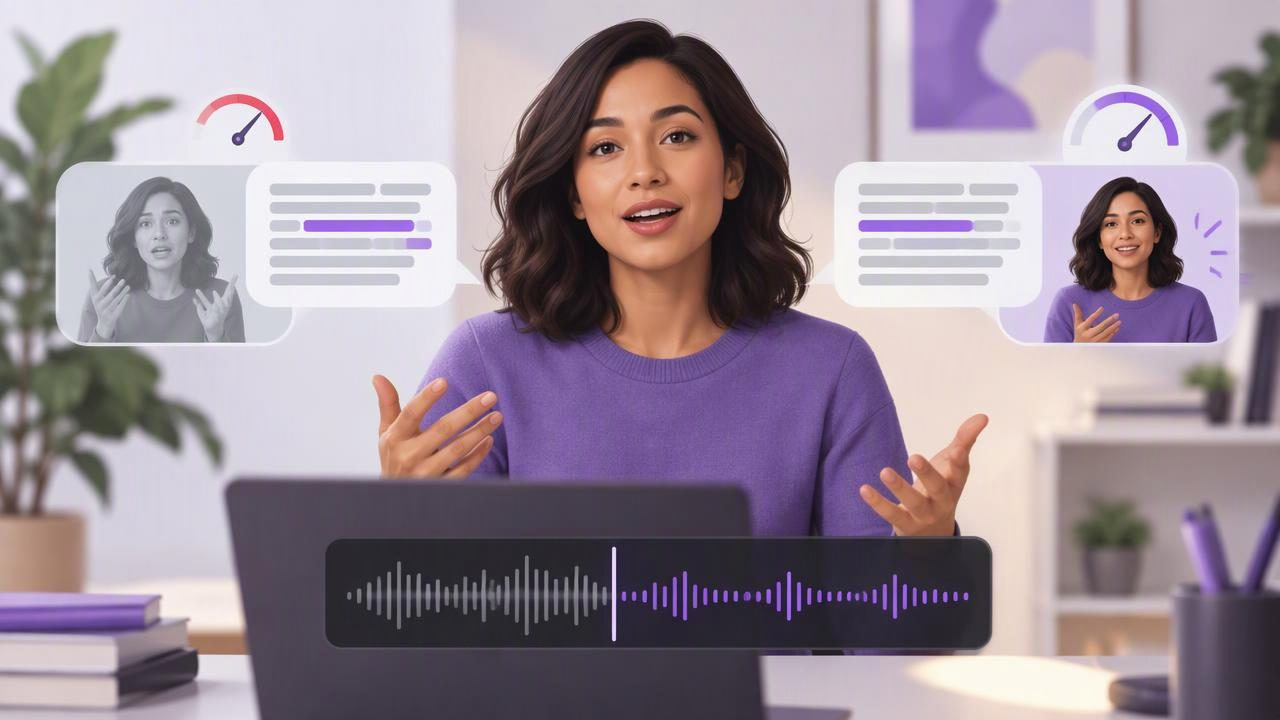
A presentation can sound rushed even when every word is clear. Or it can feel slow because the speaker pauses in unexpected places. Automatic captions offer a practical way to review the timing of a recorded presentation: you can see when phrases arrive, where pauses occur and whether the spoken delivery matches the intended message.
Captions do not measure presentation quality or automatically fix delivery. They are a review aid. Pair them with a simple timing check and a focused re-record, and you can make a script-to-video presentation easier to follow without trying to memorize every line.
What captions can reveal about speaking pace
When you listen to your own recording, it is easy to focus on your voice or appearance and miss the rhythm of the message. Captions add a visual layer. A long run of words appearing rapidly can signal a dense sentence or a section delivered too quickly. A large gap between caption phrases may point to a useful pause—or a hesitation that interrupts the thought.
Use captions to ask specific questions, rather than treating them as a score:
- Does an important point have enough space to register?
- Do you rush through names, numbers or unfamiliar terms?
- Are there pauses between ideas, or only at the ends of sentences?
- Does the wording on screen match what you intended to say?
Caption timing is an imperfect guide. Recognition systems may combine or split phrases differently, and punctuation may not reflect your actual pauses. Confirm what you notice by listening to the audio and watching the video.
Start with a realistic speaking target
There is no single correct pace for every presentation. A brief social video may benefit from brisk delivery, while an instructional explanation often needs more room for unfamiliar ideas. As a starting point, many speakers find a range of roughly 120 to 150 words per minute useful for clear spoken explanations. Treat it as a planning estimate, not a rule. Your subject, audience and natural delivery all matter.
For example, a three-minute update might contain about 360 to 450 spoken words before you account for pauses, demonstrations or visual changes. If the script contains 520 words, you may need to shorten it or allow more time. Trying to force every word into a fixed duration can make the presentation sound hurried.
Mark a few intentional pauses in the script: after a key result, before a transition, or after a question you want viewers to consider. A pause is useful when it helps the audience process information; a pause after every sentence can make a short talk feel disconnected.
Use a concrete test: a three-minute project update
Imagine recording a short update for colleagues about a project milestone. Your draft says:
“We finished the first review on Tuesday. The team found two issues in the onboarding flow. The next step is to test a revised version with a small group, then decide whether to make the change available to everyone.”
On paper, this is straightforward. In a recording, you might rush through “two issues in the onboarding flow” because it is a compact phrase, then pause too long before the next step. After recording, review the captions alongside the footage. If the key finding flashes by in a dense block, try emphasizing it with a short pause before or after the phrase. If the captions show a long gap between the review and next step, check whether you were thinking about the next line rather than making a deliberate pause.
Then adjust the delivery, not just the timer. You could say: “The team found two issues in the onboarding flow. That is our main finding. Next, we will test a revised version with a small group.” The added sentence makes the point explicit. If you need to keep the original length, remove less important wording elsewhere rather than speeding up the whole update.
Make the script easier to speak
Better pacing often begins with editing. Written sentences can be much harder to say aloud than they look on a screen. Read the draft at speaking volume before recording. Replace phrases that make you stumble, split sentences that carry several ideas, and write numbers in a way that is easy to say.
- Give each sentence one main job. Use a new sentence when you move from context to a result or action.
- Use spoken transitions. Phrases such as “Here is why that matters” help listeners follow a change in direction.
- Trim repeated setup. If two sentences introduce the same point, keep the clearer one.
- Mark emphasis sparingly. Highlight a few words or add a pause cue, rather than styling the entire script.
Read the revised script once without recording. If you repeatedly lose your place or run out of breath, simplify the wording. A teleprompter can help you keep your eyes near the camera, but it cannot make an awkward sentence sound natural by itself.
Record in short sections and review the rhythm
For a longer presentation, recording in sections can make it easier to adjust one passage without repeating the entire talk. Keep the camera at a comfortable eye line and position the script close to the lens. If you use an iPhone teleprompter, choose a text size and scroll rate that let you read conversationally instead of chasing the words. Voice-following and other scrolling modes can behave differently depending on the app, device and recording conditions, so check the mode you plan to use before relying on it.
Before the main take, record a short audio test. Say a few lines at your intended pace, then listen back. Check that your voice is clear and that room noise is not distracting. If you use an external microphone, make sure it is connected and being used as intended; compatibility and setup can vary. A technically sharp image cannot compensate for speech that is difficult to hear.
After recording a section, review only what you need to diagnose. Watch once for the overall flow, then replay any moment where the captions bunch together or a pause feels unusually long. Ask whether the issue is the script, the delivery, or simply the way the caption tool grouped the words. Change one thing at a time so you can tell whether the retake feels clearer.
Use automatic captions as a pacing review, not a verdict
Automatic captions are most useful when you compare the words on screen with the recording. If a caption drops a technical name or substitutes a similar-sounding word, correct it if your editing workflow allows. Do not assume the transcription is accurate just because it looks fluent. Names, acronyms, accents, background noise and specialized vocabulary can affect recognition.
Captions also do not show every feature of speech. They may not capture emphasis, vocal energy or whether a pause feels thoughtful. Watch the video with sound on, and if possible ask someone unfamiliar with the subject to identify the main point. If they miss it, consider clarifying the script before changing your speaking speed.
Check the tool’s language and device requirements before recording a caption-dependent workflow. Some tools process captions on the device, while others may have different requirements. Language availability, processing behavior and editing controls vary. If privacy matters, review where scripts, recordings and captions are stored, and whether an internet connection or account is required.
A practical pacing checklist
- Time the spoken draft. Read it aloud at a comfortable pace and compare the result with your planned video length.
- Simplify difficult lines. Break up sentences that are hard to say in one breath or contain several ideas.
- Set up the camera and script. Keep the reading area close to the lens and adjust the scroll speed or mode before the full take.
- Make a short audio test. Listen for clear speech and distracting noise before recording the presentation.
- Review one pacing issue at a time. Use caption timing to find a moment, then confirm it by watching and listening.
- Retake selectively. Re-record a rushed or unclear section rather than speeding up every line to meet a target.
Build a more natural script-to-video routine
Automatic captions can make pacing problems easier to spot, but the solution is usually a combination of clearer writing, deliberate pauses and a comfortable reading rhythm. A useful routine is to draft for speech, rehearse once, record a short test, and use captions as one signal during review. Keep the parts of the process that help you and avoid chasing perfectly even caption blocks.
If you are recording a scripted presentation on an iPhone, CueCam’s guide to recording video while reading a script offers further context for setting up that workflow. The aim is not to sound like you are reading perfectly; it is to help viewers follow your ideas at a pace that feels clear and human.
